Find and pull content faster with filters on your searches. Filters can use a date range, program, or station to filter out results that are not relevant to you.
If you aren't able to see the Filters panel in the left side of Discovery, ensure your internet browser fits your entire screen.
To apply a filter,
- Create and add a search.
- Click Filters in the left side navigation.
- Create a filter and click the Apply Filters button at the bottom.
Clear applied filters by clicking the clear icon  in the results bar.
Filter by date range
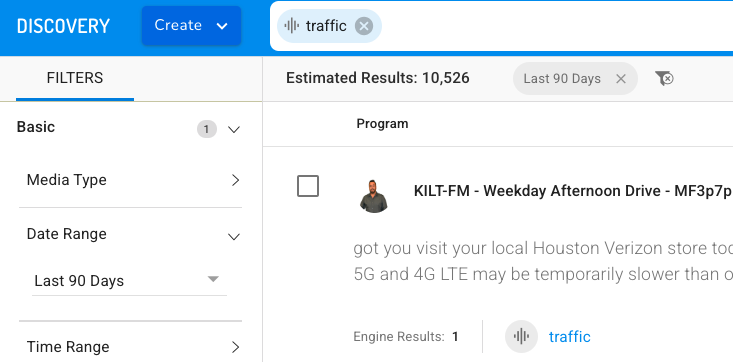
Filtering by date range allows users to hone in on desired spots within their media, while excluding irrelevant results. Your results are automatically filtered to display the Last 30 Days date range.
- Create and add a search.
- Click Filters > Basic in the left side navigation.
- Click Date Range and set whichever parameter you would like by clicking on the downward arrow next to All Time. To select a specific Date Range, click Custom.
- Click the Apply Filters button at the bottom.
[Tip]Leverage the date filter in conjunction with search by time to find content occurring at an approximate time on a given date.
Filter by market
Applying market filters enables users to refine an ad-hoc search by geographic or market area to view all corresponding results. This can be especially helpful when tasked with sorting through multi-market results across your media or locating spots in a specific market for airchecks.
- Create and add a search.
- Click Filters > Markets in the left side navigation.
- Type in your desired market. A series of options will appear related to the market, each with a checkable box.
- Click the Apply Filters button at the bottom.
[Tip]You can target multiple markets together to show cross-market results as needed. To add a new market filter, type in the additional market name(s) as you did with the first selection, and check the corresponding box next to the listed market(s).
Filter by station
Applying a station filter enables users to refine search results in order to target one or more specific radio stations. This is a useful tool during an ad-hoc search to quickly narrow keyword searches by Keyword for Airchecks. If you are unsure of what was said on air, you can use the time filter in conjunction with station filters to conveniently locate your spots.
- Create and add a search.
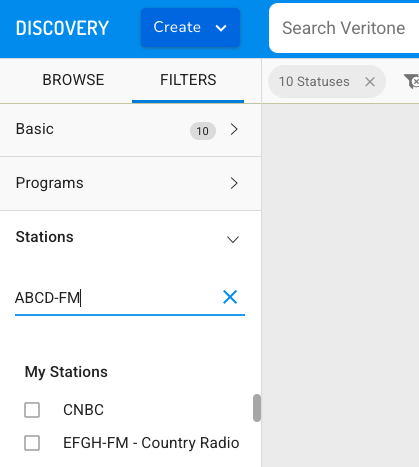
- Click Filters > Stations in the left side navigation.
- Type your station call letters. A series of options related to your search will appear, each with a corresponding checkable box.
- Click the Apply Filters button.
Filter by program
Applying a program filter enables users to refine search results in order to target specific programs or dayparts. This is an efficient way to filter search results if you need to locate airchecks or spots and you know the station, program, or daypart in which it aired.
- Create and add a search.
- Click Filters > Programs in the left side navigation.
- Type in your station’s call letters. Check each relevant box.
- Click the Apply Filters button.
[Tip]You can apply any combination of filters. For example, apply a date filter or station filter with your market filter.