The aiWARE operating system is a powerful platform that satisfies business-critical needs to extract information and insight from hard-to-reach data sources such as video, audio, images, and text. The GUI allows you to interact with various utilities to process or move data.
This overview shows you how to move around in aiWARE and access its powerful capabilities.
aiWARE interface overview
The aiWARE OS utilities and features can be accessed from the top menu bar. Primary utility icons are exposed within the menu bar to allow easy access to important OS-level functions.

At the top right of your screen, find:
- Help center
- Notification center
- App switcher: switch easily between different aiWARE apps
- Utility icon: move between aiWARE centers on the right nav
 Help Center
The Help Center is the central home for any support you may need with your aiWARE account. Find
-
Help docs: our development documentation, overviews, and knowledgebase articles
-
Chat with support: connects you with our Customer Support team through in-app chat, or provides optional application quickstart guides (if applicable)
- In-app guidance: where applicable
To view API documentation or Knowledge articles in a dedicated, full-screen tab, click  to expand.
 Notification center
The Notification Center is available to all applications. Notifications expose timely and important information, such as task completion, new data available, message received, or when something has changed. Notifications will be stacked by the chronological order in which they were created. By default, your current application will be selected for notification. You can always change your notification view to “All Applications” by selecting the dropdown.
Two types of notifications exist:
 App switcher
Select the App Switcher icon to open the App Switcher panel and access available applications for your account. The last six applications that have been accessed from your account will be stored in the Recent Application section of your app switcher.
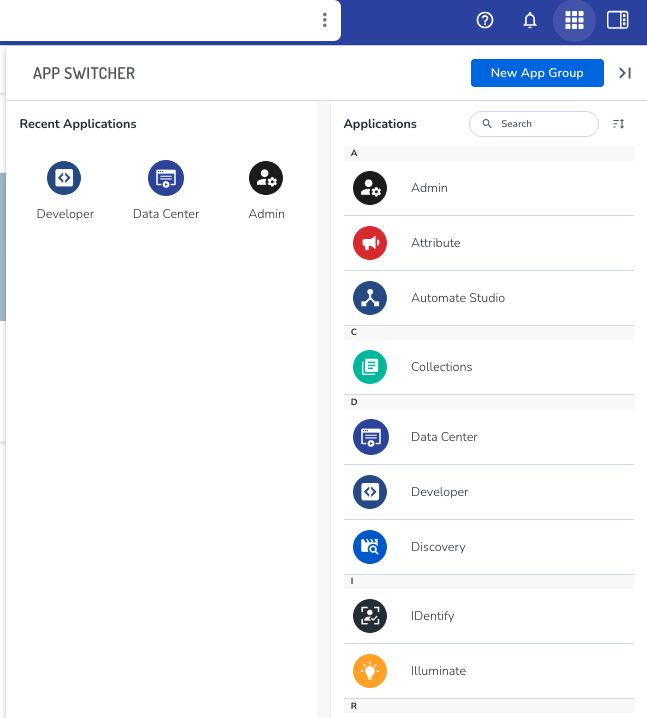
Create an application group
Easily group your applications together by creating a new app group.
- Select the New App Group button from the top right of your App Switcher panel. A new app group will be created in the left column of the App Switcher.
- Give your new App Group a name and click the check icon to save.
- From your application list, drag and drop any application into your new group to save to the group.
Reorder your application groups by hovering over the app name and dragging it to a new position in your group list.
 Utility dock
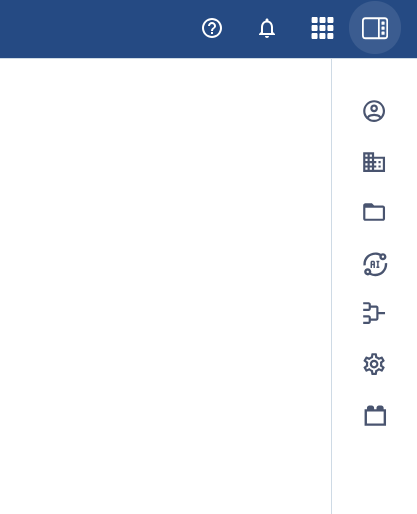
Click to slide the utility dock to the right of your browser window. The dock houses all OS utilities that your account has access to.
 Your profile
Under the V utility doc, click the top icon to access your profile information. Click  to edit:
- Your profile icon
- Your name
- Your phone number
Your email is not editable here. Contact your org administrator for help.
Set your language preference under Settings.
 Your organizations
Under the utility doc, click the  icon to see which organization(s) you belong to. You can switch between orgs if you belong to more than one, and accept invitations to other orgs here by clicking Invites.



