In This Article
- How to produce and view your redacted file
- How to download your redacted file, audit log, and redacted transcript
- How to delete your redacted file
Overview
Once you have completed your review of your auto-detections and applied any audio and manual redactions, your final step is to generate your redacted media file. You will receive a notification in the Notification Bell when it is available. You can view and download the final version in the “Redacted Files” tab of the File Manager Page. Redact only stores the most recent file, so if multiple redacted files have been created, only the latest version is available for download.
Generate and View a Redacted File
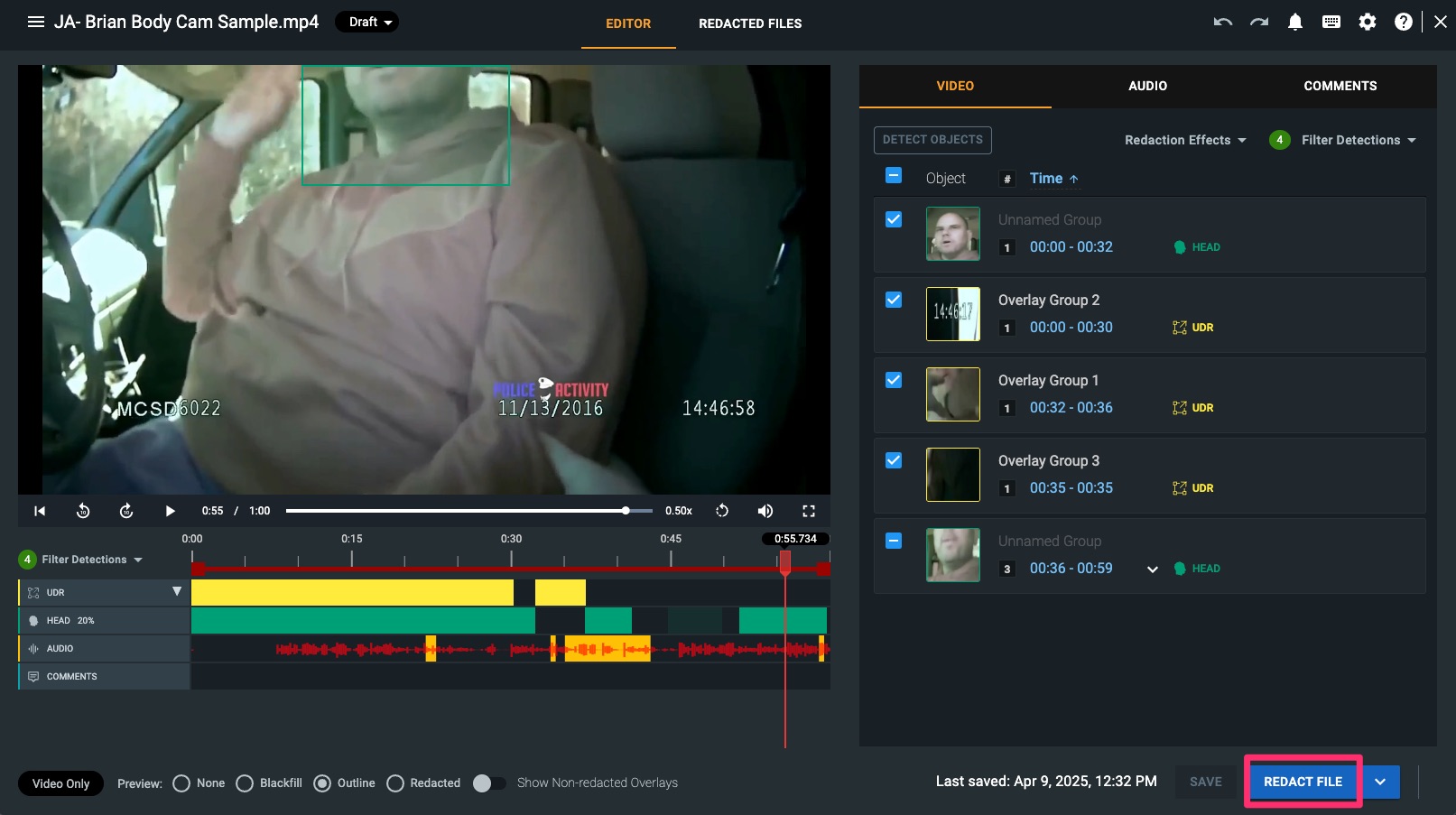
1. Once you have completed all redactions, to apply those redactions and create your redacted file, you’ll select the Redact File button in the lower right corner of the Editor tab.
2. After receiving a notification that the file has completed in your Notification Bell, select the “Redacted Files” tab. Click Play to watch the redacted video and to open the video playback controls.
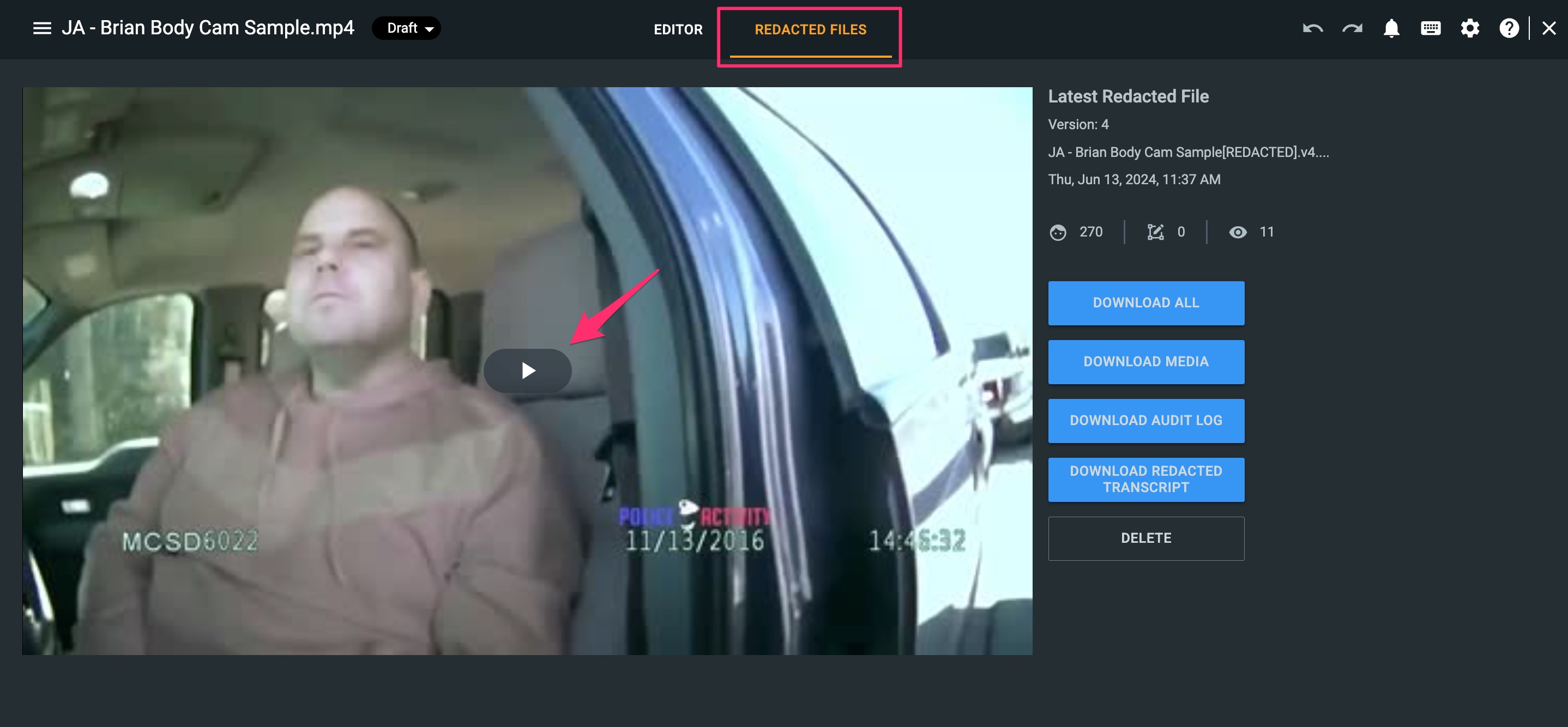
Note: If you need to make any modifications to the redacted file; select the Editor tab, make necessary edits, and select the Redact File button again to reprocess the media and save the latest version of the redacted file.
Download a Redacted File, Audit Log, and/or Redacted Transcript
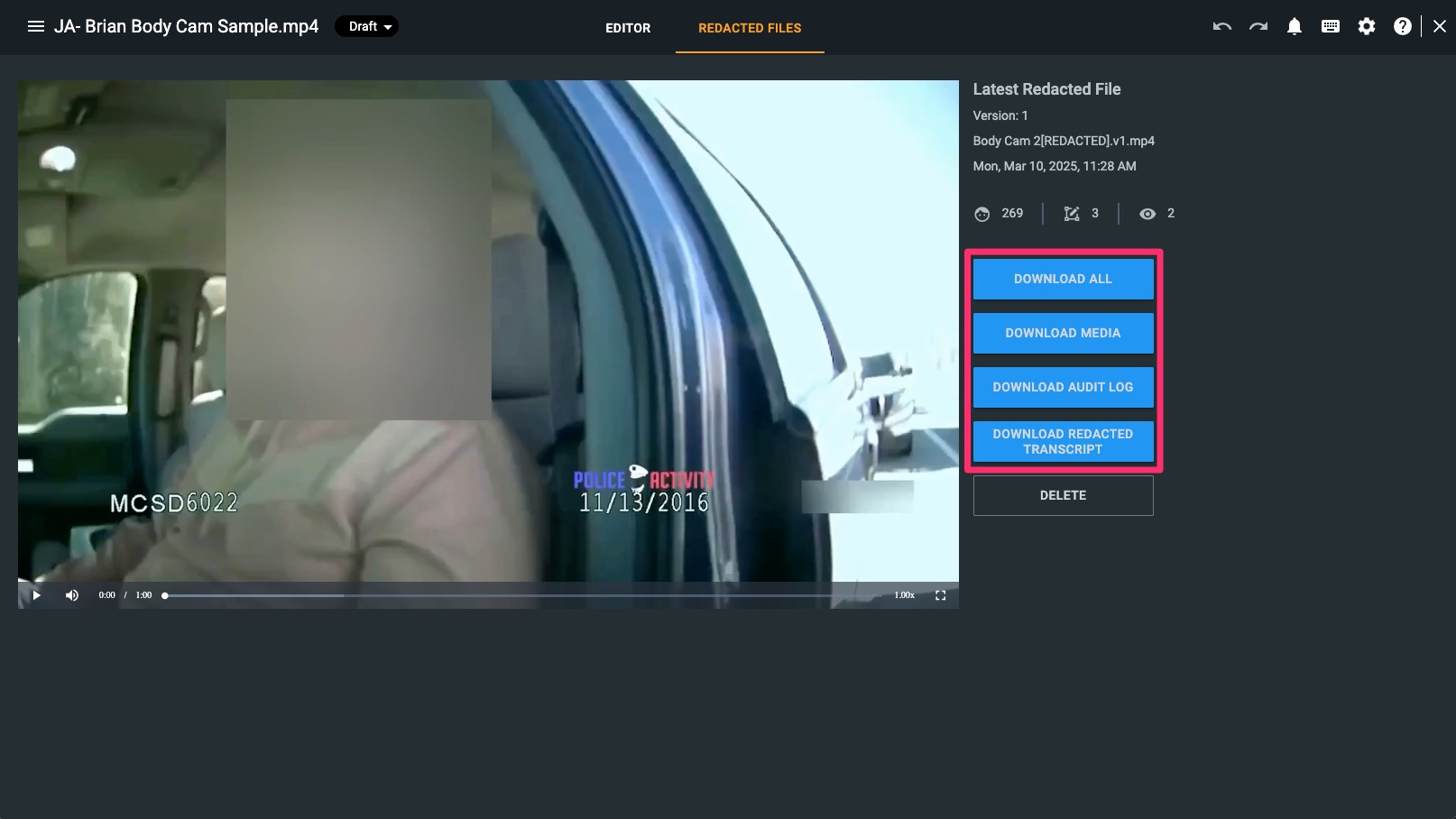
From the Redacted files tab, you have a few options to export your file.
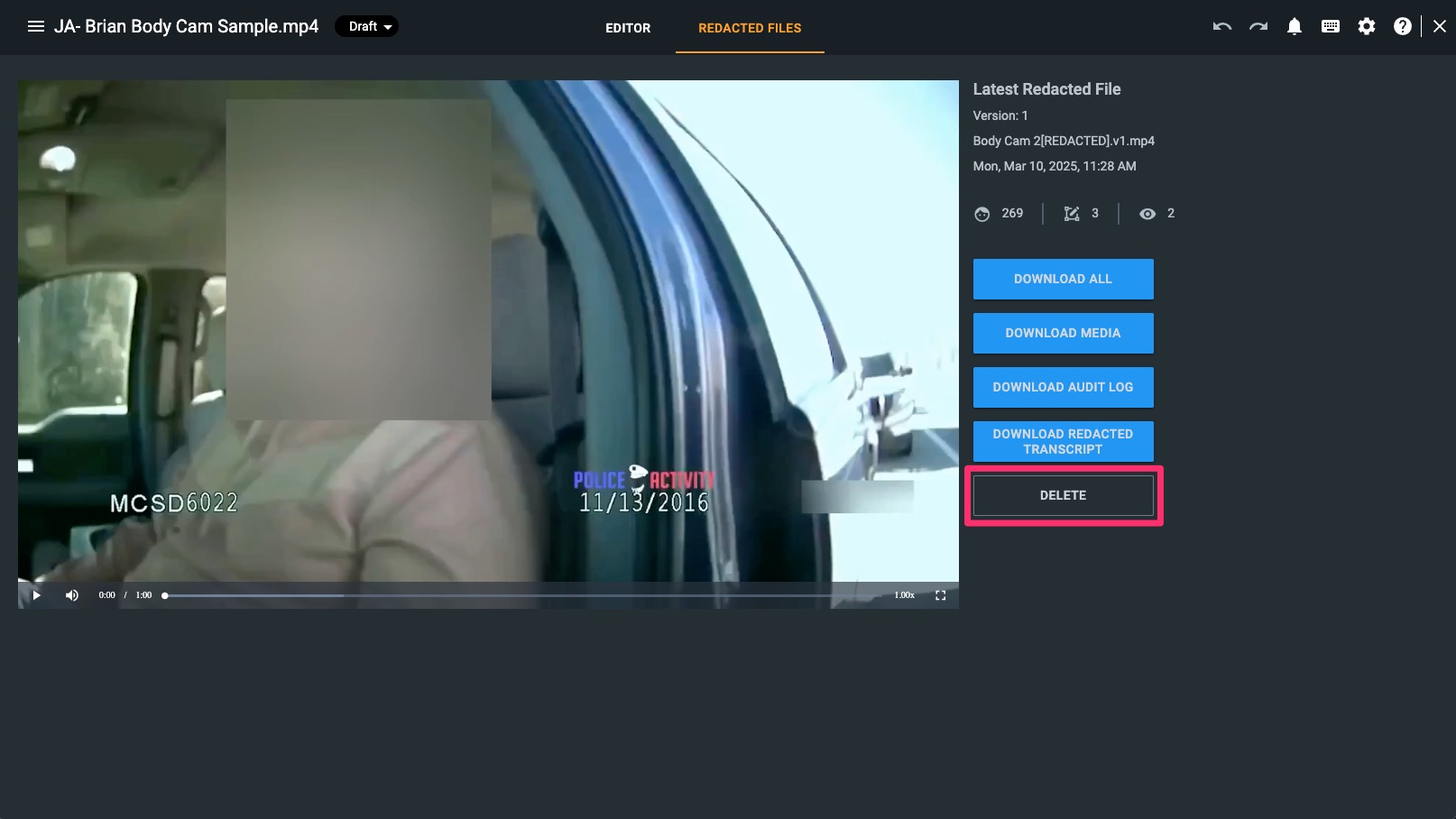
- Click the Download All button to download a zip file containing an mp4 of your redacted file and an audit log.
- Click the Download Media button to download an mp4 or mp3 of your redacted file. If you do not need your audit log, we recommend using this option to reduce download time.
- Click the Download Audit Log button to download only your audit log.
- Select the Download Redacted Transcript button to download a .txt file of your redacted transcript. Note that the downloaded redacted transcript is NOT included when you select Download All.
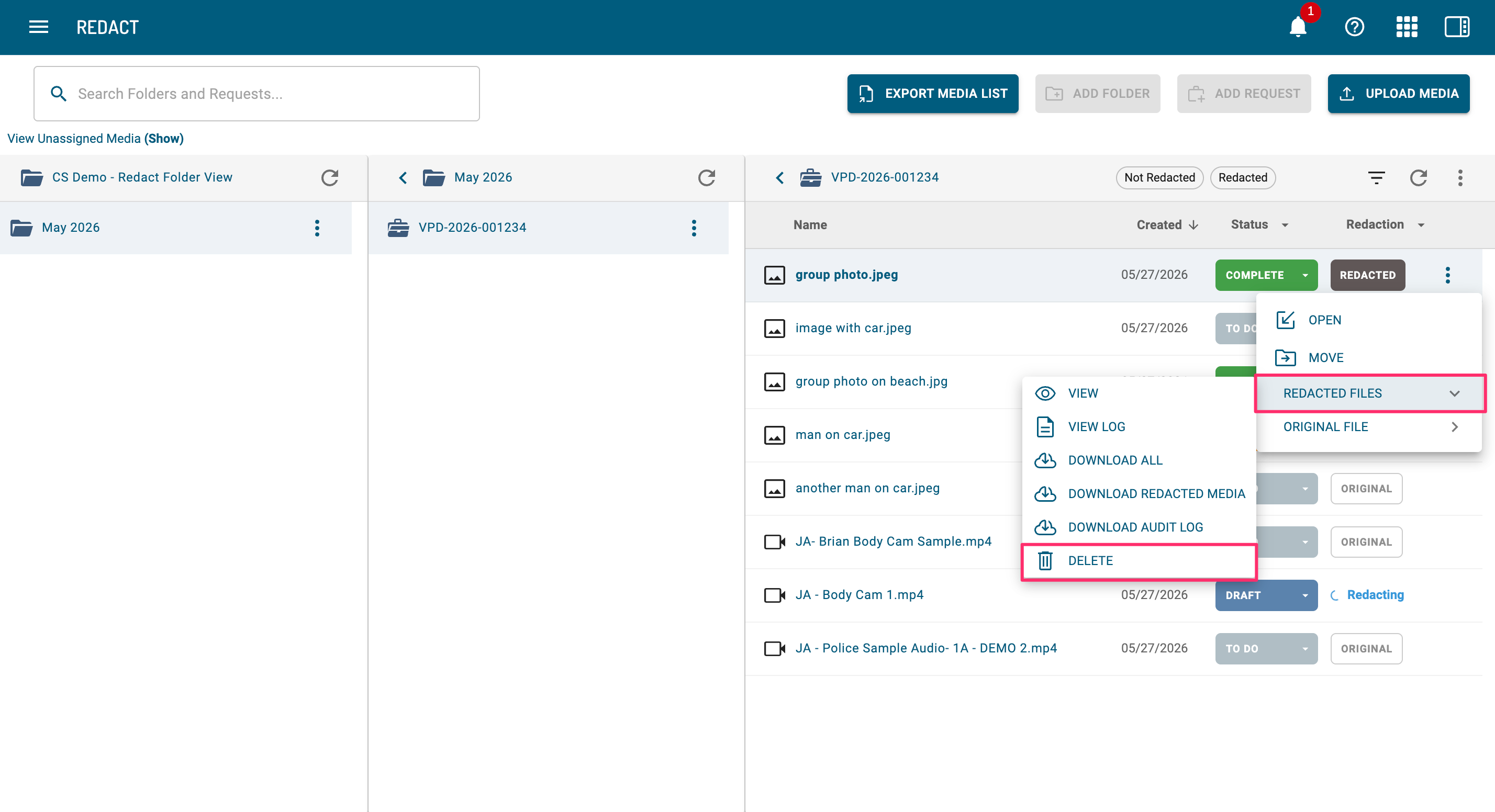
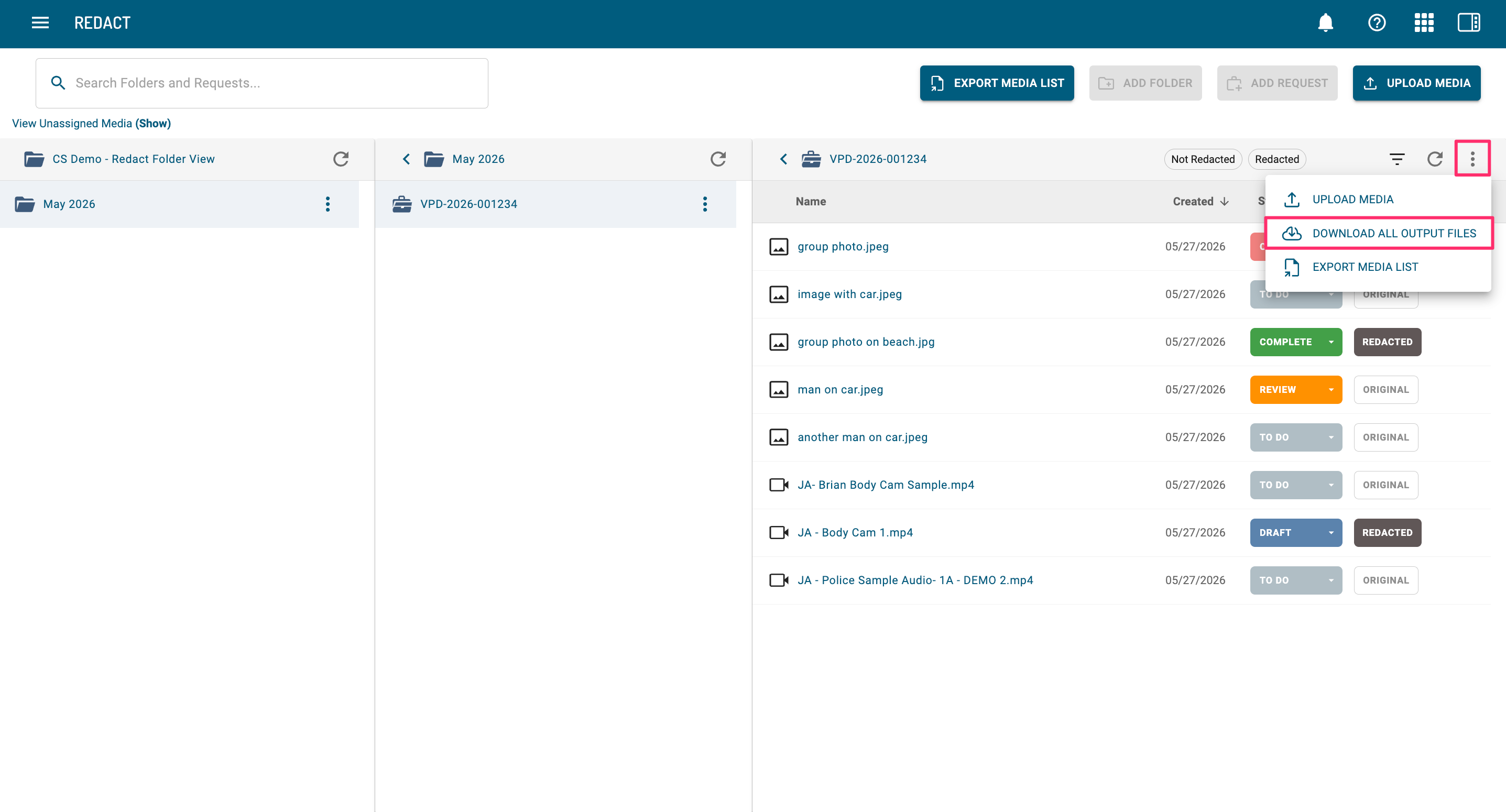
Redacted Media can also be downloaded from your Redact homepage when folders are enabled. To download all redacted files and audit logs within a specific Request, select the request’s vertical ellipse and click Download All Output Files.
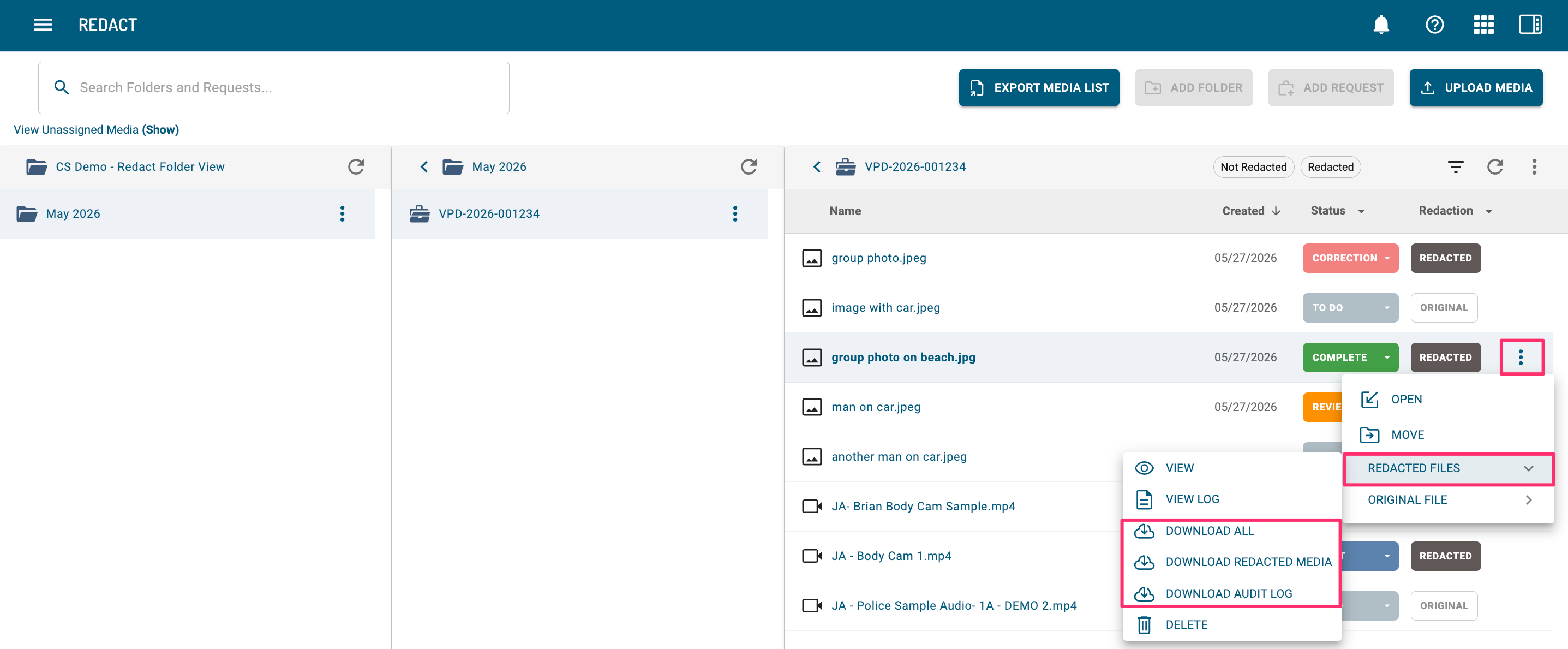
You can also download a specific redacted file, audit log, or both by selecting the file’s vertical ellipse, and from the Redacted File menu, make your selection.
Downloaded Media Specs: All audio files will be outputted as MP3; all video files will be converted to MP4 and will retain their video resolution unless the video is larger than 4K. If larger than 4K, it will be downsized to 4K. All image files will be exported as a jpeg.
Delete a Redacted File
There are a few ways you can delete a file within Redact:
I. File Manager Page
From the Redacted files tab, click the Delete button. Delete the latest redacted file confirmation window will open.
Click Delete. The redacted file is deleted.
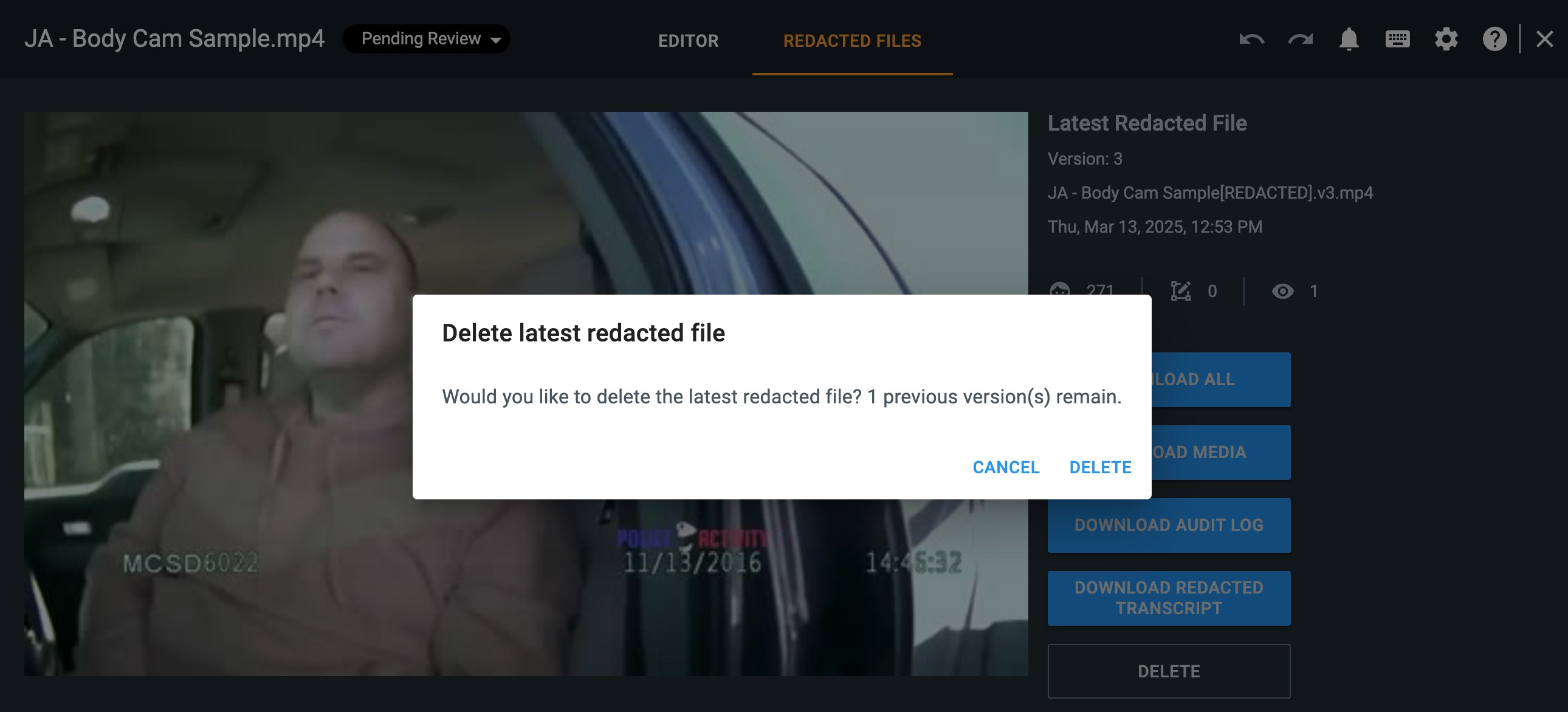
Note: The original (unredacted) file will remain within your account. If you have any previous redacted versions of this file, it will revert to the most recent version.
II. Homepage in Tile View
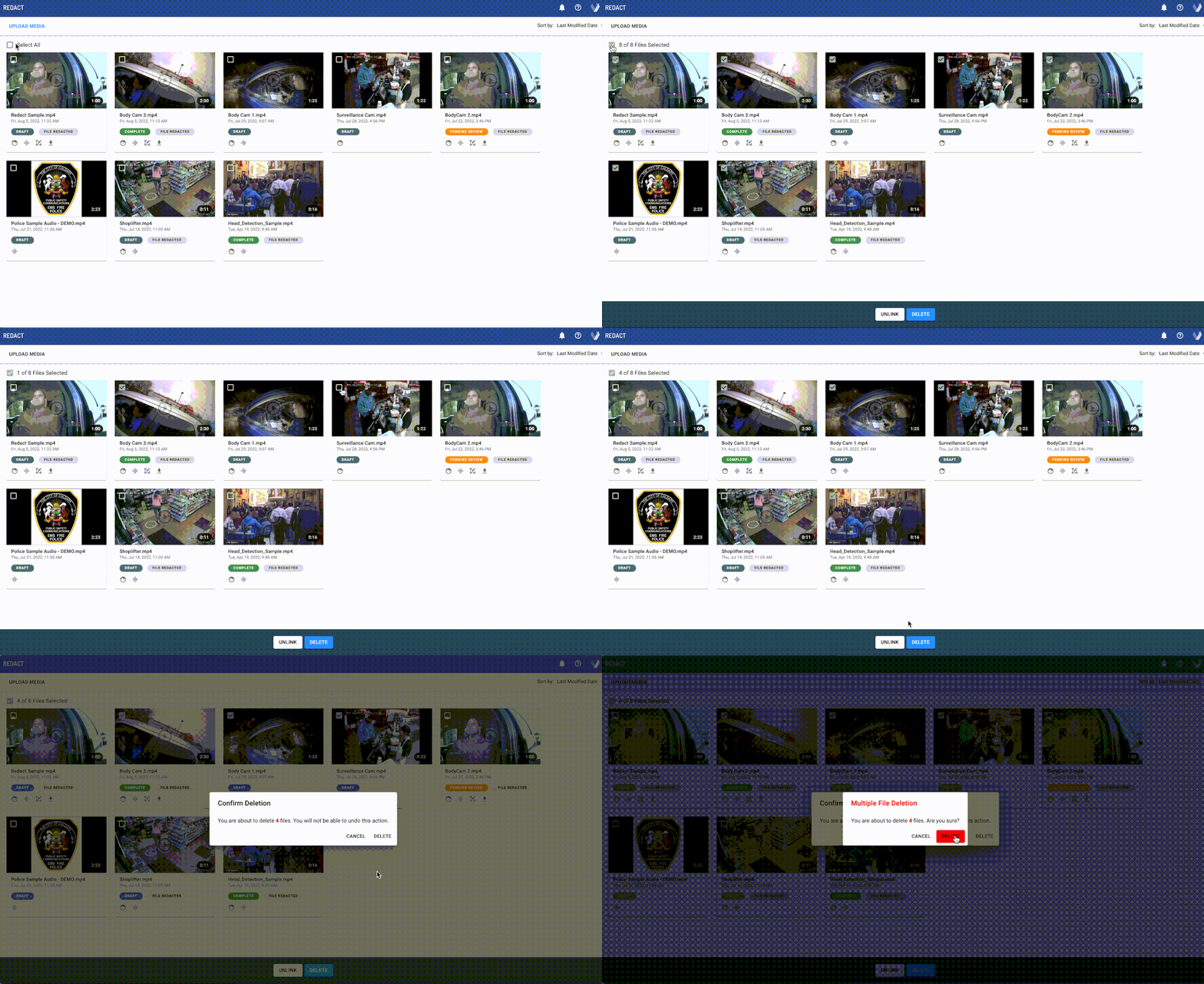
From the Redact Homepage, select the specific files you wish to delete by selecting the checkbox within the media player. If you wish to delete all your files, select the Select All checkbox in the upper left beneath the Upload Media button.
Once selected, click delete and confirm that you would like to delete. For bulk file deletion, you will confirm your action twice. This deletes both the redacted file and the original version of your file. Once a file has been deleted, it is removed from our servers and cannot be recovered.
III. Homepage in Folder View
1. Navigate to the request that contains your media file and select the vertical ellipse associated with it.
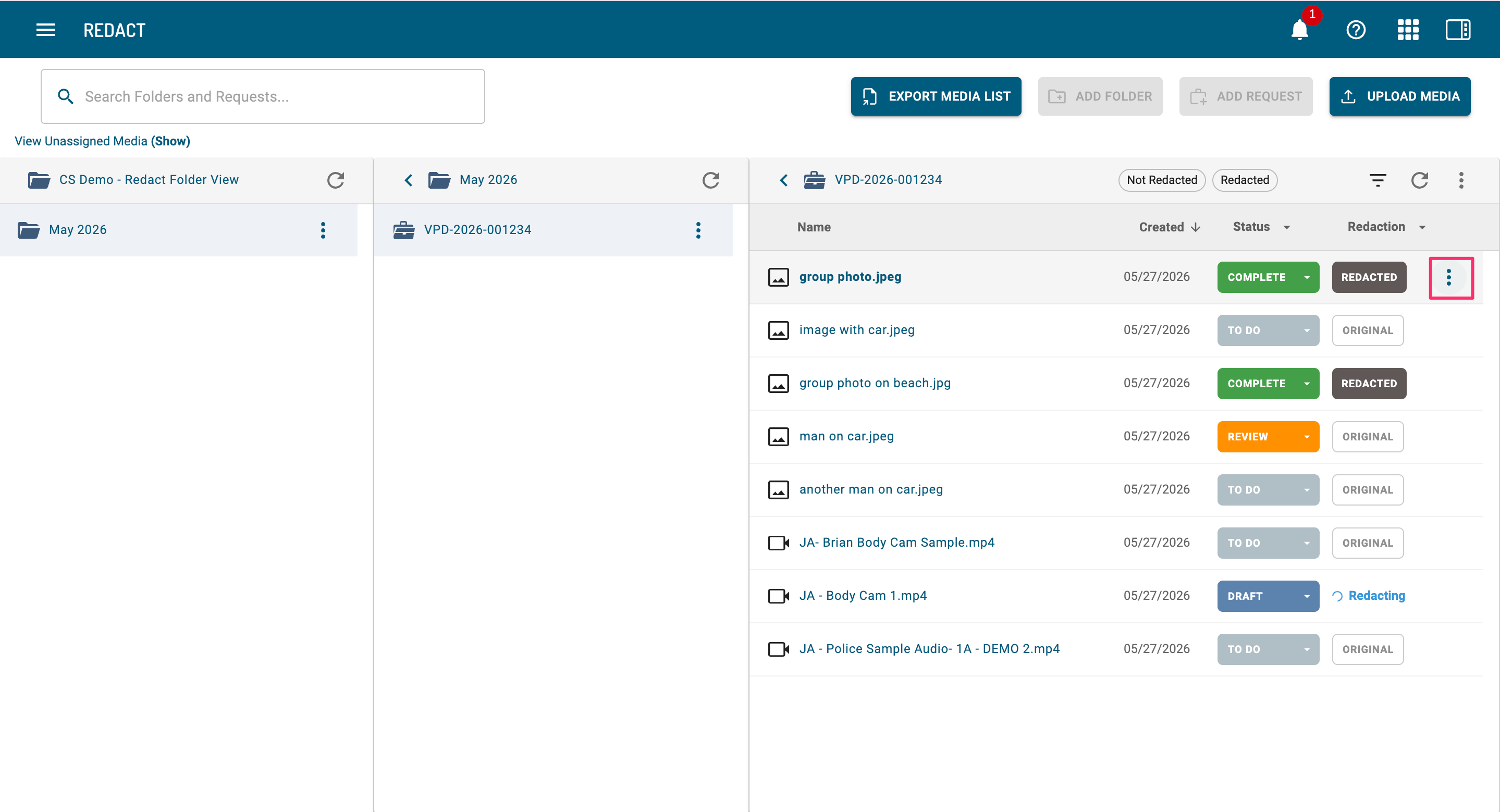
3. Select Redacted Files, and then select Delete to permanently delete your redacted media file and the associated audit log. Deletion is permanent and once a file has been deleted, it cannot be recovered.