Our most recent Attribute release brings users the ability to better identify in-application errors. We have worked to understand common Campaign errors our users encounter, how they occur, and the best way to solve these. This has created clear, consistent error messaging available now to users in the Attribute application for quick and easy triaging.
UI Error Messaging
Previously when creating a Campaign, the application UI would simply show a "Complete" message on screen when processing was finished. Even if such Campaign was displaying unusual data, did not fully process, or there was an issue gathering web data, the "Complete" message still appeared. This did not provide users with enough information on how to handle a Campaign with errors. The addition of error messages enables our users to now identify the error, steps to resolve it, or the ability to reach out to our Support Team for further assistance.
With the new UI Error Messaging, Campaigns experiencing an error will display an easy to identify error message populating next to the Campaign name. To identify the exact cause of the error, click the "See more detail" text on the error message which opens the new Campaign Errors page.

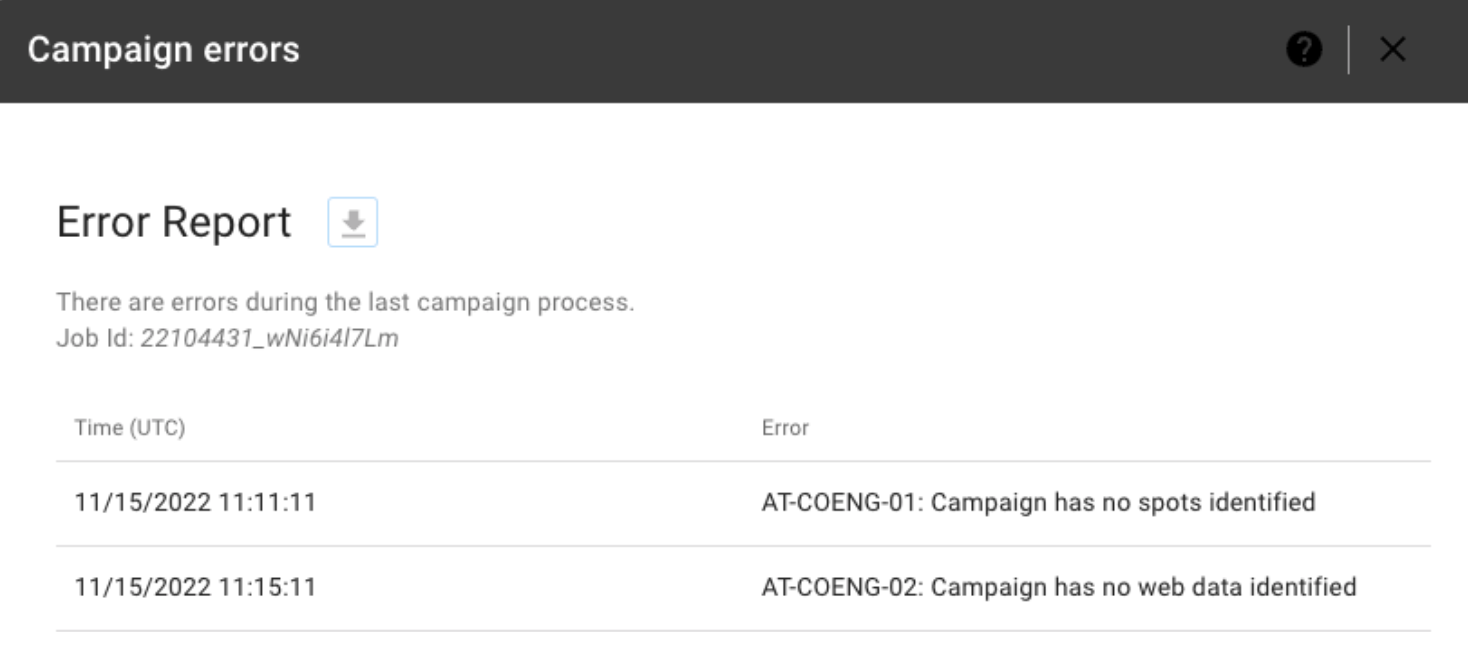
This report will show a historical log of errors the Campaign has encountered, as well as the root cause of each error. The Error Report can also be downloaded by clicking the arrow button next to the title text for easy sharing.
Error Messages
We have identified a number of common Campaign errors to be utilized with our new error messaging process. See below for a list of each error message and a brief description of the cause:
- AT-CORENG-01: No spots identified during the Campaign date range
- AT-CORENG-02: No web data identified during the Campaign date range
- AT-CORENG-03: Campaign processing has stopped - Error when attempting to insert mention data to Attribute Database
- AT-CORENG-04: Campaign processing has stopped - Error when mapping Google Analytics data to spot data
- AT-CORENG-05: Advertiser was disconnected or Google Analytics access has been removed
- AT-CORENG-06: Campaign processing has been stopped - Error when attempting to fetch Google Analytics data
- AT-CORENG-07: Campaign processing has been stopped - Error when attempting to insert geofence data to Attribute Database
- AT-CORENG-08: Campaign processing has been stopped - Error when attempting to insert keyword data to Attribute Database
How to Utilize Error Messages
Now that you have the information available to you to better identify what went wrong with your Campaign, what do you do with it? Some error messages can be triaged by users themselves as a first pass, such as AT-CORENG-05, while others it will be best to reach out to our talented Support Team for assistance. If you're unsure on next steps to take after receiving an error message, feel free to contact Support@veritone.com so we can quickly assist troubleshooting for your Campaign.
As always, we welcome your feedback and questions either to Support@veritone.com or to your organization's Customer Success Manager.


