In This Article
- Video Tutorial: Filter Detections
- How to filter detected objects
- How to remove detected objects from output
Overview
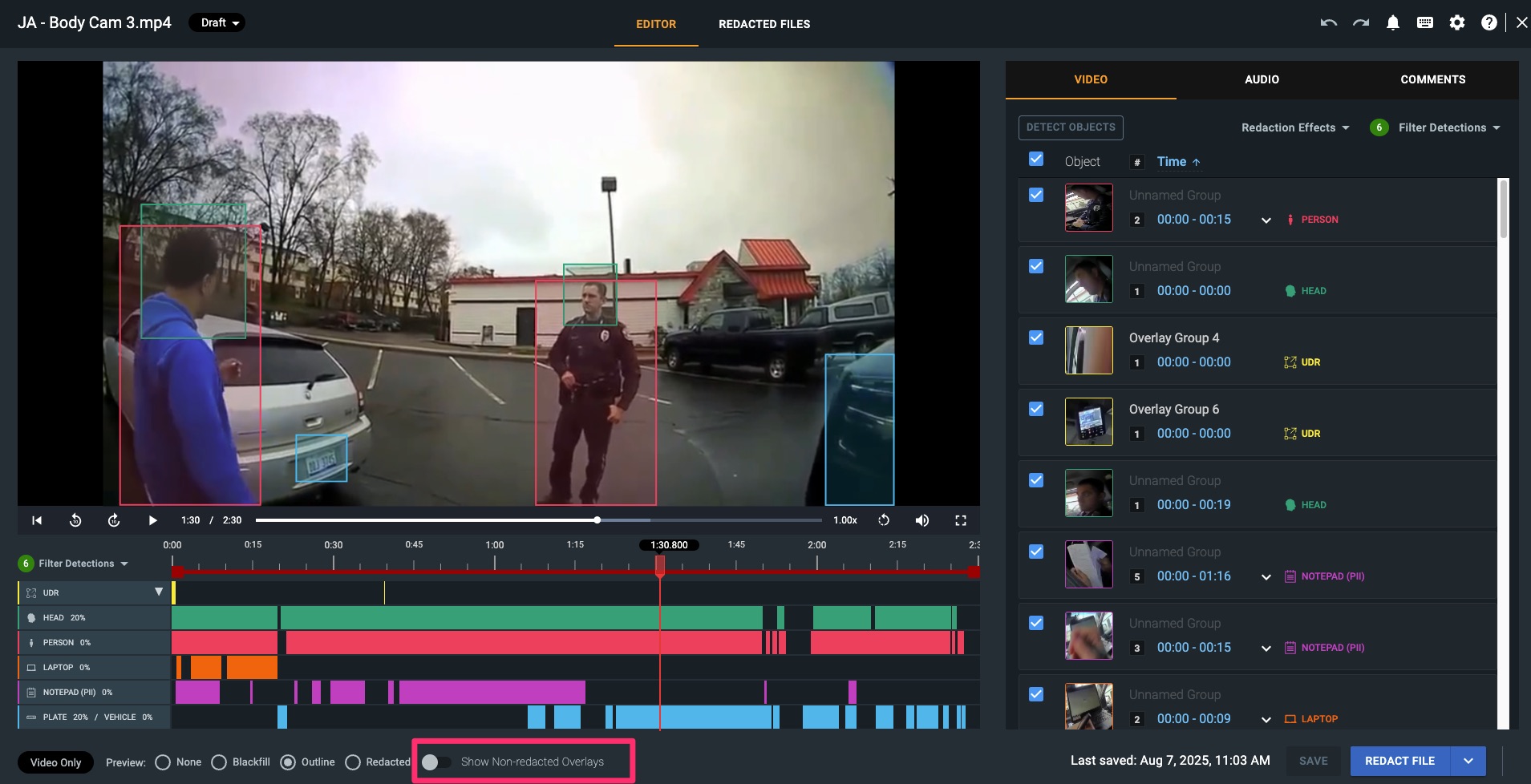
Redact's head, person, license plate, and laptop engines run simultaneously. However, there may be instances where you do not need to redact one of these items or you may want to focus on a specific detection type. The Filtering Detections menu lets you take action on items individually or group items together.
Video Tutorial
Filtering Detected Objects
1. Navigate to the Filter Detections Menu located within the Video tab of the File Manager page.
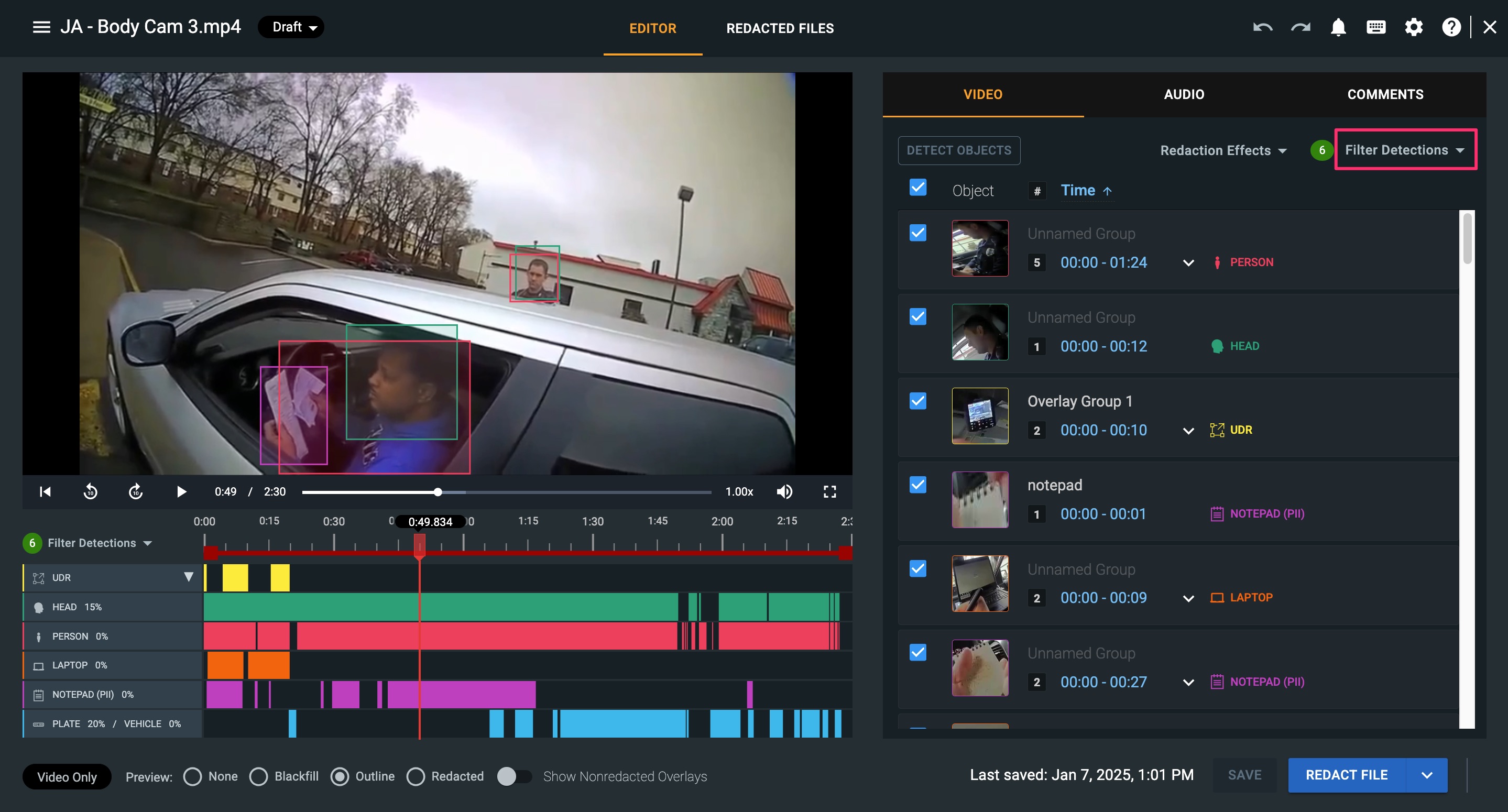
2. On the left-hand side you can select the checkboxes to show and hide the various redaction detection categories. Select the checkbox(es) for the detection(s) you wish to view to focus on a specific detection type. The intention of this tool is to keep these items organized when focusing on specific redaction categories.
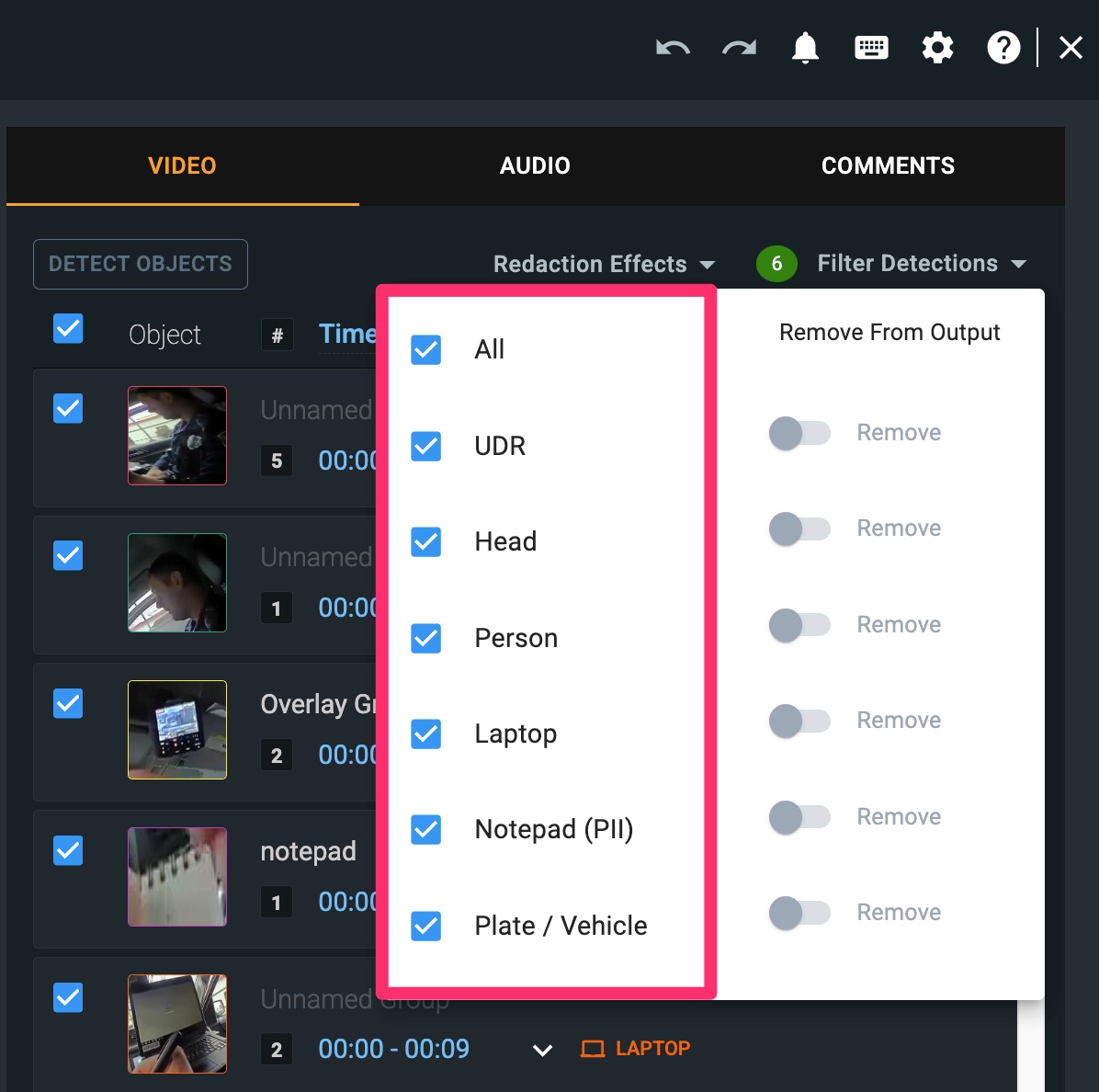
Note: The option to deselect an individual detection is still available in the video panel by deselecting the checkbox of that individual detection.
Removing Detected Objects
1. Navigate to the Filter Detections Menu located within the Video tab of the File Manager page.
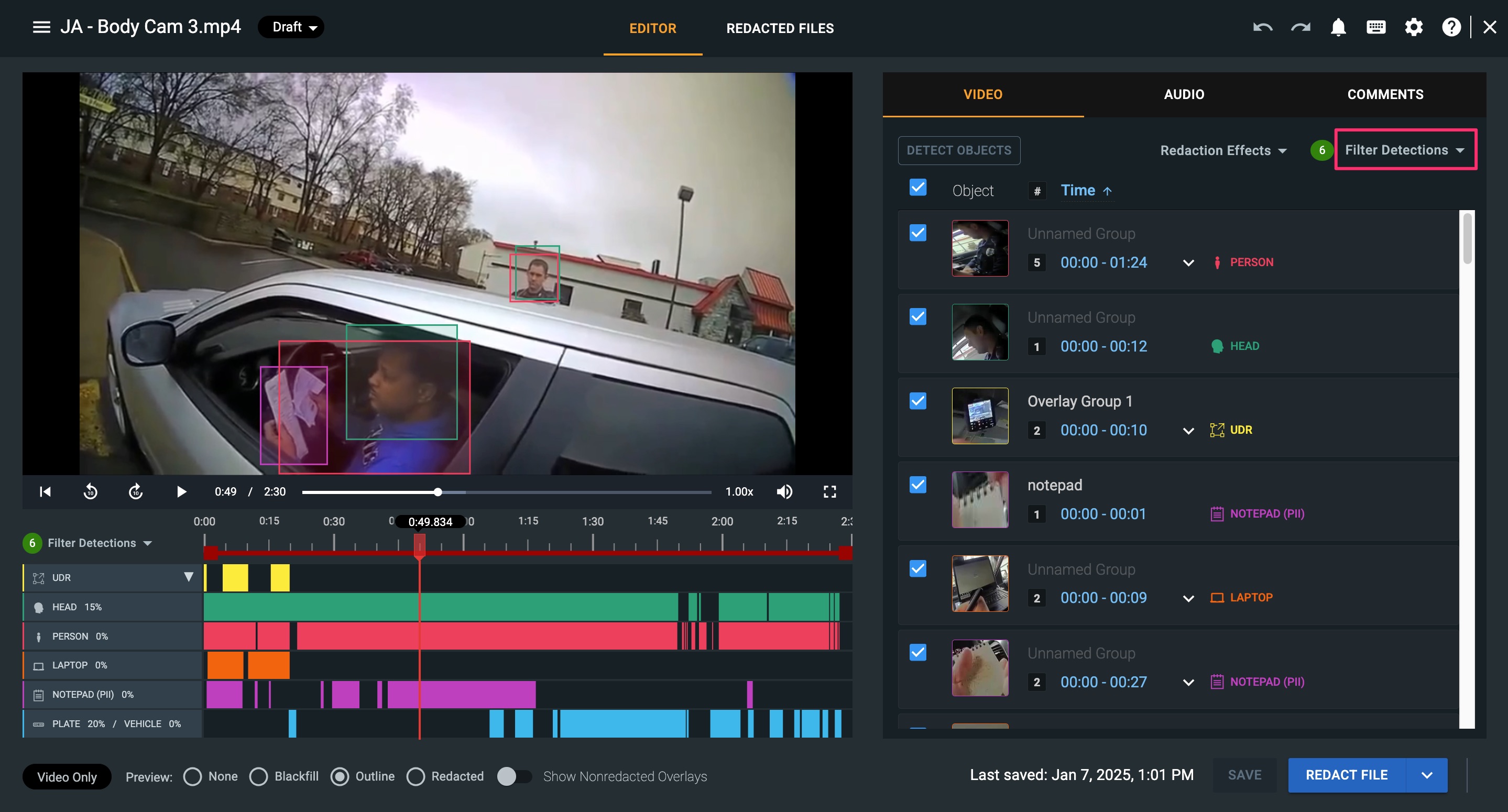
2. On the right side of the Filter Detections Menu, select the toggle(s) to remove an entire category of redaction from your final output file. This will remove the selected detection type from the media player and video tab, as well as remove the timeline. If needed, the user can re-enable that detection category by using the same toggle.
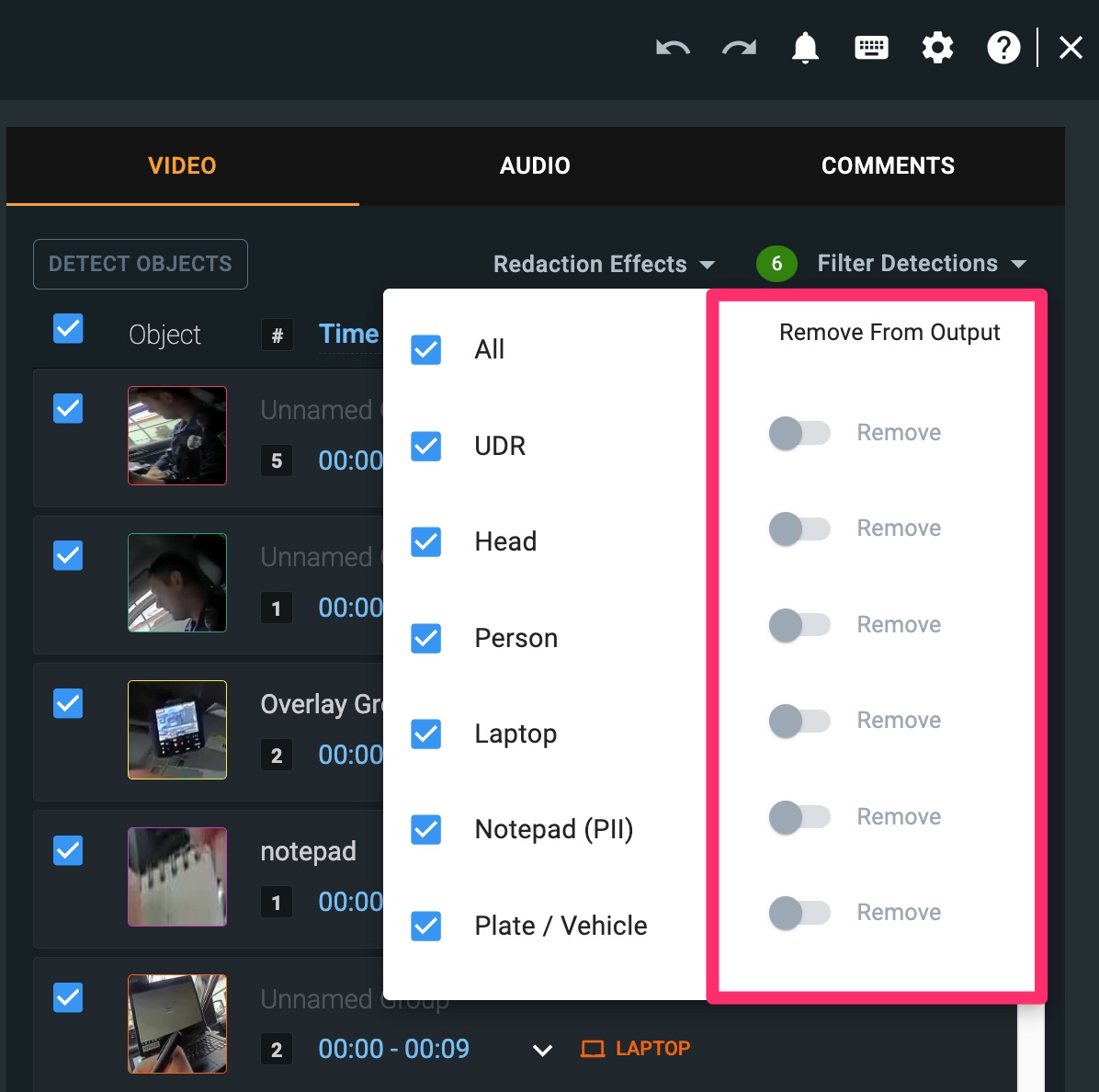
Note: The selected redaction category(ies) are not deleted, but rather removed from the user's Editor page for their current user session. When the user starts a new Redact session, the detection type will be visible again; however, no detections of that type will be selected. Pro Tip: Within the Preview functionalities, you can switch the toggle on for ‘Show Unselected.’ This will display a thin dotted line around any item you have chosen not to redact.
If you have any questions about filtering, please contact the Veritone Support team at Support@veritone.com.



