In This Article
- Video Tutorial: Comments
- How to add comments in Redact
- How to edit, hide, and unhide comments
- Searching, filtering, and sorting comments
Overview
Redacting media can be a collaborative experience. Redact’s comments feature allows you to communicate with members of your team. This is a good way to ask questions, make notes, or ask for a second opinion on a redaction.
Video Tutorial
How to Add Comments
1. Navigate to the Comments tab and click Add New Comment.
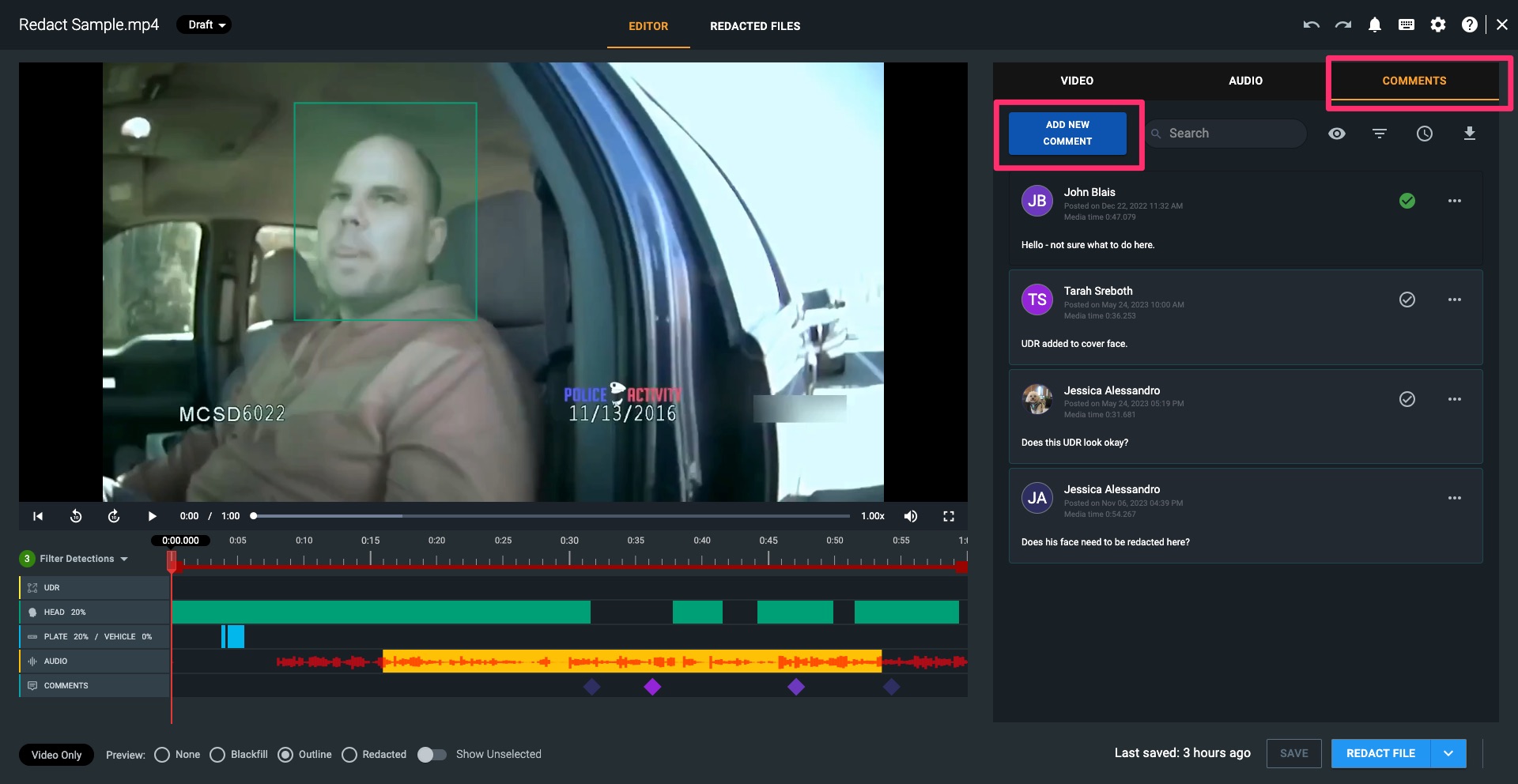
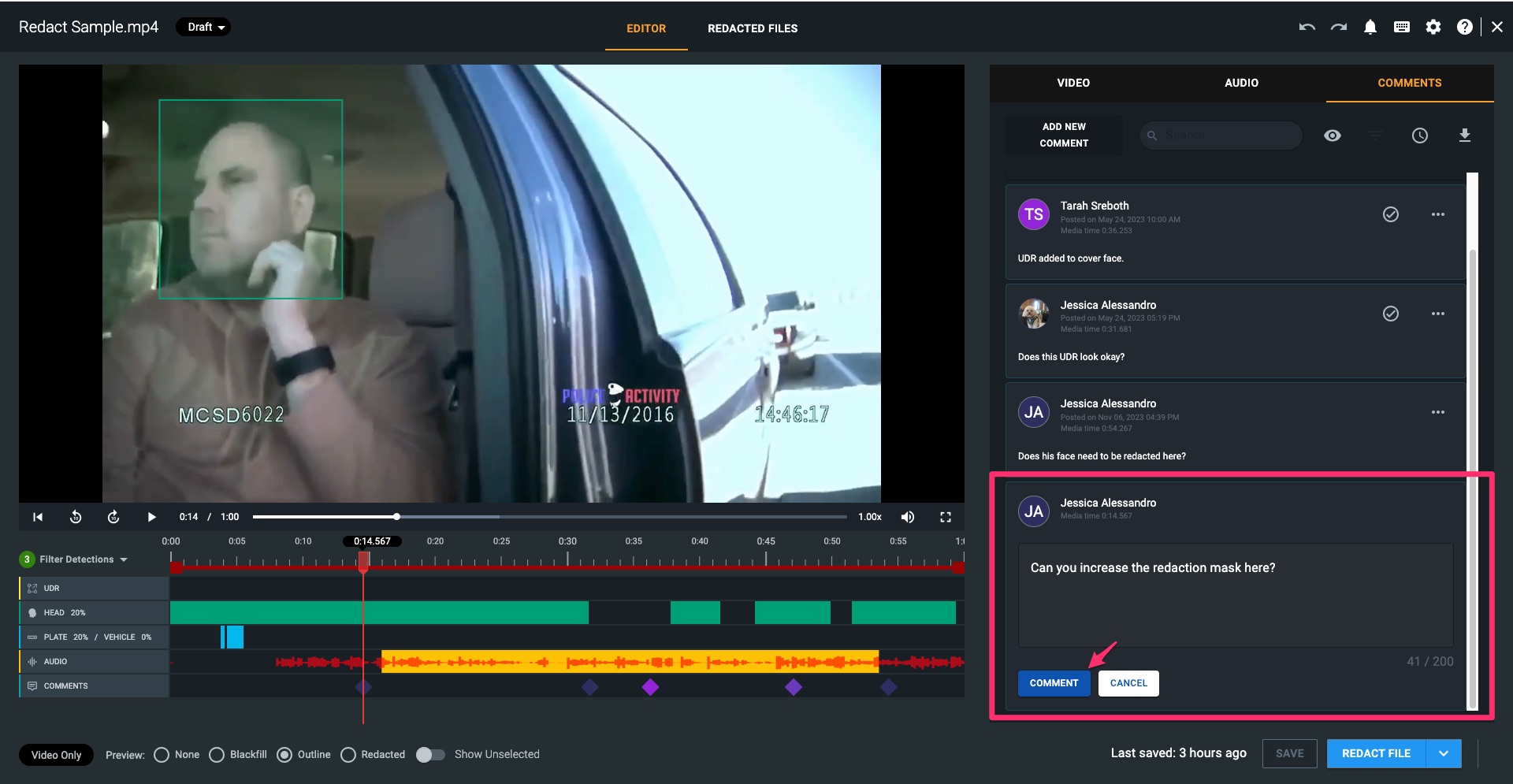
2. Add your comment and click Comment. You will see the green success alert in the bottom left corner to indicate the comment has been added.
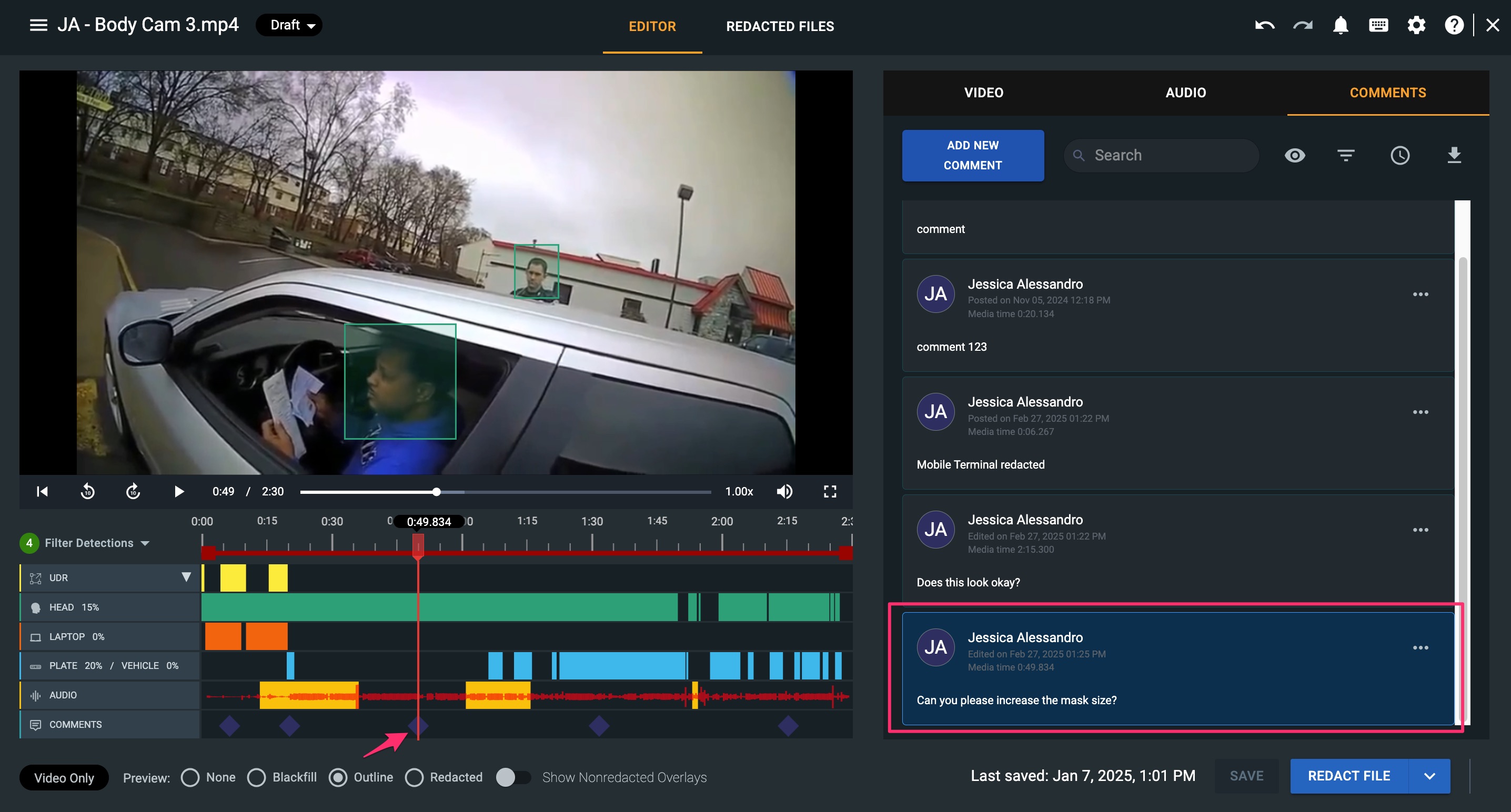
3. As you add comments, the Comments timeline populates with a diamond. You can select any diamond and the corresponding comment will appear highlighted within the Comments tab.
How to Edit, Hide, and Unhide Comments
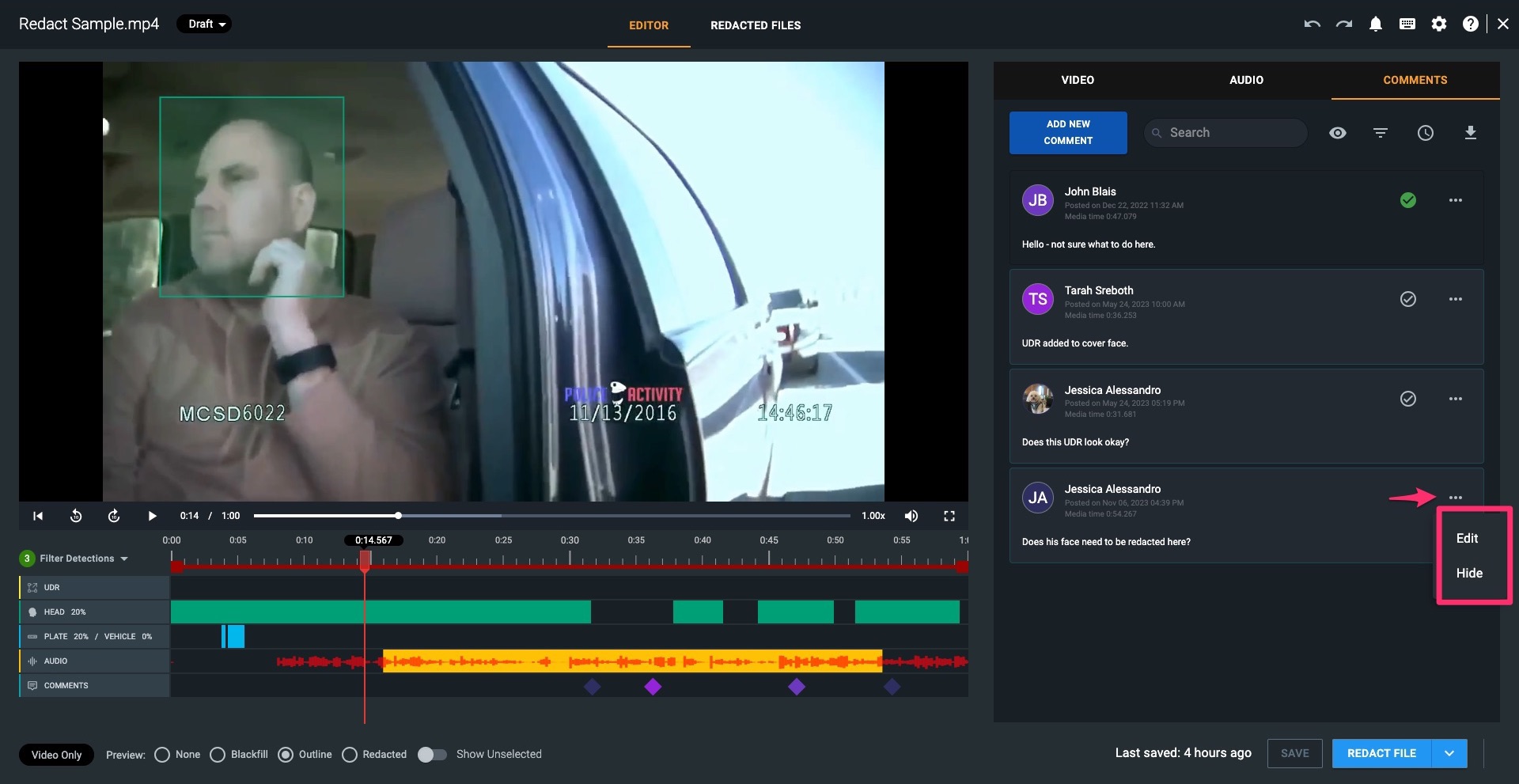
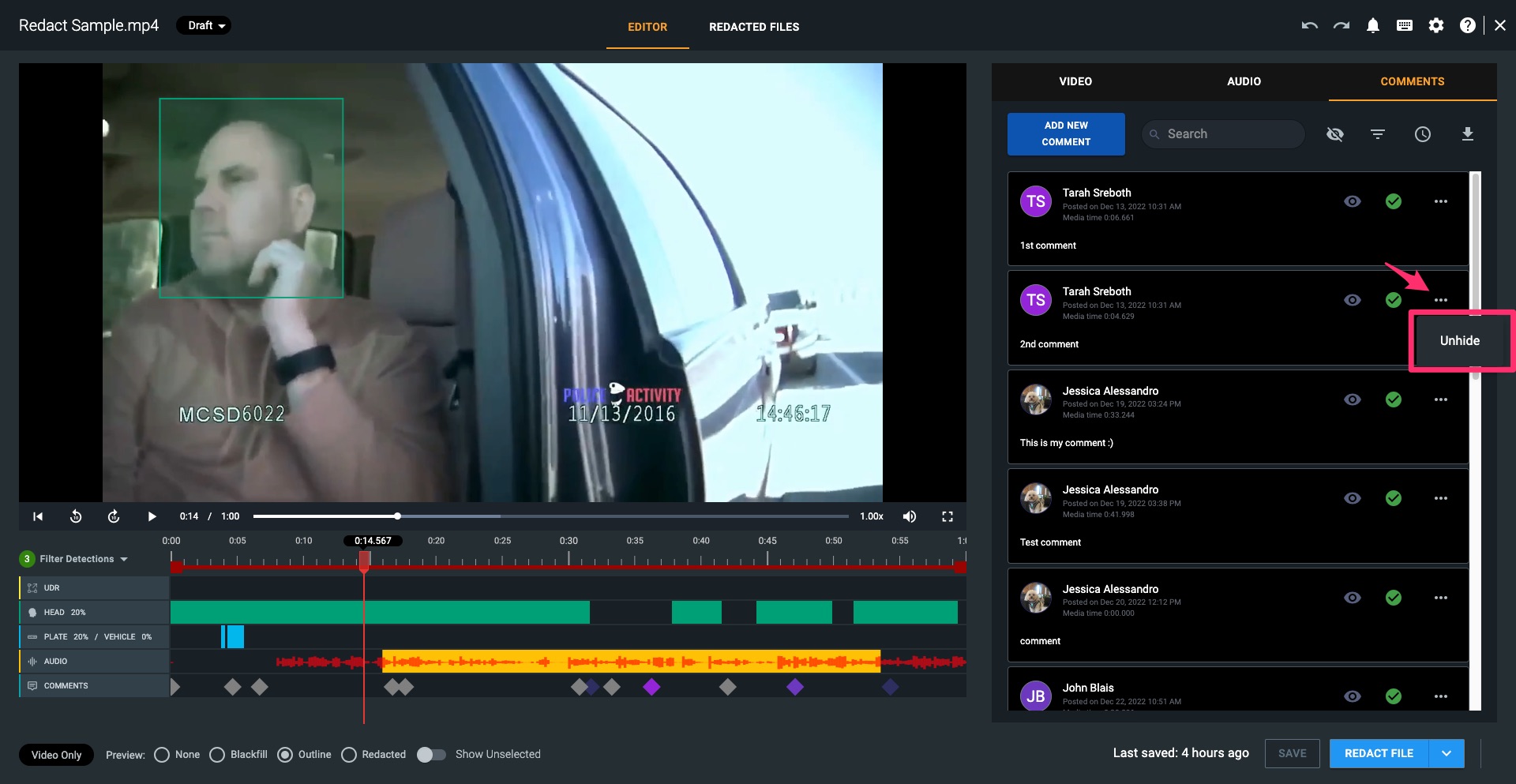
1. To edit or hide a comment, you'll click the ellipses on the right of that specific comment. Here, you can select to hide the comment or, if it's your own comment, to edit it.
2. To view all hidden comments, click the ‘eye’ icon. When viewing hidden comments, they will appear on the Comments timeline in gray.

3. If you need to unhide any comments, you can do so by simply selecting “Unhide” from the ellipse of the comment you wish to show. They can be removed from your view again by clicking the icon once more.
Note: You cannot delete a comment.
How to Search And Filter Comments
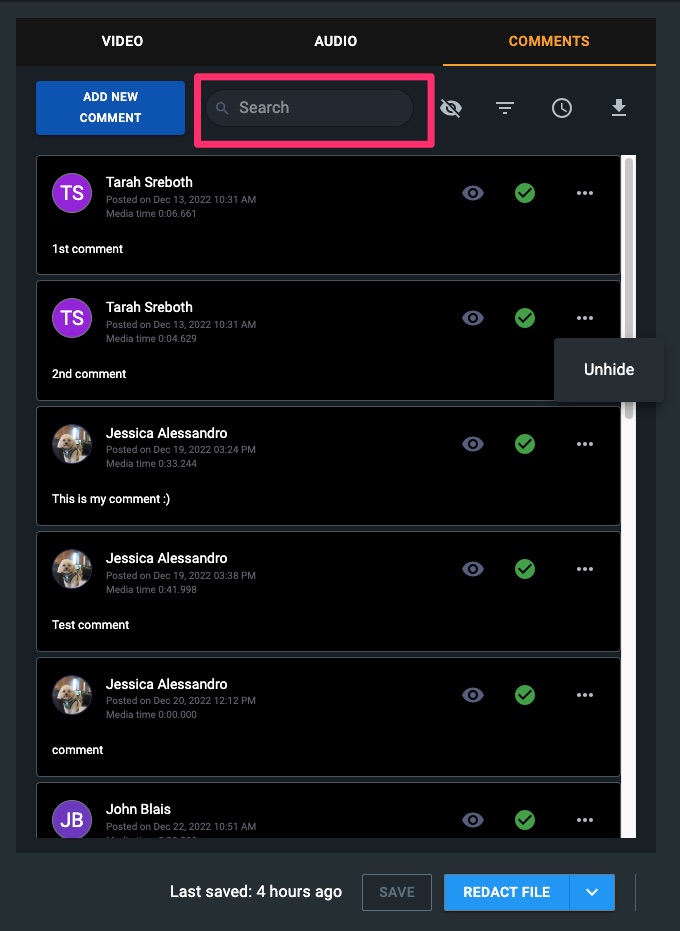
1. Comments can be searched by keyword or user name using the search bar.
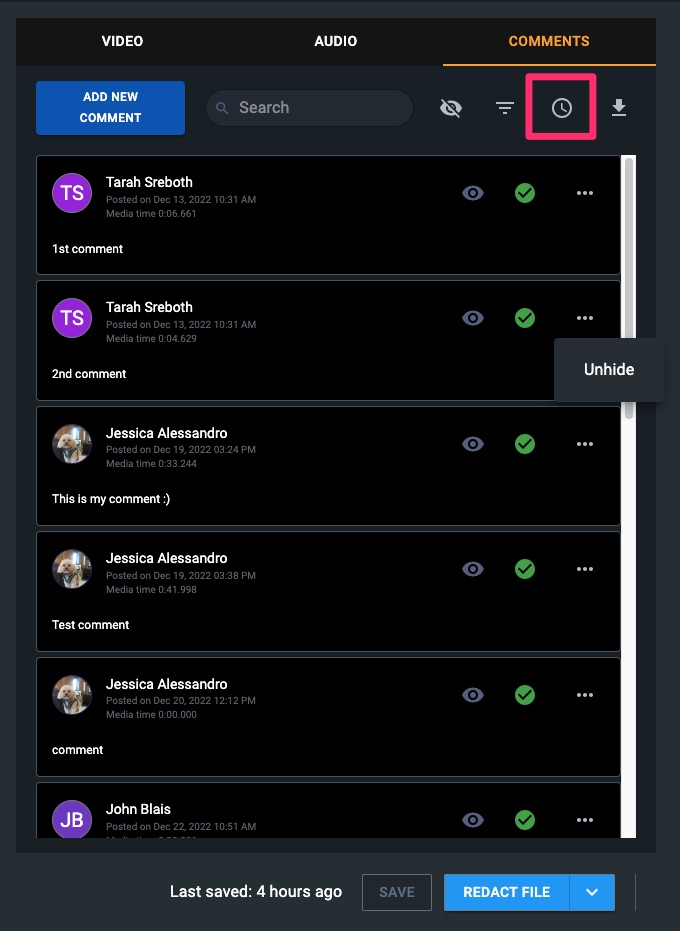
2. Use the clock icon to sort comments by the timestamp within your media, rather than when they were created. To go back to viewing your comments by date created, click the calendar icon.
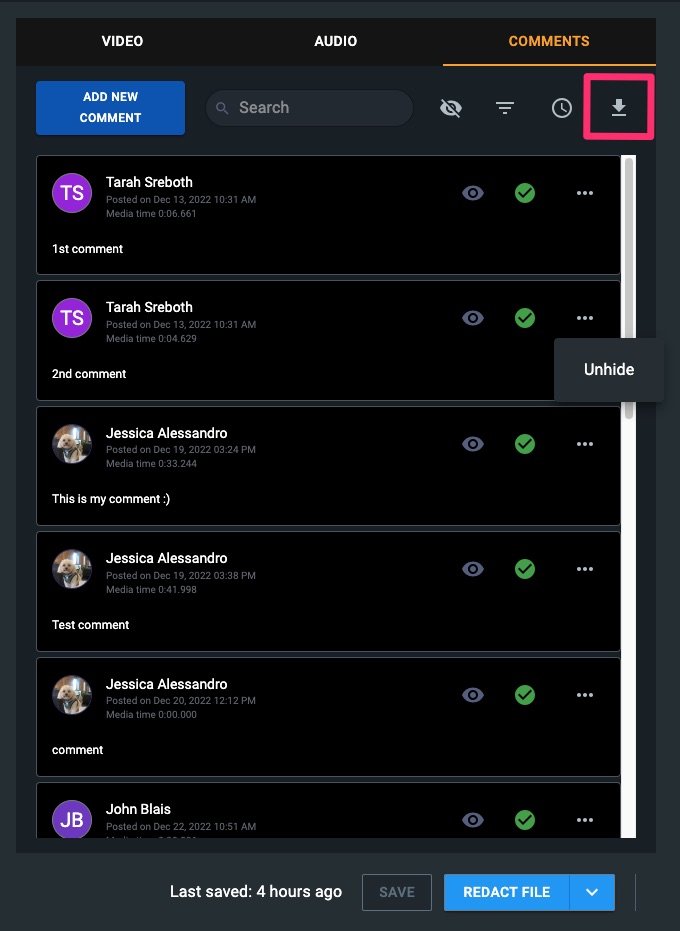
3. You can also download a log of all comments in .csv format by selecting the download symbol.
Note: All comments appear within your audit log.



