Overview
Redact’s trimming feature allows you to easily select start and end timecodes for your redacted output files. You can download specific portions of a video or remove unwanted content at the beginning or end of a file, providing greater flexibility and control over the redaction process.
Video Tutorial
How to Trim Your Media
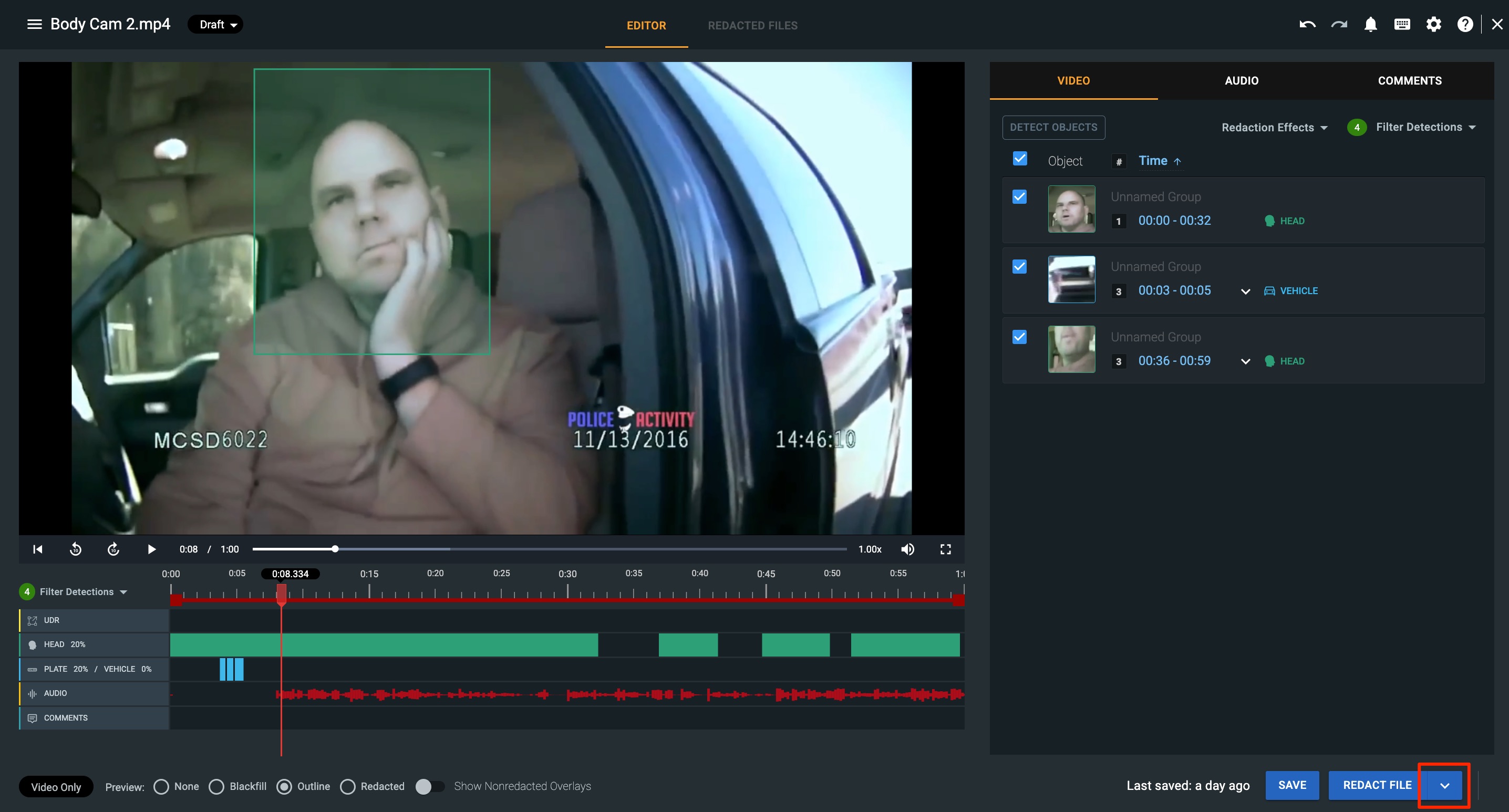
1. Once you have completed your desired redaction work and are ready to process the redacted file, select the arrow button to the right of the Redact File button.
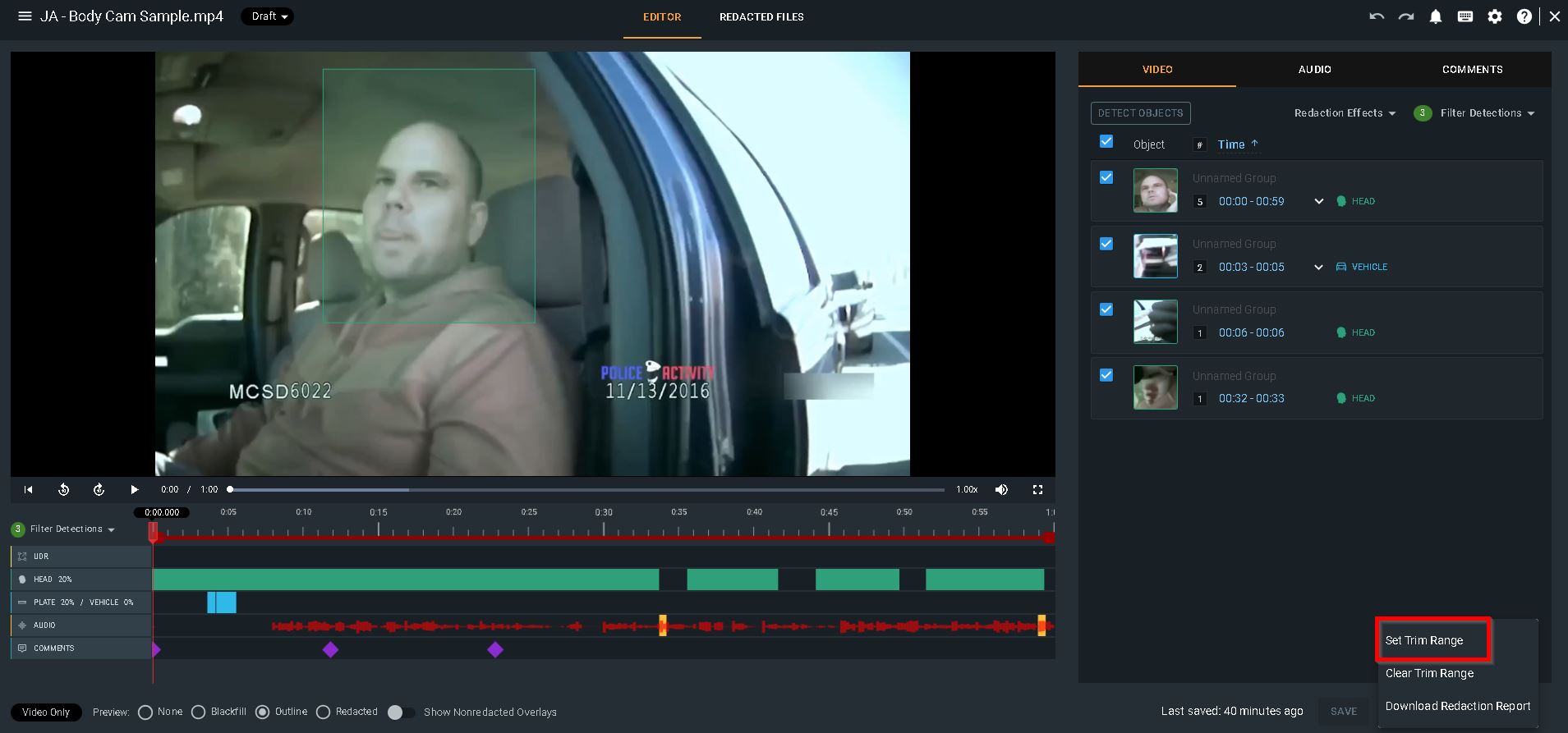
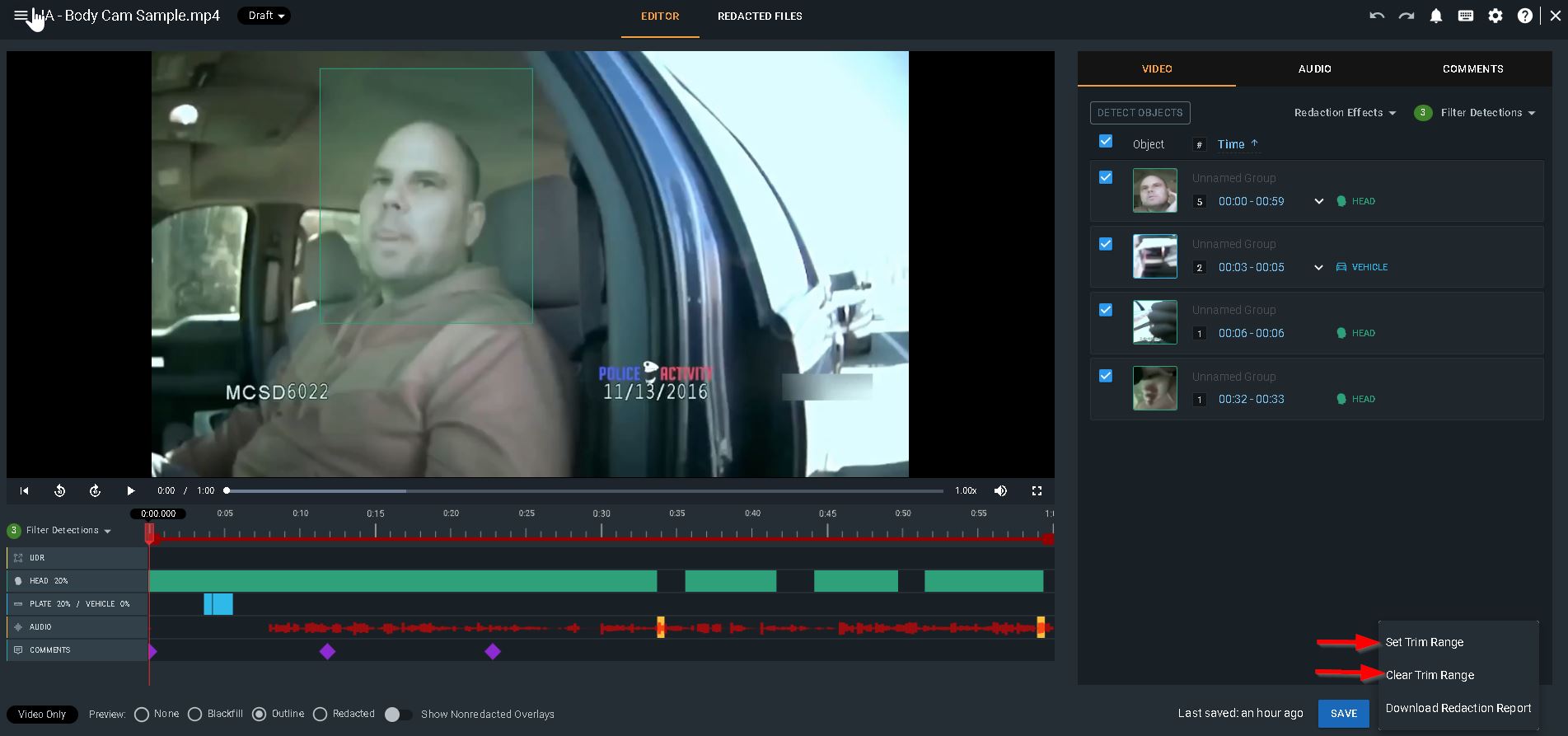
2. From the menu, select “Set Trim Range.”
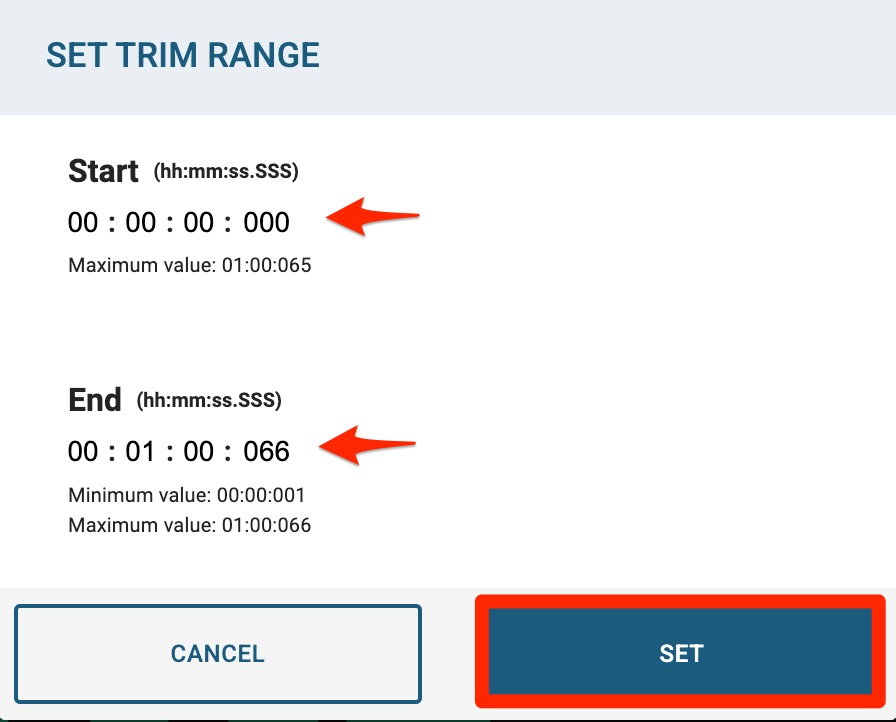
3. Within the pop up modal, enter the desired timecodes to specify the portion of the video you wish to save. Select Set.
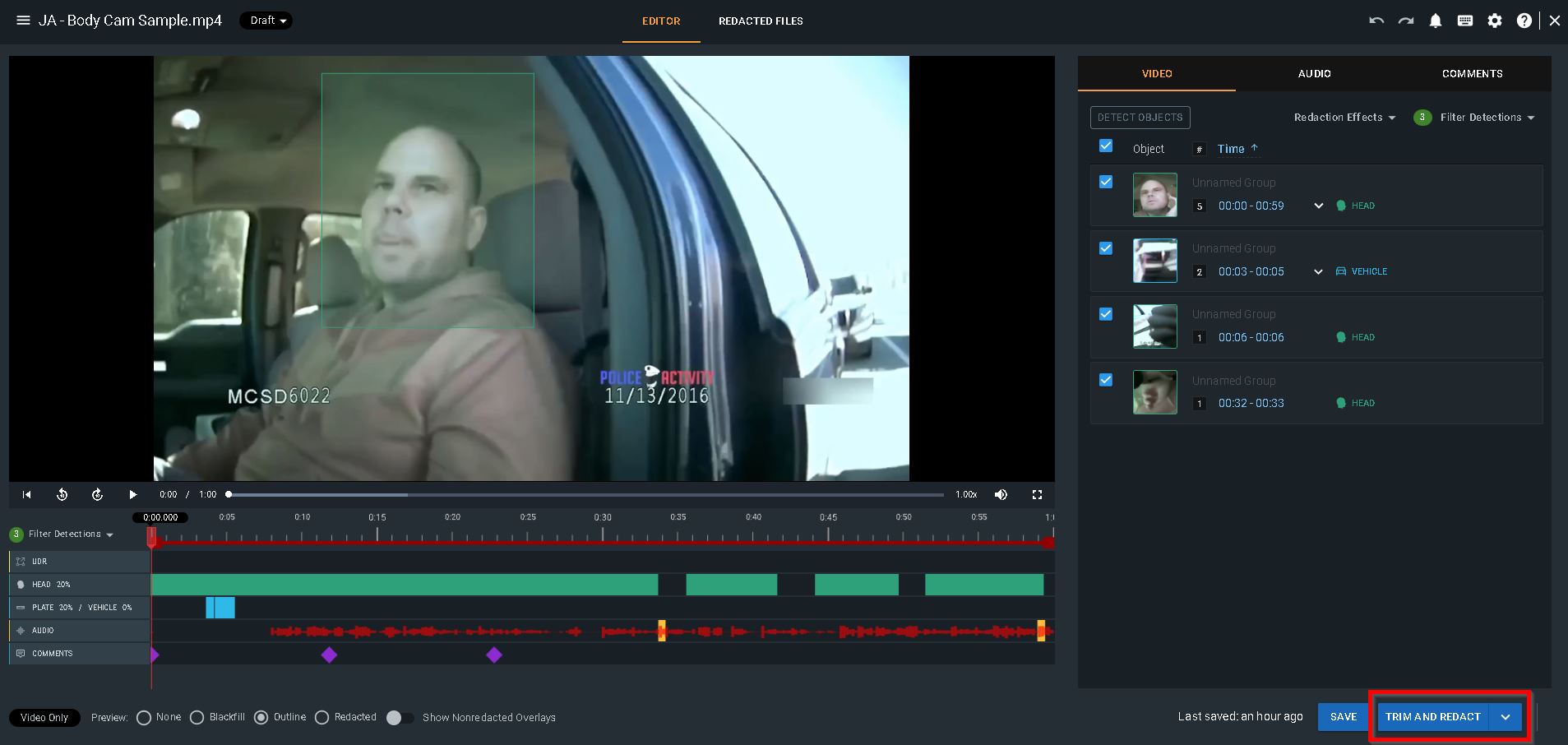
4. Select the Trim and Redact button. Redact will now process your file, generating a redacted version of the file tailored to your specified timecodes. Your redacted output file name will include the timecodes of the trim, providing you with a clear understanding of the exact timestamps in which you have trimmed the video.
5. To clear the timecodes or update them for any reason, simply navigate back to the arrow icon, select “Trim Range”, and enter your new start and end time. Alternatively, select “Clear Trim Range” to remove the trim range entirely.
Additional Trimming Information:
If you have any additional questions on trimming media in Redact, contact our Veritone Support team at Support@veritone.com.


