How to Install the Extension
Install from the chrome store copying and pasting the following link into your chrome browser: https://chrome.google.com/webstore/detail/broadbean-chrome-extensio/jfocopbmgeefecbdfieikajjaocomkbl
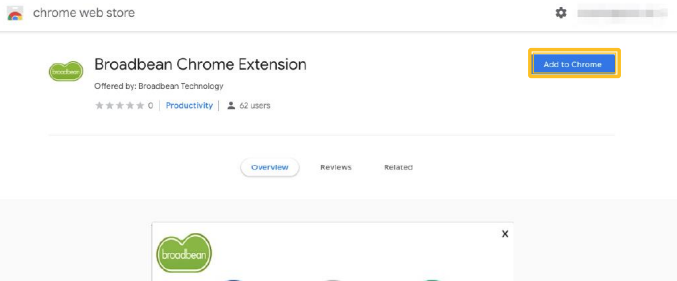
Click the + ADD TO CHROME button to install
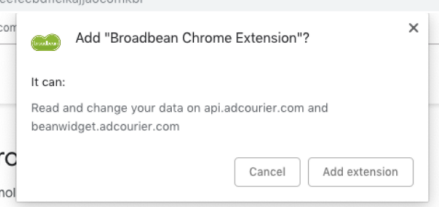
Click Add extension to confirm installation in your Chrome browser.
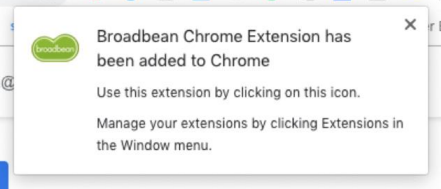
You will receive a confirmation message and the Broadbean icon will appear in the top right of all Chrome windows just next to the URL omnibox.
Set-up Broadbean Chrome
The first time you activate the Chrome Extension you will be prompted to insert your account details. If these have not been provided to you, please reach out to your account administrator or to our support team.
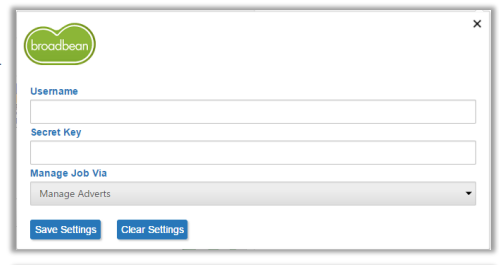
Enter your provided Username and Secret Key into the relevant fields.
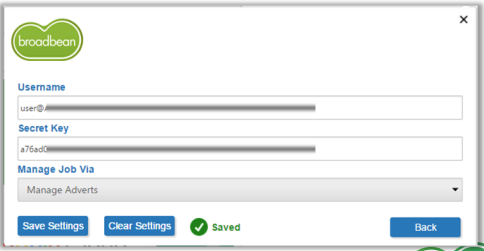
There are 2 options within the Manage Job Via dropdown and these are discussed later in this guide.
Click Save Settings to continue. The Back button will appear to take you to the main plugin view.
Extension Actions
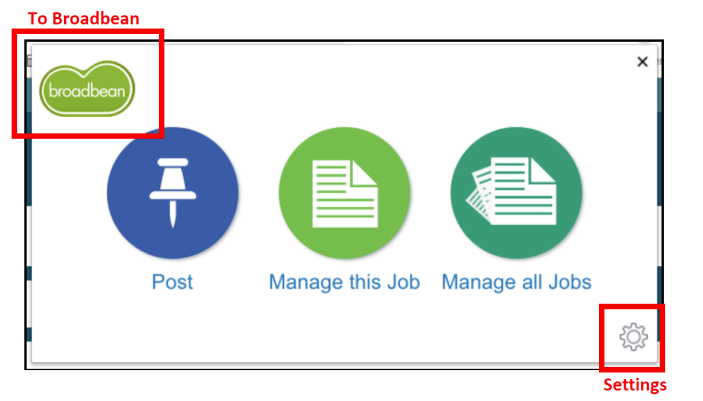
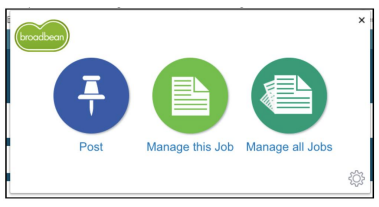
The Broadbean Chrome Extension has 3 main action buttons.
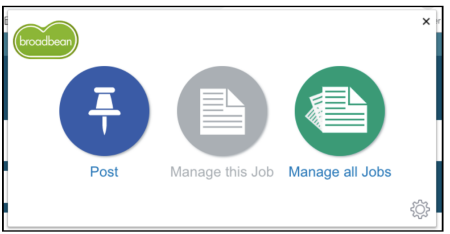
- Post – Post your ATS career site job through Broadbean.
- Manage this Job – Manage the existing adverts posted for this particular job.
- Manage all Jobs – Manage all adverts posted through your account.
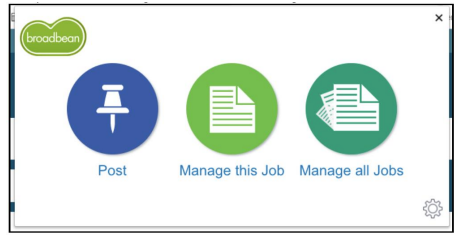
After the job has been posted, the Manage this Job icon will turn green
How to Post a Job
To post a job advert with the Chrome Extension you need to navigate to your job advert on your career site.
When clicking on the Broadbean Chrome Extension on a recognized career site job advert the Post icon will appear.
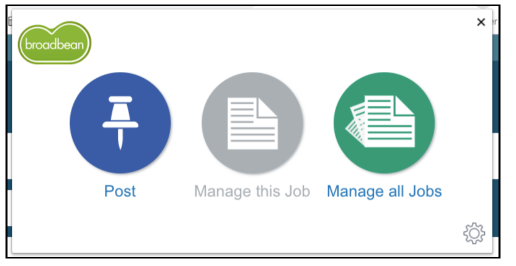
Clicking Post will open the Broadbean AdCourier posting process.
Posting Process – Step 1
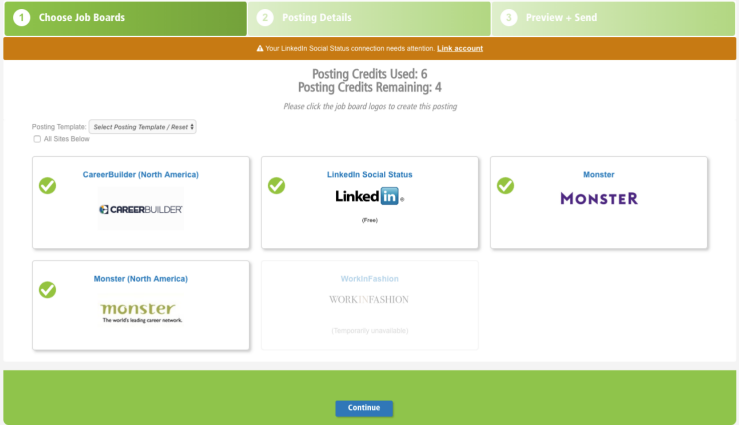
Select the job boards you wish to post your advert to. You can select as many or as few of them as you like.
If you tick All Sites Below, this will automatically select all the job boards at once.
Posting Process – Step 2
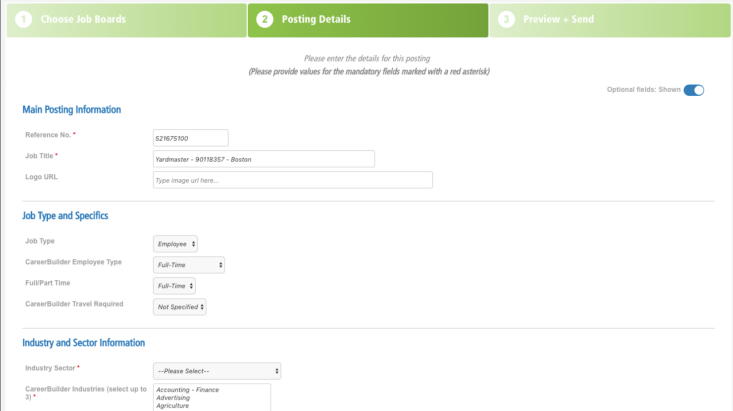
• Enter the relevant advert details.
• All mandatory fields will be marked with a red asterisk *
• Once all required fields are entered, hit the Continue button at the bottom of the screen.
Posting Process – Step 3
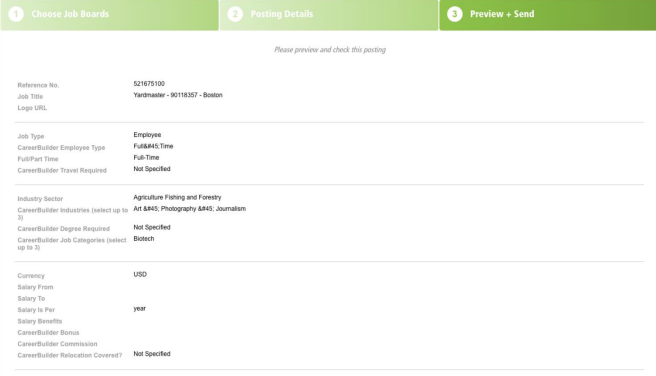
• Preview and check through your advert information before publishing the job.
• Any additional fields required are marked in red to complete / check
• If any changes need to be made, you can go back to the previous step by clicking Go Back at the bottom of the screen.
• Otherwise, you can click Send Advert.
Manage this Job – Manage Adverts
By clicking on the Manage this Job icon you will be taken to a Manage Postings page
From this view, you can Edit, Resend and Delete. You will also see all Job Posting statuses.
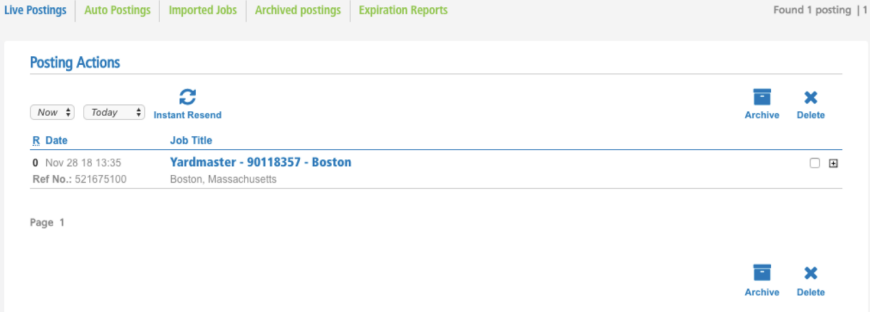

‘Manage Adverts’ must be configured within the Manage Job Via option in settings to appear at this stage
Manage this Job – Posting Centre
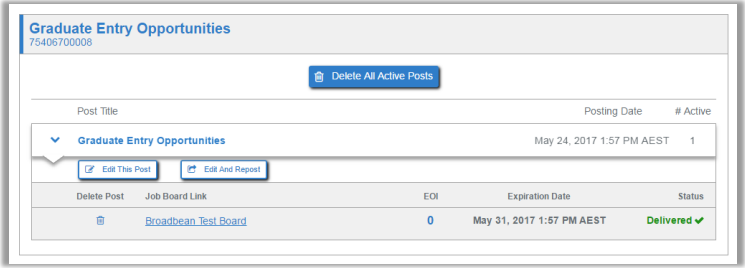
If you have ‘Posting Centre’ configured for the Manage Job Via option in settings then when clicking the Manage this Job icon you will be taken to the Broadbean Posting Centre your particular job.
From this view Edit, Resend, and Delete options are available as well as the advert status.
Manage all Jobs – Manage Adverts
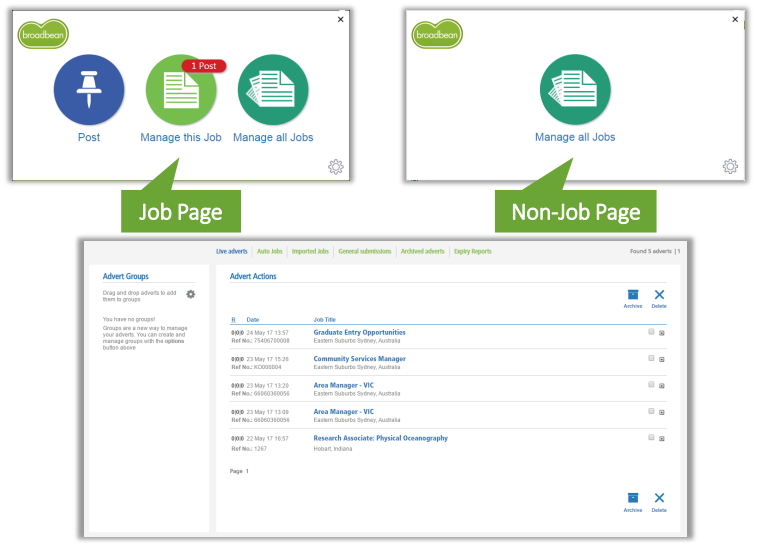
The Manage All Jobs icon appears whenever you click the Broadbean Chrome Extension. On a job page it appears as the third option and on a non-job page it is the only option.
Clicking the Manage All Jobs icon will take you to the Manage Adverts view in AdCourier showing all live adverts for your account.
Settings and Login Button
Clicking the settings (cog) icon will take you to the settings page used to configure the plugin initially.
Clicking the Broadbean logo will log you in to the AdCourier home page.