Setting up Microsoft Graph in a Microsoft Entra ID app allows the addition of an admin account as an owner and permissions can be updated. Microsoft Graph provides the permissions needed to sign in a user with OpenID and view their profile details in the OpenID login payload.
Add an admin account as an owner
- Go to Microsoft Entra ID.
- Select Microsoft Entra ID.
- In the left panel, select App registrations.
- Select the All applications tab, then select your application.
- In the left panel, select Owners.
- Select Add Owners. The Owners panel appears on the right.
- In the Owners panel, search for and select the appropriate administrative account. Click Select.
Update permissions
- Navigate to App Registrations.
- In the left panel, select API Permissions.
- In the Configured permissions section, click the + Add a permission button. The Request API permissions panel appears.
- At the top of the Request API permissions panel, select the My APIs tab, then select your application.
- Check the box next to user_impersonation, then at the bottom of the panel, select Add permissions. The panel closes, and your updated permissions appear in the center panel.
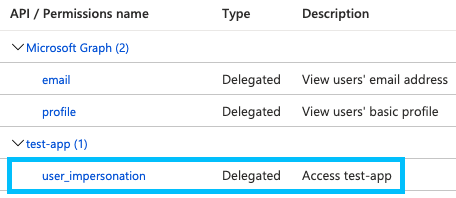
- In the Configured permissions section, click the + Add a permission button. The Request API permissions panel appears.
- At the top of the Request API permissions panel, select the APIs my organization uses tab, then search for and select Microsoft Graph.
- Select Delegated Permissions. In the panel, a Select permissions section appears.
- In OpenId permissions, select all 4 boxes.
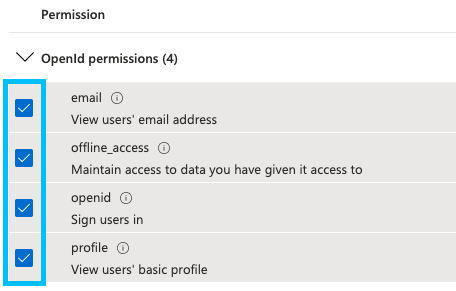
- At the bottom of the panel, select Add permissions. The panel closes, and your Microsoft Graph permissions appears in the Configured permissions section of the center panel.
- Select the Grant Admin Center Consent for \<your AD> in Configured Permissions. When prompted to confirm, select Yes. All the permissions now have a green checkmark in the Status column.
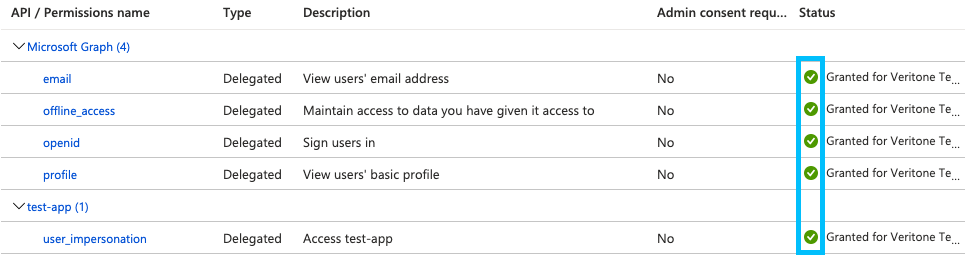
Next step
Log in to aiWARE using OpenID Connect



