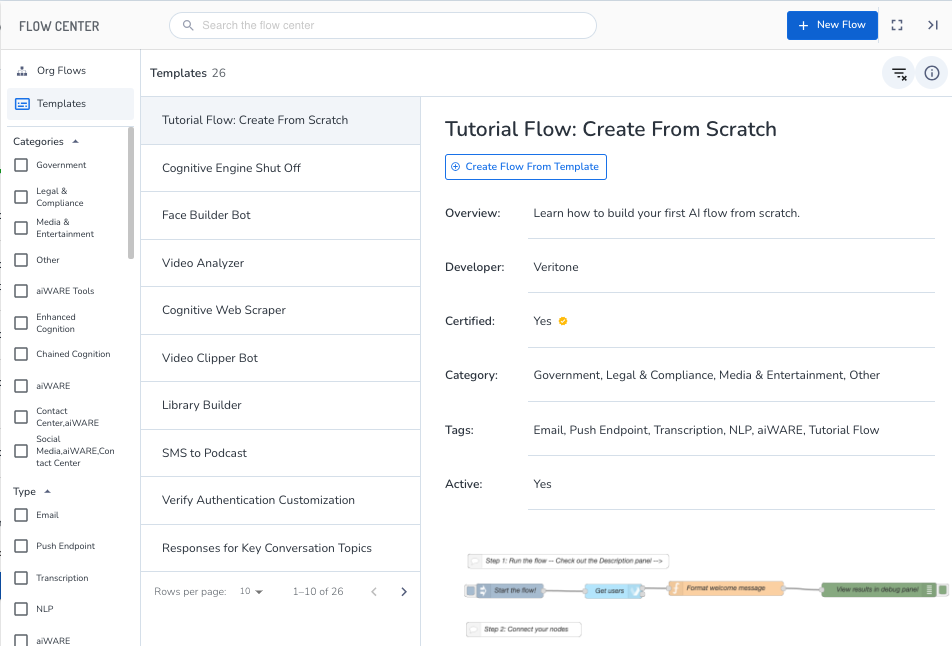
Flow Center is an aiWARE OS utility that is available to Automate Studio application users. This utility allows you to quickly browse, manage, and open Automate Studio flows and templates. Automate Studio is a low-code workflow designer that lets you:
- Create, design, and deploy AI engines.
- Manage aiWARE workflow resources.
- Execute aiWARE cognition engines.
- Orchestrate workflows.
- Seamlessly integrate with third-party APIs.
Common use cases
|
Use case
|
Description
|
|
Integrate your organization's data stores and run automated data analytics on it.
|
Connect your data stores and systems as well as new and existing applications to build bespoke AI-enabled solutions quickly with low-code, event-driven workflows.
|
|
Turn unstructured data into searchable content.
|
Transform unstructured data such as video, audio, images, text, and more to searchable, structured data in near real-time to drive business processes.
|
|
Conduct data shaping.
|
You can combine data from multiple sources, transform the contents based on business rules, or fit your data inputs to the schema you want for processing in later steps.
|
Terminology
|
Term
|
Definition
|
|
Flow
|
A flow is a series of connected nodes that work together as one part of a job in aiWARE. An example is a flow that handles data ingestion and normalization before you process the data with AI.
|
|
Node
|
Nodes in Automate Studio are visual representations of a processing task. In the example of a flow that handles data ingestion and normalization, an example of a node inside that flow is a single SQL operation to join columns.
|
|
Subflow
|
Subflows are an Automate Studio feature that enable exporting a flow to the node palette, where it appears as a single node that can be used in other flows.
|
Access Flow Center
To access Flow Center, log in to your aiWARE account, and from the header bar, select  and then Flow Center
  .
.
Flow Center slides out as a panel.
Interface overview

Left sidebar
The following options are available in the left sidebar:
-
Org Flows: A list of the flows that have been created in this organization; also includes several flow templates to get started.
-
Templates: A list of all the flow templates that are available to this organization.
New Flow button
Click the New Flow button to open the flow editor. Enter a name for the flow and click Create Flow. The Automate Studio application opens in a new tab. Here you can drag and drop nodes and connect them to automate tasks.
Org Flows
Org Flows displays the list of flows created in this organization. The three dots menu  allows you to view additional details, open the flow in the Automate Studio application for editing, create a template from the flow, and delete the flow.
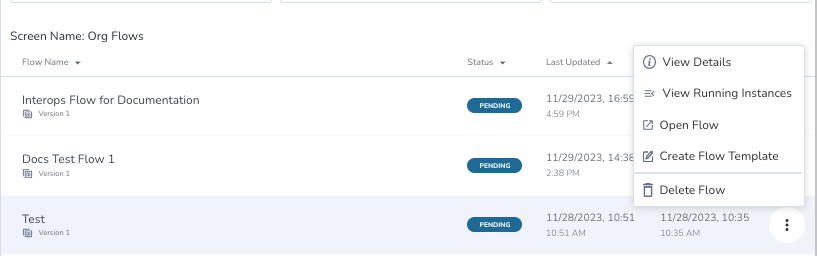
When you click on a flow in the list, it opens in the Automate Studio application in a new tab. You can also click Open Flow.
Flow Details
The Flow Details panel can be accessed by clicking the Information icon  at the top right of Flow Center or by clicking the three dots menu next to the flow and then View Details.
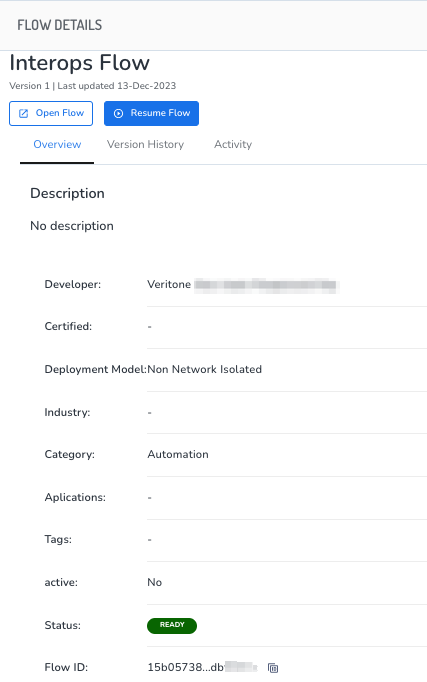
There are three tabs:
Overview: Basic information regarding this flow, such as developer, status, and a unique ID.
Version History: View and manage all available versions of the flow, and revert to a previous version.
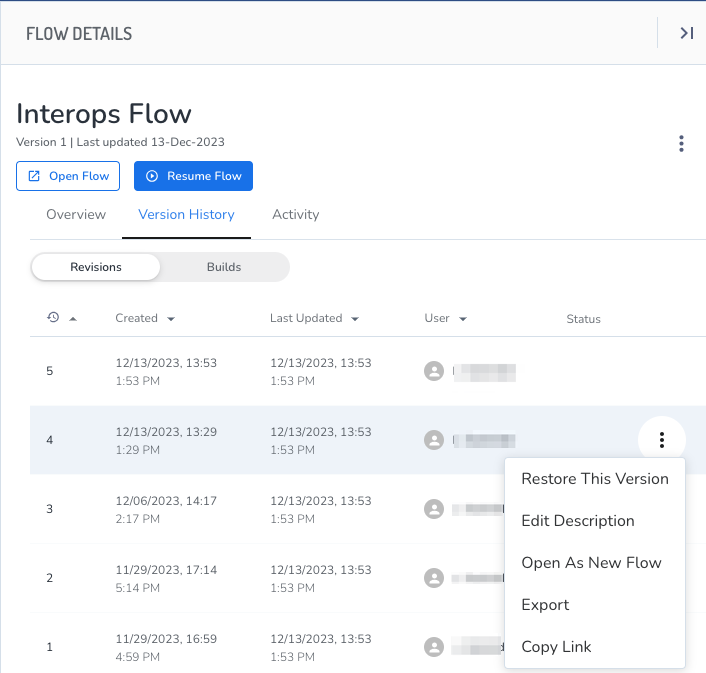
Activity: View all historical activity associated with this flow.
[Tip]You can view the flow details for other flows by clicking the list of flows while leaving the Flow Detail panel open.
Templates
Templates can help you jumpstart your flow creation. The Templates section lists all available templated flows that you can use as a base for creating a new flow. The list of templates can be filtered by category. Clicking on a template opens the Template Details panel, including a view of the nodes and connectors. Click Create Flow From Template to use the template as the basis of a new flow in the Automate Studio application.