Data Center can ingest data into the aiWARE system and have it ready for processing without having to create a scheduled job for further processing. The ingestion-only process can be helpful for quickly testing out multiple engines on the same data to determine which to use in production. Another use case would be to test the data in complex Automate Studio flows to catch edge cases. The data is brought into the aiWARE system and is ready for work.
[Note]If your organization has enabled aiWARE’s Object Level Permissions feature, those may be configured to limit what actions users can perform in Data Center. For example, not all users may be allowed to create new folders, or move files between folders. See Object Level Permissions for more information.
When data is ingested, it may be chunked, transcoded, tagged, indexed, thumbnailed, and/or subjected to other "normalizing" operations so that the system can operate on all ingested files with the same expectations, no matter where a file originally came from. In aiWARE, a file can undergo cognitive processing if and only if it has been ingested.
Access Data Center
To open Data Center, click the utility icon  . Select the Data Center folder icon
  . The Data Center panel slides out.
Create an ingestion job
Steps
-
Click New > Schedule Job. The Select Import Source panel opens.
-
Select an adapter for your data type from the Pull list.
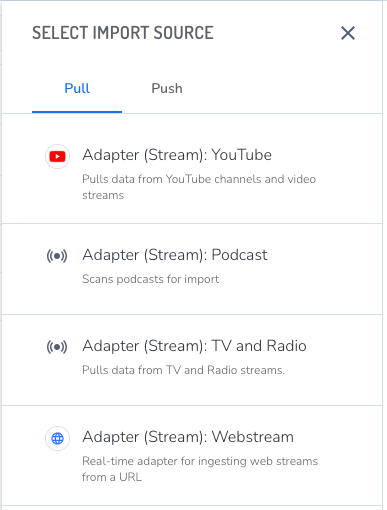
The list of available adapters may depend on the engines that have been provisioned for your organization.
The Create Schedule panel opens.
The scheduled job wizard guides you through 6 steps.
1 - Select a Source
Choose a source for the import source. To create a new source, click the drop-down list and then + Create New Source at the bottom of the list. See Video ingestion requirements for more information.
(Optional) Click Advanced Settings to specify the following:
-
If your organization has more than one instance of aiWARE available for work, you can select a Cluster.
-
Select a Media Chunk Length. The default setting of 15 minutes works for most sources. The general recommendation is to create chunks of no less than five minutes, and no more than 15. Larger media chunks have more context, which can be helpful for jobs that include speaker separation, for example, or where having more data in a single temporal data object (TDO) would make it easier to find. Smaller chunks can be used to generate some initial results more quickly.
2 - Basic Info
Give the job a name.
3 - Schedule
Choose the time and date for the job to run, and whether it recurs.
[Warning]If you skip this step, the job will run at a default time and you will be unable to find it until it runs.
4 - Processing
Do one of the following:
-
If an Ingest Only template already exists in your list of job templates, select it based on the type of source data (e.g., podcast, YouTube, webstream, etc) and click Next.
-
If no Ingest Only templates are in your list, click Next (Ingest Only). This creates a job template that will ingest the data, but will not run additional AI processing on it.
[Note]You do not need to create additional Ingest Only templates if one exists for your source data type.
Closed file video ingestion
If your video is compatible with FFMPEG, you can decode using the latest documentation.
Or, you can:
-
Process the video yourself in time sliced chunks (must be 5-15 minutes in length).
-
Append metadata tags to include time correlated start time and end time and program info.
-
Upload the chunks to an Amazon S3 bucket.
-
Provide Veritone with the Amazon S3 credentials. Veritone will copy the files from Amazon S3 and process them.
5 - Content Templates
Content templates are customized templates with unique fields that let you add more information to your file’s metadata.
6 - Location
-
Specify a location for the job results by clicking Change to the right of the Home folder.

-
Once set, click the Create Scheduled Job button.
The ingestion job is put into the processing queue and the data will be available in the specified location when the job is complete.



