Veritone Redact supports image redaction on the following file types: JPG/JPEG, PNG, GIF, TIFF/TIF, HEIC, BMP, AVI, and SVG.
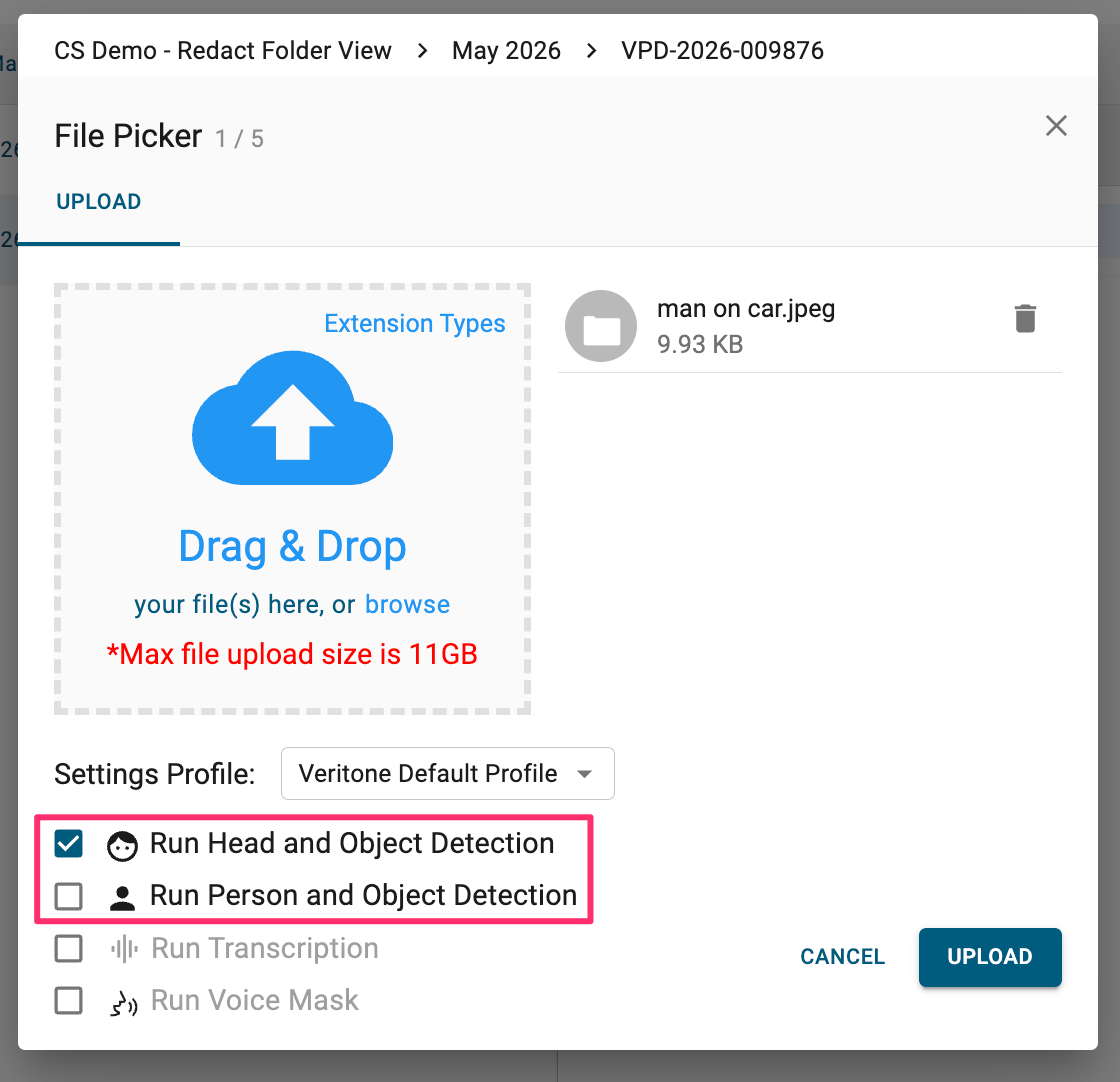
On upload, you can select if you want to “Run Head and Object Detection” and/or “Run Person and Object Detection”. If your selected files are only image files, then these will be the only options available for selection in the File Picker. If you are uploading a mix of image and video/ audio files, you can select “Run Transcription” and “Voice Mask” which will only be applied to your video and audio files.
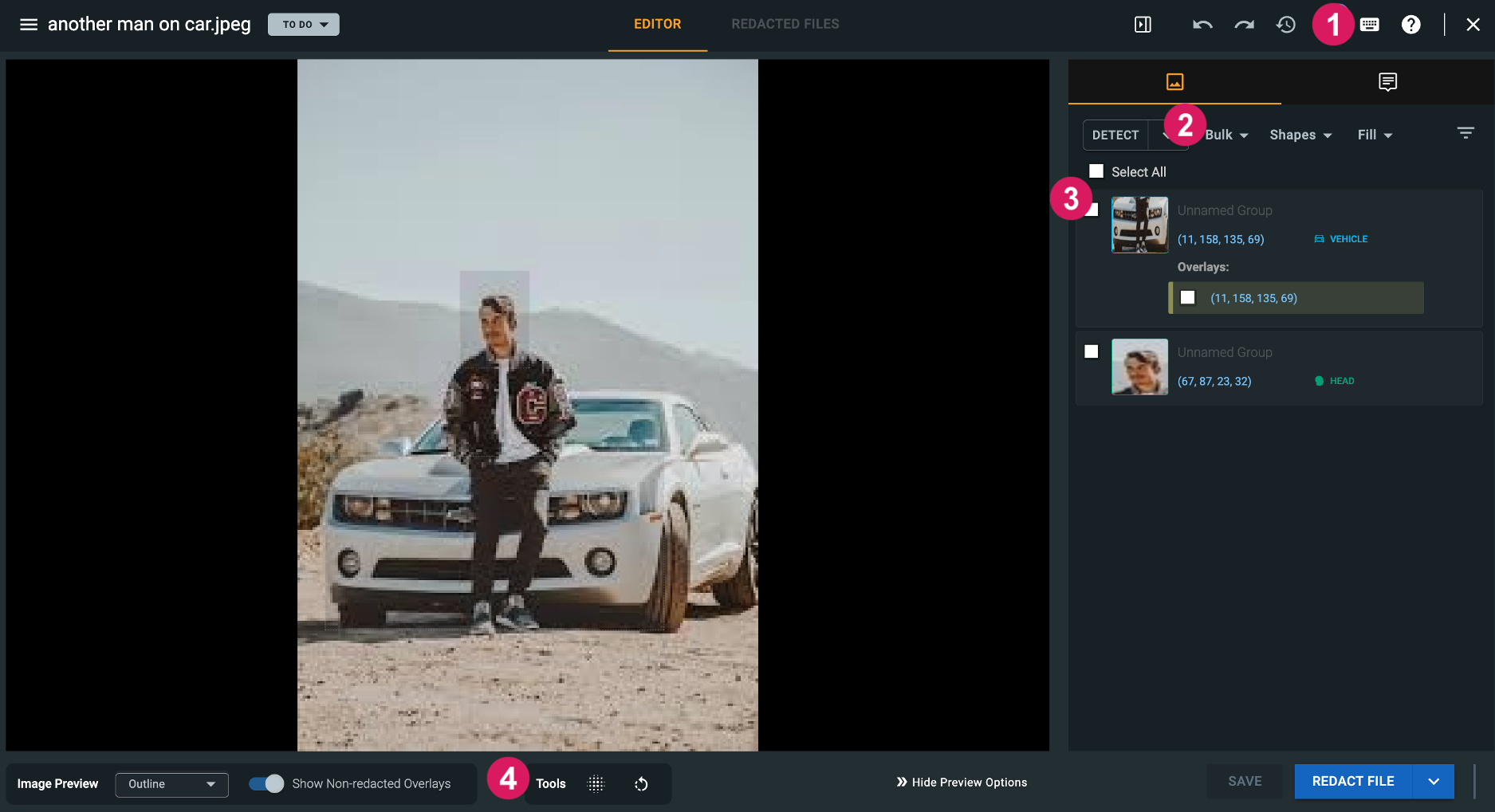
Once your upload completes, navigate to your File Manager page. Many of the features of the audio and video redaction File Manager page remain the same for image redaction. Below highlights the key differences.
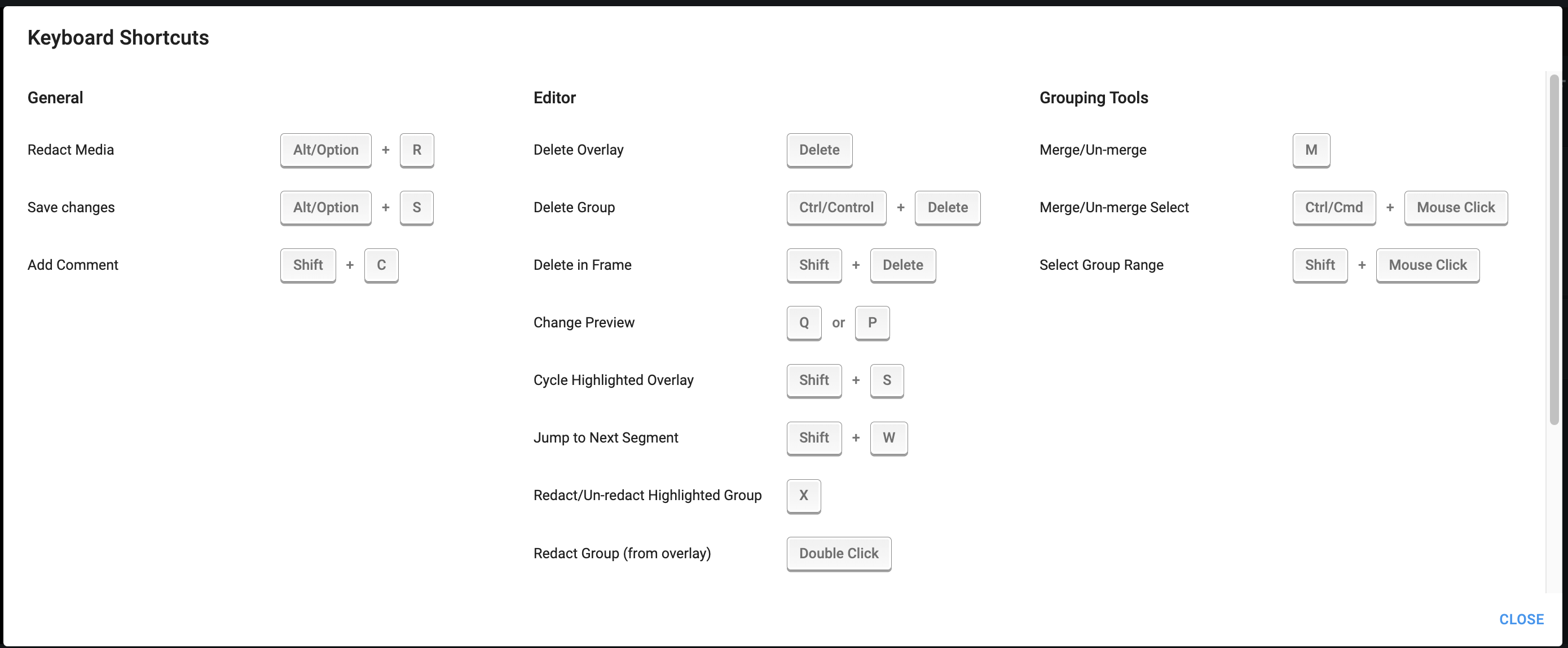
 Keyboard Shortcuts
Selecting the keyboard icon will open the keyboard shortcuts menu. This displays only the keyboard shortcuts relevant to image redaction.
 Bulk, Shapes and Fill Dropdown Menus
These control the settings for your redactions.
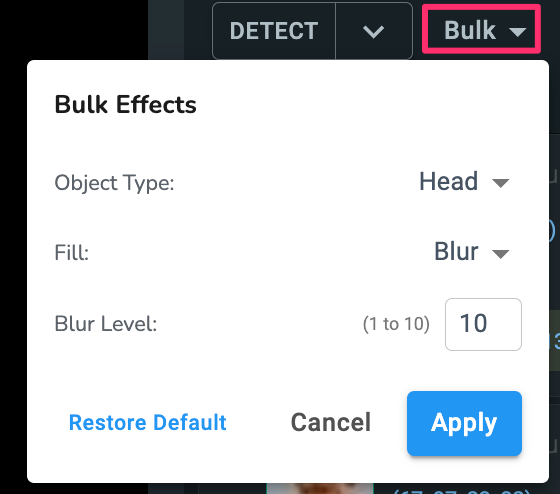
The Bulk dropdown opens the Effects menu. allows you to modify the fill settings (blur, backfill, outline, inverse blur) for a specific object type.
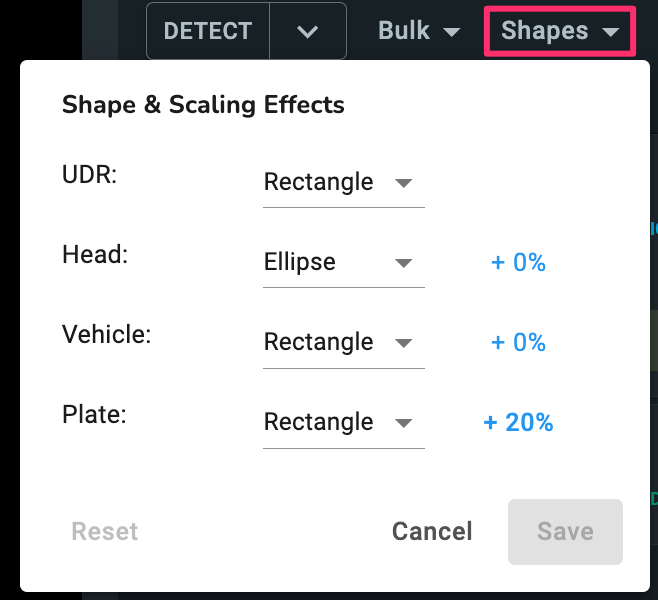
The Shapes dropdown opens the Shape & Scaling Effects menu, which is where you set the shape of your detection types, whether they are a rectangle or ellipse, and add padding using the Scale Boost slider.
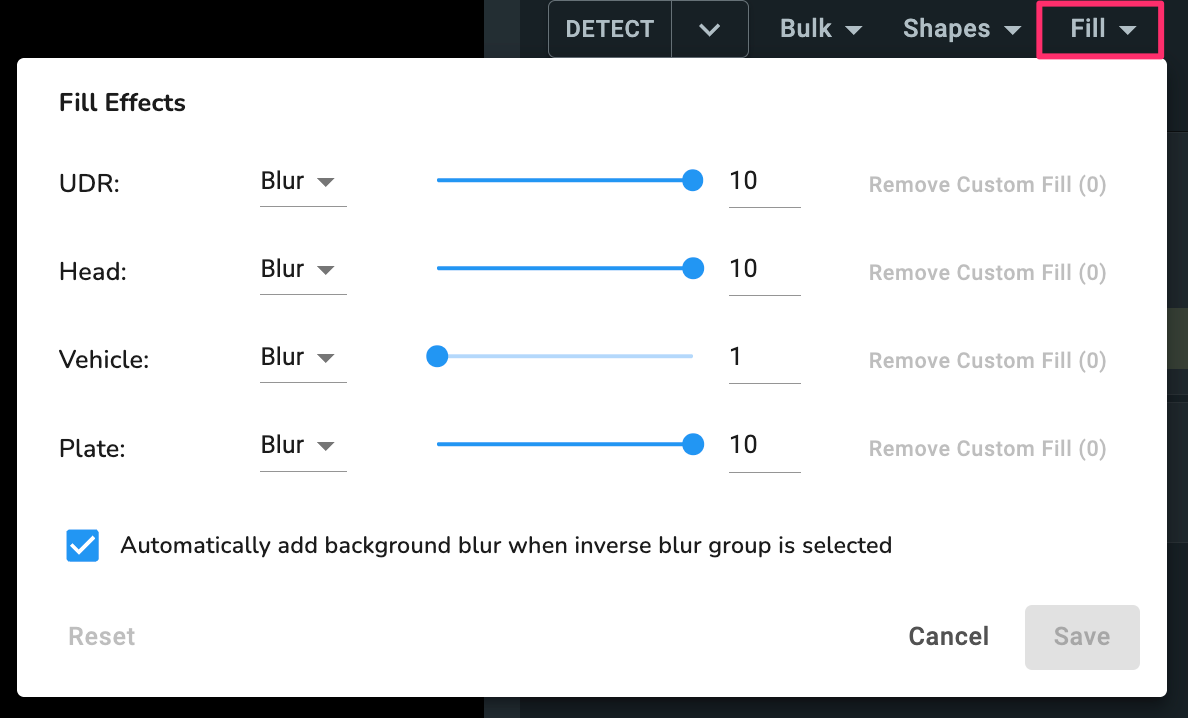
Lastly, the Fill dropdown opens the Fill Effects menu. This is where you set how your redactions are being displayed by type, whether they are displayed as a blur, backfill, outline, or inverse blur. You also have the option to automatically add background blur when inverse blur group is selected. This is enabled by default.
 Detections
Any heads, persons, laptops, plates/vehicles and notepads that were detected by our engines will be listed here. Use the checkboxes to enable the detections. Any User Defined Regions (UDRs) will also populate here.
 Tools
Tools
To the left you have your Background Blur slider. When you are using inverse blur, you can adjust how blurry the background is using the slider. O is no blur, 10 is the blurriest.
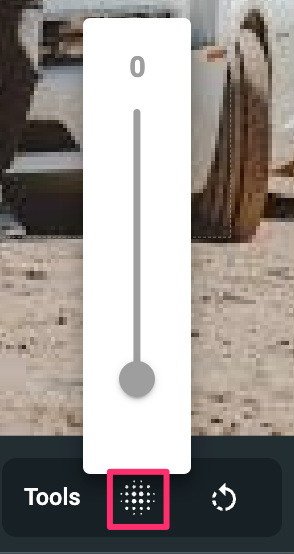
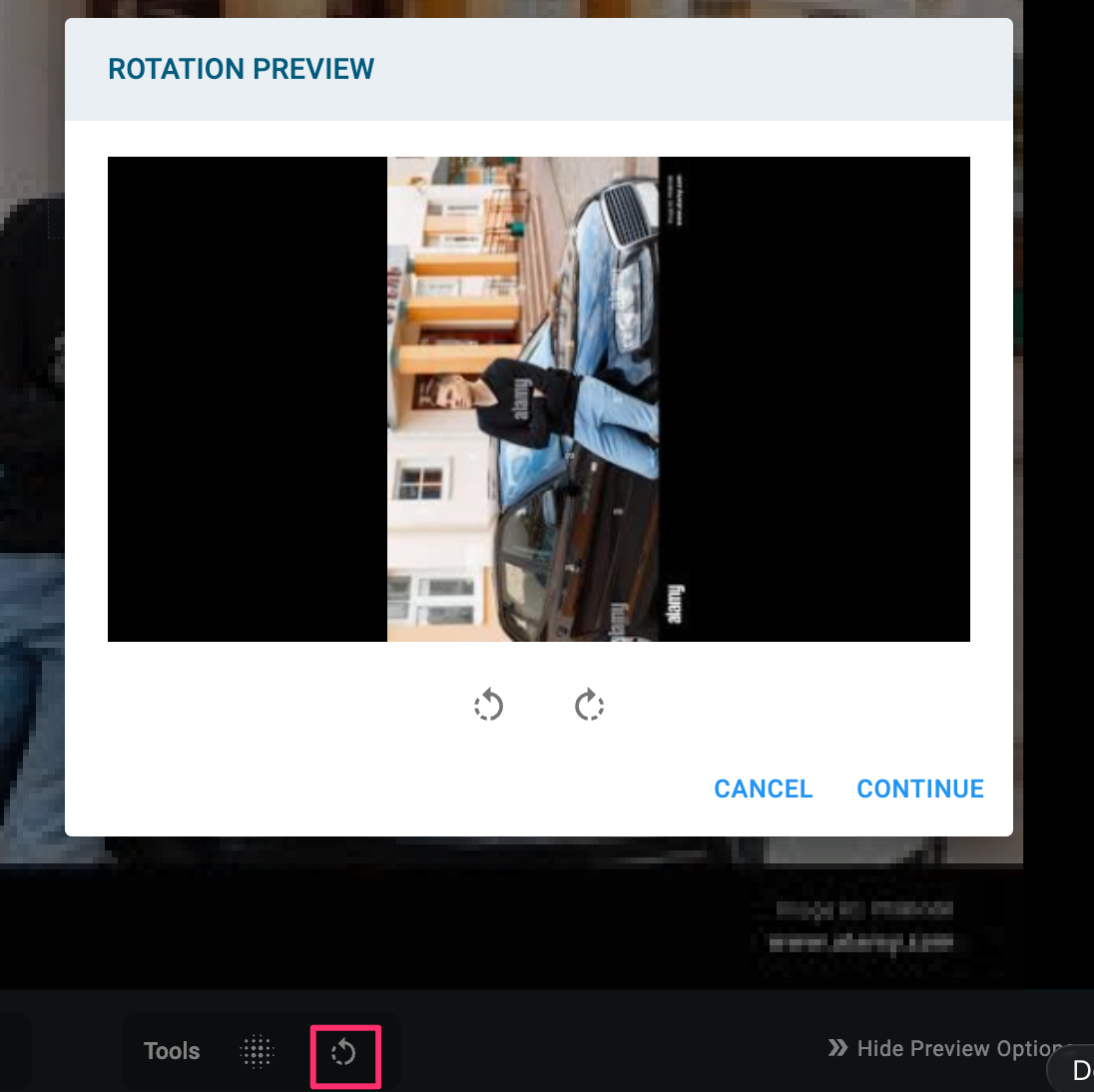
To the right is the Rotate Image button. When selected the Rotation Preview will open and you can rotate your image as needed.
Once your file has been uploaded, navigate to the file manager page. Review and select any autodetections picked up by our engines. Should you need to redact anything that was missed or objects that are not autodetected, you can use your mouse to draw a UDR on the image.
If needed, apply you can apply a redaction code to your redactions using the menu in the top left corner and selecting “Add Redaction Code.”
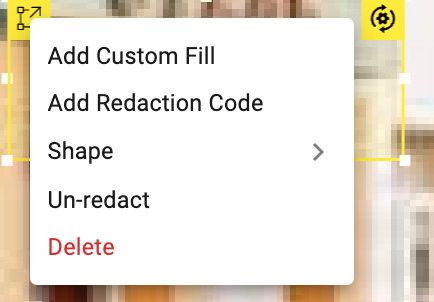
You can change the settings of this one redaction by selecting “Add Custom Fill” or “Shape” from this menu, as well as Un-redact or Delete the detection.
Once you have applied all redactions to your image, select the “Redact File” button in the lower right corner of your page to burn in your redactions.
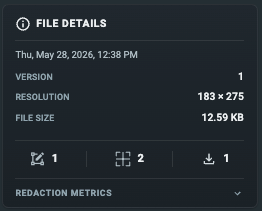
Navigate to the Redacted Files tab to preview your redacted image and view your File Details. Your file details will include the date the file was last redacted, the version, resolution, file size and metrics on how many UDRs and auto-detections are in the image and times a file has been downloaded.
Once ready, you can download your image and audit log using the “Download All Files” button, you can download the image or audit log separately using the dedicated buttons. Redacted images are downloaded as a jpeg.