The Report Builder tool in Veritone Attribute lets you leverage the most appropriate attribution report templates for a client. Specific reports help you frame conversations about on air performance and ultimately win and retain business.
Before you begin
Build a report
From your campaign dashboard, click the Reports tab. The Report Builder Dashboard opens.
Follow the 3-step New Report wizard.
Use report templates
You can set and apply templates in step 2 of the report wizard, Build Your Report. Click the Template drop down and select a custom preloaded templates or create your own. If your organization provided a custom template, we strongly recommend that you use that template for all reporting needs. This will be preloaded for you.
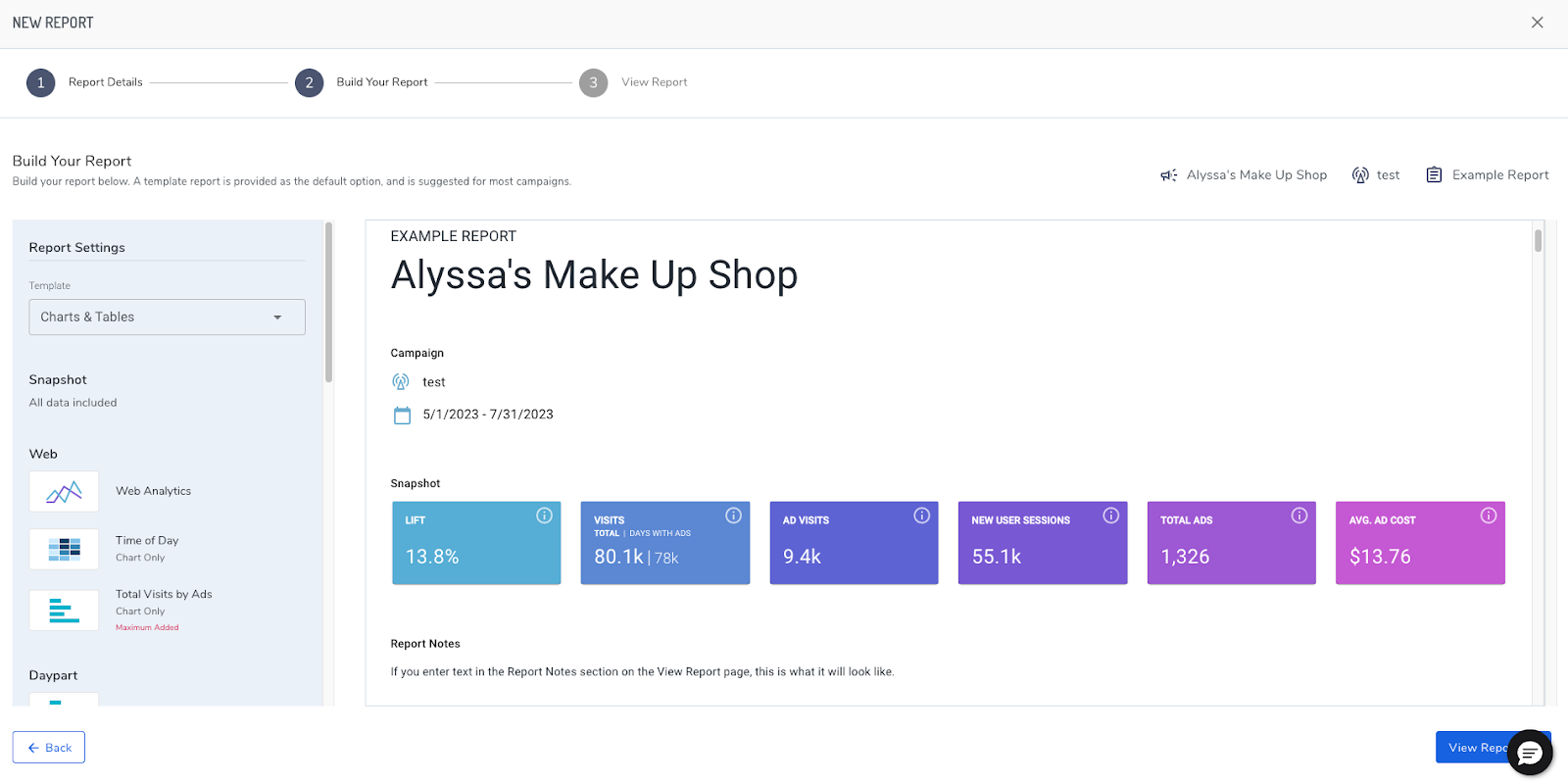
Reports are composed of data that is most important and impactful, allowing you to easily identify campaign performance and present optimization solutions:
- What days of the week get the biggest response
- Which creative is most effective at driving web traffic
- How results are tracking in each daypart
You can add to the report depending on your needs. After customizing your report, save it for that account for reuse.
Set custom advertiser logos
You can upload your advertiser's logo in step 3 of the report wizard, View Report. The advertiser logo will appear next to the Veritone logo.
You will see the advertiser name, campaign name, and report name you entered at the top of your screen. You can page through the preview screen to review your report before scheduling it.
Set a recurring campaign update schedule
Click Schedule This Report to set a recurring schedule for receiving campaign updates in your inbox. Click Schedule to complete the setup.
From this same step, you can select PDF or Powerpoint format. You can immediately download your report from this view as needed.
View saved reports
To view your saved reports, click the report icon to the right of your date filter and select View Reports.
A pop up appears that lists your reports created to date. You can edit your scheduled settings or remove report templates as desired by clicking on the trash can icon.
[Tip]Quickly schedule a report by clicking the Reports button on your dashboard, then View Reports > Schedule a Report.


