In This Article
- Video Tutorial: Settings
- Object Detection Settings
- Redaction Settings
- Advanced settings overview
Overview
Each media file within Redact has its own settings, which can be adjusted per your requirements by selecting the settings gear in the upper right corner of your File Manager page.

If your settings are always different from Veritone’s default settings, you can create a settings profile to apply to your media upon upload so you do not need to make changes with each media file. For more information on settings profiles, please refer to this help article: Settings Profiles in Redact.
Video Tutorial
Object Detection
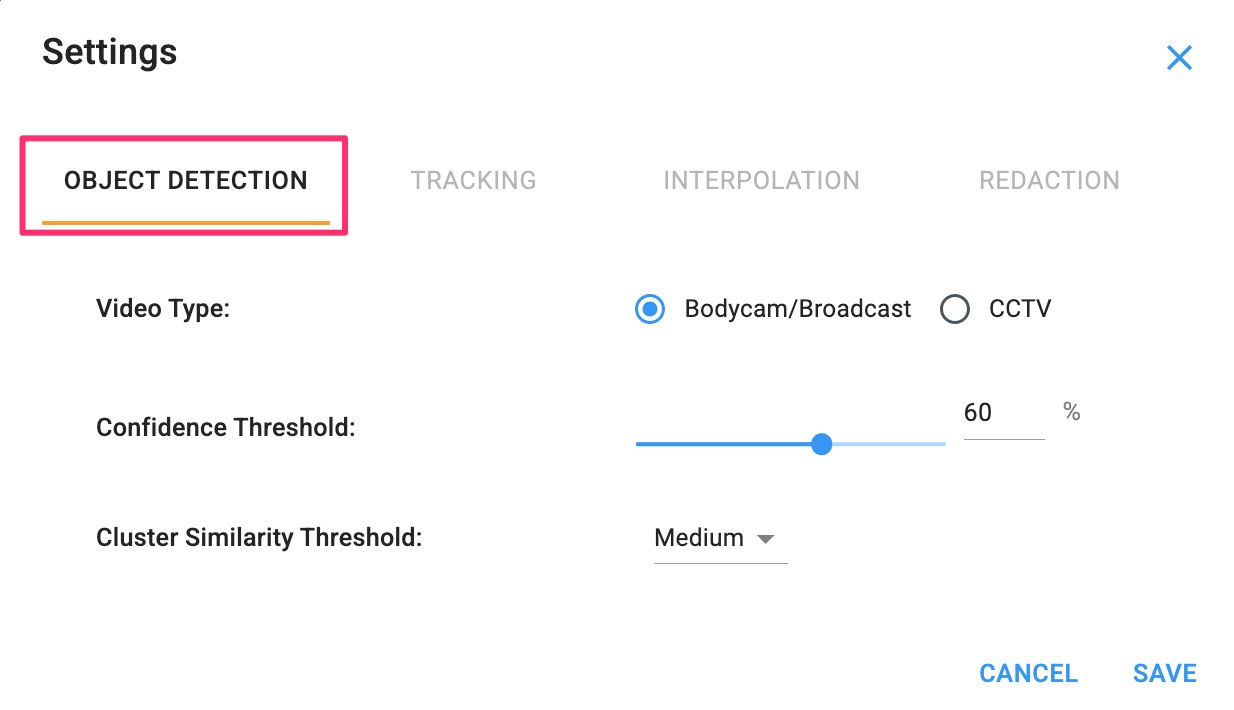
Video Type controls the sensitivity of what is being detected as heads. Bodycam and Broadcast is the default. When CCTV is selected, it detects smaller heads than you would expect on bodycam footage. Some in-car camera videos may detect heads better when CCTV is selected.
Confidence Threshold controls the level of confidence of Redact’s engines. The default value is set to 60%. We recommend keeping this at the default value unless you are working with lower-quality footage, such as grainy or nighttime media, and you notice heads, persons, laptops, or licenses are being missed. In this case, we recommend lowering the Accuracy Threshold by only 5-10%. If you adjust the Accuracy Threshold, you will need to rerun the engines again by selecting “Detect Objects'' in the Video tab.
PRO TIP: The lower the accuracy threshold, the more false positives our engines may pick up.
Cluster Similarity Threshold controls the grouping of heads, persons, and objects the engine determines to be the same as shown in your Video tab under the # column.
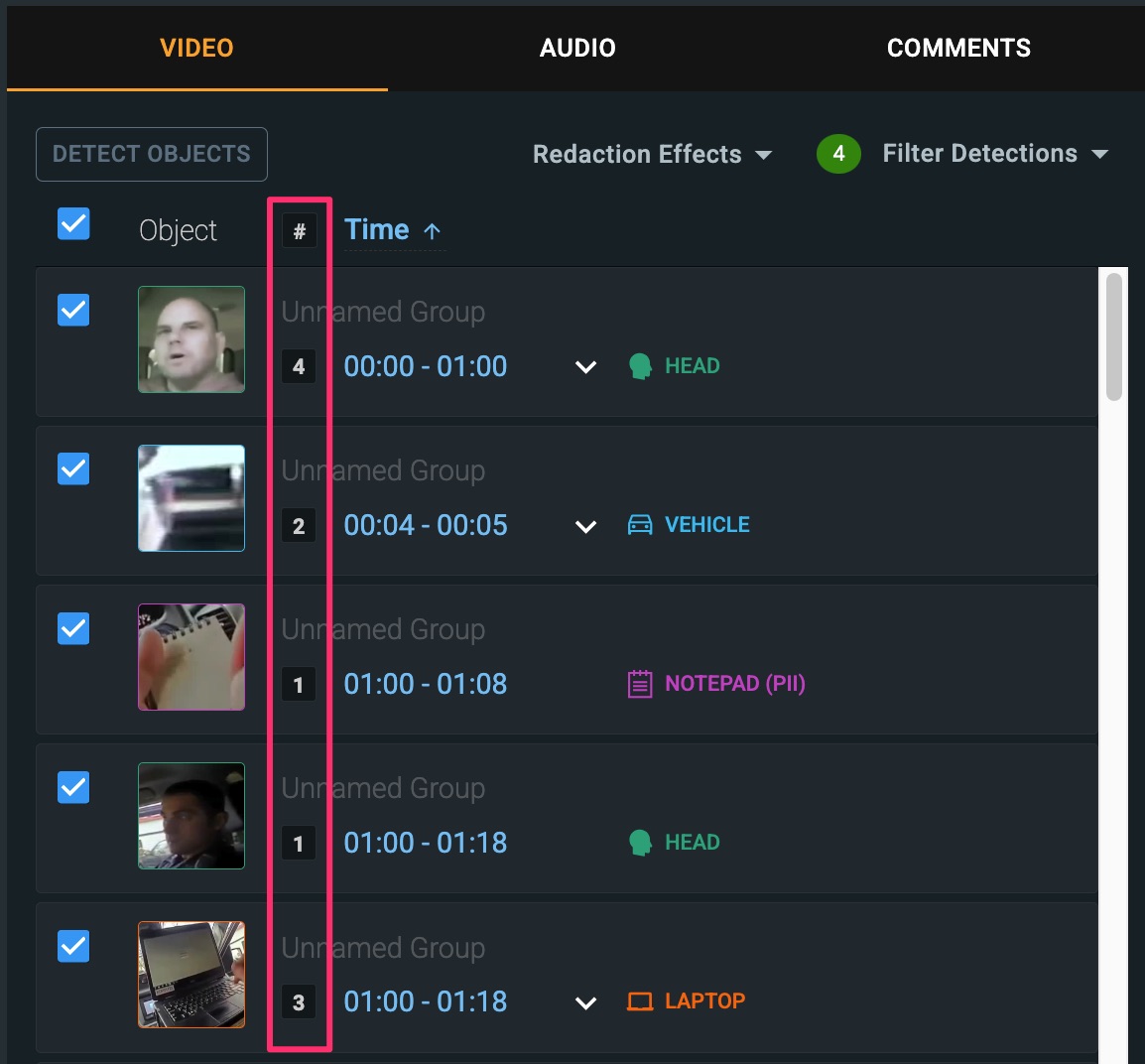
By default, this is set to medium. You can change this to High or Very High, which will produce more individual clusters, or Low or Very Low to produce fewer individual clusters and more groupings.
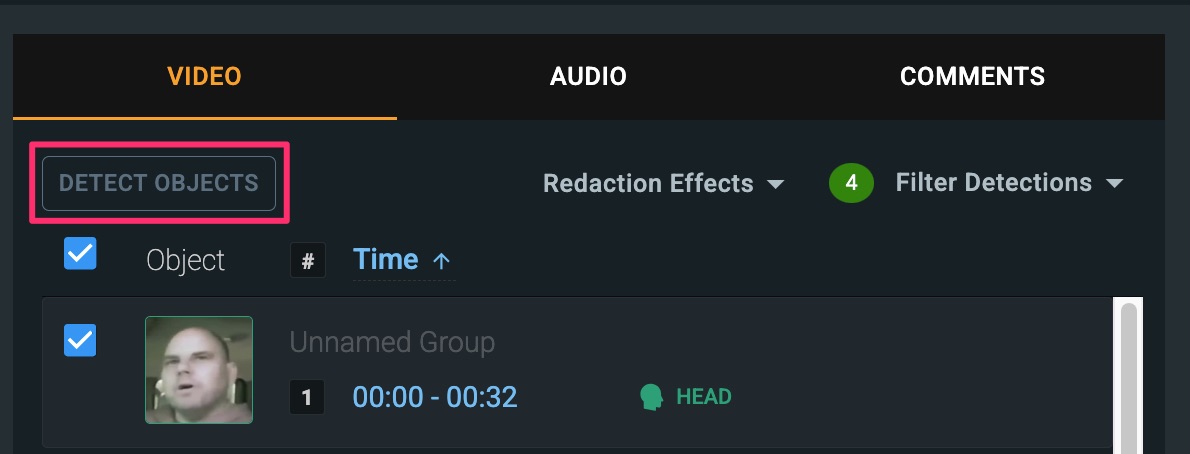
If you adjust any of the settings within the Object Detection tab, you will need to click save and then rerun the engines by selecting the Detect Objects button in the Video panel to apply the changes.
Redaction
The Reaction tab allows you to control how your video and audio redactions appear in your media.
Video
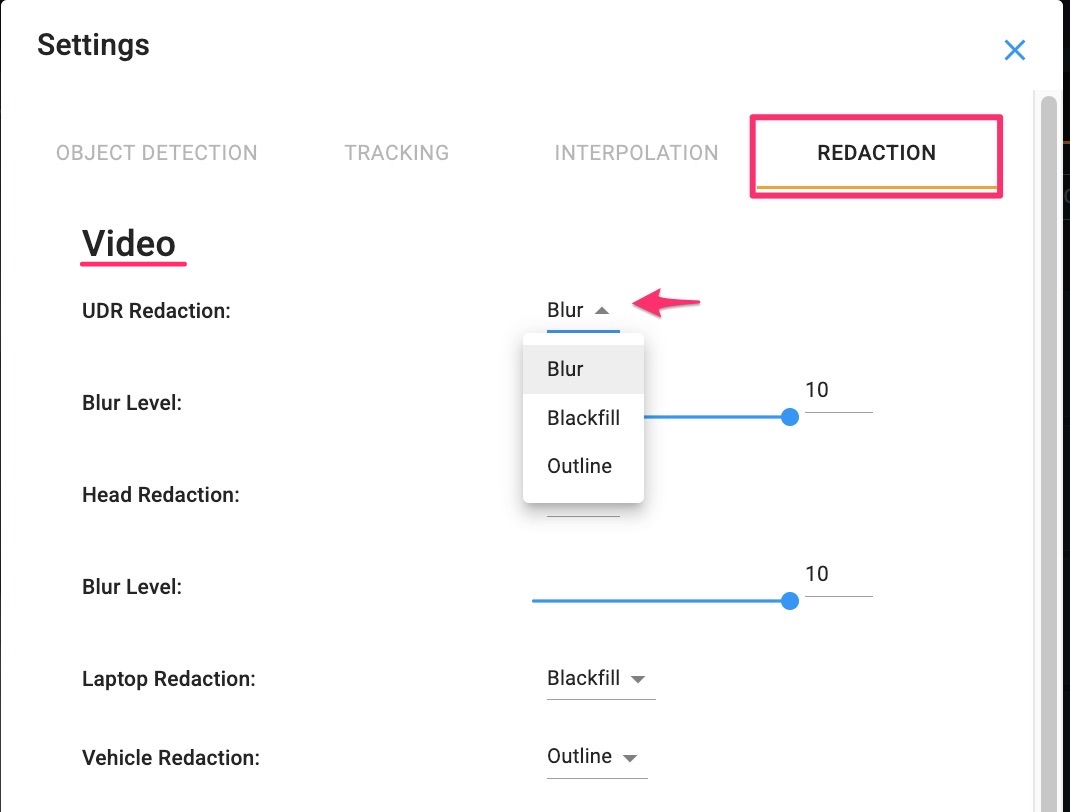
Depending on your redaction type, you can designate if the redactions you are applying to the video are depicted as blur, blackfill or outline. Blur is the default and you can adjust the blur level with 10 being the most blurry and 1 being the least. Blackfill will display as a solid black box over your redaction. Finally, outline will display an outlined box over your redaction, and is often used in situations where you need to draw the viewer's attention to someone or something.
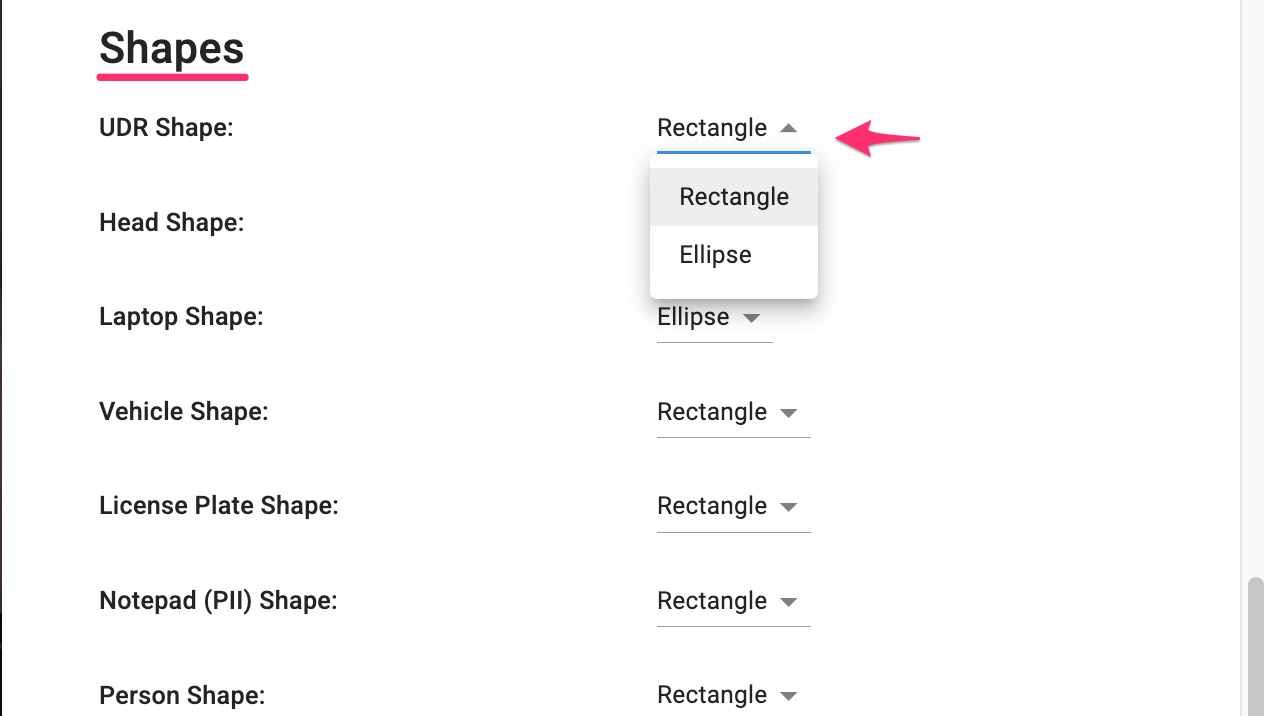
Additionally, for each area that is being redacted, you can choose the shape of the redaction by choosing between rectangle or ellipse.
Audio
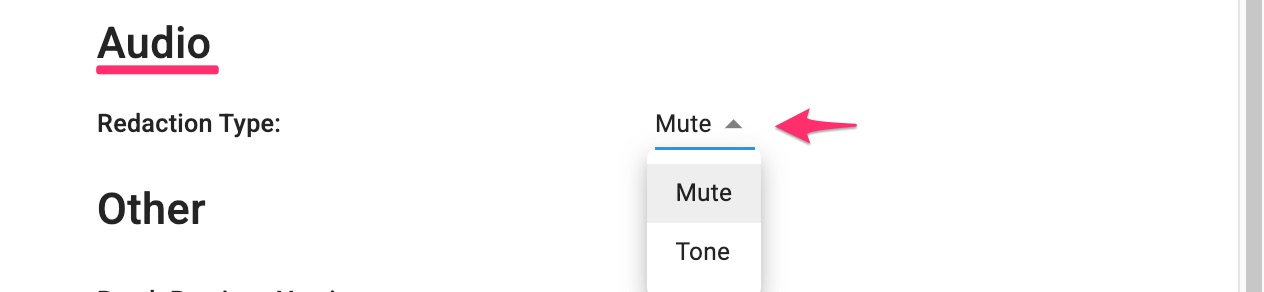
For audio, you can designate if the redaction is covered by a tone sound (continuous beep) or muted.
Advanced Settings
The Tracking and Interpolation sections are considered advanced settings that are very rarely adjusted.
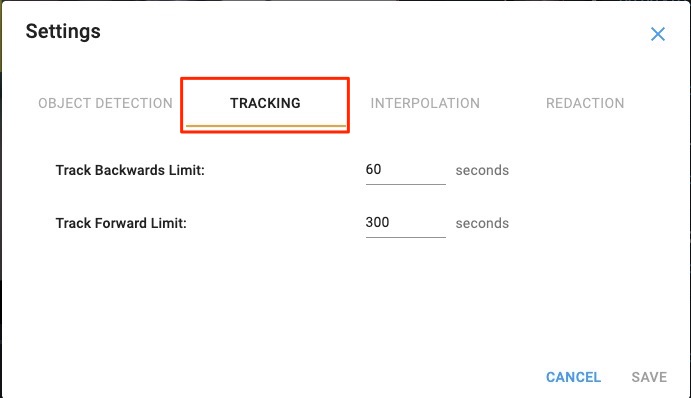
Tracking refers to object tracking when you draw a UDR. These are the limits it will go forward and backward
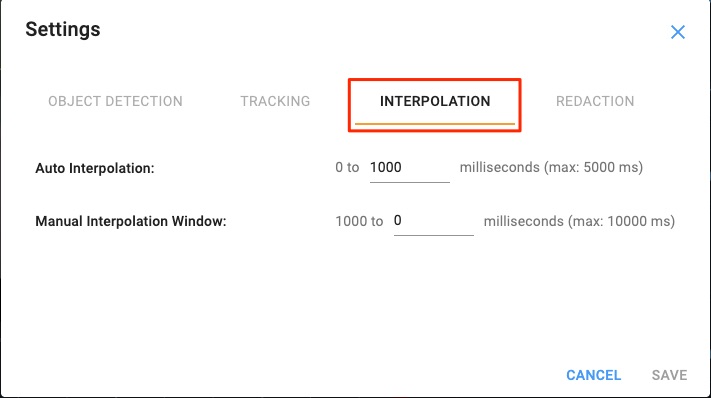
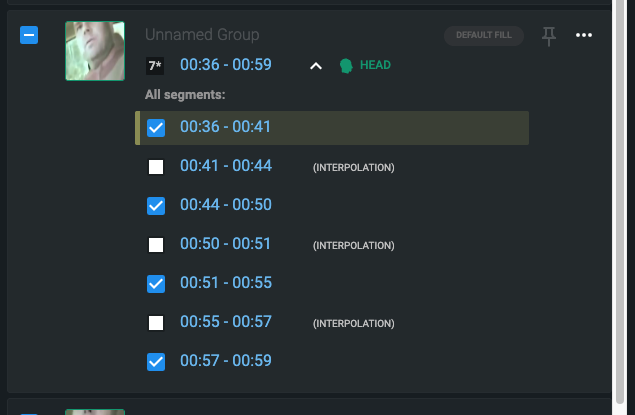
Interpolation is the AI model making educated guesses about the detections. It is a method for generating points between given points. Adjusting Interpolation will fill in the gaps between auto detections (as opposed to having to draw UDRs). This only works on Heads and License Plate. It operates off of the timestamp.
The only difference between Auto and Manual is how they are displayed on the right panel.
- Auto interpolation is the threshold for which detections are automatically stitched together. So if there is a small gap between detections, let's say the threshold is 500ms, then we're are saying that the two detections should be stitched together as one.
- Manual interpolation displays on the right-side cluster panel for larger gaps between the detections, and since they may be more noticeable they are considered "manual" and noted to the user
If you have any questions about Redact settings, contact our Support Team at support@veritone.com.



