In this article
- Video Tutorial: Folder View Homepage
- How to Create Folders
- How to Create Requests
- How to Search
- FAQs
Overview
Veritone Redact allows users to organize redaction work into discrete folders. These folders provide analogous functionality to those available on desktop devices. Organize the media to be redacted in a fashion that works best for your team or organization.
Below are a few examples of how we recommend organizing your folders:
-
Organize By Date
-
Organize By Objective
-
Organize By Operator
-
Organize By Case Number
Note: Organizing media into folders does not restrict access to the media.
Not seeing folders when you log in? Please reach out to your Customer Success Manager for assistance.
Video Tutorial
How to Create Folders
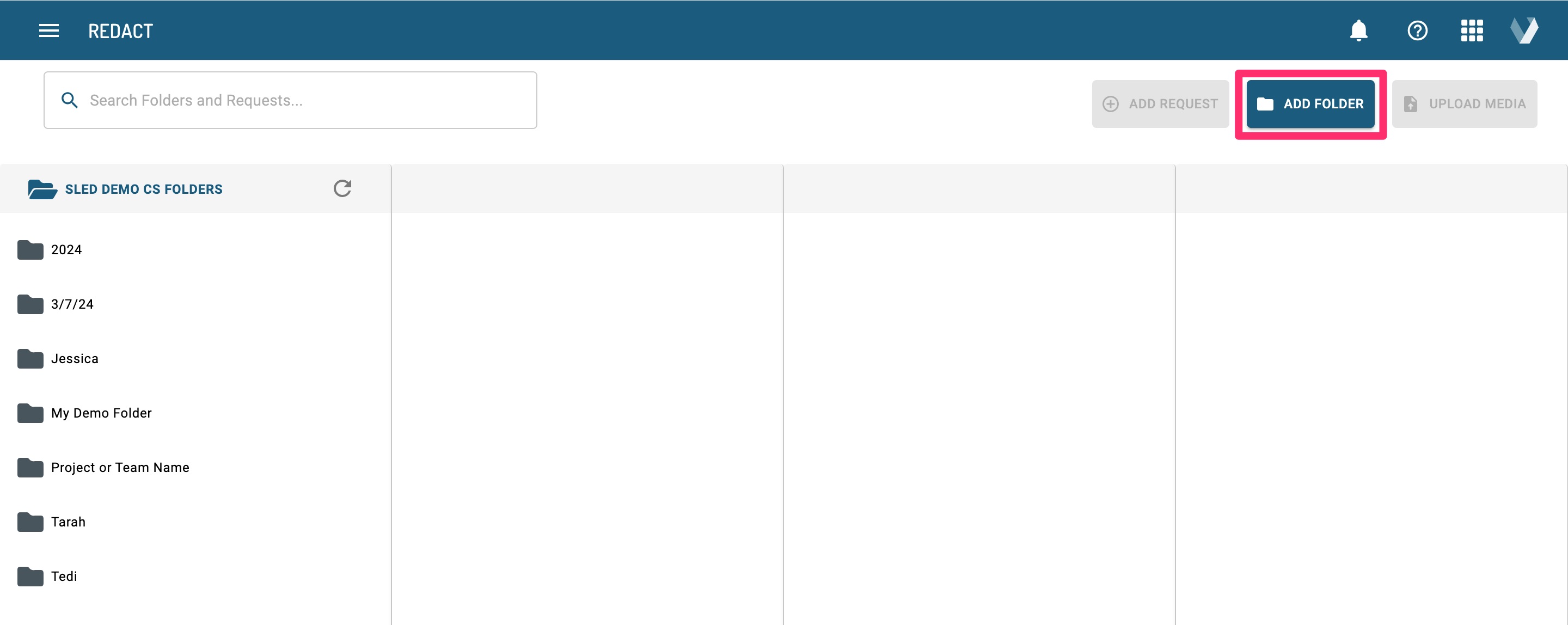
Your root folder will always be your organization's name, which cannot be changed. From your root folder, you must first create a new folder following the steps below:
1. Select the blue Add Folder button in the upper right-hand corner.
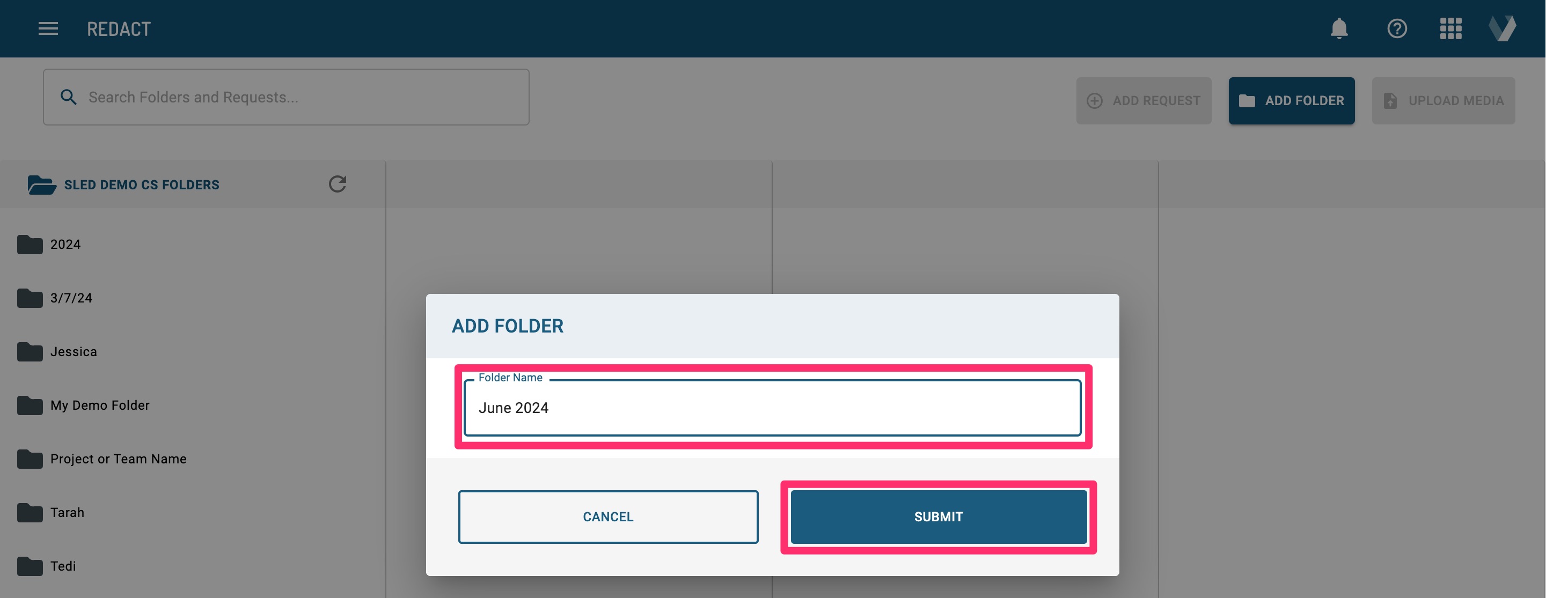
2. Enter your desired file name.
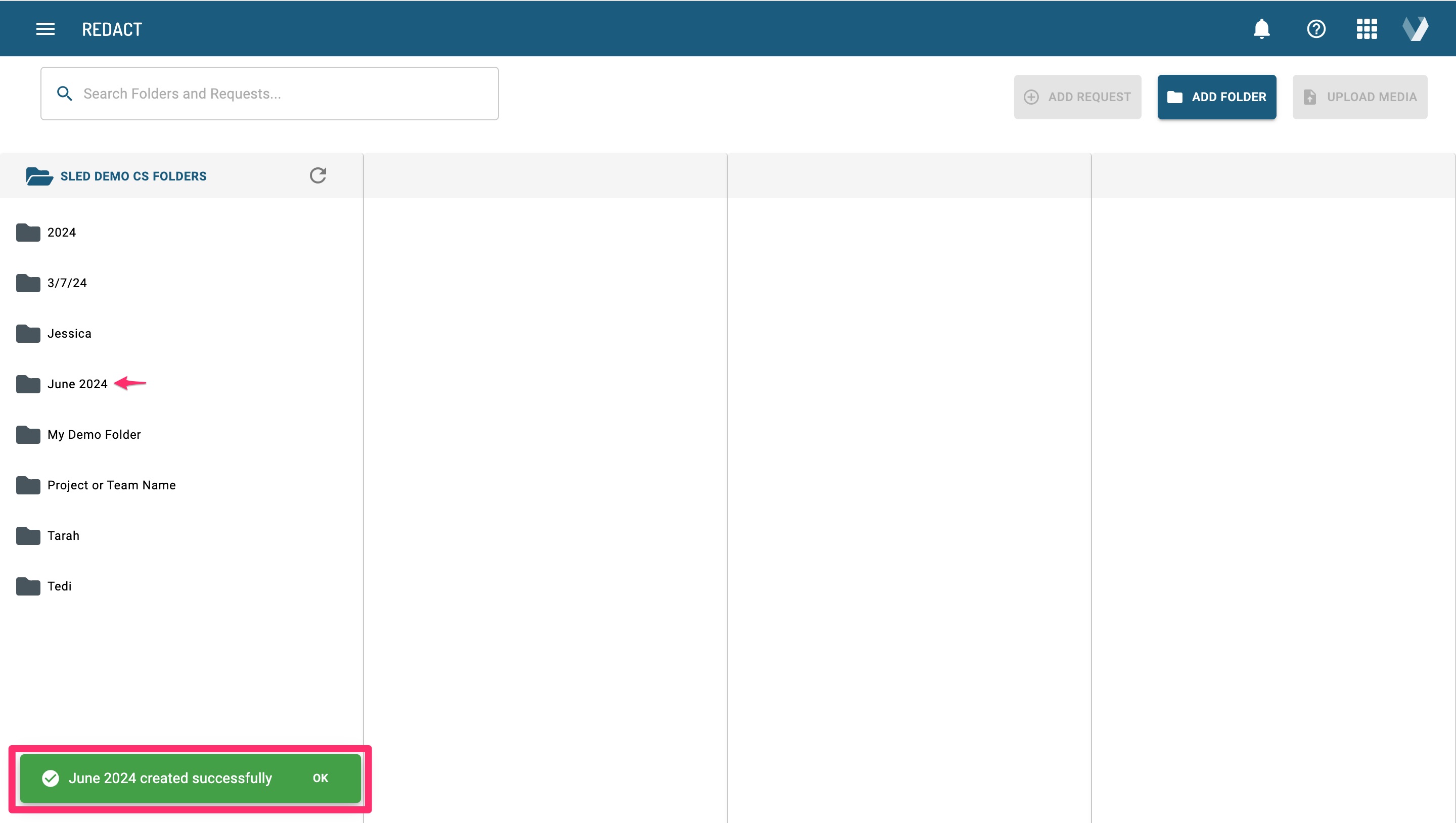
3. After clicking the Submit button, you’ll see the green success alert in the bottom left corner.
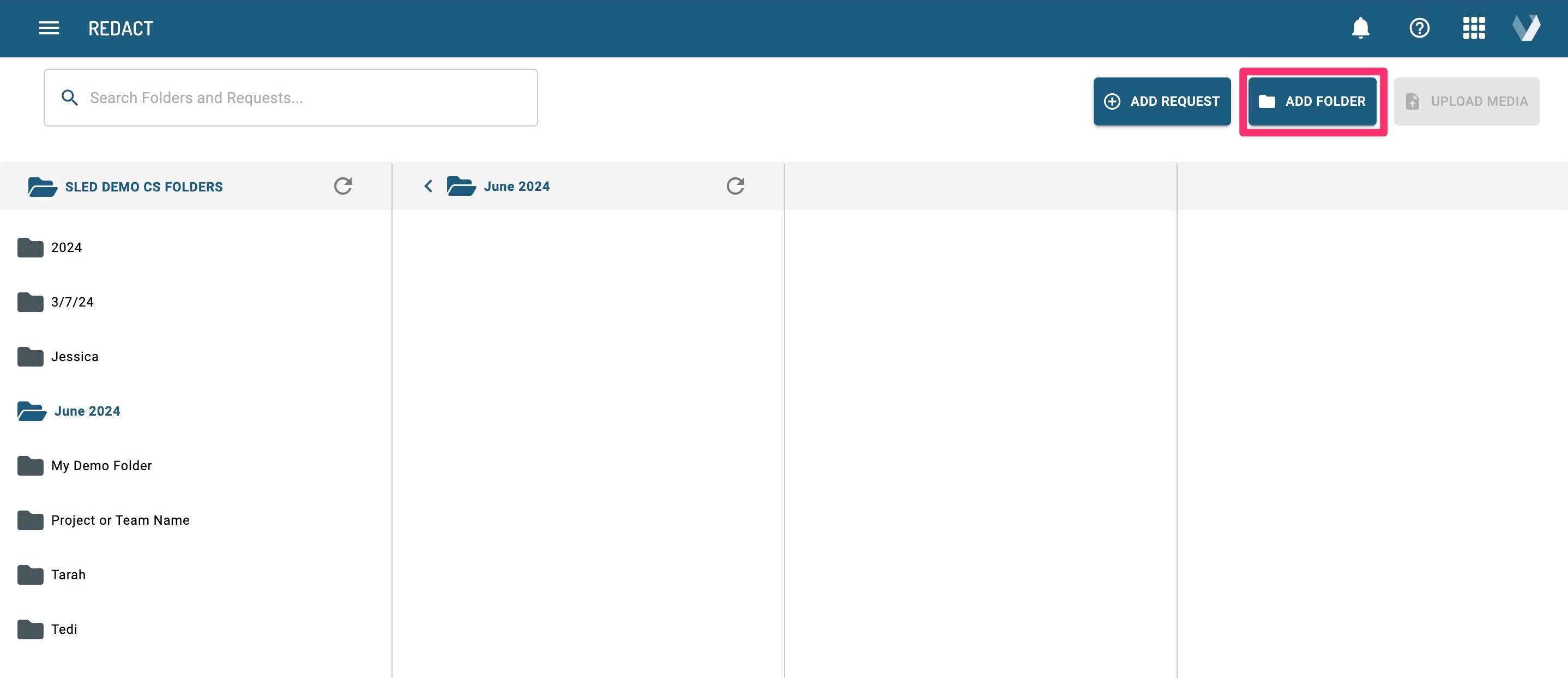
Once your folder is created, you have the option to add a subfolder by clicking into your newly created folder and following the steps above, or you can create a request using the steps below. If you do add an additional folder, then you must add a request following that.
How to Create Requests
1. Select the folder where you want to add your request and select the blue Add Request button in the upper right-hand corner.
2. Enter your desired name for your request.
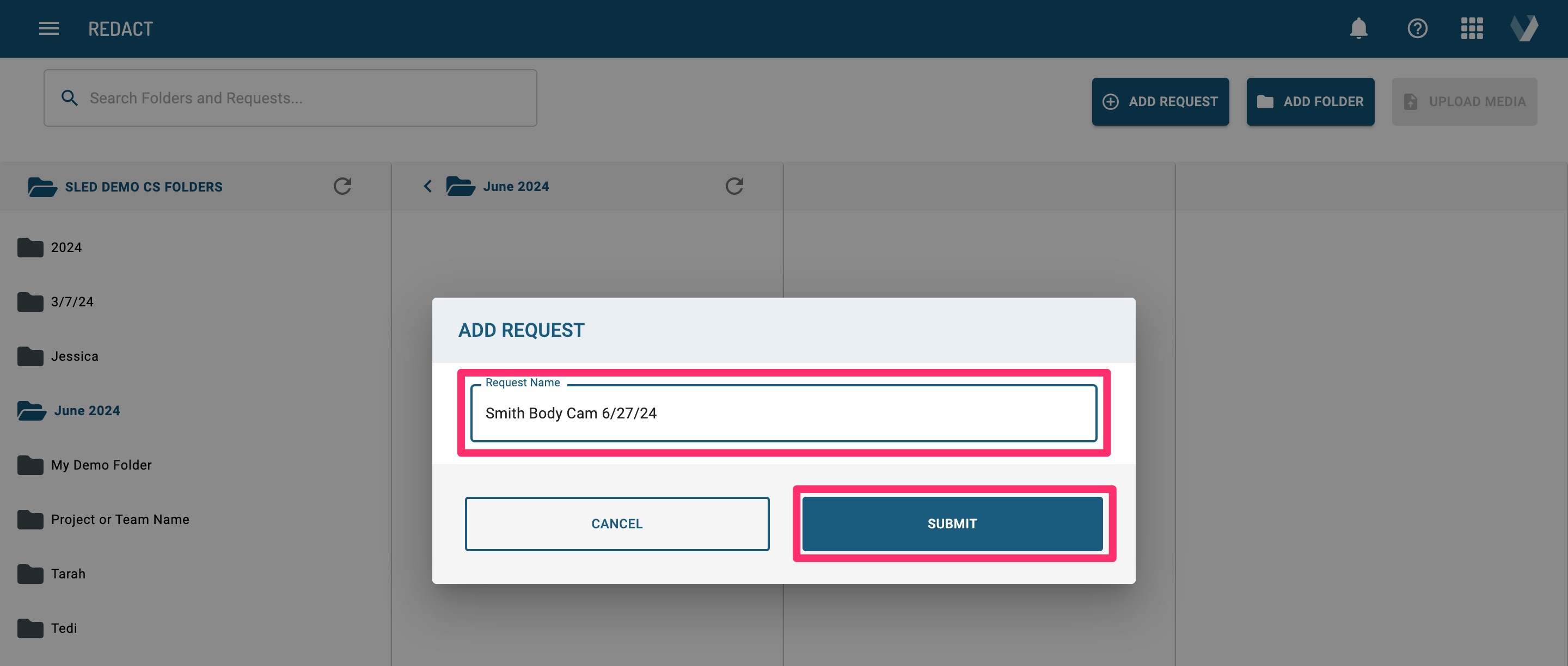
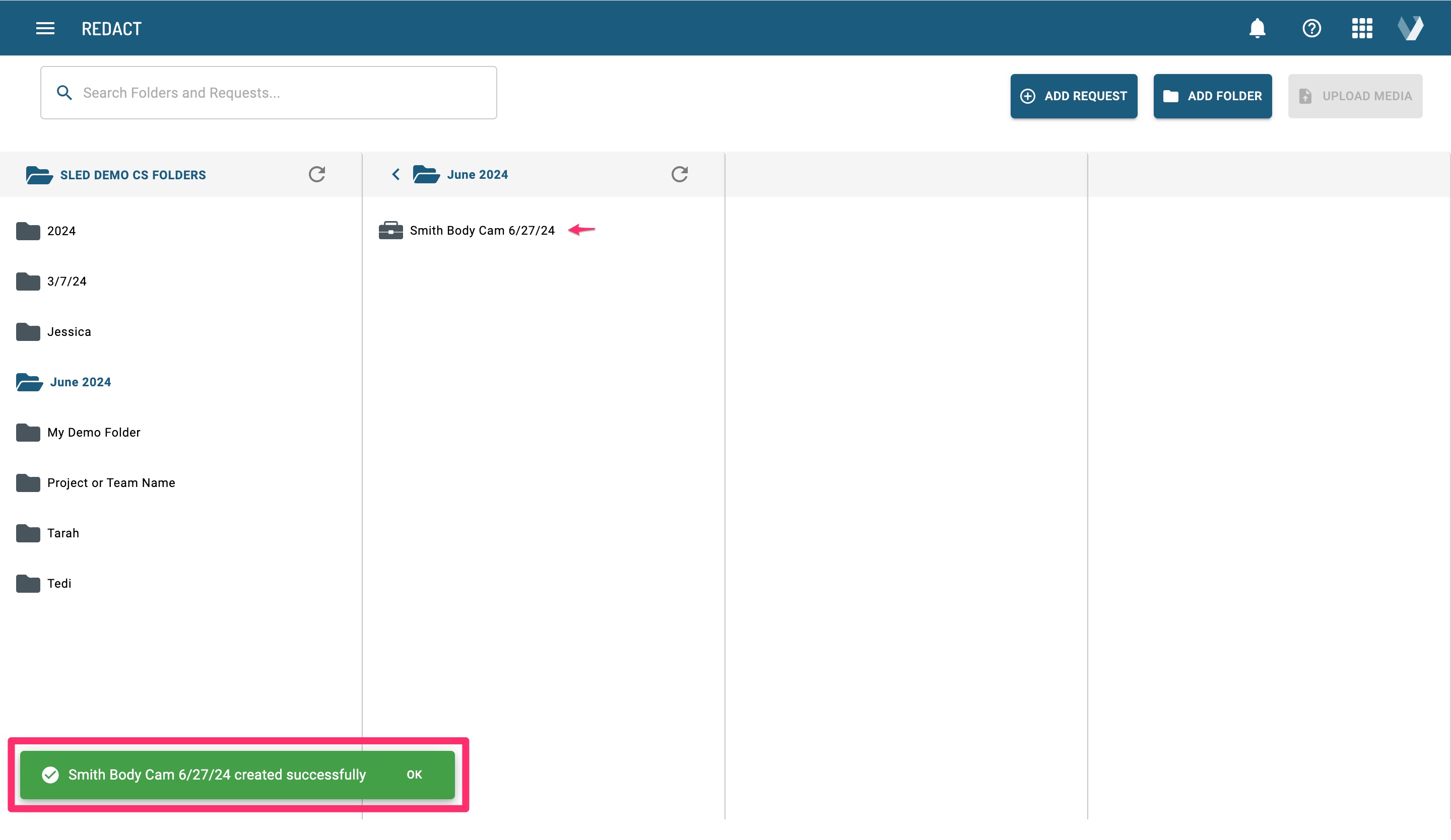
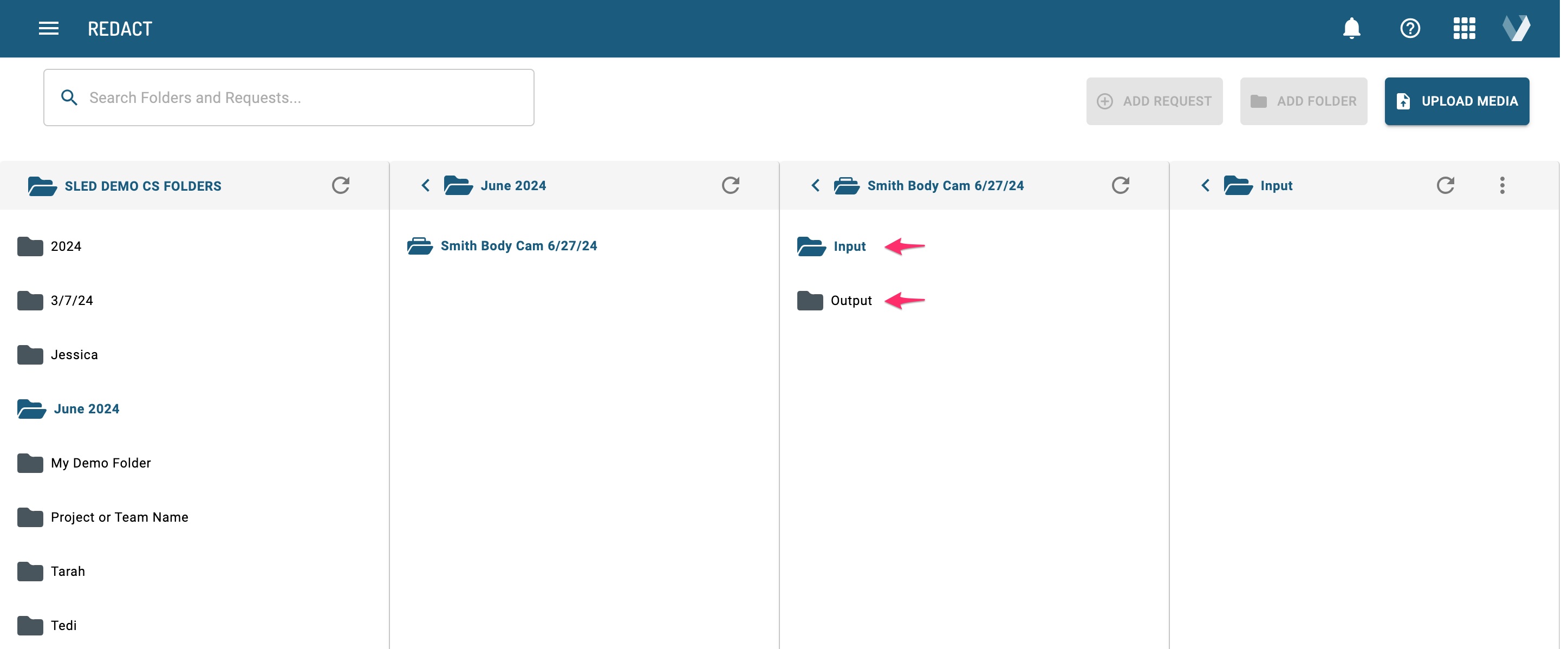
3. Upon clicking the Submit button, you’ll see the green success alert in the bottom left corner. When you click into your request, you’ll see that the Input and Output folders have been autogenerated for you.
Note: When you hover over a folder or request, you will see the three-dot (ellipses) menu with the options to move, rename, or delete.
How to Search
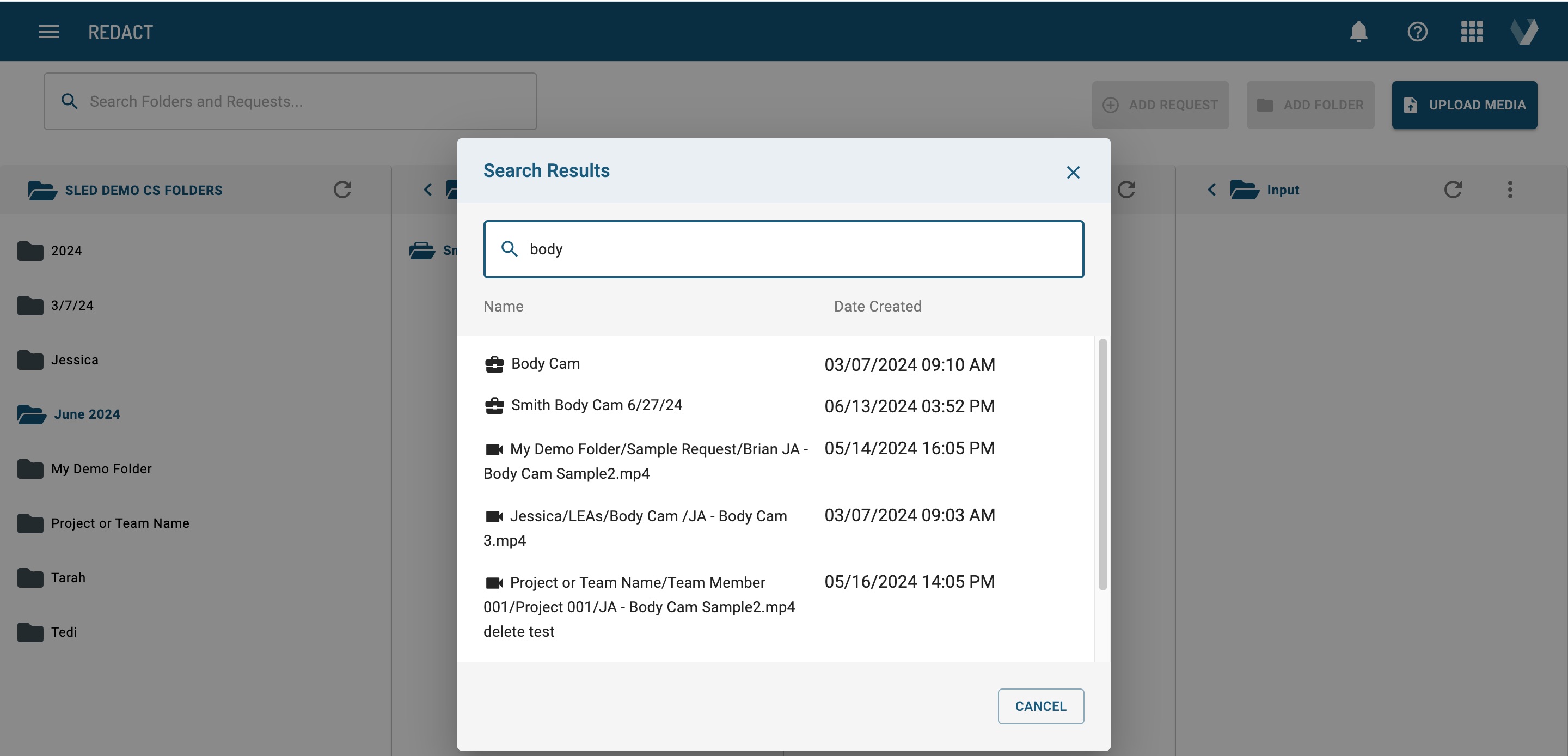
The search bar allows you to search across all folders, requests, or file names and locate matches.
Simply enter a keyword into the search bar at the top of the page. Upon hitting “Enter” on your keyboard, a pop up with potential matches will appear. The icon to the left of each result will indicate if it’s a folder using the folder icon, a request using the briefcase icon, or a media file using the camera icon.
FAQs
-
Can I go back to the thumbnail view after your account has been converted to using the folder feature?
-
No, you cannot revert back to the previous version. If trying it out in a test account first would be helpful, we can create one for testing.
-
Can I organize my legacy media?
-
Yes, media that was uploaded to Redact prior to enabling the Folders feature, can be accessed by clicking the “View Legacy Media (Show)” link in the upper left area of the home page. You must move your files to a Request's Input folder.
-
Can I move my legacy media more than one at a time?
-
Legacy media can be moved only one at a time. You do not need to move it at all, only if you want to.
-
Can I move files from a Request to a new folder or Request?
-
Yes, you can move files from one Request to another, even if this Request is within a different folder.
-
Can I prevent some users from editing or moving files in folders?
-
Folders and the files contained within are accessible to all users within an organization.
-
Are Redact folders right for me?
-
Do you have more than a few files to focus on at a time? Do you go back to your older files for review or new requests? Do you work with multiple team members? If you answered ‘YES’ to any of these questions, it would be a good fit. A Veritone representative can help.
-
Can some users on my team use folders while others cannot? Some of them prefer the thumbnail view.
-
No, all users will have the folder view and feature if it is enabled.
If you have any additional questions about Redact's Folders and Requests, contact our Veritone Support team at Support@veritone.com.


