In this article
- Video Tutorial: Folder View Homepage
- Folders & Request
- FAQs
Overview
Redact is a cloud-based redaction software that harnesses the power of AI to quickly and efficiently redact sensitive information within your media. Leveraging Head Detection, Object Detection, and Transcription engines, Redact significantly reduces the overall time and effort it takes to make your body cam footage, audio files, or surveillance footage release-ready.
Video Tutorial
Redact’s Homepage
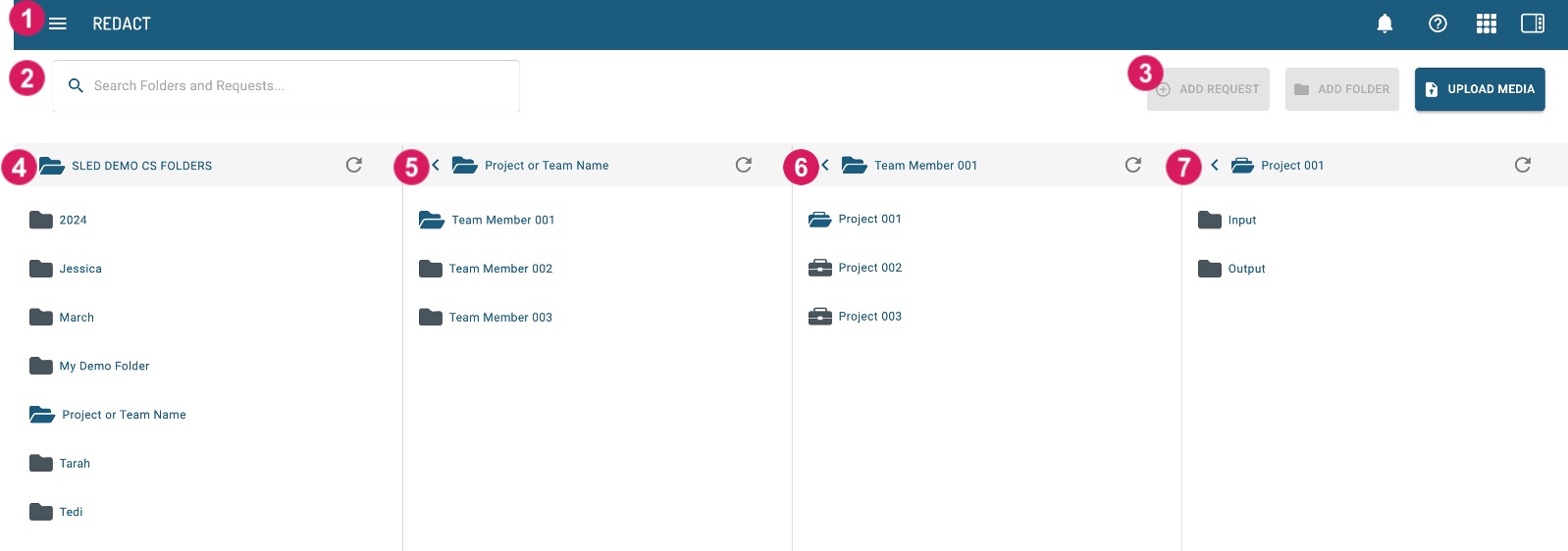
Upon logging into your Redact account, you are directed to the Redact Homepage, which is your central repository for all media that you and your team have uploaded into the application.
With folders enabled on your Redact account, you can organize media files into folders in a fashion that works best for your team or organization. These folders provide analogous functionality similar to that available on desktop devices.
Below are a few examples of how we recommend organizing your folders:
-
Organize By Date
-
Organize By Objective
-
Organize By Operator
-
Organize By Case Number
Note that organizing media into folders does not restrict access to the media.
Not seeing folders when you log in? Please reach out to your Customer Success Manager for assistance.
 Additional Features
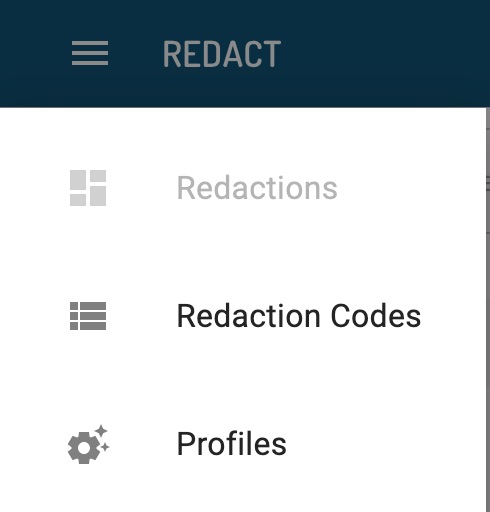
In the upper left corner, you’ll find additional Redact features by selecting the three horizontal bars or hamburger icon. Here you have the option to set up Settings Profiles and Redaction Codes.
 Search Bar
Utilize the search bar to filter through your media files, requests, and folders by entering a keyword to search against.
 Add Request, Add Folder, & Upload Media
Use the Add Request button to create a new request, the Add Folder button to create a new folder, and the Upload Media to upload media to your input folder. The ability to select these buttons will depend on where you are within the folder structure.
 Root Folder
The root folder will always be your organization's name, which cannot be changed.
 Folders
Folders, indicated by the folder icon, are virtual containers that can store more folders or requests. They can nest up to 3 levels deep and cannot contain the media.
 Requests
Requests, indicated by the briefcase icon, are made up of two “system subfolders” , an Input Folder and an Output Folder, which are automatically generated and cannot be renamed.
 Input & Output Folders
Automatically generated when creating a request, your input folder is where media to be redacted can be uploaded by the user, and the output folder is where your redacted media files and audit logs are stored. These cannot be renamed, moved or deleted.
For additional information, visit the help articles below:
FAQs
-
Can I go back to the thumbnail view after your account has been converted to using the folder feature?
-
No, you cannot revert back to the previous version. If trying it out in a test account first would be helpful, we can create one for testing.
-
Can I organize my legacy media?
-
Yes, media that was uploaded to Redact prior to enabling the Folders feature, can be accessed by clicking the “View Unassigned Media (Show)” link in the upper left area of the home page. You must move your files to a Request's Input folder.
-
Can I move my legacy media more than one at a time?
-
Legacy media can be moved only one at a time. You do not need to move it at all, only if you want to.
-
Can I move files from a Request to a new folder or Request?
-
Yes, you can move files from one Request to another, even if this Request is within a different folder.
-
Can I prevent some users from editing or moving files in folders?
-
Folders and the files contained within are accessible to all users within an organization.
-
Are Redact folders right for me?
-
Do you have more than a few files to focus on at a time? Do you go back to your older files for review or new requests? Do you work with multiple team members? If you answered ‘YES’ to any of these questions, it would be a good fit. A Veritone representative can help.
-
Can some users in my team use folders and others not? Some of them like the thumbnail view.
-
No, all users will have the folder view and feature if it is enabled.
If you have any additional questions on the Redact's Folder Homepage, contact our Veritone Support team at Support@veritone.com.


