In This Article
- Video Tutorial: Redaction Codes
- How to set up your redaction codes
- How to edit or delete your redaction codes
- How to apply redaction codes to your video redactions
- How to apply redaction codes to your audio redactions
Overview
Many states have jurisdictions that require certain redactions to be labeled with specific codes. Veritone’s Redaction Codes allow you to add codes to your video and audio redactions in order to help identify the legal justification for redacting a specific element.
Video Tutorial
Setting up Redaction Codes
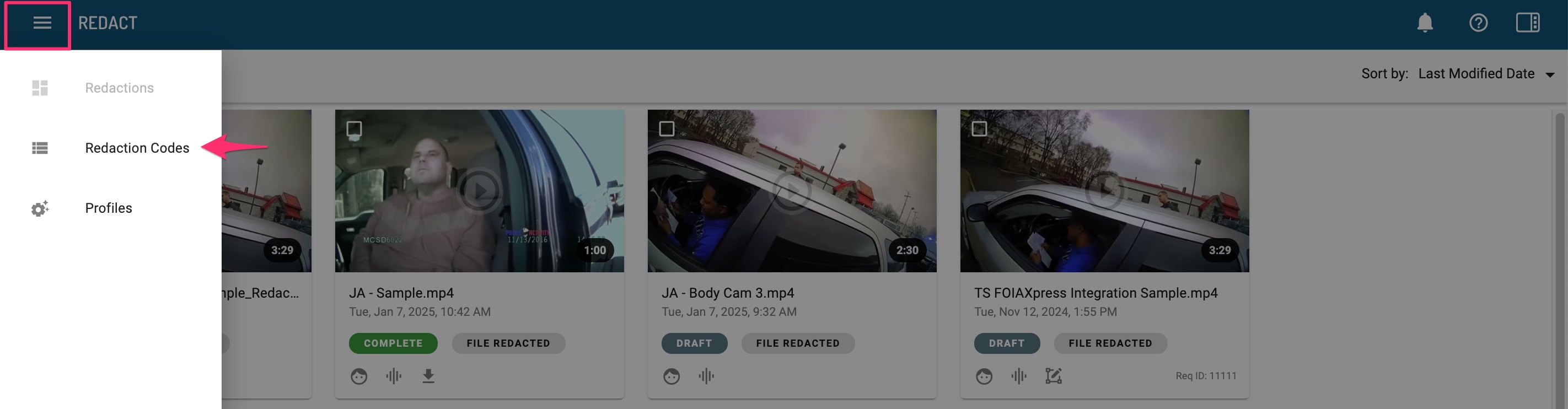
1. Navigate to the hamburger menu in the top left and select “Redaction Codes”.
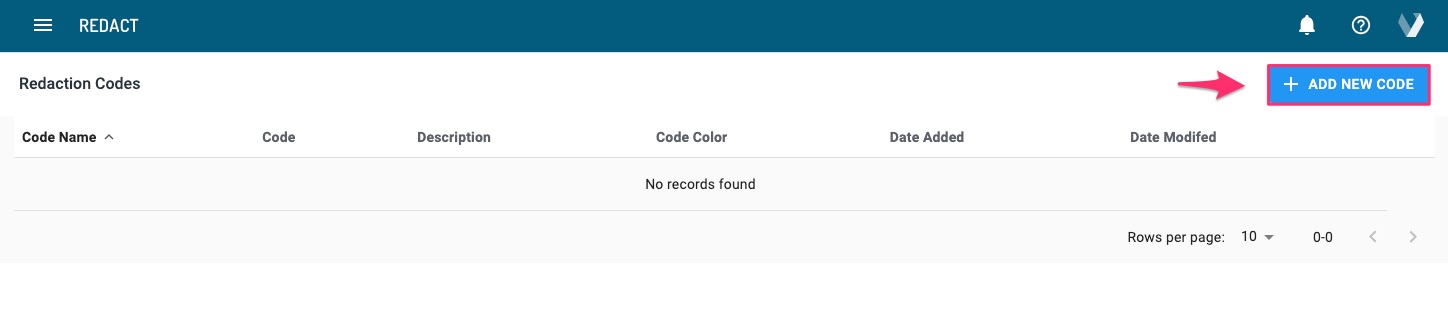
2. Select + New Code to add a new redaction code.
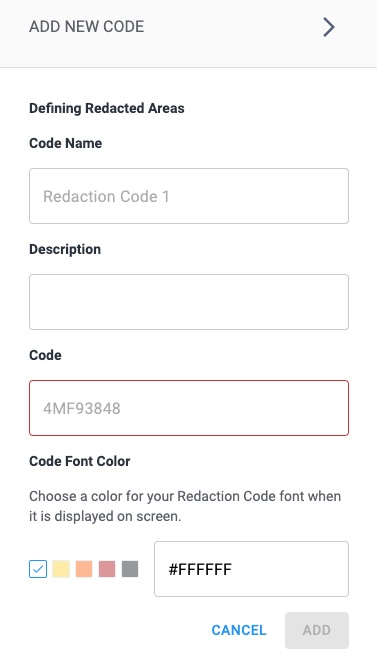
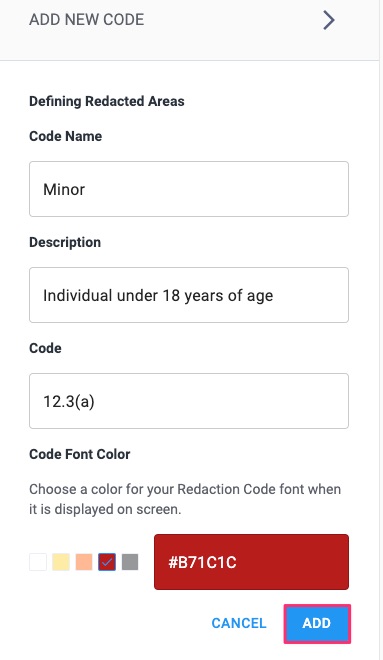
3. Enter the following information and click “Add” to save your new redaction code
-
Code Name: Display name in the list on the Redaction Codes page.
-
Code: Reflects the designated code that will be burned into the video over the redacted area selected.
-
Description: Text to inform users about the details of the code.
-
Code Color: A color that the code will be to ensure it displays on your videos.
Editing/Deleting Redaction Codes
1. Navigate to the menu in the top left and select “Redaction Codes”.
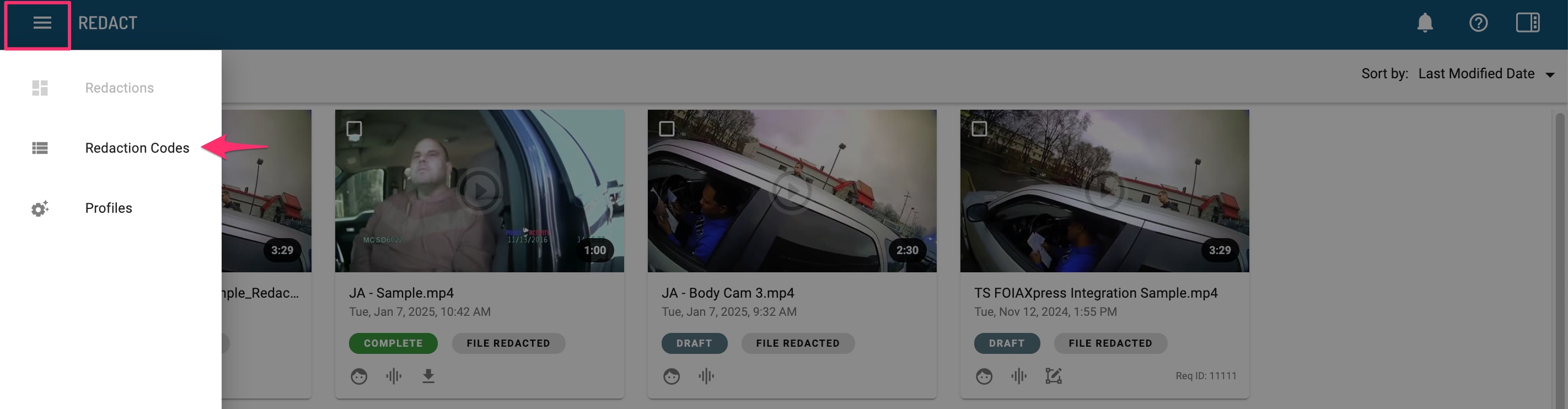
2. Locate the code you wish to edit or delete and select the vertical ellipse associated with it.

3. From this menu, select either "Edit" or "Delete".
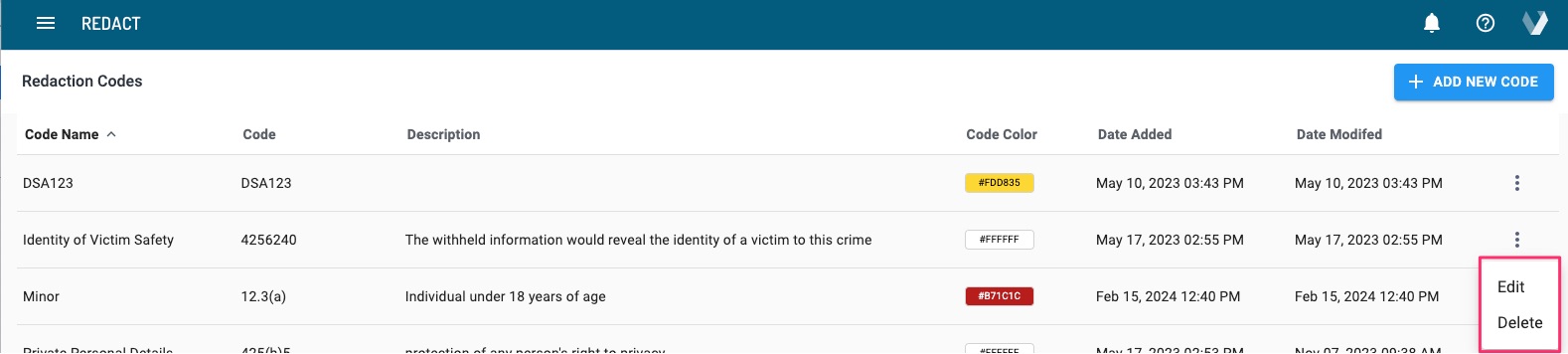
Note: If you modify or delete a redaction code that is currently in use, it will persist within that media unless updated on each redaction overlay.
Applying Redaction Codes to Video Redactions
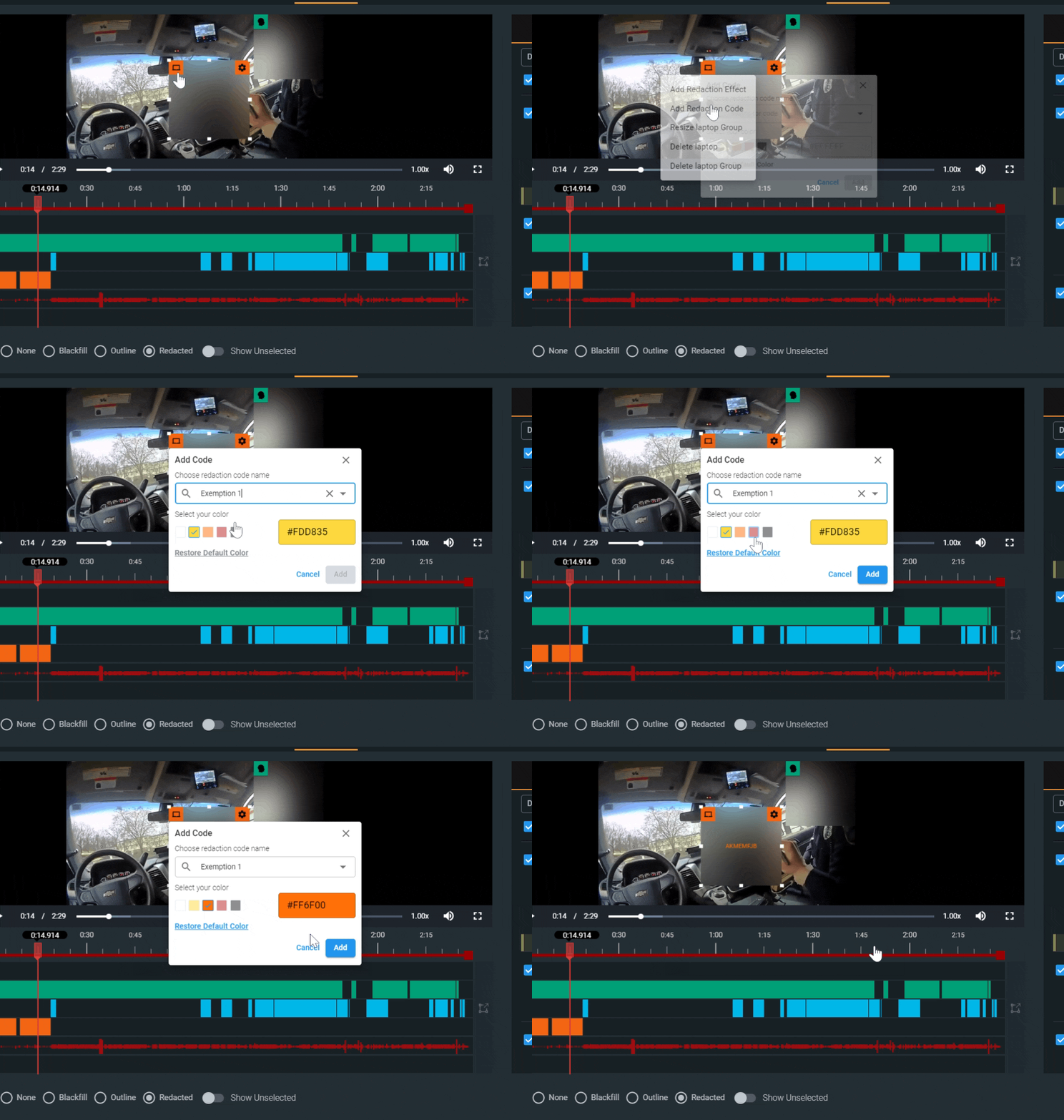
1. Navigate to the icon at the top left of a video redaction overlay on screen.
2. Select "Add Redaction Code."
3. Choose the desired code from the type-ahead list.
4. Confirm your color choice.
5. Select Add.
Applying Redaction Codes to Audio Redactions
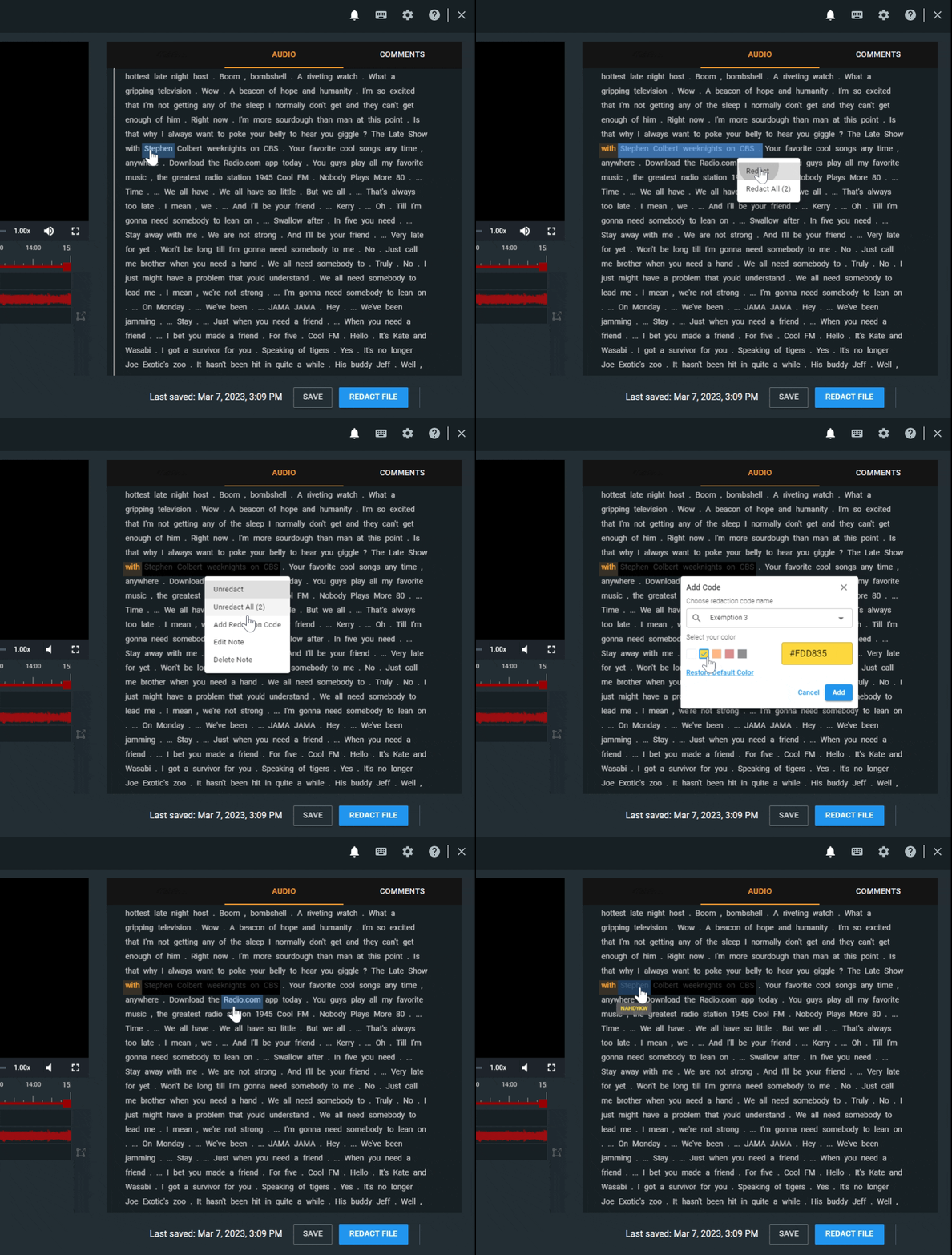
1. Navigate to your Audio tab and right-click on your redacted text. Select "Add Redaction Code."
3. Choose a code from the drop down menu.
4. Save
5. Code will appear when you hover over the redacted text.
Pro Tip: Redaction codes will be available in the audit log and the redaction report. For audio redaction codes, these will also appear in the redacted transcript export.
If you have any questions about redaction codes, contact the Veritone Support team at Support@veritone.com.


