Connecting your GA4 account in Google Analytics to Veritone Attribute allows your website traffic analytics to be piped in and correlated against your broadcast partner’s spot data. This will enable your broadcast partner to share attribution insights with you.
Before you begin
- Use Google Chrome on a desktop to complete this connection. Using a mobile or tablet device may not provide optimal results.
Getting connected
- You will receive an invite to connect via email. Click CONNECT.
[Note]The invitation expires after 5 days. If your invite expires before you complete the connection, your broadcast partner can resend invites in Veritone Attribute.
- After clicking CONNECT in the email, a new tab will open in Google Chrome. Click CONNECT.
You will be prompted to log into whichever Google Account is tied to your company’s Google Analytics account. If you are not the admin for your GA account, you can forward the email invite on to the administrator to complete the connection.
Click your account name and add account credentials or click Use another account to enter alternate credentials.
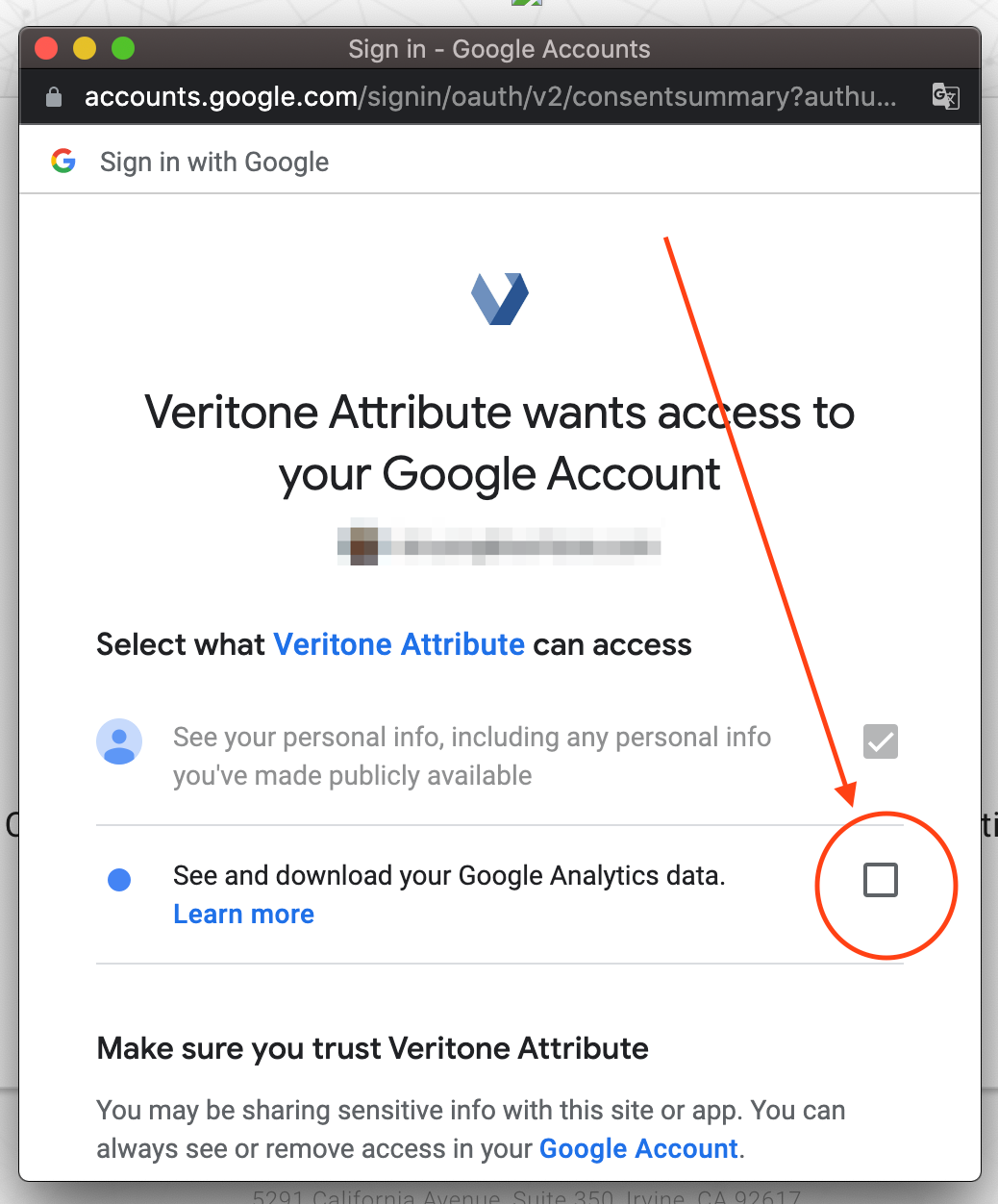
- You will be prompted to grant access to the Veritone Attribute App. This will enable Read Only Access. Click ALLOW.
[Note]Both boxes must be selected before allowing access. The first box will already be selected, so be sure to select the second option. If the client proceeds without checking this box, the invite process will not complete successfully. The invite prompt window will need to be closed, and the invite will need to be clicked on once more from within your email inbox in order to restart the connection process. This process can be attempted an unlimited amount of times within the 5 day period before the invites expires for security purposes.
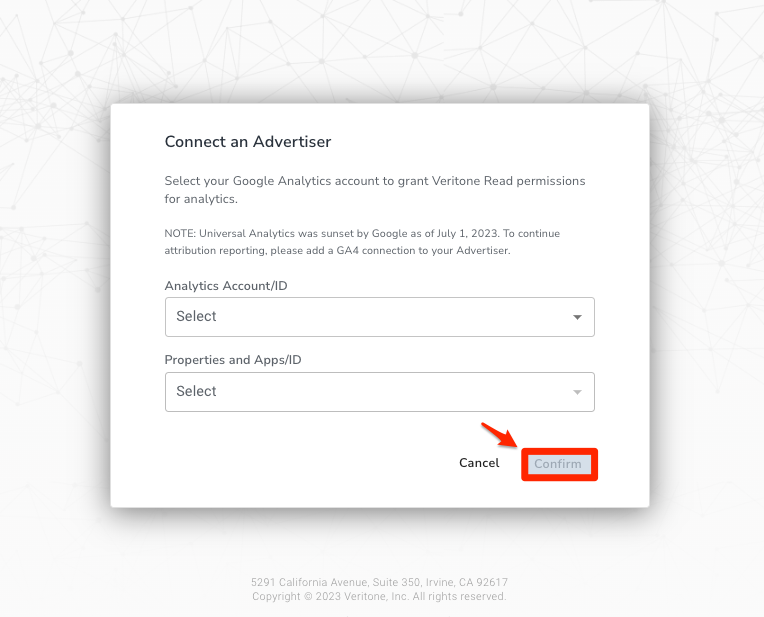
- Select your Analytics Account Property and Measurement ID. The options provided are specific to your account. Click CONFIRM.
[Note]Views are not available with a GA4 connection. When choosing an Analytics account and property set up utilizing GA4, the View option should be unselectable and ignored.
The setup is complete. Your broadcast partner will receive an email notification once your data is connected.
Troubleshooting errors
SCOPE error
If you receive a SCOPE error, check step number 4 in this guide and ensure that the permission is granted to See and Download your Google Analytics data.
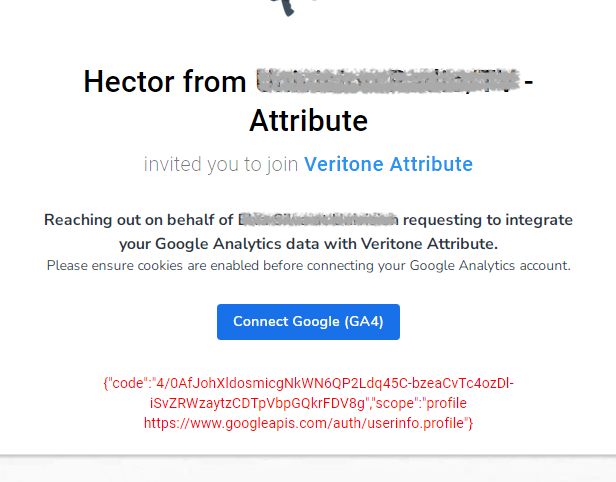
Once the box is checked, start over and attempt to connect Attribute to Google Analytics.
Error 403
A 403 error generally means the Google account that is signed in does NOT have access to the select Google Analytics Account, Property, and View. This could be that the account that is signed-in has view-only access and doesn’t have Admin permissions, which are required for completing this connection. This error may also indicate that the account that is signed-in is not tied to the Google Analytics account at all. For example, you may be signed in with your personal Google account rather than your business Google account.
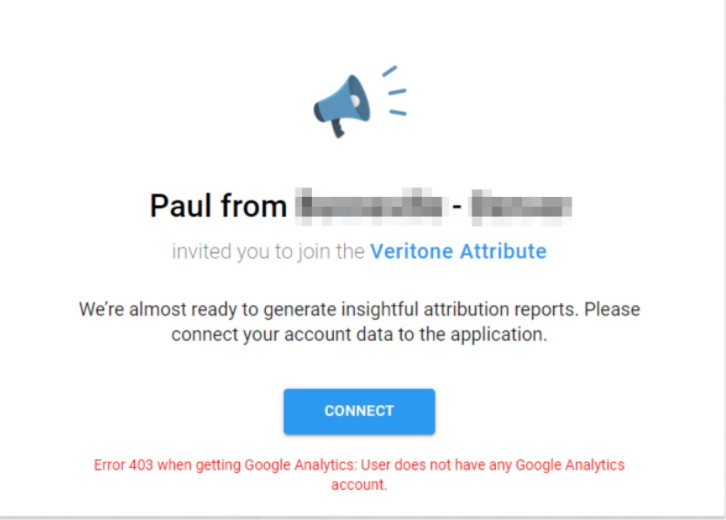
To resolve,
-
Verify that you are not logged in with a personal or alternative Google account by logging out of all Google accounts.
-
Restart the connection process. When prompted to sign in during the connection steps, be sure to choose the account that corresponds with your Google Analytics business profile.
-
Proceed with the connection process as outlined above.


