Please find our latest process covering the LinkedIN Premium activation below.
This also includes the Easy Apply feature and how to manage job credits
If you have any issues or questions please reach out to our global support teams
Introduction
Broadbean has partnered with LinkedIn to utilize a job posting API to allow users to automatically post jobs to LinkedIn from their account, instead of manually posting via their LinkedIn Recruiter account.
In order for a user to authenticate their LinkedIn contract and use the integration, the following pre-requisites are required:
• A Broadbean Superadmin must complete the proper steps using the LinkedIn widget located in Broadbean
• The Superadmin will also need to be Recruiter Admin on LinkedIn to complete the process
• Your company must have a contract with premium jobs postings or P4P postings with LinkedIn.
Please go through the following setup steps on the next few slides. Steps must be completed in both Broadbean and LinkedIn before the posting integration can be accessible for job postings. If Easy Apply is available to you, we have also included steps on making that work, as well.
Adverts posted directly to LinkedIn cannot be managed or detected through our platform. We recommend deleting these adverts and reposting them through Broadbean to ensure the slot numbers between the systems are kept in sync.
Setup in Broadbean
You need to be a Superadmin in Broadbean & a Recruiter Admin in LinkedIn to complete the steps below:
• Login to your Broadbean Account with your Superadmin Login.
• Click on Job Boards tab and search for LinkedIn. - you will see 3 LinkedIn Options, please ensure you select option 1 LinkedIn.
You will then be taken straight to the Subscriptions page
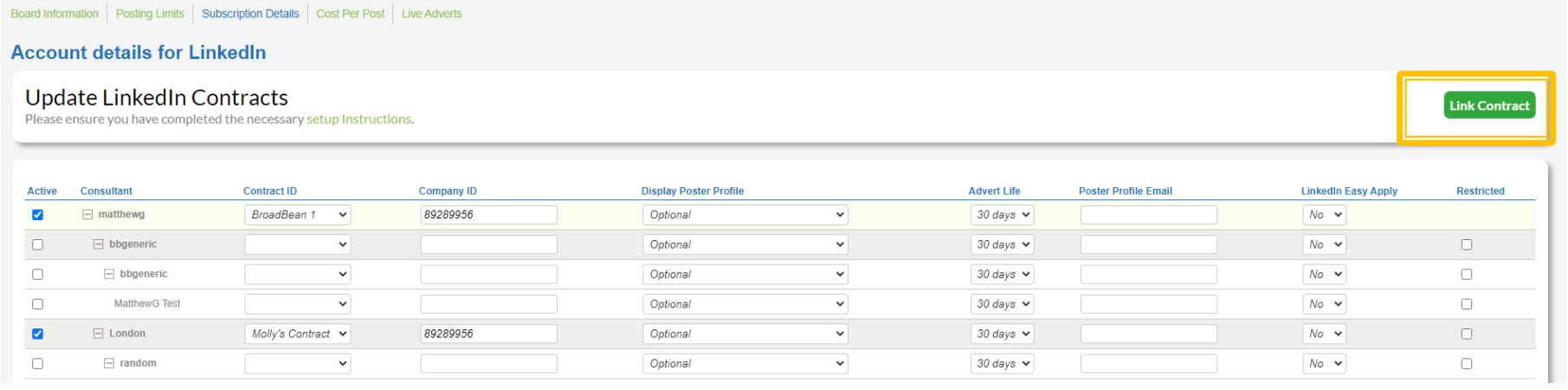
Prior to associating contracts with a team or user, Link contracts to Broadbean Account. Click the Link Contract button.(as highlighted)
Add and/or Update Contract in Broadbean
An account can utilize multiple LinkedIn Contracts. In order to link a new contract / manage an existing contract, the account Superadmin will need to link the contract and be a Recruiter Admin on the LinkedIn account.
To Set-Up LinkedIn Subscription:
1. Click Add / Update Contract
2. Follow widget instructions
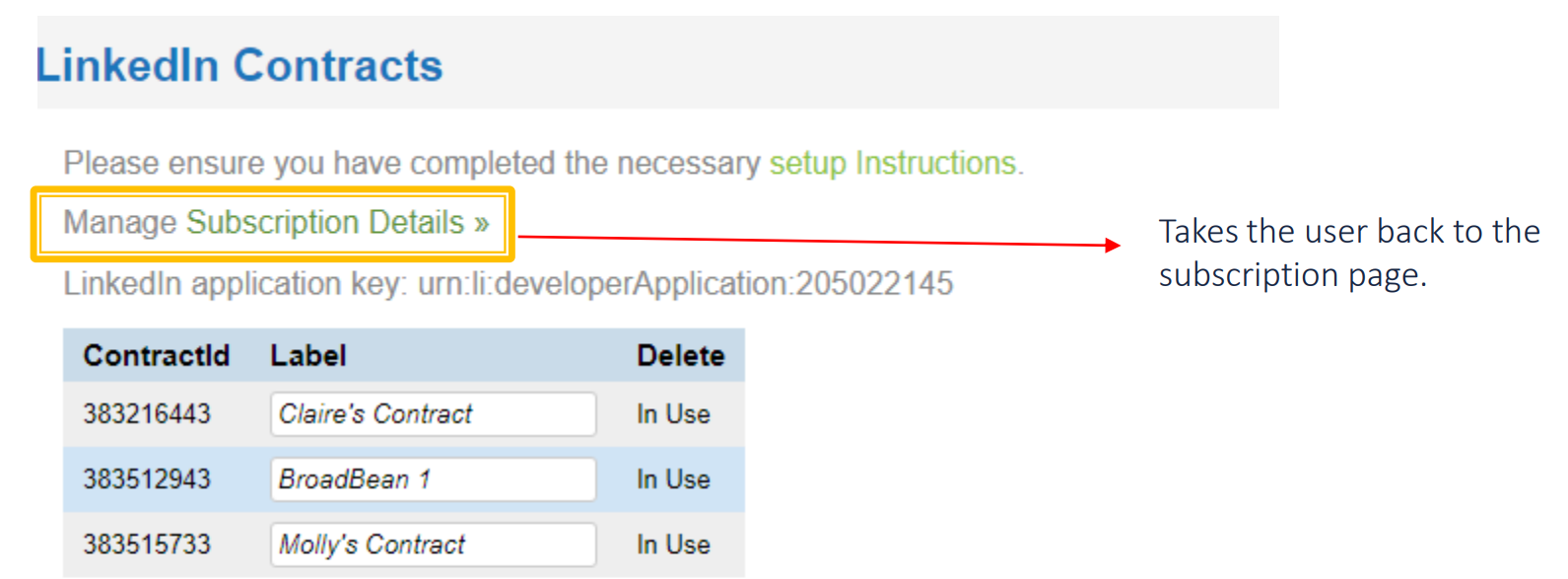
Allows user to add an additional Contract to the account OR manager the default poster of a current contract.
Utilizing the LinkedIn Widget
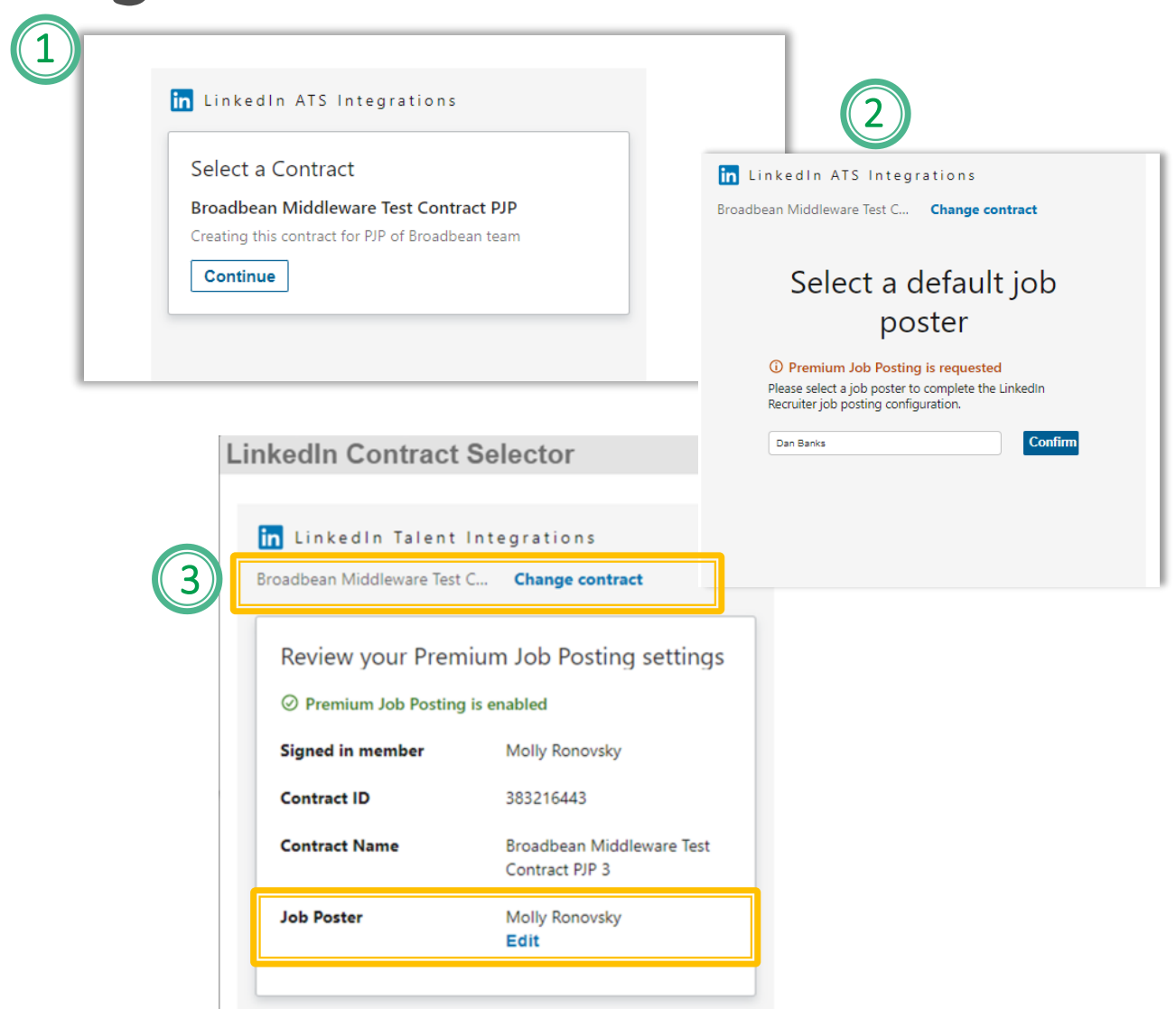
Sign into LinkedIn account in which contract is associated, if not already
- Select appropriate contract and press Continue.
- Select Default Job Poster and hit Confirm.
- Confirmation of your Contract Selector will appear.
• You can change the contract by clicking Change Contract link – this will return to where you can choose another contract (image 1)
• You can change the Job Poster again by clicking Edit - this will return you previous step (image 2)
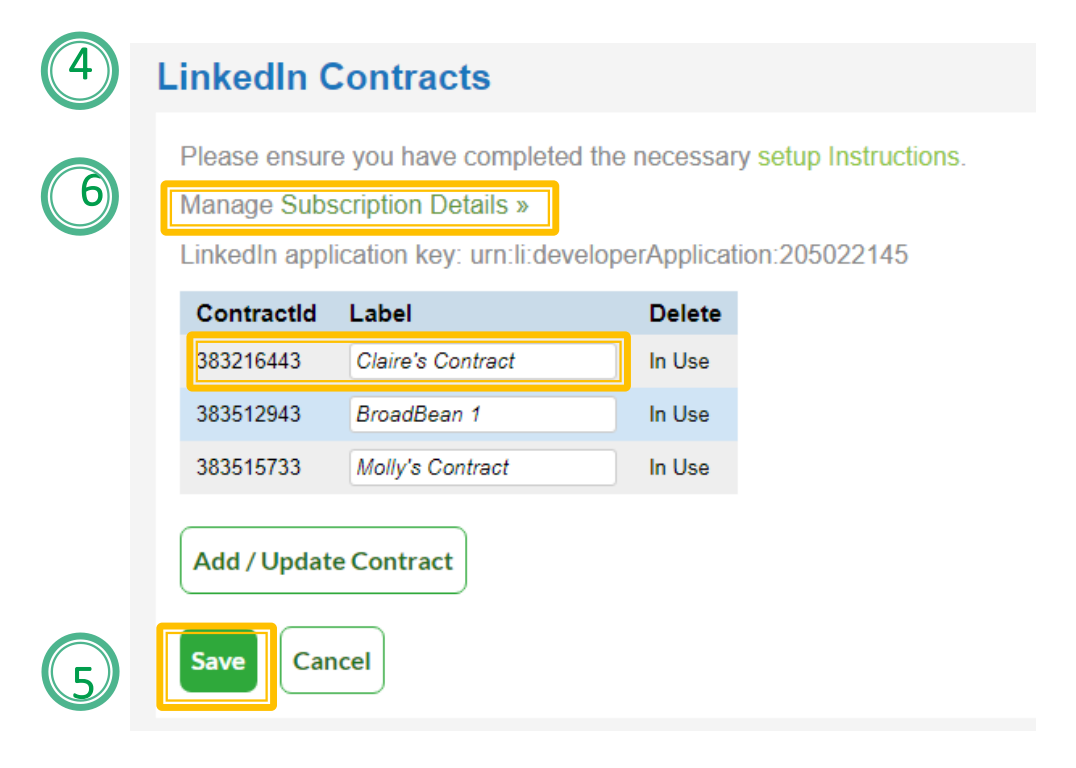
4. Contract will populate on Contract List.
• The contract number associated can only be changed by going through widget again and selecting contract; Note: the ContractId field is not editable.
• Label Contract with desired name to be used within Broadbean.
Click Save once details have been entered.*
Once all contracts have been added, click Subscription Details to link teams/users to specific contracts.
*The steps above can be repeated as needed if multiple contracts are associated with the account.
Associating Linked Contracts to Teams/Users
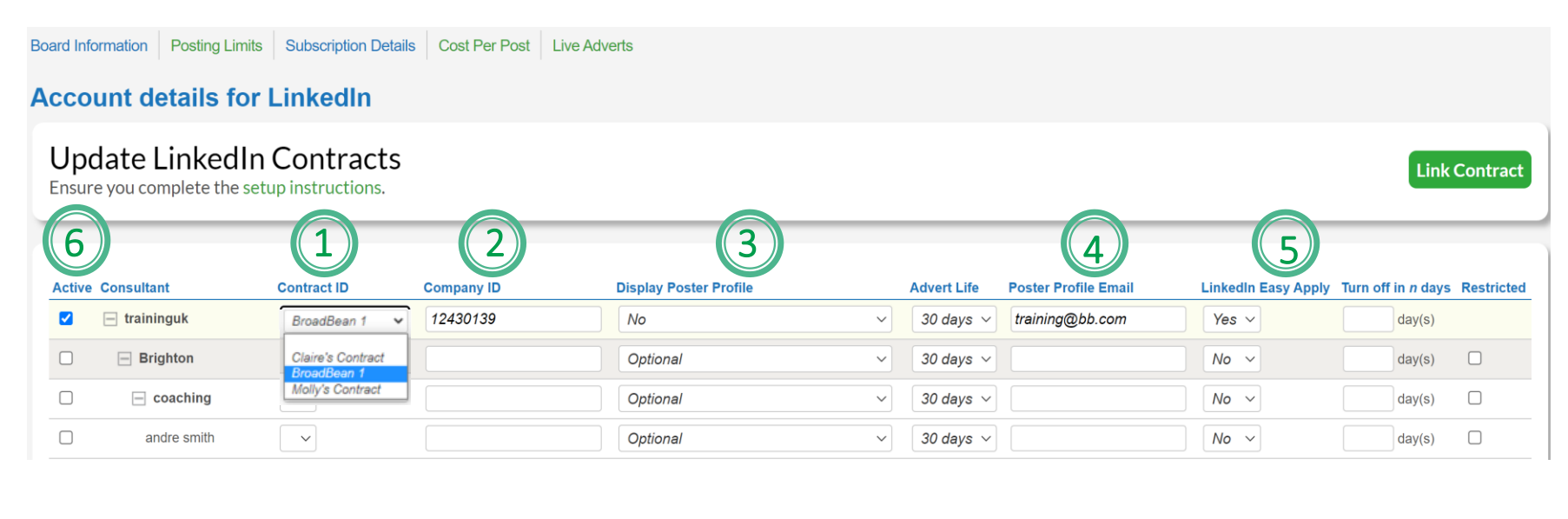
Once a contract has been authenticated on the Link Contract page, associate the contract at proper levels on the Subscription Details page.
- Select appropriate contract in the Contract ID column at the account, team, or user level.
- Enter the Company ID* associated with the contract.
- . Select appropriate Display Poster Profile (see next slide for breakdown)
- Enter Poster Profile Email NOTE: This is mandatory to enter each user email, otherwise the advert will be sent to the default poster profile setup with your company LinkedIn account.
- To Activate Easy Apply (if applicable) please see details further down article.
- Select the Active check box to include tick
- Click Save
IMPORTANT:
*Company ID - This ID is taken from the unique URL of the search results page when you click See All Jobs on your LinkedIn Career Page. This helps to ensure the job(s) are associated with the correct LinkedIn Page.
Note: Company ID is an actual number. Many companies now have a vanity URL (for example: www.linkedin.com/company/linkedin), so you must ensure that you're providing the numerical equivalent to the last part of the URL (such as www.linkedin.com/companies/1337).
Display Poster Profile (optional)
As a admin, you can decide what profile is displayed on your companies job adverts at Company, Office, Team or User Level by selecting the appropriate “Display Poster Profile” option at each level.
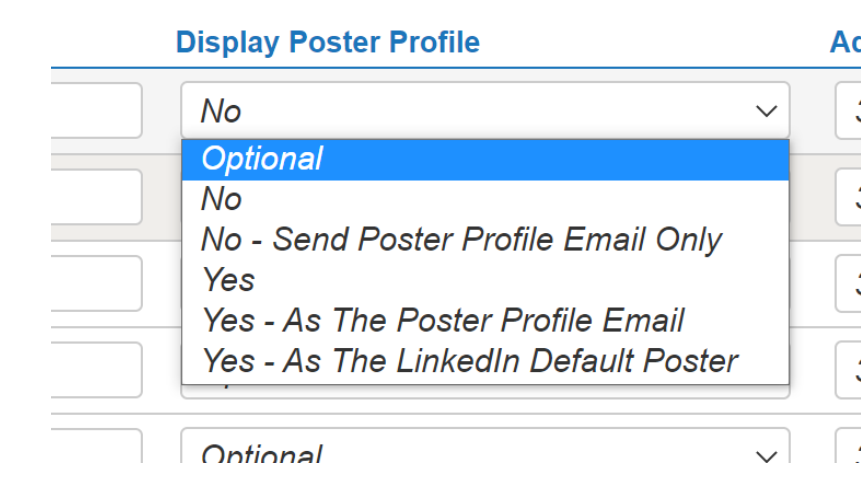
Select Display poster profile: Optional to let your recruiters decide what they want to display when they send their adverts each time.
Select Display poster profile : NO to never display a profile with the advert.
Select Display poster profile : NO – Send poster profile email only to only send the profile details to LinkedIn for reporting, but do not display the profile with the advert.
Select Display poster profile : YES to display the recruiters profile that matches the Poster Profile email or the to display the profile of default user if the Poster Profile Email is blank
Select Display poster profile YES As poster profile email to only display the recruiters profile that matches the Poster Profile Email. If the user has added poster profile email and it does not match with the poster profile email in LinkedIn, it will use the default poster.
Select Display poster profile : YES As the LinkedIn default poster to only display the profile of the companies default poster. (As selected within Widget).
Easy Apply Feature
LinkedIn Easy Apply allows applicants to experience a seamless, mobile friendly application experience by applying to your job on LinkedIn, instead of being redirected to third-party websites, which results in a higher conversion rate of applicants.
Job posters are then able to retrieve applicants that applied to your jobs on LinkedIn, within Broadbean.
NOTE: Easy Apply is optional and should only be activated if part of your contract. If you do not have Easy Apply –scroll to next section!
Activating Easy Apply in LinkedIn
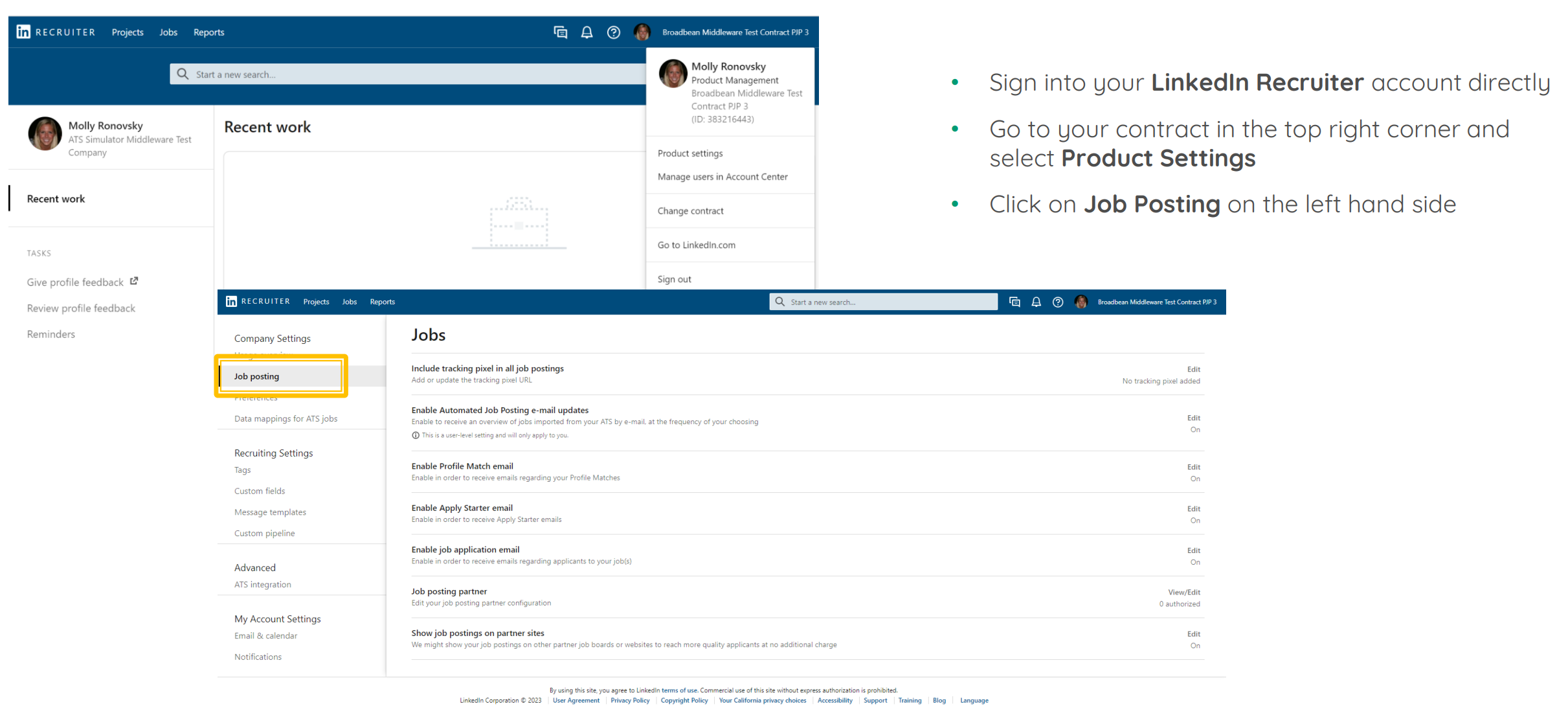
Select Job posting partner and click view/edit
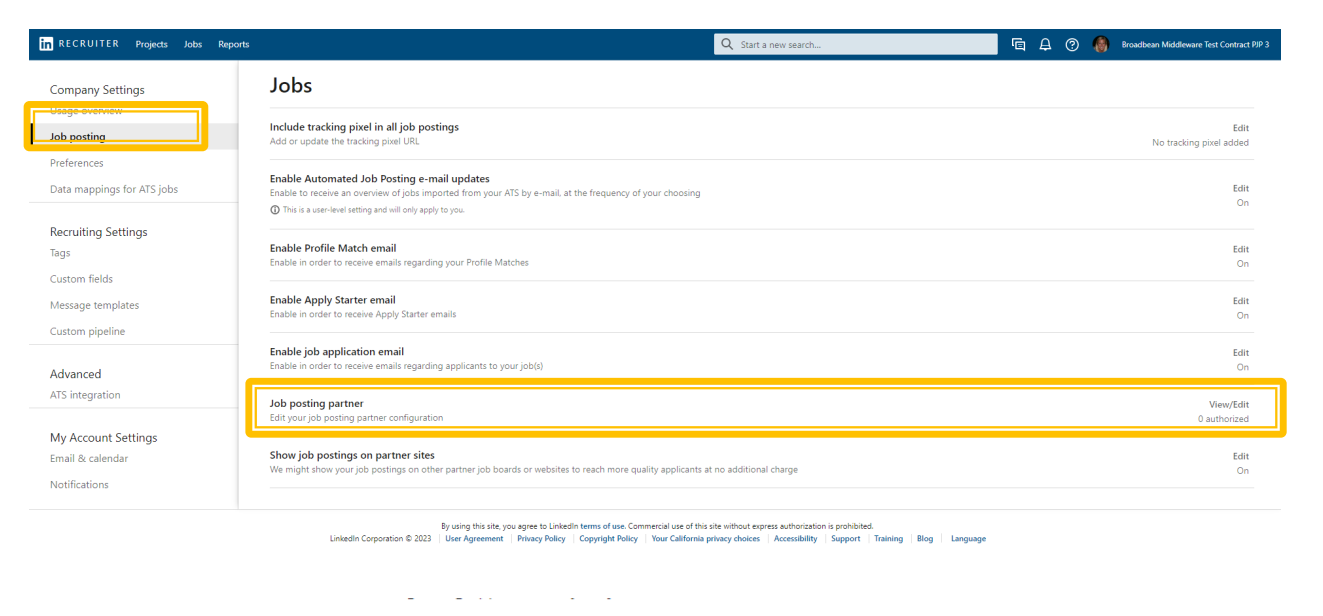
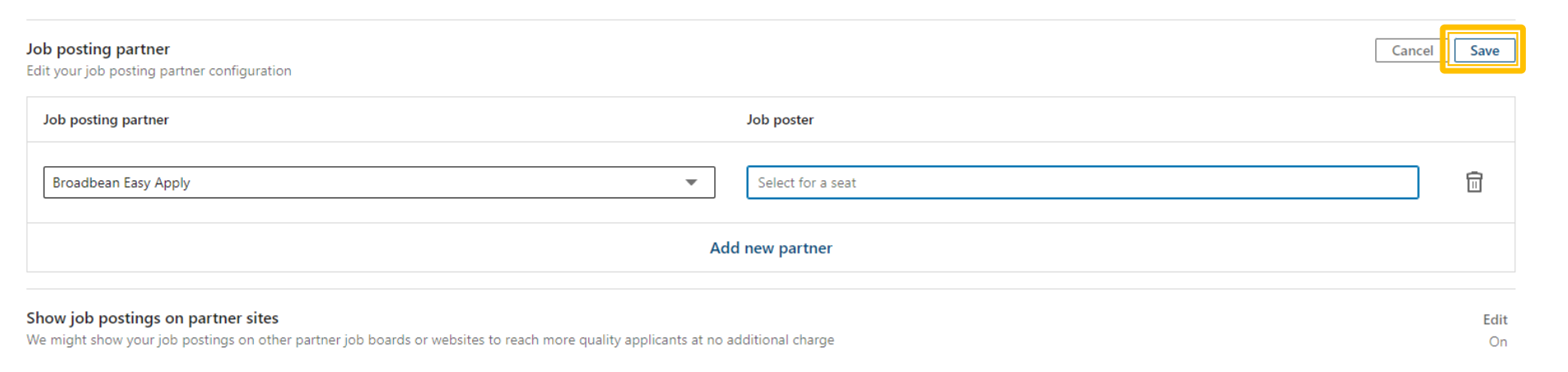
• Add Broadbean Easy Apply and put your name as the Job Poster. You can enter your name in Job Poster field
• Click on save, then go to Broadbean directly to complete authorization
Activating Easy Apply in Broadbean
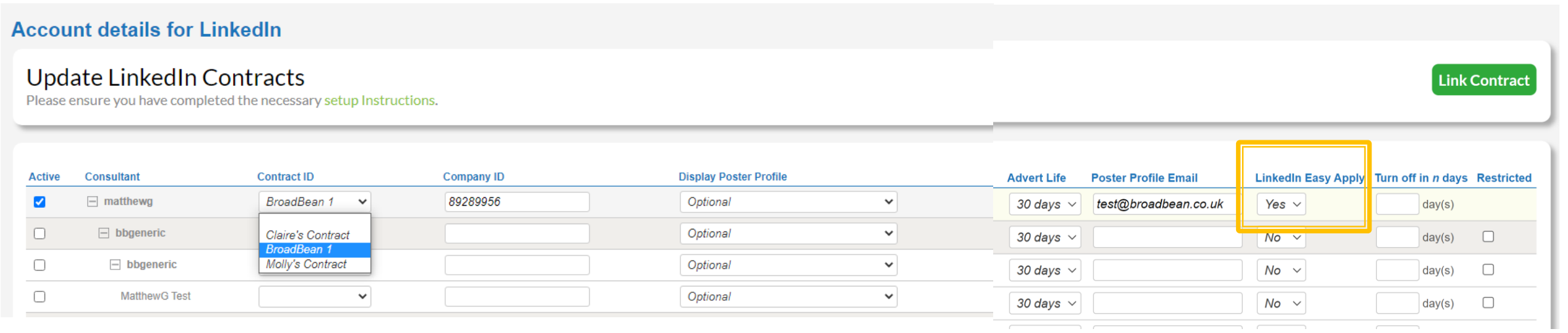
In the Subscription space simply select the LinkedIn Easy Apply dropdown to YES
Save at the bottom of the screen
Setting up LinkedIn Credits
To set up your LinkedIn Slots – simply click on the Posting Limits tab
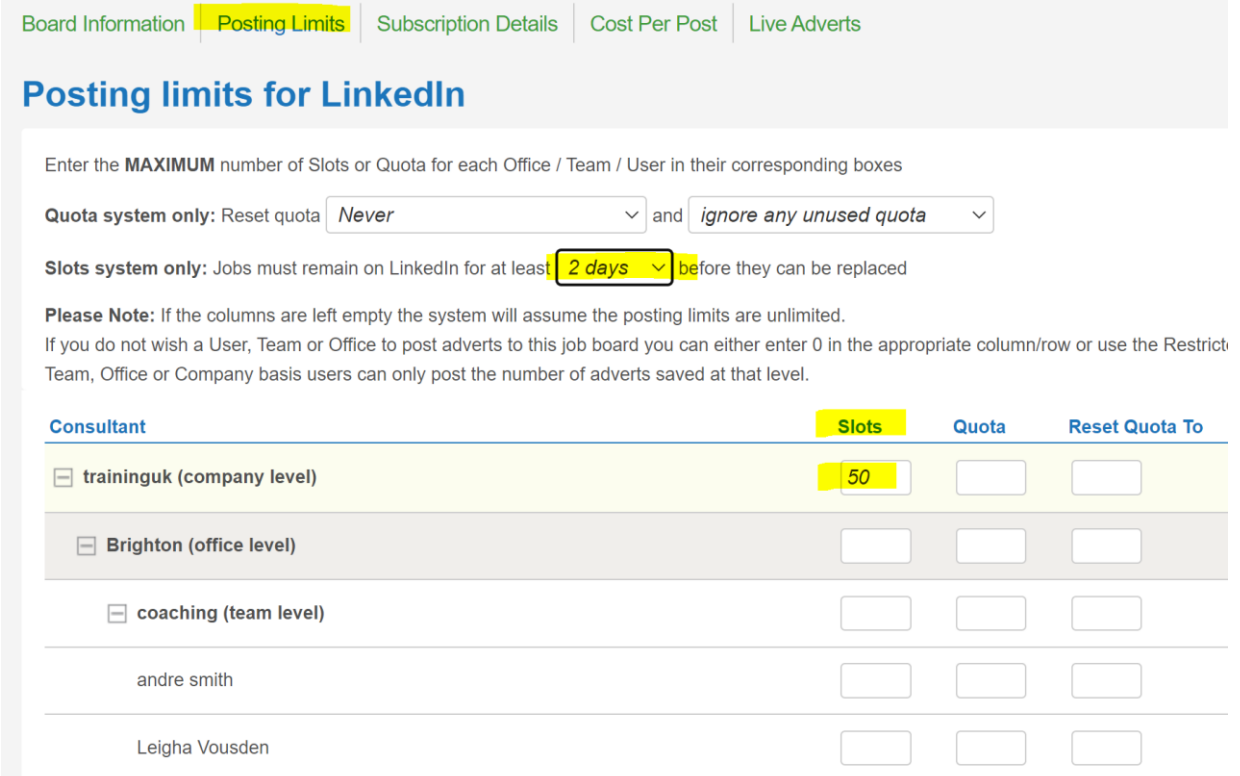
Note: LinkedIn will only support a Slot credit structure – so do not enter any numbers in any other columns for this board.
Set a minimum live period before an advert can be Slot Swapped if required.
During the posting process for a new advert, our Slot Swap functionality allows a user to select an advert to be automatically deleted and replaced. This means the user doesn’t need to pre-delete an advert to ensure a slot is free for a new advert to be posted.
Place the number of slots purchased for the account in the Slots column at the top of the page. They can also be distributed to specific users/teams/offices if needed.
Save the changes at the bottom of the page.
The LinkedIn board will now be available for posting through Broadbean, and LinkedIn Easy Apply can be used to apply to any adverts posted moving forward.


