Before submitting your build, you should test your engine thoroughly using the techniques described here.
Data validation testing
Before doing functional testing of your engine, you should take care to see that your engine is outputting valid data according to the AION engine output standard.
Engine output validation API
To make it easier to write conforming output, Veritone provides a simple HTTP POST endpoint to test the validity of an engine's output.
For example, to validate a speech-to-text engine, make the following call:
curl --request POST \
  --url https://api.veritone.com/v3/tools/engine/validate/ \
  --header 'content-type: application/json' \
  --data '{
  "schemaId": "https://docs.veritone.com/schemas/vtn-standard/master.json",
  "validationContracts": [
    "transcript"
  ],
  "series": [
    {
      "startTimeMs": 0,
      "stopTimeMs": 300,
      "words": [
        {
          "word": "this",
          "extra": "not part of the standard"
        }
      ]
    },
    {
      "startTimeMs": 300,
      "stopTimeMs": 500,
      "words": [
        {
          "word": "is"
        }
      ]
    },
    {
      "startTimeMs": 500,
      "stopTimeMs": 800,
      "words": [
        {
          "word": "a"
        }
      ]
    },
    {
      "startTimeMs": 800,
      "stopTimeMs": 1200,
      "words": [
        {
          "word": "sentence"
        }
      ]
    }
  ]
}'
If the engine output is valid, valid: true appears under the data key of the response, as well as a processed field, which will show only the fields that have been validated against AION.
Here is an example of validating the above transcript output.
{
  "data": {
    "valid": true,
    "processed": {
      "schemaId": "https://docs.veritone.com/schemas/vtn-standard/master.json",
      "validationContracts": [
        "transcript"
      ],
      "series": [
        {
          "startTimeMs": 0,
          "stopTimeMs": 300,
          "words": [
            {
              "word": "this"
            }
          ]
        },
        {
          "startTimeMs": 300,
          "stopTimeMs": 500,
          "words": [
            {
              "word": "is"
            }
          ]
        },
        {
          "startTimeMs": 500,
          "stopTimeMs": 800,
          "words": [
            {
              "word": "a"
            }
          ]
        },
        {
          "startTimeMs": 800,
          "stopTimeMs": 1200,
          "words": [
            {
              "word": "sentence"
            }
          ]
        }
      ]
    }
  }
}
Note how in the processed output, "extra": "not part of the standard" has been stripped out of the words array in the first element in the series array, because extra is not part of AION for speech-to-text.
If invalid output is submitted, the following occurs:
curl --request POST \
  --url https://api.veritone.com/v3/tools/engine/validate/ \
  --header 'content-type: application/json' \
  --data '{
  "schemaId": "https://docs.veritone.com/schemas/vtn-standard/master.json",
  "validationContracts": [
    "transcript"
  ],
  "series": [
    {
      "startTimeMs": 0,
      "stopTimeMs": 300,
      "words": [
        {
          "word": "this"
        }
      ]
    },
    {
      "startTimeMs": 300,
      "stopTimeMs": 500,
      "words": [
        {
        }
      ]
    },
    {
      "startTimeMs": -1,
      "stopTimeMs": 800,
      "words": [
        {
          "word": "a"
        }
      ]
    },
    {
      "startTimeMs": 800,
      "stopTimeMs": 1200,
      "words": [
        {
          "word": "sentence"
        }
      ]
    }
  ]
}'
In the preceding example, the second element in the array has an empty object, and the third element has a negative startTimeMs, which would clearly cause problems due to data inconsistency. Fortunately, the engine output validator can catch a large subset of these sorts of problems.
Validating less than perfect output produces:
{
  "errors": [
    {
      "name": "invalid_input",
      "message": "The supplied engine result failed schema validation checks. Details errors are included in the validationErrors field.",
      "validationErrors": [
        {
          "keyword": "required",
          "dataPath": ".series[1].words[0]",
          "schemaPath": "#/else/items/required",
          "params": {
            "missingProperty": "word"
          },
          "message": "should have required property 'word'"
        },
        {
          "keyword": "if",
          "dataPath": ".series[1].words",
          "schemaPath": "#/if",
          "params": {
            "failingKeyword": "else"
          },
          "message": "should match "else" schema"
        },
        {
          "keyword": "minimum",
          "dataPath": ".series[2].startTimeMs",
          "schemaPath": "#/properties/series/items/properties/startTimeMs/minimum",
          "params": {
            "comparison": ">=",
            "limit": 0,
            "exclusive": false
          },
          "message": "should be >= 0"
        }
      ]
    }
  ]
}
Since the engine output is not valid, the valid field is not present. Instead, an array of errors is provided, with detailed information showing that the second element in the series array, series[1] (an empty object), is missing the word property, and the third element in the series array, series[2], has a startTimeMs that is below the required value of 0.
Limitations
The engine output validator can determine if specific test data from an engine is invalid. It cannot determine whether all the possible outputs of an engine will always be valid.
The validator does not cover the full spectrum of AION output. Only validation of the transcription and object detection engine capabilities is supported.
Since data validation is a computationally expensive task, the API only allows engine output of 1MB or less to be validated at a time without rate limiting.
Testing a segment or stream engine
Testing locally
The recommended way to test these types of engines locally is by simulating and verifying locally that your engine can consume and produce the messages documented in the construction guidelines listed below.
Testing in aiWARE
You can test an uploaded build in Data Center by following the steps below.
- Select the
New button and then select Ingestion Job
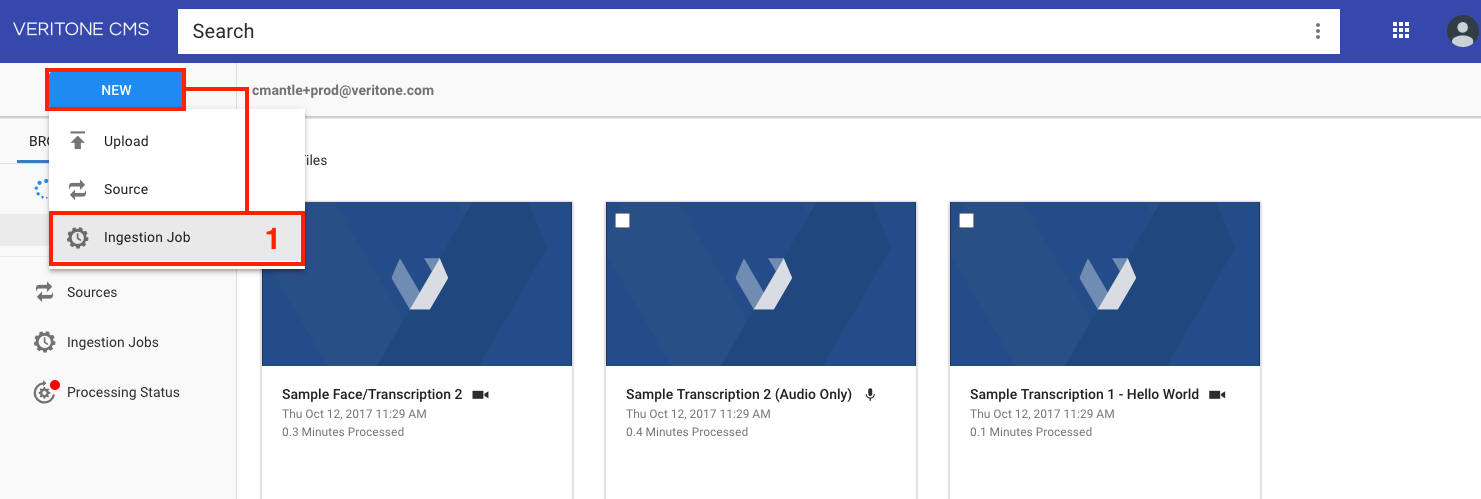
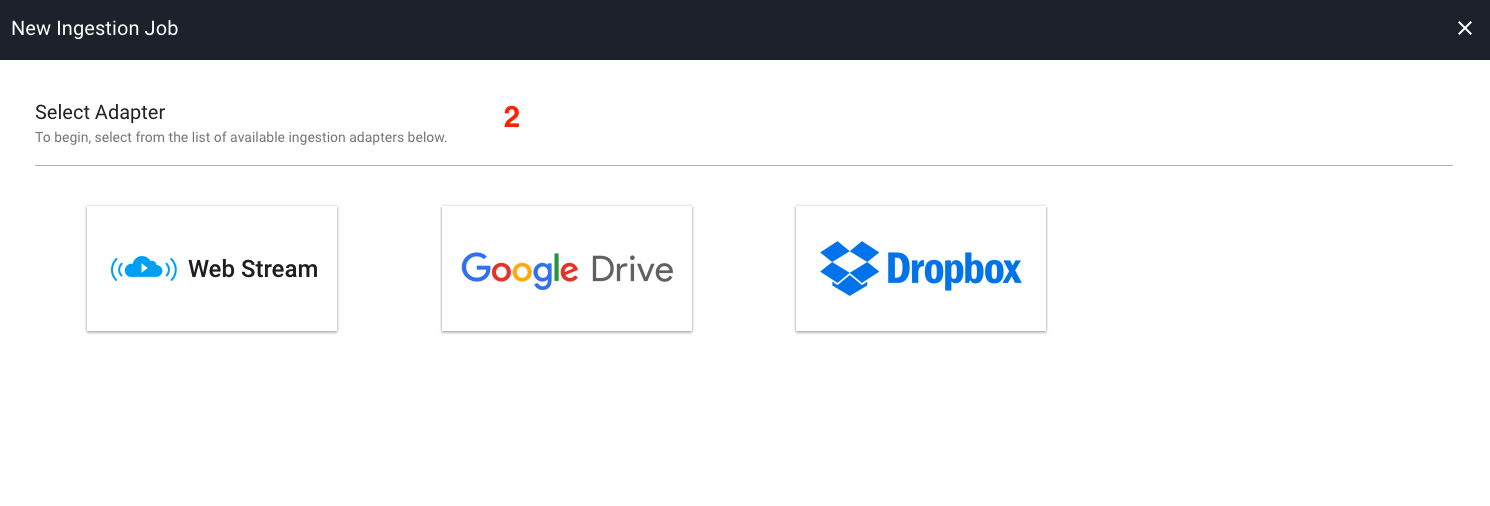
- Select an adapter. For this example, select the Web Stream Adapter.
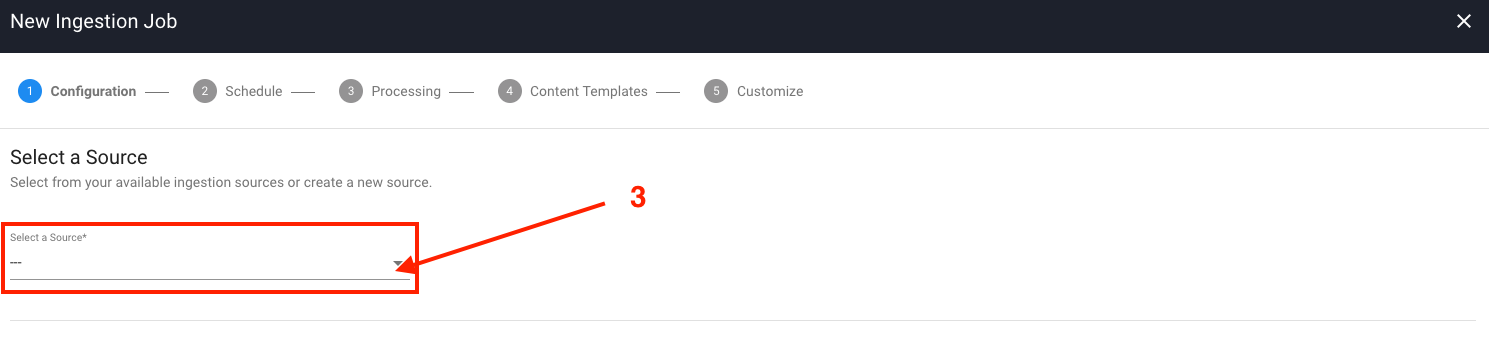
- If you don't have any existing sources, select the
Select a Source dropdown and then select Create New Source. The new source page appears.
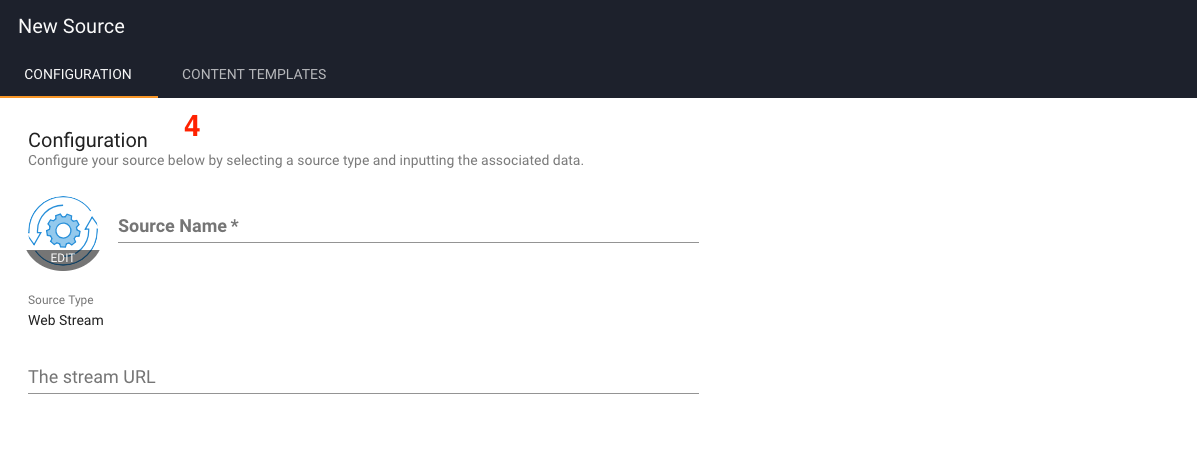
- On the new source page, fill out the
Source Name and the Stream URL fields and then select Create.
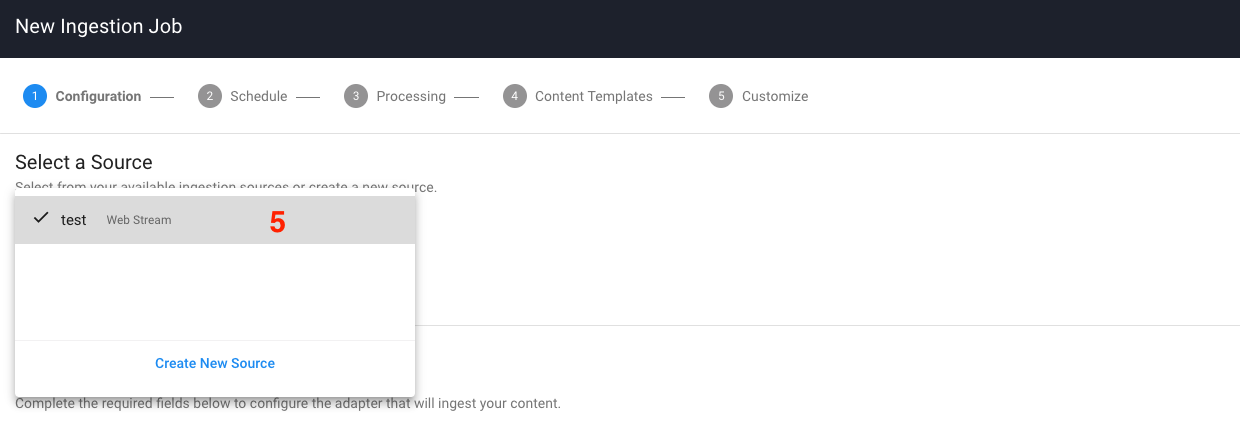
- Select the newly created source from the
Select a Source dropdown and select Next.
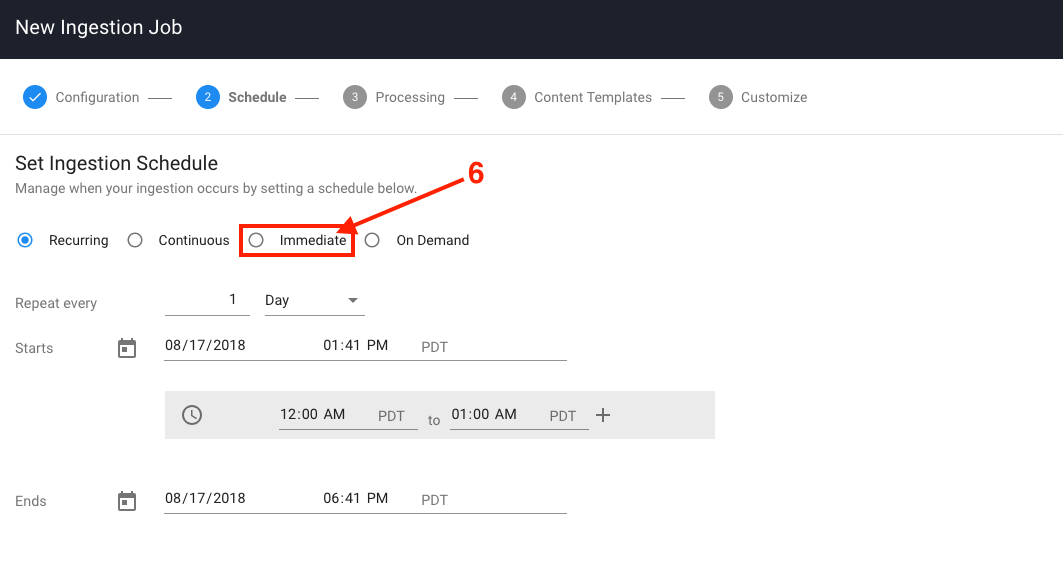
- On the schedule page, choose immediate and then select
Next.
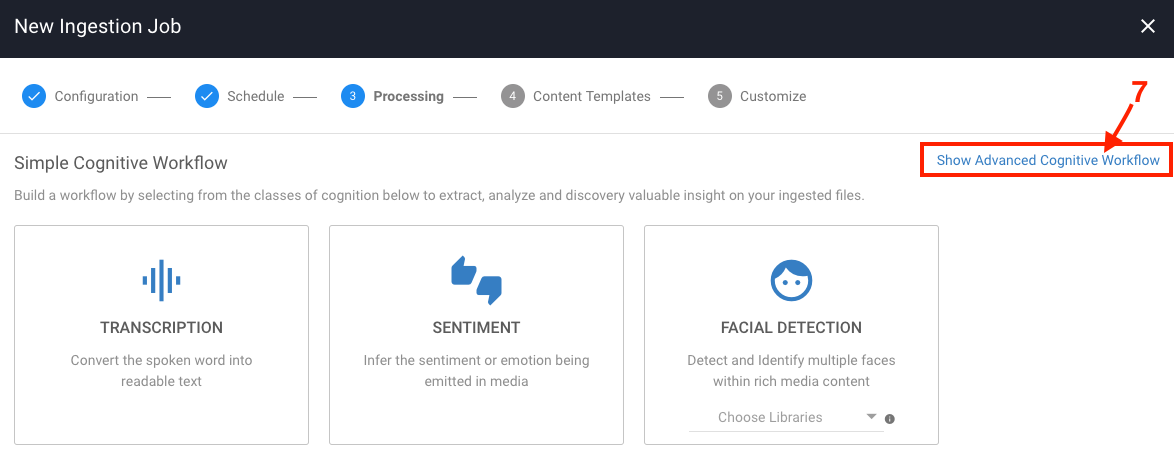
- The default view of the processing step displays the Simple Cognitive Workflow, which allows users to select a category in which Veritone chooses the best engine of that given category to process their media with. As the intention is to test your own engine, you need to click on
Show Advanced Cognitive Workflow at the upper right corner.
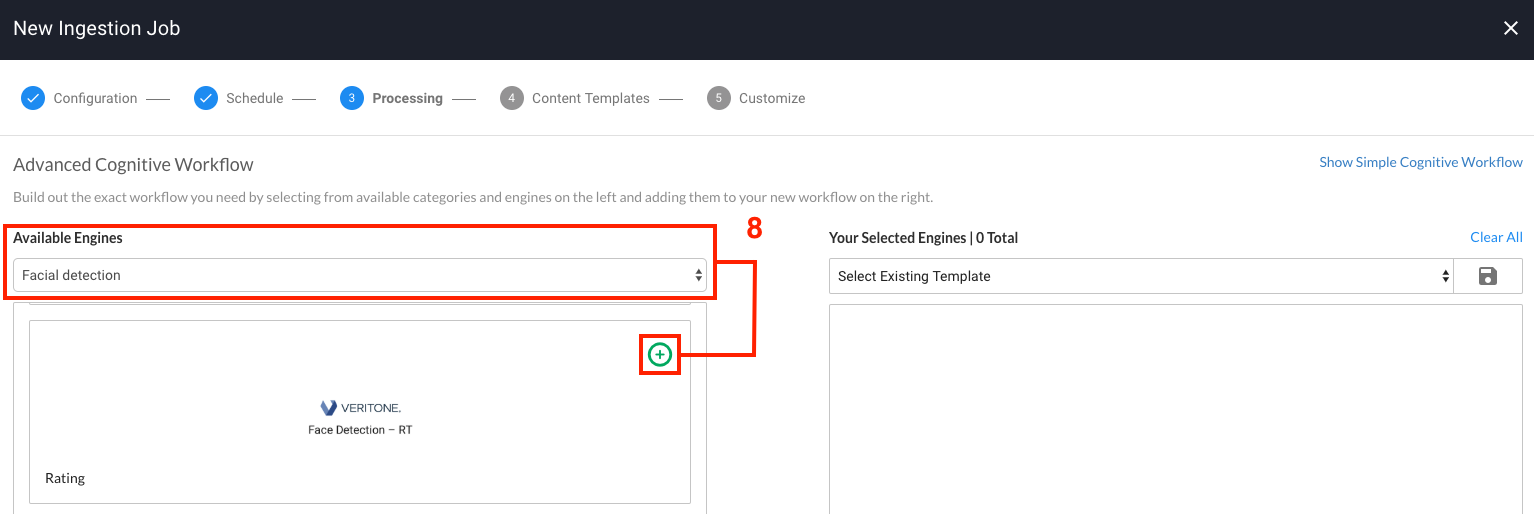
- On the Advanced Cognitive Workflow page, click on the dropdown under Available Engines and choose the category that corresponds to your engine. You will then see your engine in the engine list. Select on the green plus icon to select your engine and move it to the Selected Engines panel. If your engine requires either engine parameters or a library you will now be asked to input these. After configuring your engine parameters, click
Next.
- Click
Next on the Content Templates step which will take you to the final step Customize. Fill out the Customize step with any information you'd like, and finally select Save to finish. That will redirect you to the Data Center main page.
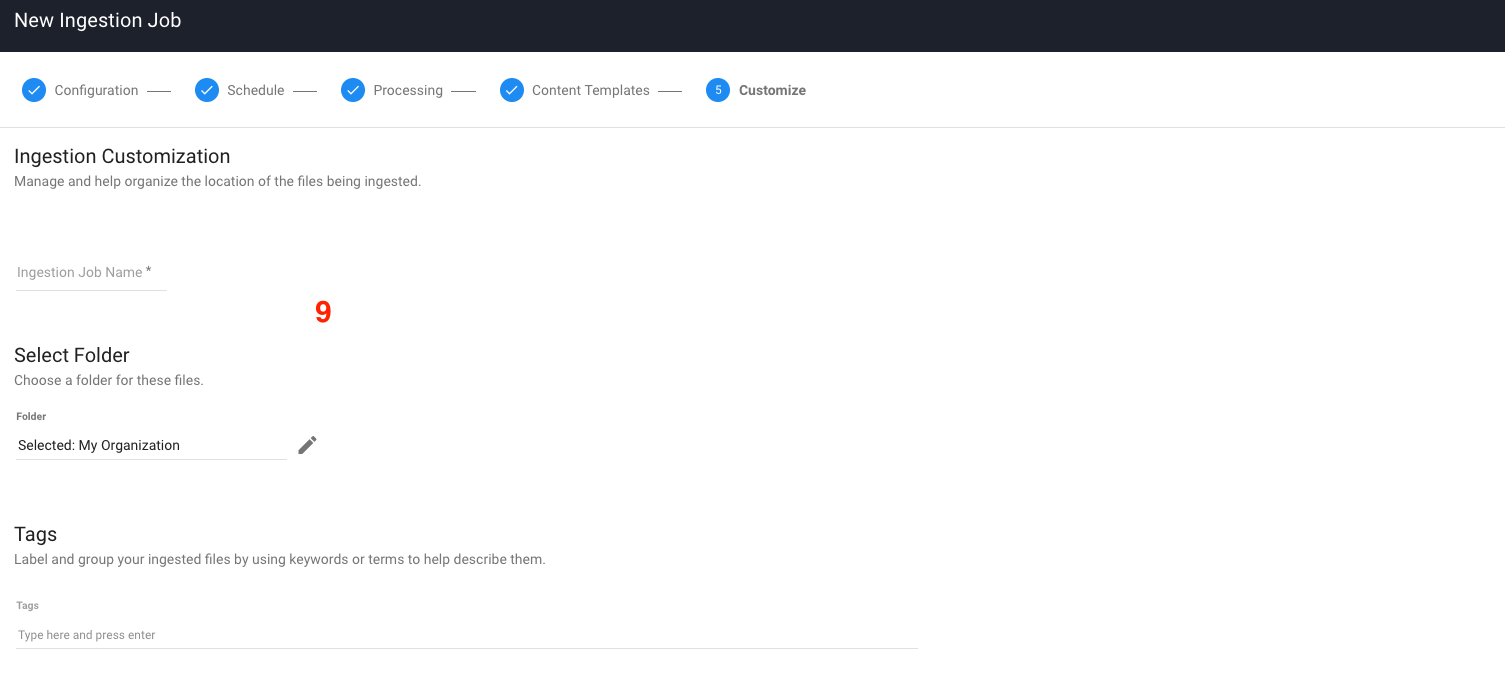
- You have now successfully created an ingestion job, which your engine build will be asked to process. You can click on the
Processing Status button in the left navigation panel to view the processing list, which gives an overview of all of the recently processed files and their status. You can also click on a file in the processing list to view its media details page where you can view the output of a successfully processed file, as well as make additional actions against the file such as reprocessing.
If your ingestion job results in an error, please read the section below on debugging to get a better understanding of how to debug your engine in the Veritone Platform.
Testing a legacy (batch) engine
[Warn] Legacy batch engines are deprecated. If you have developed a legacy batch engine, we highly recommend you upgrade it to a segment engine.
Information on testing legacy engines is available here.
Debugging
Any time your engine is asked to process a task which belongs to you, it will be displayed as a new task row under the tasks page of your engine in Veritone Developer. This is the best starting point for debugging.
By expanding the task row, you will be able to view additional information about your task in the tabs provided which are detailed below.
Payload
The payload tab displays the JSON payload that your engine will receive at runtime. You should verify that you are handling the payload correctly in your engine and also that the correct parameters (custom fields) are being passed to your engine inside of the payload.
You can view your task payload via GraphQL by using the snippet below:
query {
  task(id: "replaceMe") {
    payload
  }
}
Task log
The task log tab displays your engines task log in JSON format. The task log is the primary way for you to debug as it allows you to view the standard output (stdout) of your engine. The only exception to this is for segment engines, for which we do not attach stdout as part of the task log.
[Note] We only return the task log for completed or failed tasks so it is vital that your engine correctly updates the task status in response to both success/errors in order for you to view your logs.
You can view your task log via GraphQL by using the snippet below:
query {
  task(id: "replaceMe") {
    log {
      uri
      text
      jsondata
    }
  }
}
Task output
The task output tab displays your engine results.
You can view your task output via GraphQL by using the snippet below:
query {
  task(id: "replaceMe") {
    output # JSON
    outputString # stringified
  }
}
Assets
The assets tab displays all of the assets that were produced by your engine for that particular task. This allows you to view the type of asset that was produced, and also allows you to view the source by clicking on the asset ID. This is useful for verifying that the assets produced have been processed by your engine correctly.
You can also view the assets created by your engine by using the GraphQL query below. Replace the ID replaceMe with the recordingId from your task payload.
query{
  temporalDataObject(id:"replaceMe"){
    assets(orderBy:createdDateTime) {
      records  {
        id
        assetType
        contentType
        createdDateTime
        jsondata
        signedUri
      }
    }
  }
}
This query orders the assets by when they were created, with the most recent asset first. Use the signedUri value to view the asset in your browser.
You can also filter by specific types of assets by including the type filter. This filters against the assetType of the asset. See the query below for an example.
query{
  temporalDataObject(id:"replaceMe"){
    assets(type: "vtn-standard" orderBy:createdDateTime) {
      records  {
        id
        assetType
        contentType
        createdDateTime
        jsondata
        signedUri
      }
    }
  }
}



