AUTOMATE STUDIO USER GUIDE
This tutorial describes how to create a transcription flow that receives a video or audio URL, runs it through a speech-to-text engine, and creates a text transcription of the file. The transcript is emailed to the user with a link to the Veritone Data Center page that contains the full engine output.
Step 1: Log in to Automate Studio
- Log in to automate.veritone.com.
- Click + New flow. Give the flow a name. The palette window appears.
Step 2: Set the aiware in node
In this step, you'll set up the aiware-in node to accept a JSON object.
- Drag the aiware-in node onto the canvas. Double-click the node to open the node properties.
- Click Output format and select Simple.
Step 3: Set up the Manually Inject Data area
- Click Sample Input and select Default. Alternatively, select an existing sample input or create a new one.
- In the Edit JSON tab, paste the following JSON object:
{ "url": "https://www.nasa.gov/62282main_countdown_launch.wav" }
[Note] The URL goes to the Apollo 11 countdown audio from the official NASA website.
- Click Done.
Step 4: Set the cognition node
In this step, you'll configure the core cognition node that transcribes the audio.
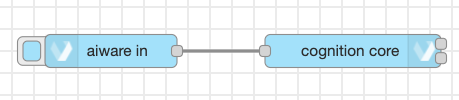
- Drag the cognition core node and drop it next to the aiware-in node. Wire up the two nodes.
- Double-click the cognition core node to open the node properties and change the following:
- Click Category > Transcription.
- Click Engine > Transcription - E - English V3.
- Scroll to Advanced Settings. Click Cluster > prd5 - Adhoc Cluster.
- To give the job a high priority, click Job Priority > Very High.
- Check the Wait for results box. This pauses the flow and proceeds to the next node only when the job is done and the results are generated.
- Click Done to close the node properties and save the settings.
Step 5: Set the user details node
In this step, you'll set user details to send the email.
- Drag the user details node (under "aiWARE tools") and drop it next to the cognition core node.
The cognition core node has two outputs. The upper grey square on the right side of the node represents the success output. The grey square below represents the failure or error output.
- Wire the success output from the cognition core node to the input port of the user details node.
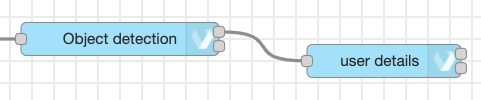
The user details node doesn't require special settings. It accepts a username and password as inputs in the node's properties. If not provided, it uses the user details of the logged-in user by default.
- View user details in the msg object under .payload.aiware.user. The logged-in user email is available under the name property in msg.payload.aiware.user. The full path to the logged-in user email is msg.payload.aiware.user.name.
Step 6: Set the email node
- Drag the email node from the node palette (under "aiWARE Common").
- Wire the success output from the user details node to the aiware email node.
- Double-click the email node to open the node properties. Set the properties in the following way:
[Note] Everything between two 'Ampersands' is taken as a path in the msg object.
- Click Done to close the editor, and then again to close the node properties and save the changes.
Step 7: Add output nodes
Add output nodes to the flow: one for success, and one for failure.
- Drag the aiware out node and drop it to the canvas next to the email node.
- Click the aiware out node once to select it.
- Press Control + C and Control + V on your keyboard to copy and paste the node. Now there are two output nodes: one for success and one for failure.
- Move one of the two identical aiware out nodes down a little bit.
- Wire these nodes to the upper and the lower ports.
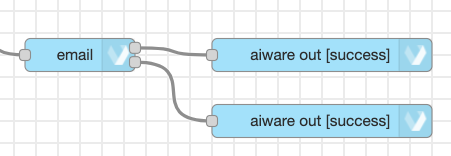
- Configure the upper and lower nodes so that the upper node is for success and lower node is for failure.
- Double-click on a node. From the Output Status dropdown, select success or failure - success for the upper node and failure for the lower node. Click Done to close the properties.
- Drag a link in node (from under "common") and put it in front of the aiware out [success] node, and wire it to its port. Repeat for the aiware out [failure] node.
- Drag two link out nodes and put them in front of the email node. Wire both ports to these.
- Connect the outputs of the link out nodes to the link in nodes as shown below. Notice the long wire becomes dashed, and when the node is unselected the wire becomes invisible. It is a good practice to keep the flow nice and clean. (To see if the wires are there, click once on the input or output nodes.)
Step 8: Run the flow
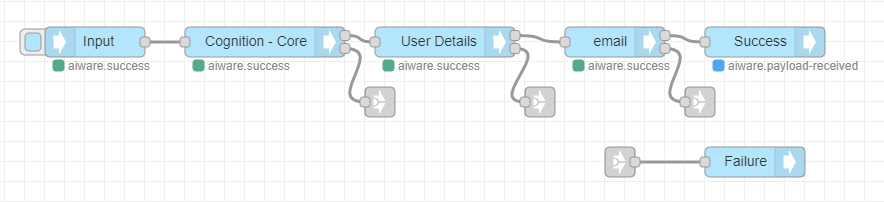
The flow should look like:
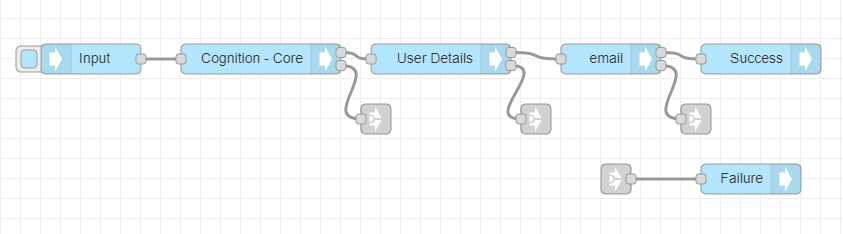
Click the blue checkbox next to aiware in node to run the flow. Follow the job progress and debug the node from the Debug window by clicking the bug icon on the sidebar.
Within a few minutes, the flow completes and you can see the result in the email you signed up with.