Nodes are the building blocks of a flow, and every node has a user interface and a NodeJS backend server. Each node in a flow typically performs one action, such as executing a script, receiving input, or transmitting outputs. A node is triggered either by receiving a message from a previous node or by an external event, like receiving a file.
This section covers what nodes are and how to work with them. To learn how to add third party nodes to your palette, see Add nodes to the palette in Automate Studio.
Node structure
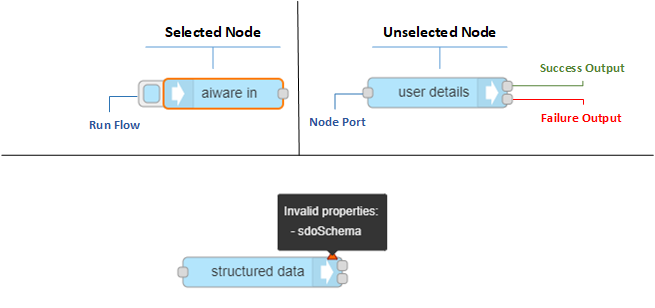
A node consists of multiple parts:
- Node port: The grey squares on the left and right side of the node. Connects the node to the previous node and the next node. Some node types have only one node port.
- Node output on success: The upper grey square on the right side of the node. Used if the node task succeeds.
- Node output on failure: The bottom grey square on the right side of the node. Used if the task fails or if there's an error.
- Node name: The name of the node on the canvas. Defaults to the node name on the palette, but you can change it in the node UI settings.
- Node icon: The icon on the right or left side of the node. In aiWARE nodes, it defaults to the Veritone logo. You can change the icon in the appearance section of the node UI.
- Node changes indicator: When the node is added to the canvas or modified, a blue circle appears on the upper right corner of the node. This indicates that the current changes have not been saved yet and will not be reflected in runtime. Once the changes save automatically, the blue circle disappears.
- Node misconfiguration indicator: If the node is saved with invalid changes, a red triangle appears in the upper right corner. You can see which validations failed by hovering over the red triangle.
Node types
There are multiple types of nodes available in the node palette:
- Input nodes: Receive data from an external source. They have a blue button on the left and only a single port (an output port) on the right. The aiware in node is an example of an input node.
- Output nodes: Receive data but do not pass data to any downstream node(s). They have only a single port (an input port) on the left. Output nodes typically are at the end of a flow or subflow. The aiware out node is an example of an input node.
- Transformational (function) nodes: Receive data, modify it or augment it, then output the modified data to the next node. Transformational nodes have two ports, an input port on the left and an output port on the right. The cognition node is an example of an input node.
Node properties
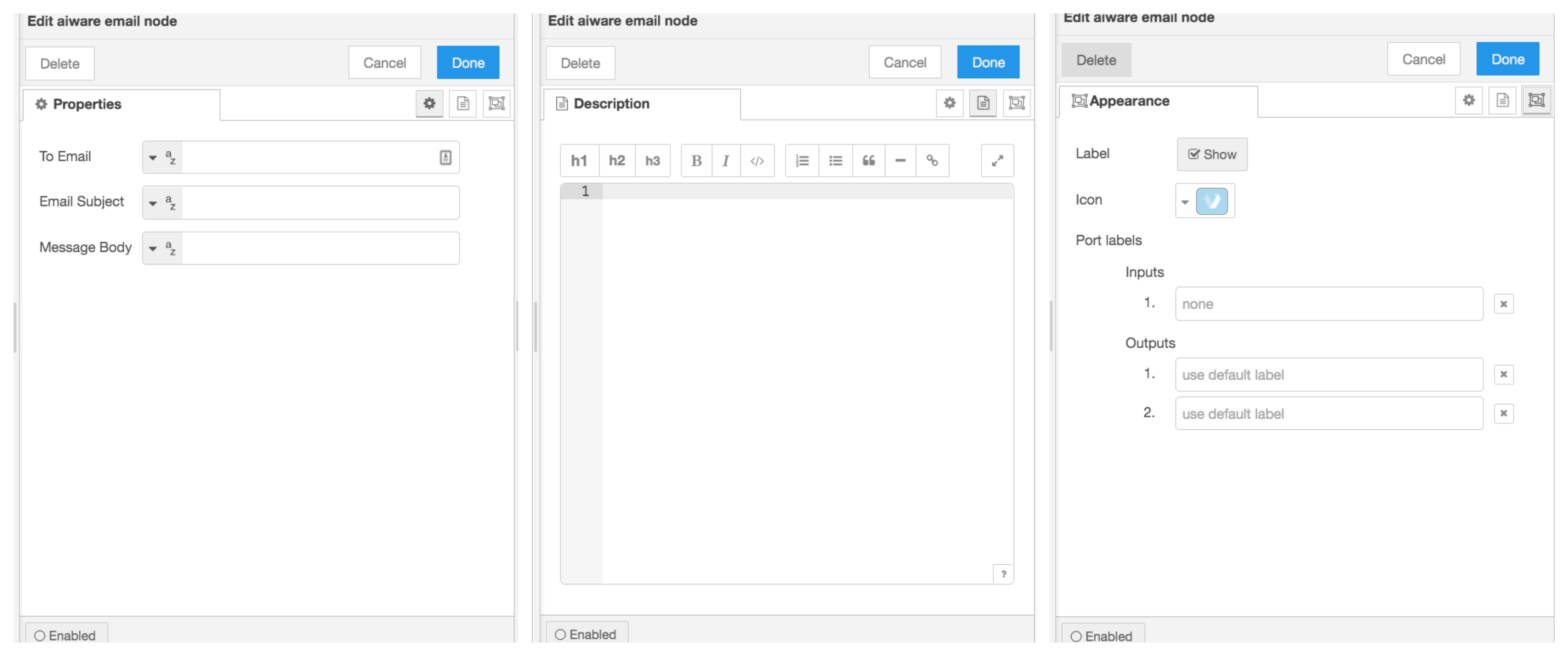
Each node has customizable properties, including the name, description, and appearance. Double-clicking a node displays the Node UI editor where you can edit its properties.
Node definitions
For an explanation of each node and what it does:
- Click the book icon in the right-side debug panel

- Choose node-red
- Scroll through the list to find the node to define, or drag a node onto the canvas. The definition of the node will appear on the right side.
Passing data to nodes
To function correctly, each node needs to receive data for it to process. Each node type accepts different data. The node's Properties panel is where you provide the data that the node will process. Ideally the node receives the data from the previous node, but you can hard-code the data if needed. To specify the data source, use Typed inputs. Typed inputs are the input fields in the Properties panel that have a grey button on the left side.
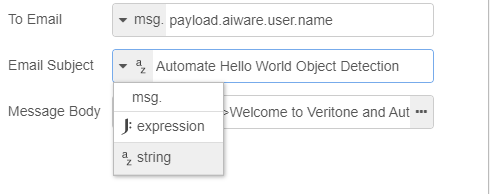
When you select the grey button, you can choose between 3 different input types:
- msg. Accesses the
msg object. To access something like the user's email address, use the format msg.payload.aiware.user.name. - JSON (J:) Uses the data you provide as JSON data in the node process.
- String Uses the data you provide as a string in the node process.
aiWARE Automate Studio nodes
aiWARE nodes are developed by Veritone to simplify the usage of AI technology. They are a light blue color and are divided into three categories: aiWARE common, aiWARE data lake, and aiWARE tools.
- aiWARE common: A basic set of nodes that let you build a flow in Automate Studio.
- aiWARE data lake: A set of transformational nodes that let you perform a wide spectrum of operations on data objects.
- aiWARE tools: A set of nodes that help you perform some standard operations like getting the logged-in user details or sending custom GraphQL queries to Veritone's API.



