Correlation engines are created in a similar way to adapters. At a high level, a correlation engine needs to:
- Receive the payload
- Set task status to running
- Get the task's TDO
- Process the task (carry out correlation logic)
- Format and generate output
- Put the output in an asset that will be attached to the TDO by reference. Upload the result
- Handle task failure (if applicable)
Note that correlation engines run in batch mode, where data is processed serially in discrete quantities. This mode works by processing the contents of a particular batch before moving on to the next. The engine will process and complete an entire task in one invocation, where the Docker container for the engine starts with the environment variables set. The engine has a payload with information about where to retrieve the input data from the GraphQL API, and then the engine processes the payload, updates the task status, creates any updated assets, and finishes processing.
Build guidelines
1. Define your data schema
A JSON schema is used to identify relevant data to correlate. Each correlation engine references a specific schema to detect, collect, and correlate relevant data.
Create a schema that defines the format and content of the data to be analyzed. To do this, you'll use a set of core required properties and then add your own custom properties to the base of information to be evaluated.
After your schema is registered in Veritone Developer, all of your custom fields are automatically mapped to the index and supported by requests made through the aiWARE search API.
An example of a schema suitable for use in a correlation engine is:
{
    "$id": "http://example.com/example.json",
    "type": "object",
    "$schema": "http://json-schema.org/draft-07/schema#",
    "properties": {
        "humidity": {
            "$id": "/properties/humidity",
            "type": "integer"
        },
        "pressure": {
            "$id": "/properties/pressure",
            "type": "integer"
        },
        "windSpeed": {
            "$id": "/properties/windSpeed",
            "type": "number"
        },
        "visibility": {
            "$id": "/properties/visibility",
            "type": "integer"
        },
        "windDegree": {
            "$id": "/properties/windDegree",
            "type": "number"
        },
        "datetimeEnd": {
            "$id": "/properties/datetimeEnd",
            "type": "dateTime"
        },
        "geoLocation": {
            "$id": "/properties/geoLocation",
            "type": "geoPoint"
        },
        "temperature": {
            "$id": "/properties/temperature",
            "type": "number"
        },
        "locationName": {
            "$id": "/properties/locationName",
            "type": "string",
            "title": "City Name"
        },
        "datetimeStart": {
            "$id": "/properties/datetimeStart",
            "type": "dateTime"
        },
        "temperatureMax": {
            "$id": "/properties/temperatureMax",
            "type": "number"
        },
        "temperatureMin": {
            "$id": "/properties/temperatureMin",
            "type": "number"
        }
    },
    "definitions": {}
}
[Note] dateTime and geoPoint types referenced in this example are custom aiWARE extensions to the json-schema specification.
Consult the structured data quick start for a detailed introduction to schema creation. See Use structured data for a detailed introduction to schema creation.
[Warning] All schemas deployed to aiWARE are public. (Data will be private, but the schema describing the data structure will not be.)
2. Register your engine
Register a correlation engine in Veritone Developer.
To set a correlation engine, choose Data > Correlation from the engine class during the Create a New Engine process in Developer.
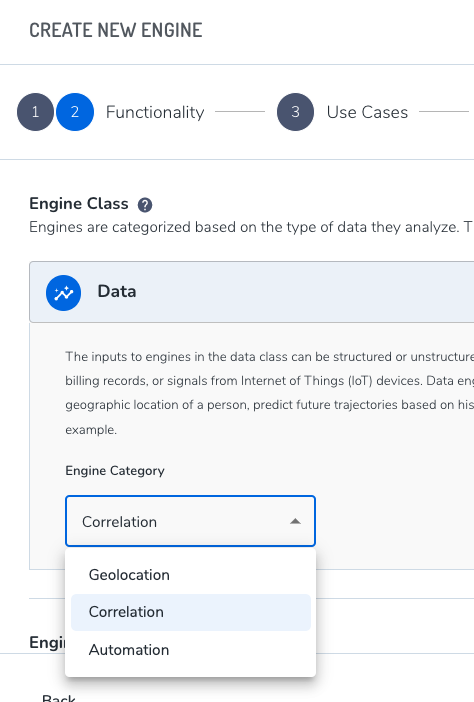
Make a note of the engine ID or copy it.
3. Construct the code to process correlation tasks
Engines in aiWARE are purpose-built to process tasks. When constructing your code, include elements that enable your engine to perform a logical sequence of task processing actions, including fetching input, retrieving any needed additional assets, processing data, outputting results to an asset.
4. Package the build
Dockerfiles
Here is an example of a Dockerfile for a Node.js engine:
FROM mhart/alpine-node:8

ENV ENV_APP_HOME /app
ENV NODE_ENV production

RUN mkdir -p $ENV_APP_HOME && apk update && apk add -U git curl file libc6-compat python make gcc g++

ADD manifest.json /var/manifest.json
WORKDIR $ENV_APP_HOME/

ADD package*.json $ENV_APP_HOME/
RUN npm install

ADD . .

ENTRYPOINT node app.js
Build a Docker image from the Dockerfile by clicking copy in the Package your engine section and running the docker build command.
The Docker build command uses the following syntax:
docker build -t my-adapter-name .
A successfully built ![]() message displays when the image is created.
message displays when the image is created.
After creating your Docker image, you'll push it to your organization's private directory in the repository.
Access the Docker registry using your aiWARE credentials.
Copy and run the docker login command provided in the Log in to the aiWARE docker registry section to access the registry. Then enter your aiWARE username and password to log in. The Docker login command uses the following syntax:
docker login my-adapter docker.veritone.com
5. Tag the engine
Once logged into the Docker registry, copy and run the docker tag command provided in the Tag your Adapter section to give your image a custom tag. This tag can be anything you would like to help organize your builds. The command uses the following syntax:
docker tag my-adapter docker.veritone.com/organizationId/my-adapter-name:custom-tag
6. Upload your build
Copy and run the docker push command provided in the Upload your build via command line section to upload your build. The command uses the following syntax:
docker push docker.veritone.com/organizationId/my-adapter-name:custom-tag
7. Deploy the engine
Once your build is successfully uploaded, it displays under engine build list in the Veritone Developer interface. Deploy the engine by selecting the engine, click Submit. Then click Deploy.



