If you're following the steps to build a simple text-processing engine, this is step three. To see all the steps, see the user guide process page.
In this step, use Veritone's Engine Toolkit to test the engine locally using Docker. This is called running the engine in test mode.
Steps
1. Open a terminal and run the following command.
docker run -e "VERITONE_TESTMODE=true" -p 9090:9090 -p 8080:8080 --name hello-world --rm -it hello-world
This runs the hello-world container in test mode, exposing ports 9090 and 8080. (Port 8080 is the port for the engine's webhooks, whereas 9090 is the port on which the engine driver runs its own Test Console web app.)
[Note] Including --rm in the run in the run command tells Docker to remove the container when it exits. Without this, Docker will say that the container is already running the next time the same run command is issued, in which case docker ps may need to be run. Note the instance ID of the container and use docker stop to stop the container manually.
The -it options tell Docker to make the session interactive (-i — keep STDIN open), in TTY (-t).
After the above CLI command is executed, check the console to ensure the commands executed without errors. (If the engine code contains bugs, it's possible the container will fail to start.)
2. Use the test console app.
If the engine launched normally, a console message like this will display:
Veritone Engine Toolkit (4768c5a)
2020/11/27 14:52:31 engine: running
2020/11/27 14:52:31 WARNING: Test mode (remove VERITONE_TESTMODE before putting into production)
2020/11/27 14:52:31 skipping kafka setup
2020/11/27 14:52:31 running subprocess for testing...
2020/11/27 14:52:31 running test console...

    The Engine Toolkit Test Console is now running.

    Go to: http://localhost:9090/
Open a web browser and go to http://localhost:9090/. The Veritone Engine Toolkit Test Console appears.
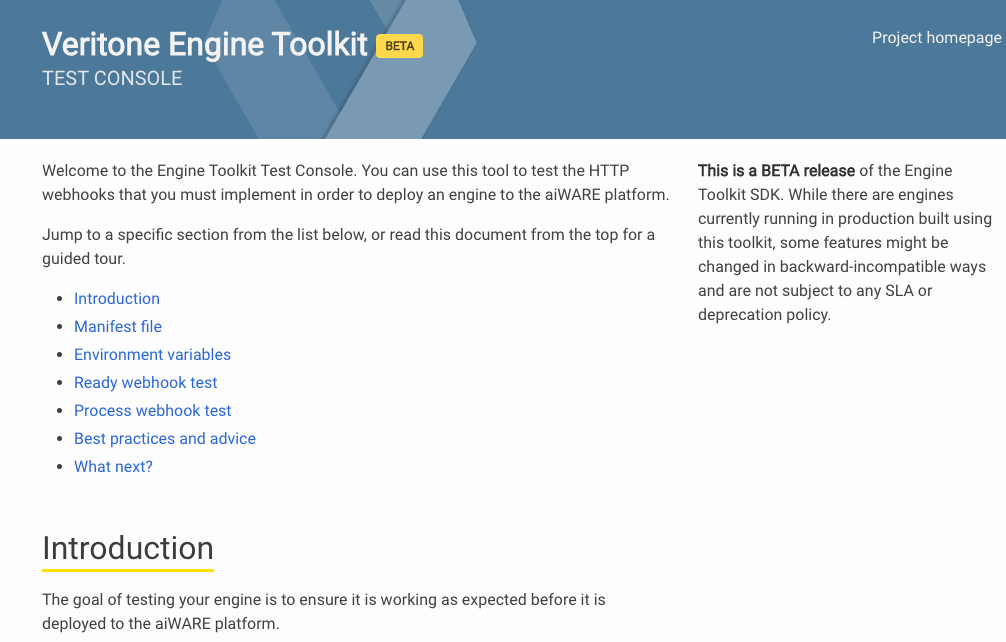
Scroll to see green badges for Environment variables and Ready webhook test. The green badges mean the engine is properly configured.
[Warning] If red badges are displayed, take note of the error message(s), stop the Test Console app with Control-C, make any needed changes to the engine, rebuild it, and re-launch the engine in test mode.
4. Test the /process webhook.
Scroll to the test console's Process webhook test subheading to see some HTML form elements. Configure a multipast/form-data POST here to hit the engine's /process webhook.
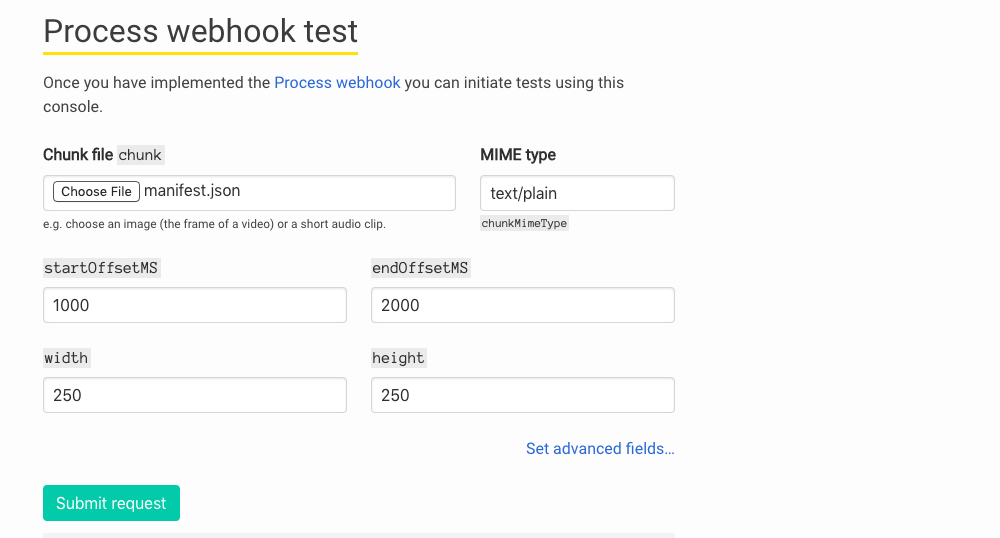
In this case, the Chunk file file-picker was used to specify a test file to use for input. (In this case, the project's manifest.json file is used, but any convenient text file could be used.)
Notice that a MIME type of text/plain was manually entered.
The various other form fields (startOffsetMS, width, height, etc.) are meaningless in the context of text input, so it doesn't matter what the values are. This engine code ignores these fields.
Click Submit request to cause the engine driver to hit the /process webhook with the test-mode data chunk you have configured. The result is shown in the page:
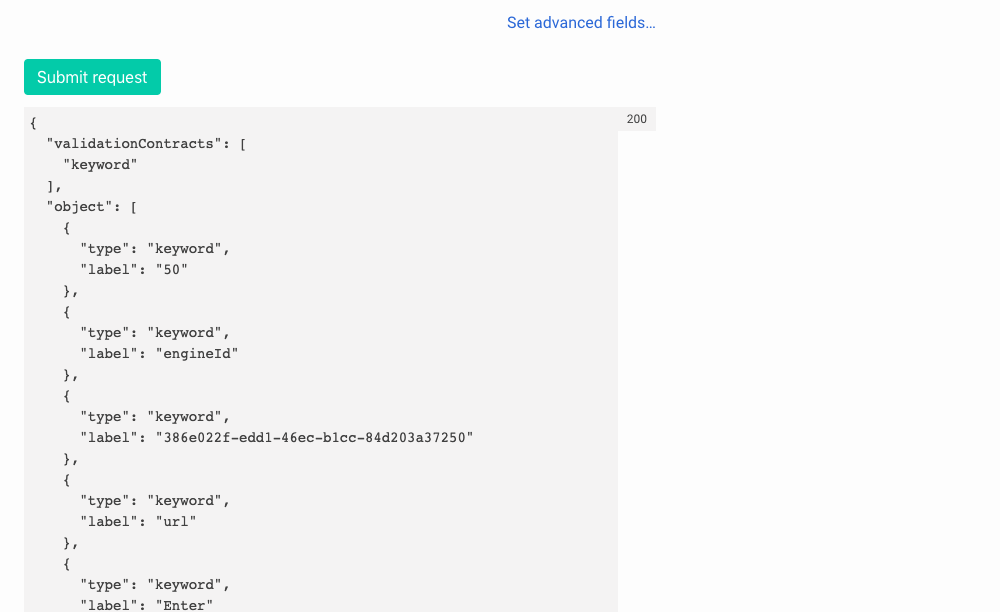
The output from the engine code shows that it extracted "vocabulary words" from the sample text file (manifest.json), and those words were captured in the appropriate AION output format for a keyword extraction engine.
[Note] If a server error (500) message displays in the data-output area, or any other error message, check the engine code for bugs. Check the Terminal Console for any additional messages. Insert logging traces in the code to make messages show up here in test mode. In Node.js, that's done with console.log() or console.error().
5. Exit the test console.
To stop the engine and exit the Test Console web app, enter Control-C in the terminal session.
Recap
- Run an engine build locally, using
docker run. - Enable test mode by using an environment variable in the
docker run command. - Expose ports on the running container using
-p. - Keep STDIN open (and emulate TTY) with
-it in the run command. - Tell Docker to remove the container instance on exit (via
--rm). - Launch the Veritone Test Console app on
localhost:9090. - Use the Test Console app to validate the
manifest.json file. - Use the Test Console to hit the engine's
/ready webhook. - Use the Test Console to prepare a data "chunk" and hit the
/process webhook. - Check the output of the engine (using Test Console's onscreen logger).
What to do next
If the engine can process a known-valid data chunk in test mode (and output proper data to the Test Console web page), without errors, congratulations: the engine is ready to deploy to aiWARE.



