Once the steps have been completed to connect your GBQ Project to Veritone Attribute, the Billing Account associated with your Google Cloud account must be enabled. Without a Billing Account, you cannot update your GBQ Project Expiration status to Never.
GBQ Projects without an enabled Billing Account and no expiration will expire after 60 days, causing all historical data deletion. This means to maintain an active Attribute connection, as well as ensuring historical data is not deleted, the steps below must be taken.
Steps
- Navigate to https://console.cloud.google.com/ and log in to the account that holds Admin permissions to Google Analytics and GBQ (if necessary).
- Verify you're working in the GBQ project that was connected to Attribute and re-select the correct project if necessary.
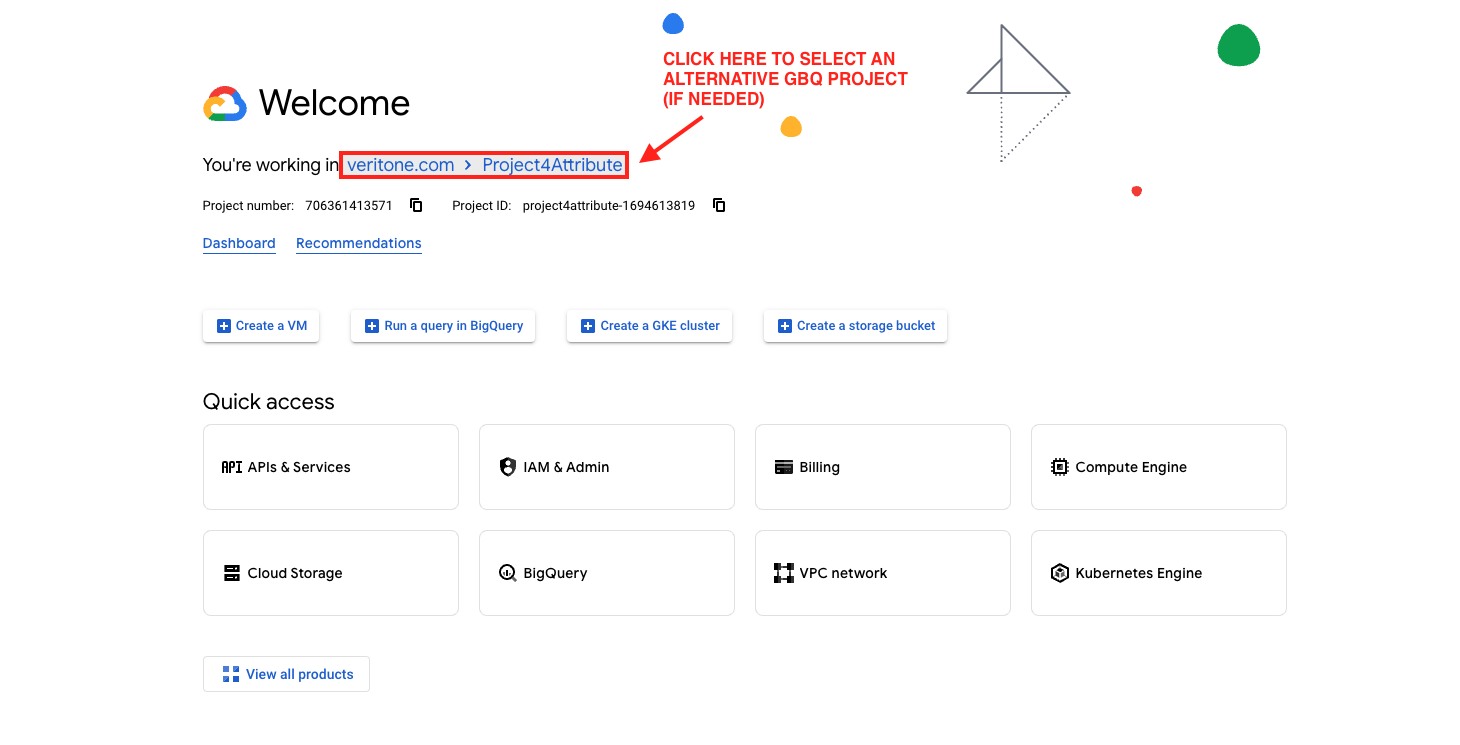
- Once verified you're working in the right project, click the Billing tile.
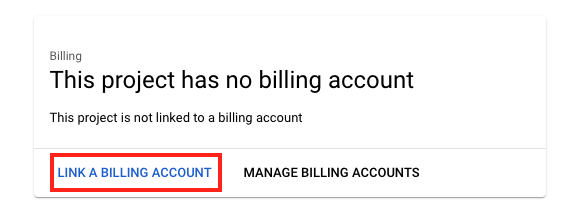
- If your project has a Billing Account associated and active, move on to updating your Project Expiration. If not, click LINK A BILLING ACCOUNT:
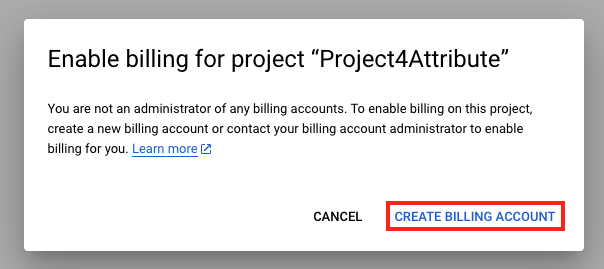
- If no Billing Accounts in your Google Console exist yet, click CREATE BILLING ACCOUNT in the pop-up that appears.
- Complete Step 1 of 2 by entering your Account Information, primarily the Country you operate in.
- Add a Payments profile and Payment method, then click START FREE.
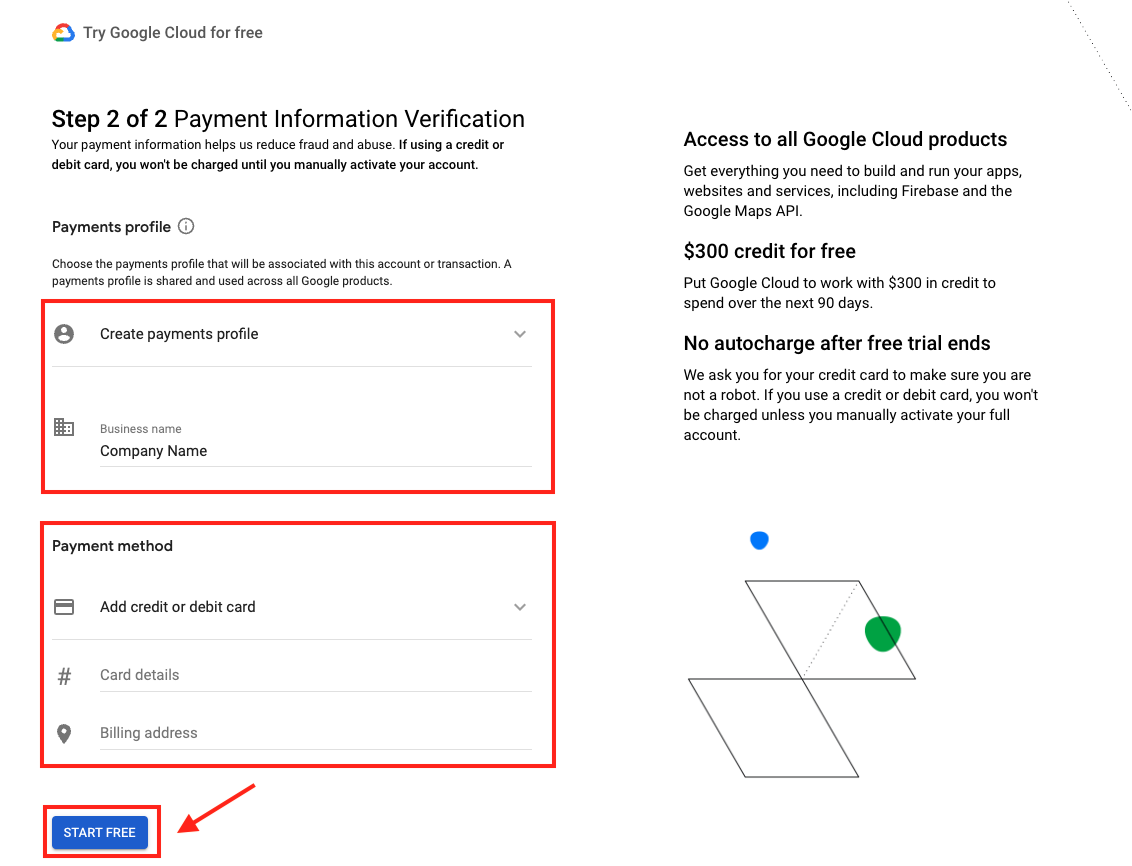
- Your Billing Account has now been enabled.
Next step
Complete the GBQ requirements by updating your Project expiration.


