Once the steps have been completed to connect your GBQ project to Veritone Attribute, the project expiration status must be set to never.
By default, GBQ projects will expire after 60 days, causing all historical data deletion. This means to maintain an active Attribute connection, as well as ensuring historical data is not deleted, the steps below must be taken.
Before you begin
- A GBQ billing account is required to set your project expiration to never. See Enable Billing Account if you haven't done this.
Steps
- Navigate to https://console.cloud.google.com/bigquery and log in to the account that holds Admin permissions to Google Analytics & GBQ (if necessary).
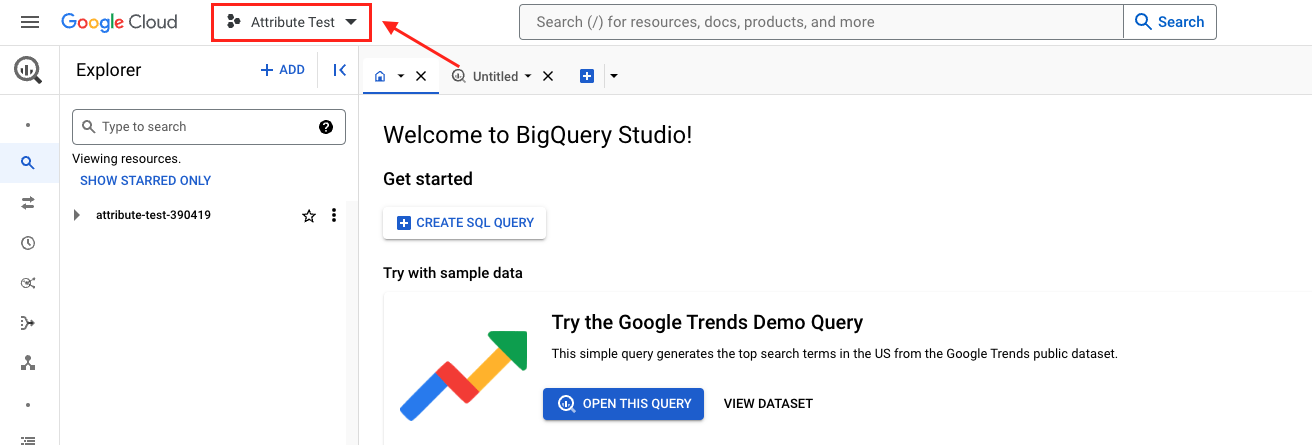
- Verify you're working in the GBQ Project that was connected to Attribute and re-select the correct project if necessary.
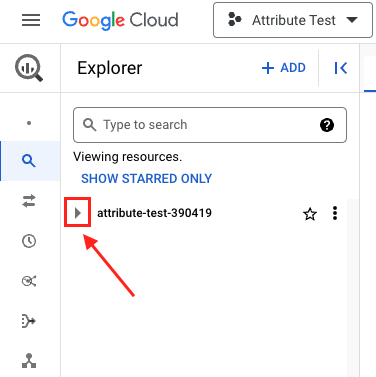
- Open your project data by clicking the arrow next to the Project ID.
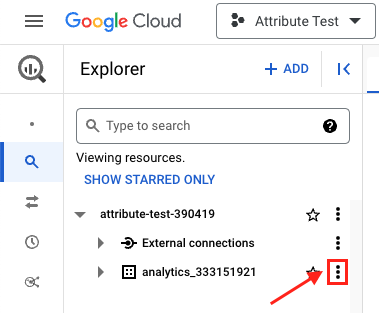
- Click the 3 dots next to the data available. Usually this name includes the word 'analytics' or 'events'. Choose Open.
- Click EDIT DETAILS.
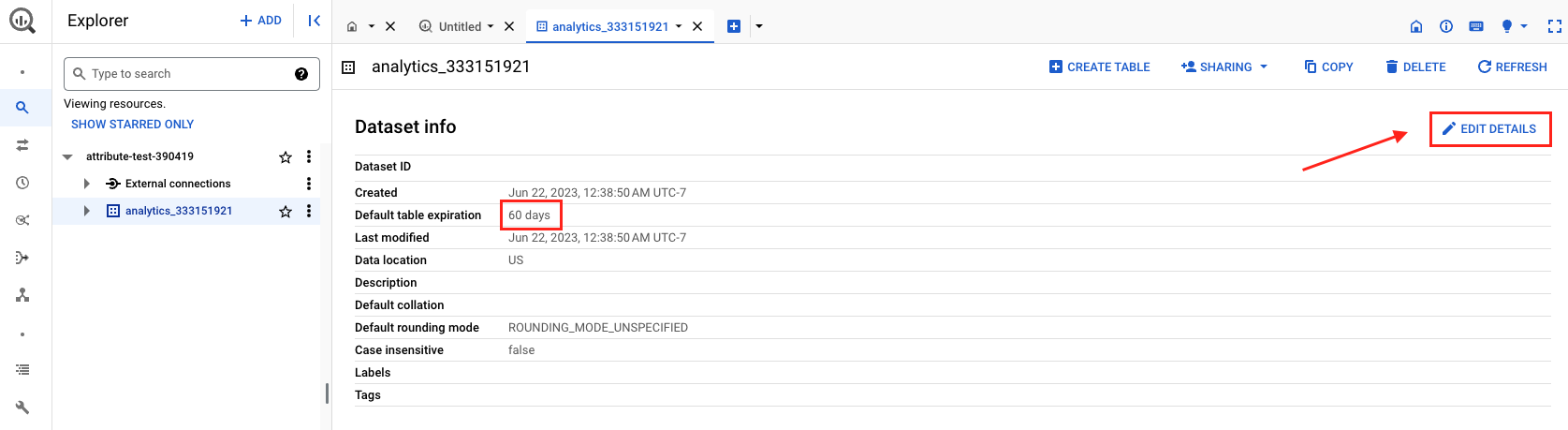
- Under the Default Table Expiration header, un-check Enable table expiration.
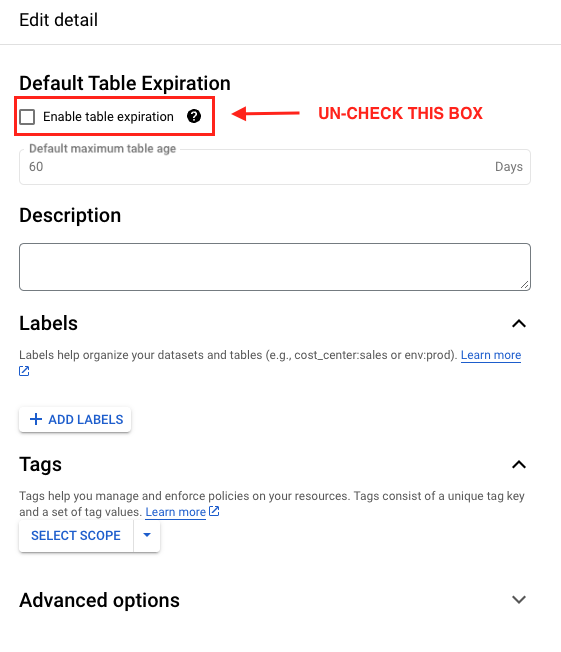
- Click SAVE. Your GBQ Project is ready for continuous web data flow from GBQ to Veritone Attribute.


