Use Data Center to view, edit, and download transcripts generated from aiWARE jobs that process video or audio sources.
Access Data Center
To open Data Center, click the utility icon  . Select the Data Center folder icon
  . The Data Center panel slides out.
View a transcript
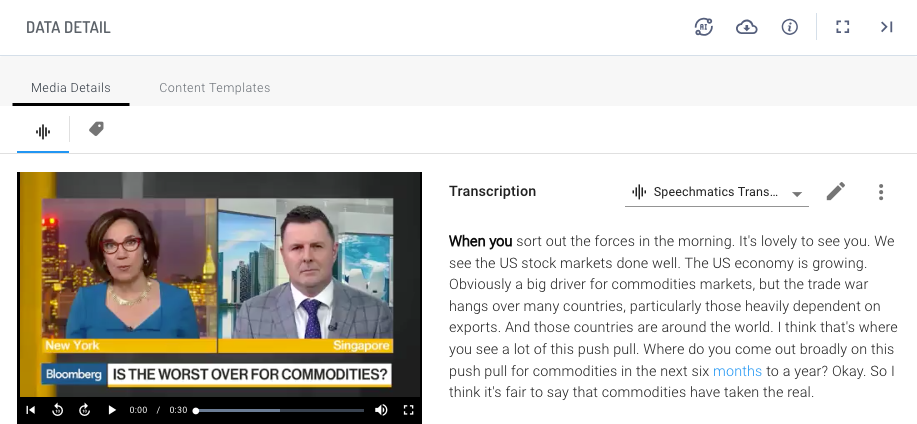
- To view a transcript, click My Files in the left navigation, then click on a data file in the list. The Data Detail panel slides out.
Edit a transcript
Veritone provides full text editing capabilities for transcripts.
Steps
- To edit a transcript, click My Files in the left navigation, then click on a data file in the list. The Data Detail panel slides out.
- Click
 to enter Edit Mode, and make any needed edits.
 - When you are finished editing, click Save.
Export a transcript
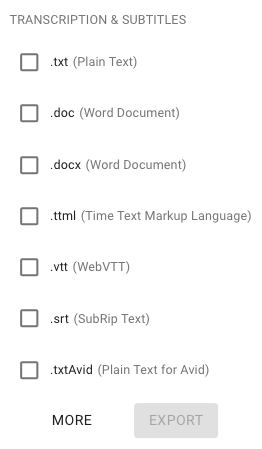
Transcripts can be exported in a variety of formats, including .txt (plain text), .ttml (Time Text Markup Language), .vtt (WebVTT) , or .srt (SupRip Text).
Steps
- Click My Files in the left navigation, then click on a data file that has a transcript to export. The Data Detail panel slides out.
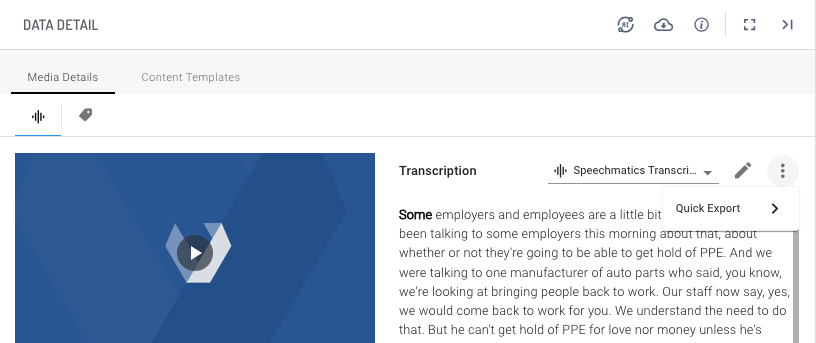
- Click the three dots
 on the upper right and select Quick Export. A format selection window pops up.
- Select the format(s) to export by checking the boxes for each format you want and click Export.
The files are downloaded in a zip file to your Downloads folder.



