Data Center contains the raw media files that have been ingested and processed within your organization’s Veritone account. The content is often broken up into chunks, but in some cases it may be an entire program that you can download.
Access Data Center
To open Data Center, click the utility icon  . Select the Data Center folder icon
  . The Data Center panel slides out.
Steps
- Click My Files in the left navigation, then click on a data file. The Data Detail panel slides out.
- Click the download icon.

The media file is downloaded in a zip file to your Downloads folder.
Export a transcript and download a source file
You can choose to download both the transcript and the media file at the same time.
Steps
- Click My Files in the left navigation, then click on a data file that has a transcript to export. The Data Detail panel slides out.
- Click the three dots
 on the upper right and select Quick Export. A format selection window pops up.
 - Click MORE. The Export and Download panel slides open.
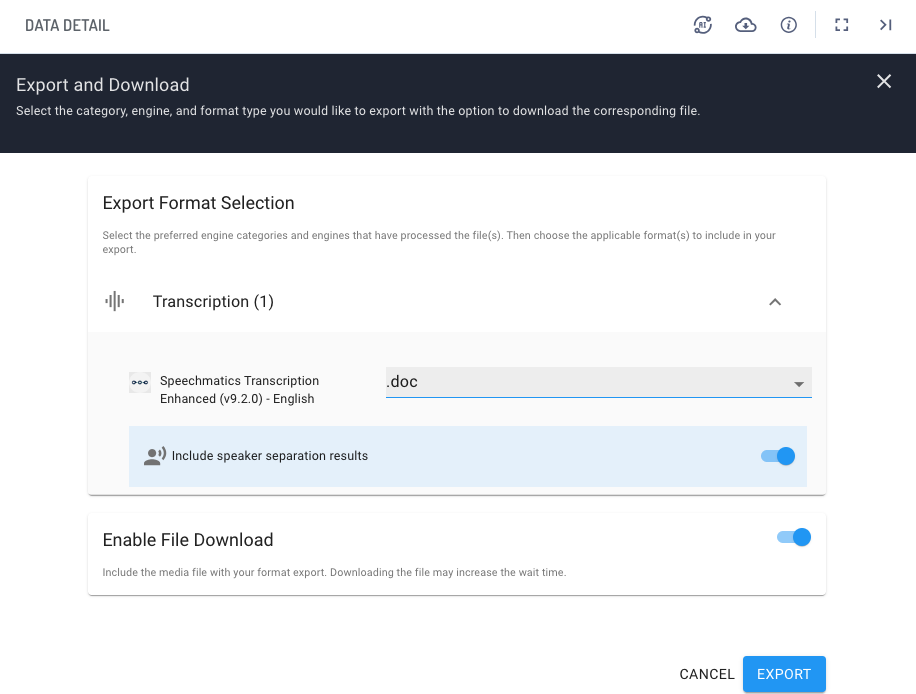
- On the Transcription pulldown list, check the boxes for each format you want.
- (Optional) If the job included speaker separation, enable Include speaker separation results.
- Set Enable File Download to on.
- Click Export.
The files, including the transcriptions, speaker separation results (if any), and source media files are downloaded in a zip file to your Downloads folder.



