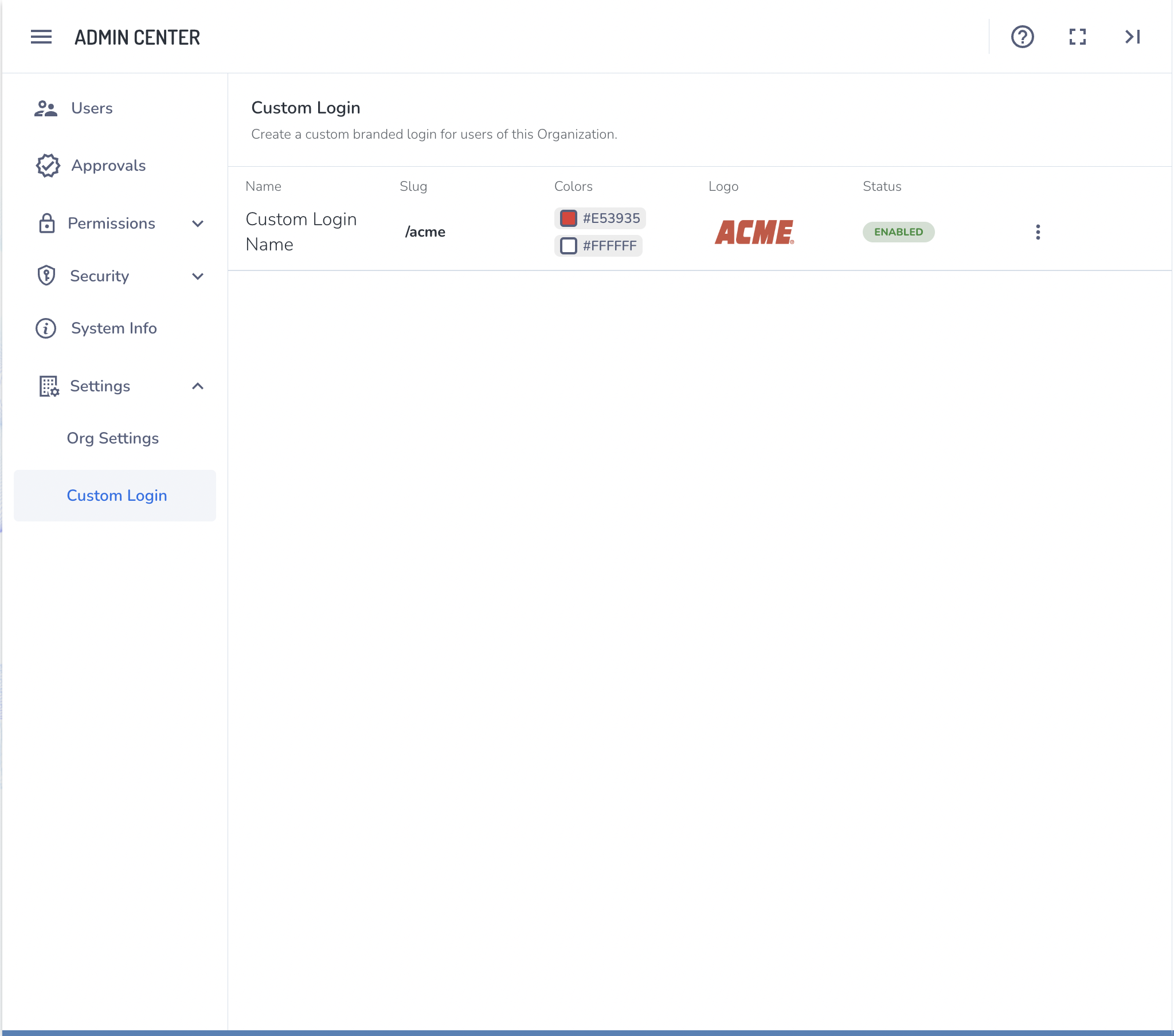
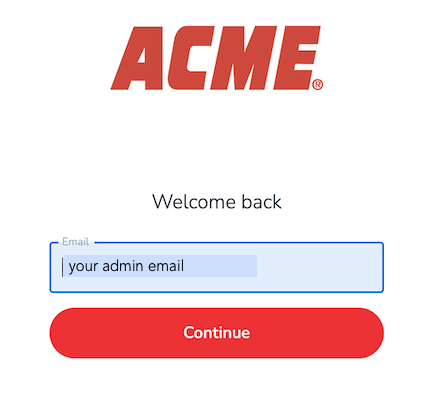
Org or instance admins can create a custom branded login page for your organization or instance with a unique URL of your choice. A custom login might look like this:
Log into Admin Center
-
To access the Admin Center utility, log in to your aiWARE administrative account. In the header bar, select  and then Admin Center
  .
.
- Admin Center slides out as a panel.
- In the left nav, click Settings > Custom Login.
-
Click Create Custom Login.
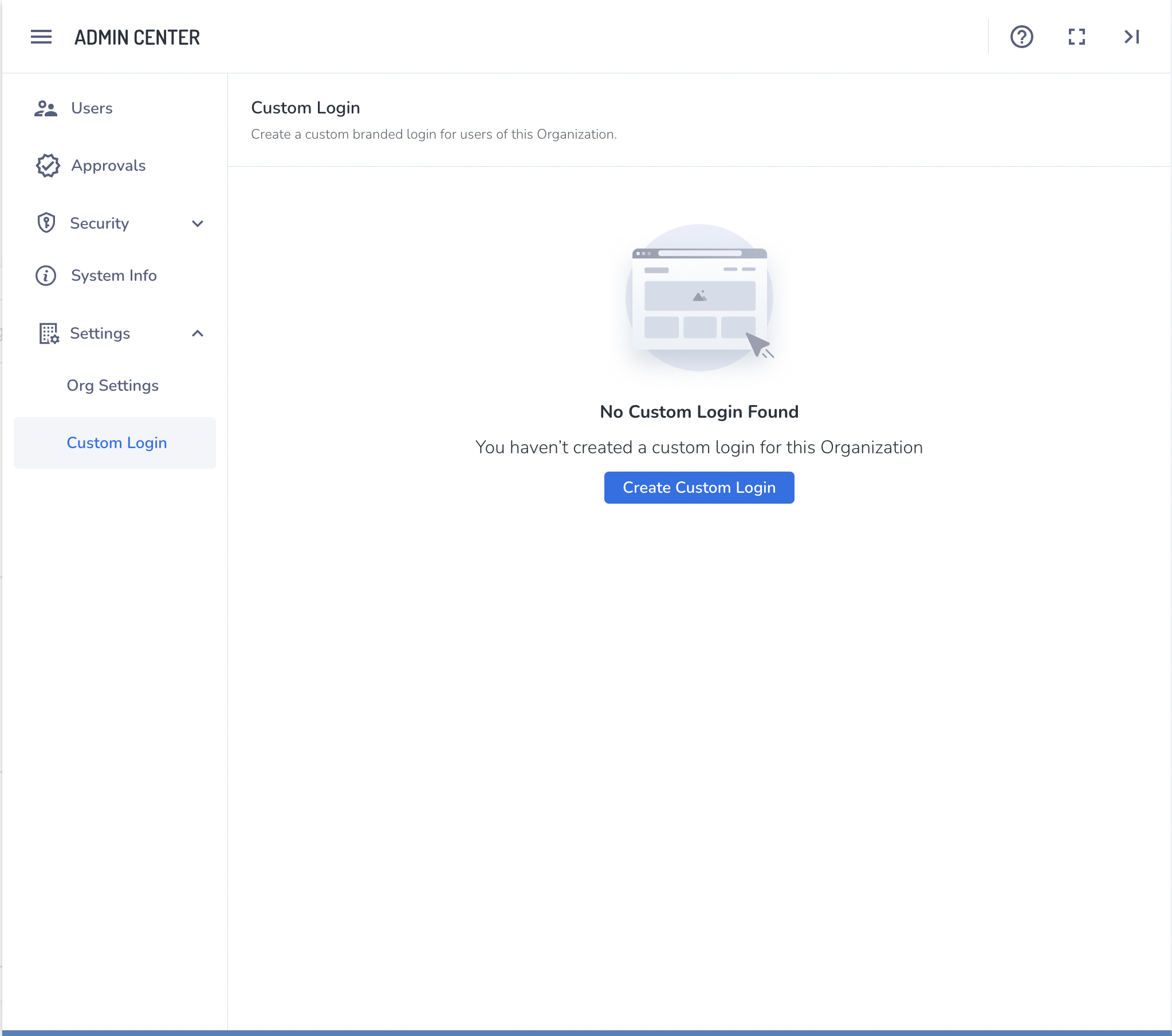
The custom log in wizard opens.
[Note]Org admins can only create one custom log in. Instance admins can create an unlimited number.
Use the custom login wizard
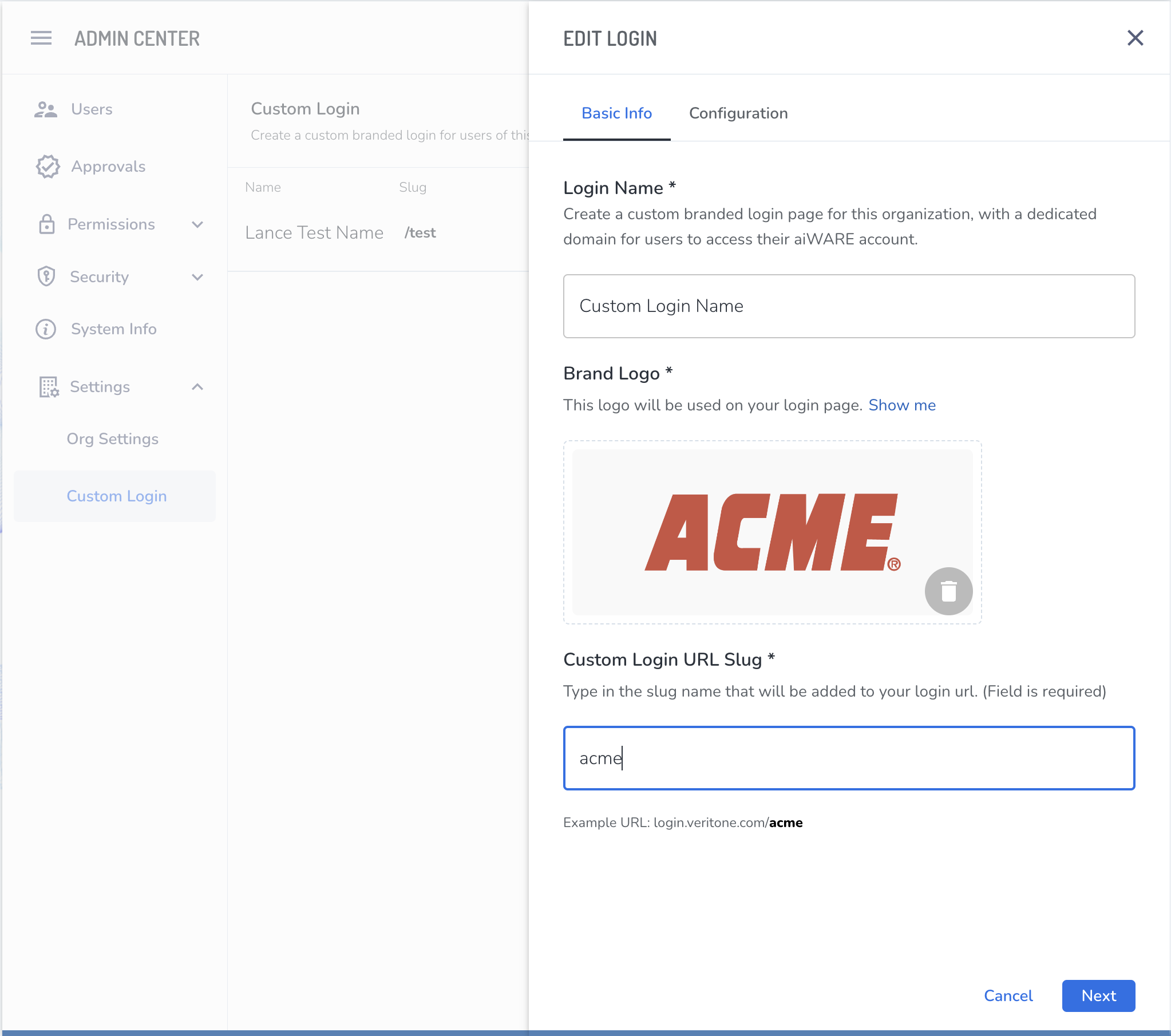
Basic Info
-
Login Name: Give your login a name. This name represents the login to your Admin Center and is not seen by users.
-
Brand Logo: Upload a JPEG or PNG that will be used on your login page. This will replace the Veritone logo above the login credential fields.
-
Custom Login URL Slug: Type the name that your organizations users will use to login. The slug is added to the end of the login url and will look like (login.veritone.com/your-slug)
Click the Next button when finished.
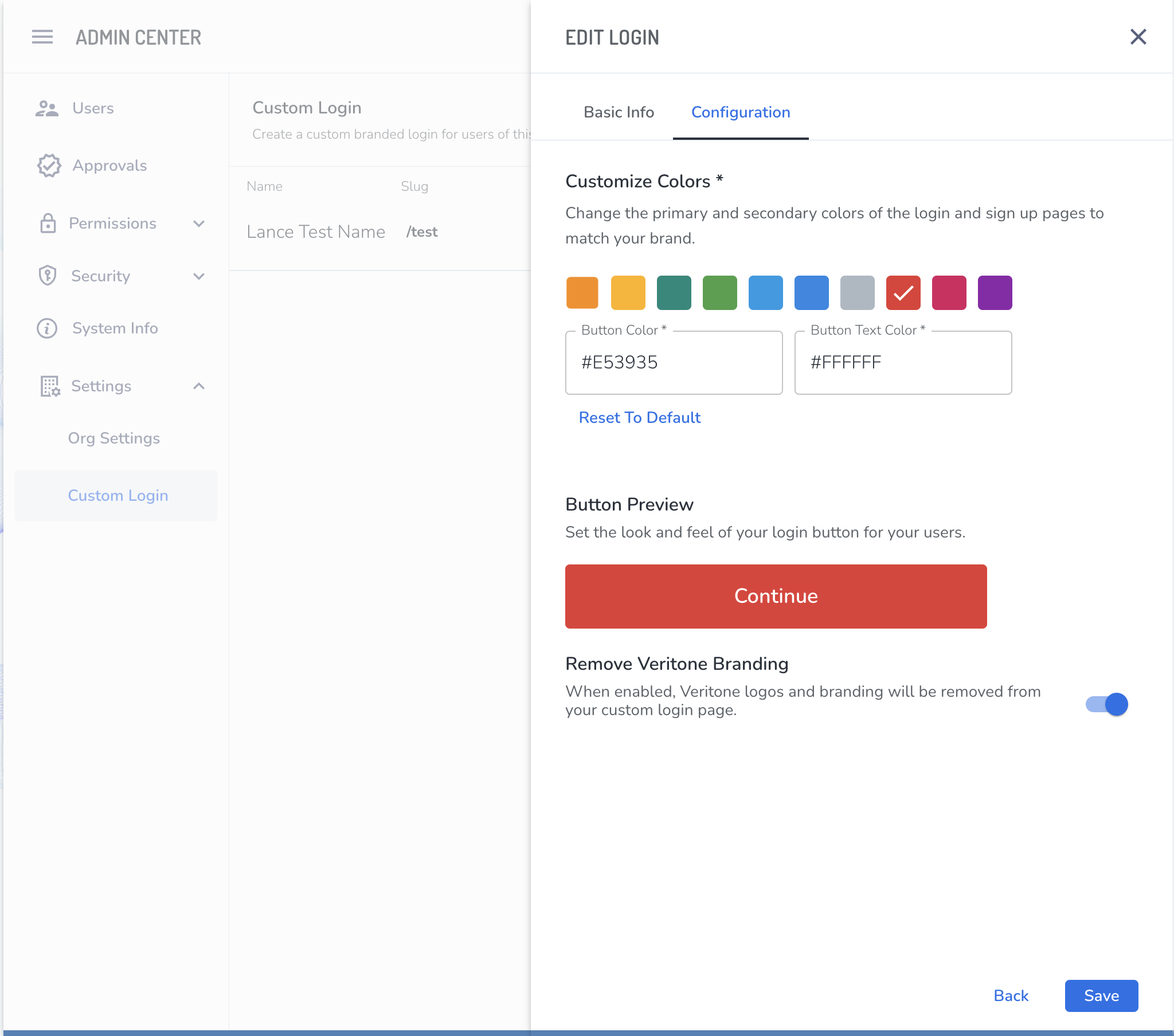
Configuration
-
Customize Colors: Further customize the look and feel of your organization's login page by selecting the color of the buttons and their text. Choose from the preselected color swatches or you can input a custom HEX value in each field.
-
Remove Veritone Branding: Enable this feature to remove any Veritone branding from the page.
Click Save to publish your login.
Preview or delete the custom login
Preview your login from the Custom Login page. Make edits to your login or delete your login page by selecting the  option menu.