Overview
In addition to using Veritone’s transcript for audio redactions, you can also use the transcript to apply a voice mask to a speaker to protect their identity. Veritone's proprietary voice masking engine replaces the original voice with a high-quality AI voice, uniquely preserving the speaker's inflection and tone. This method provides irreversible masking to ensure anonymity –a significant advancement over traditional audio-speed or pitch-shifting techniques.
Please note that voice mask quality depends directly on the quality of your original audio. Background noise, low volume or distortion in your media file will affect the result of the voice mask.
Note: If your agency would like Voice Masking added to your account, please contact your Customer Success Manager or our Support Team at support@veritone.com.
Applying A Voice Mask
Navigate to the “Audio” tab on the right side of the page to find the machine-generated transcript.
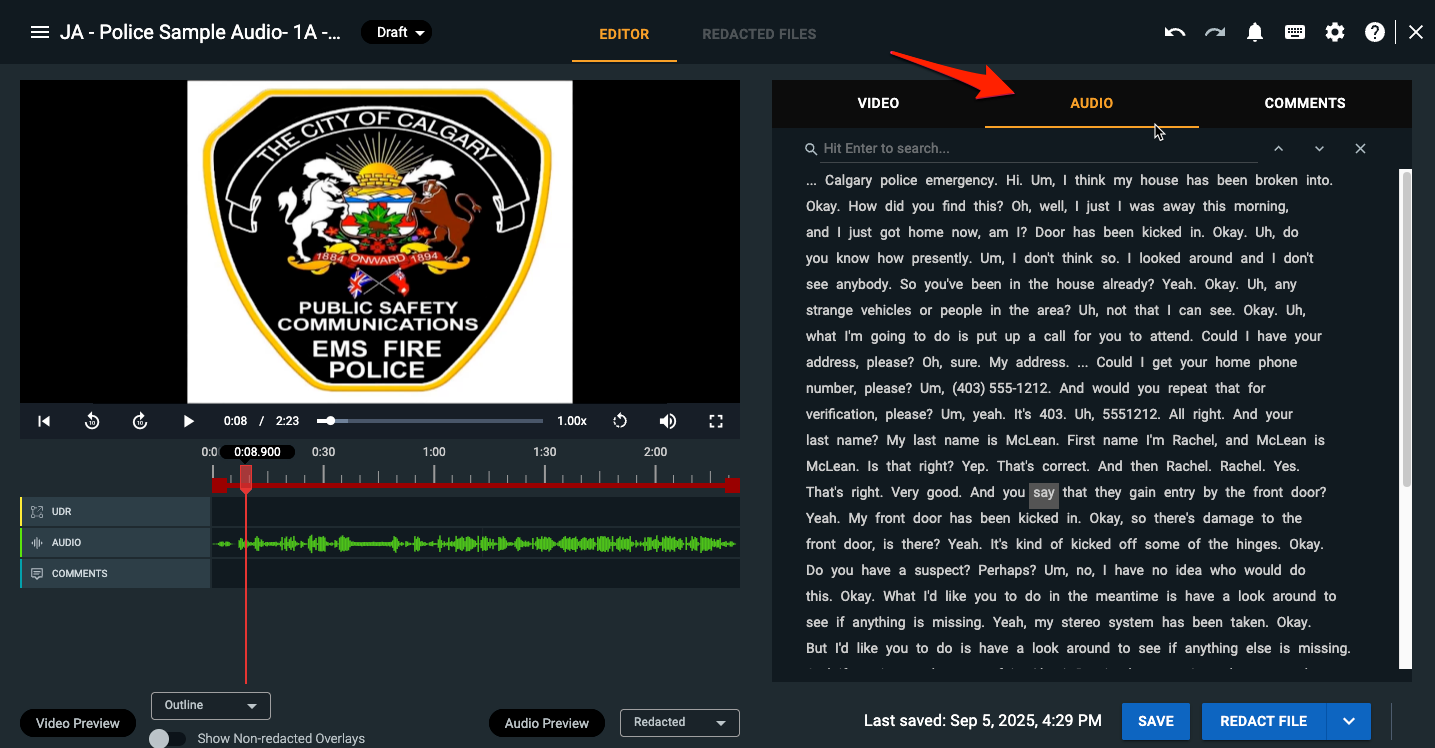
PRO TIP: When clicking on a word within the transcript, you will jump to that point in your video.
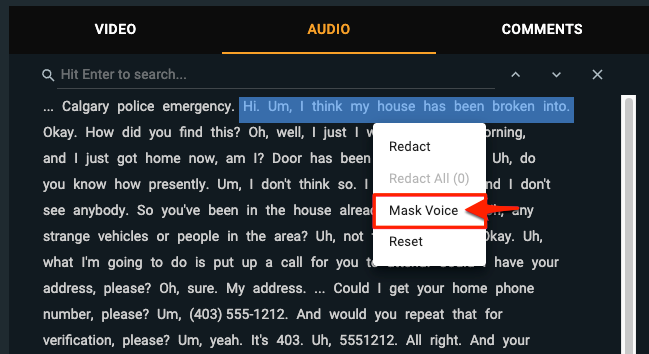
Selecting transcript text
Highlight the text in the transcript that you want to add a voice mask to by left-clicking, holding, and dragging your mouse. Once highlighted, right-click your mouse on this selection and select “Mask Voice”.
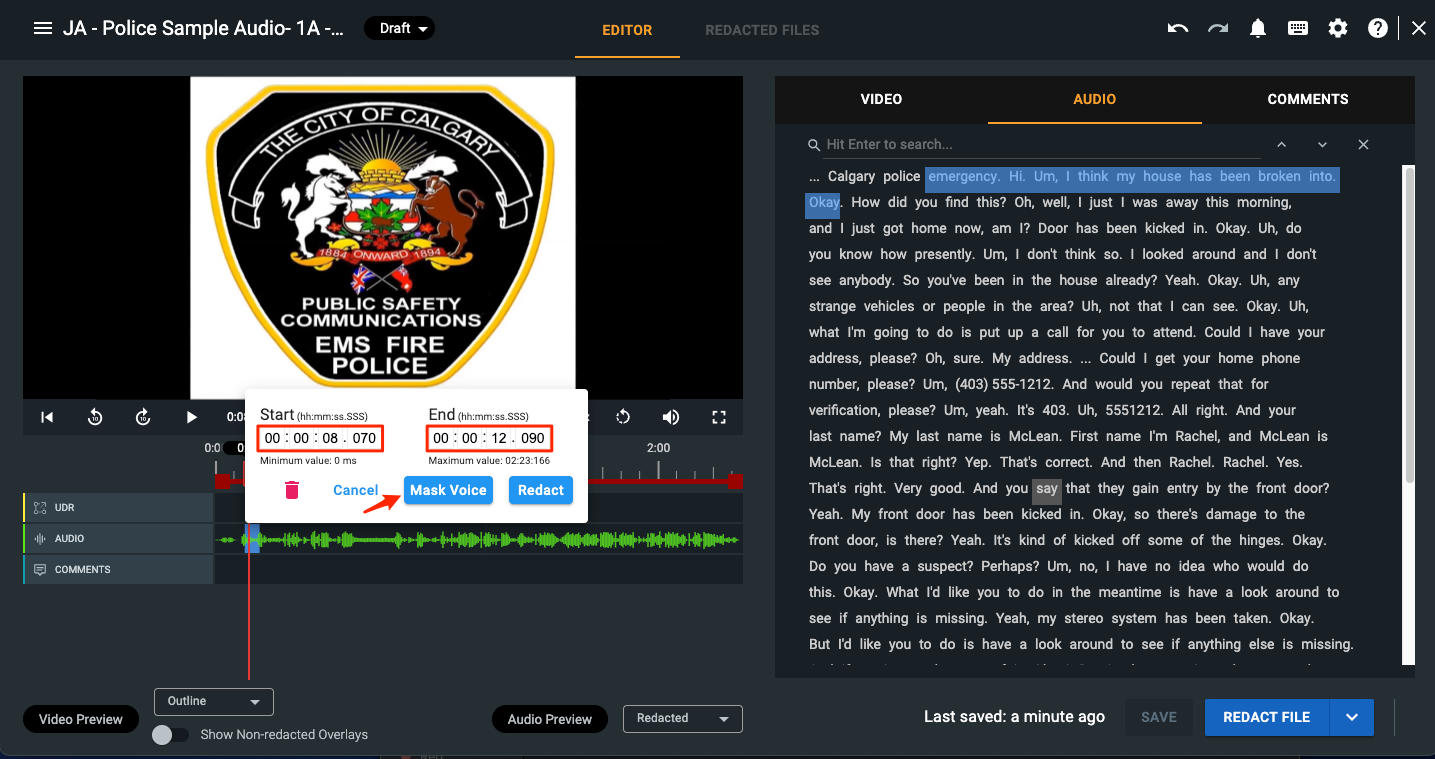
Selecting a specific time within the audio timeline
Click into the audio timeline itself on the left side of the screen. Within the timeline, you can enter the exact start and end time of the audio that you would like to apply a voice mask to.
If you have questions about audio redactions or voice masking, please contact the Veritone Support team at Support@veritone.com.



