In This Article
- How to upload media to Redact in tile view
- How to upload media to Redact in folders view
- Supported file size & types
Overview
Uploading media into your Veritone Redact account is a quick and seamless process. You can upload a media file from your local system in a supported format. If a video is located outside of your local system, export it from the external location to the desktop or a folder on your computer, and then upload it to Redact.
Uploading Media with Tile View
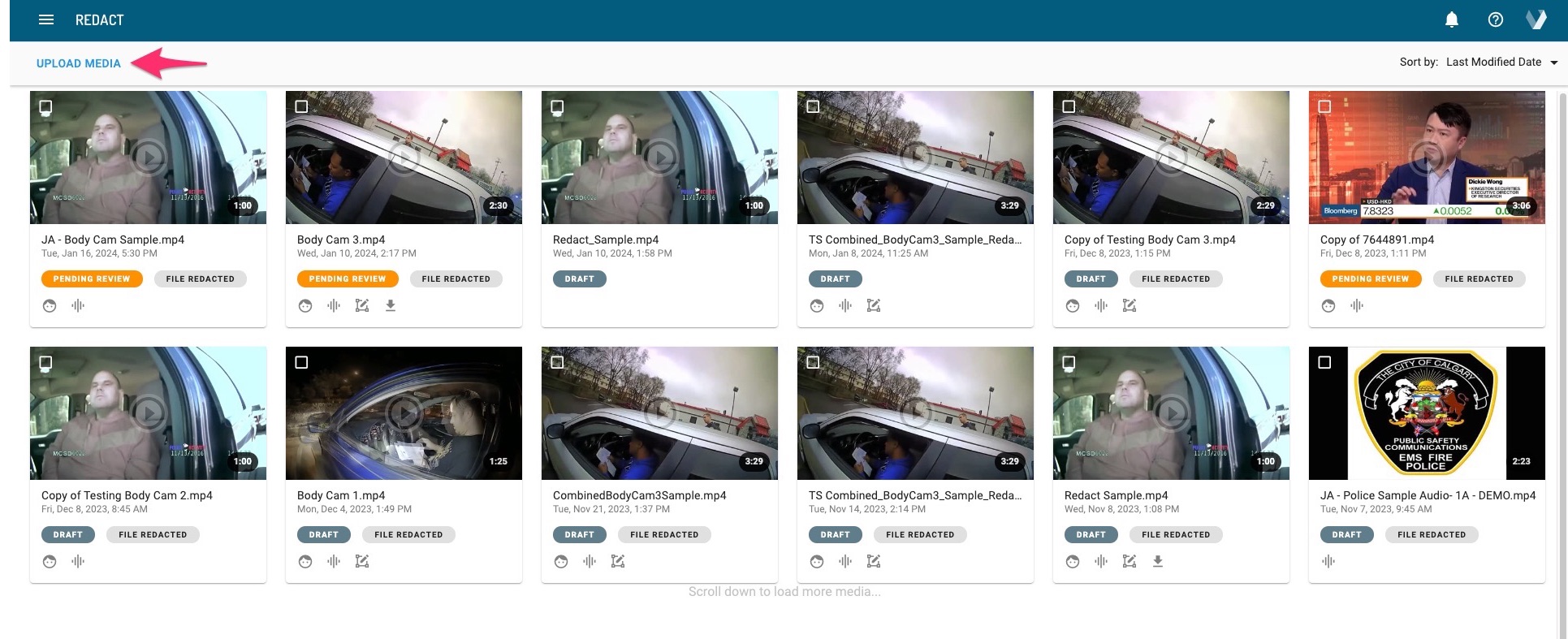
1. To begin, select the Upload Media button in the top left corner of the Redact Homepage.
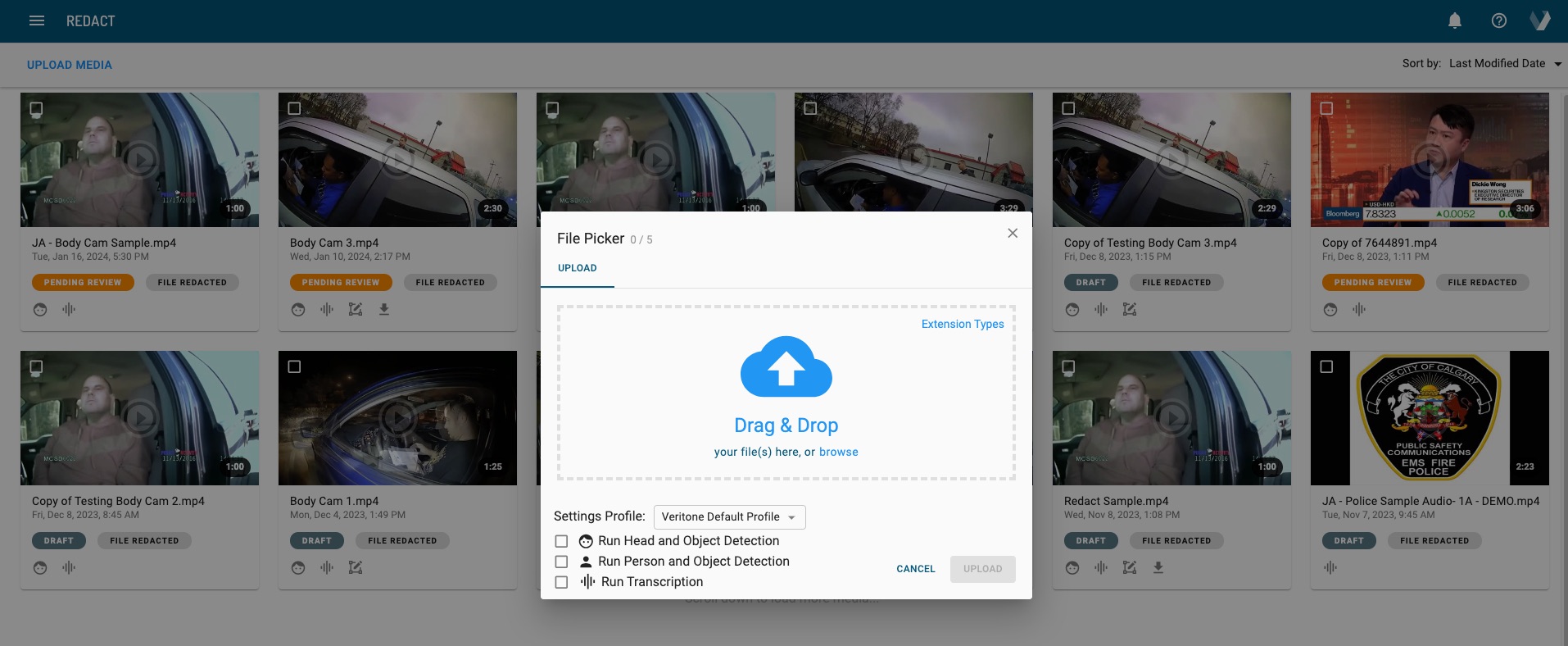
2. The Redact File Picker will now appear. You can drag and drop your files directly into the File Picker or select browse to pull up files saved on your computer. You can upload up to 5 files at once.
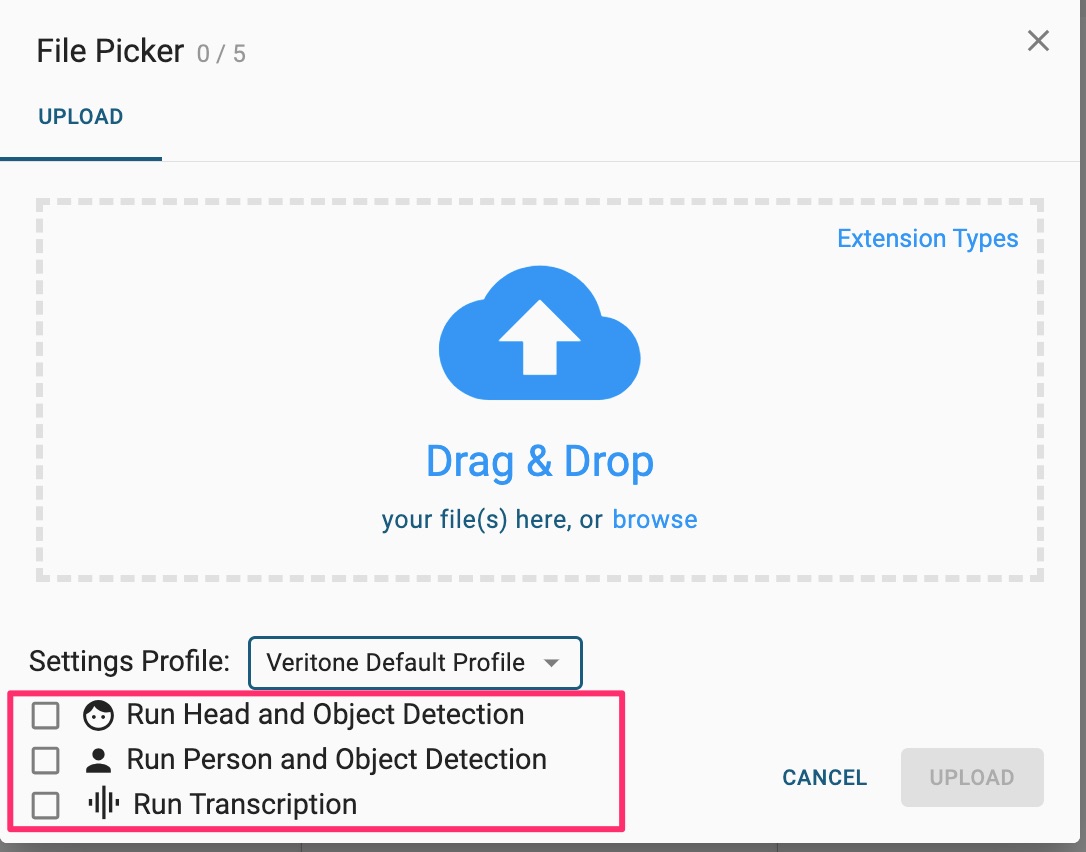
3. Once you’ve selected your file(s) for upload, you can select any/all of the checkboxes at the bottom left corner of the File Picker. Depending on your selections, this will run our engines to scan your file for heads, persons, and objects (license plates, laptops, notepads) and generate a transcript for audio redaction. This step is not required, but will save you time in the redaction process.
Additionally, a Settings Profile is applied to your file(s) upon upload. To utilize one of the Setting Profiles your agency has created, you’ll simply select this from the dropdown menu while uploading media. If no settings profile is selected, the Veritone default profile will be used automatically.
Once you've made your selections, click the Upload button.
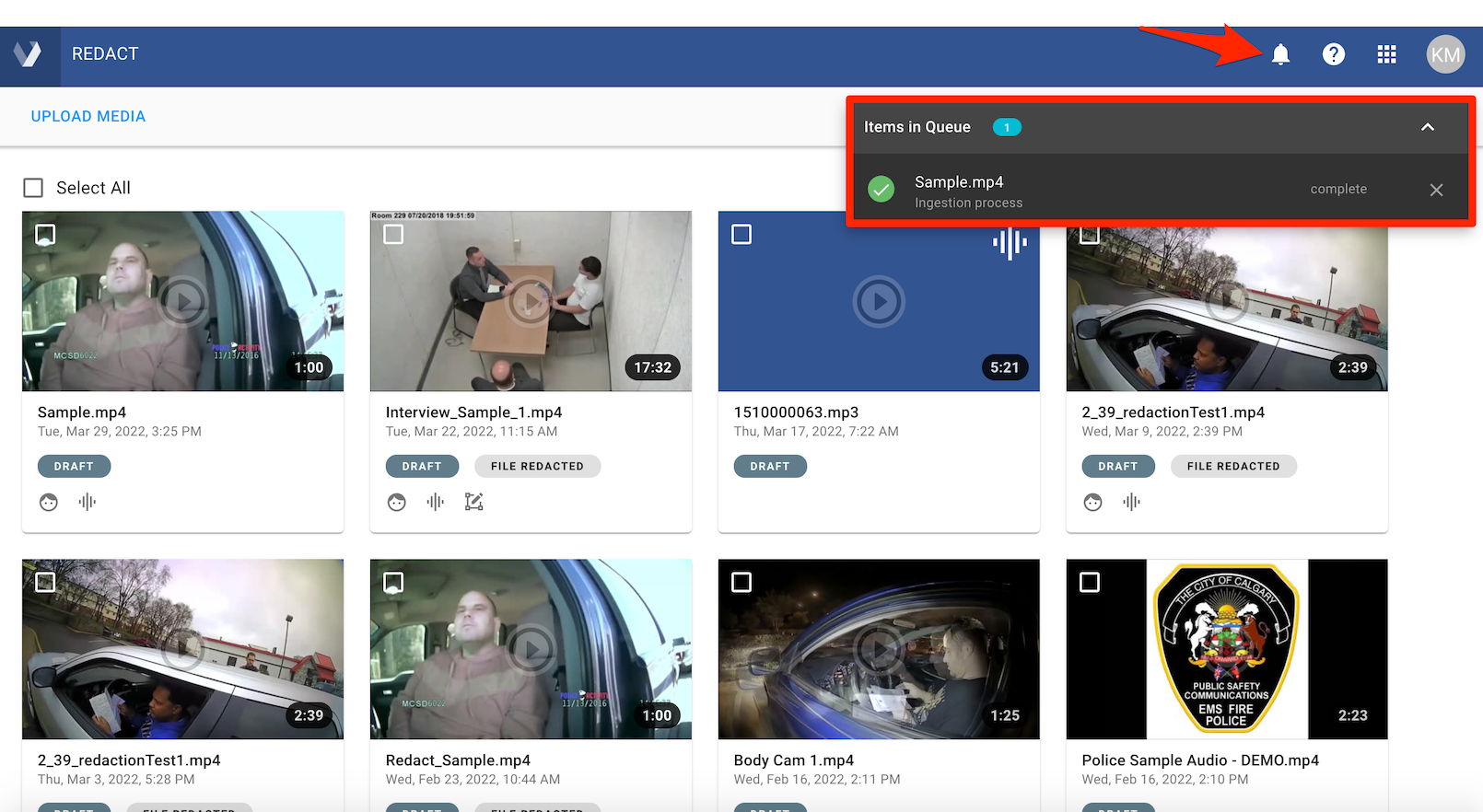
4. File upload times may vary based on a variety of factors including file size, network speeds, and how many objects are detected in a video. Once your file finishes processing, you will receive a notification in the Notification Center.
PRO TIP: All of the video processing runs in the cloud. If you’re working on a larger file, say 1-2 hours, you do not need to stay in the application waiting for it to process. You can close out of your browser or shut down your computer after the file uploads and the processing will continue in the cloud.
5. Once the file is uploaded, it will be displayed on the Redact Homepage with a 'Draft' status set. Click on the filename to open your media file to begin the redaction process.
Uploading Media with Folders View
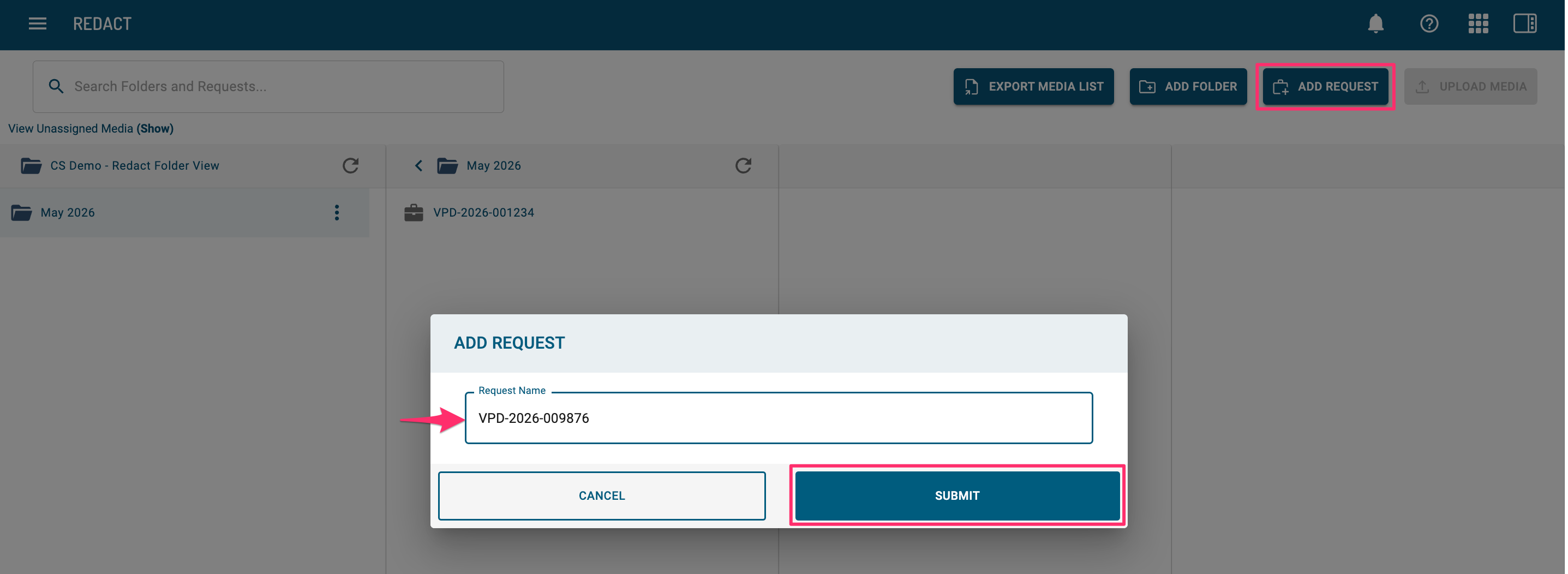
1. To upload media, you will add a Request to one of your folders.
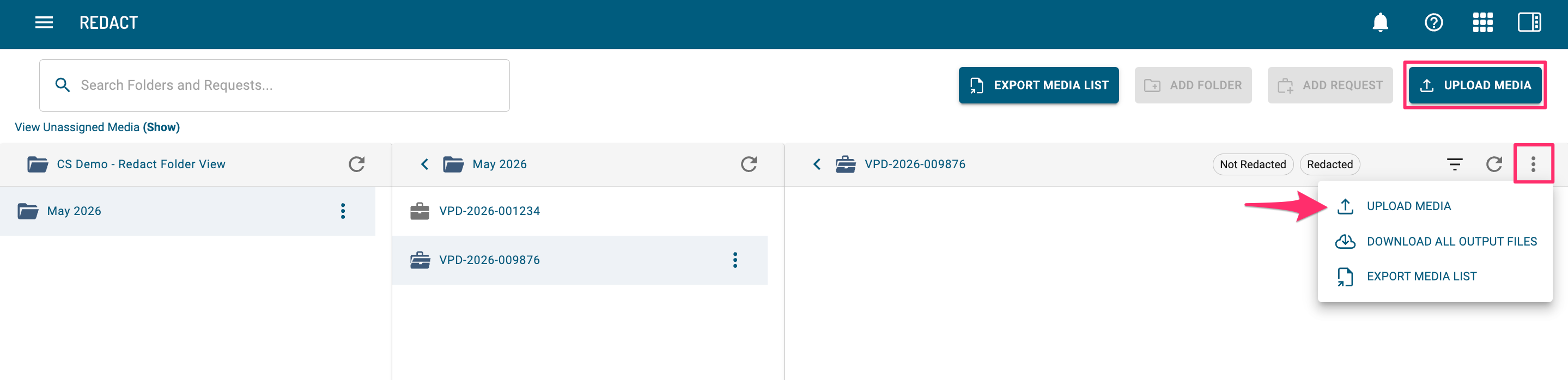
2. Once created, click into your request. Now you can unload media either by using the Upload Media button, which is enabled only if you are in your Request or by selecting “Upload Media” from the vertical ellipse menu associated with the Request.
3. Follow steps 2 and 3 under Uploading Media with Tile View
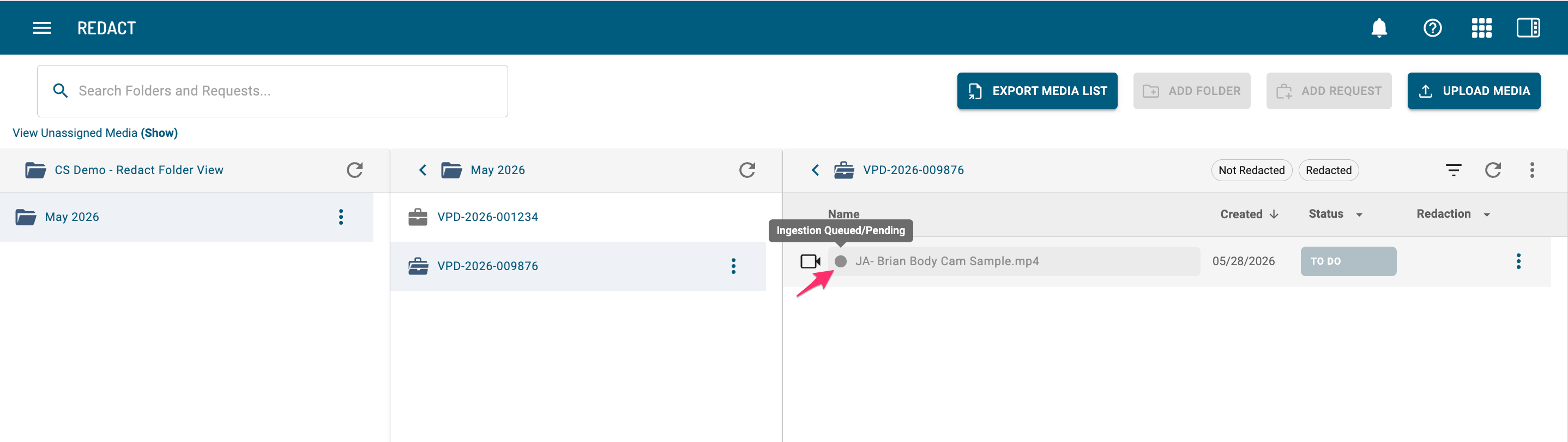
4. Once your file is uploaded, it will appear in your Request. To check the status of your file, hover over the colored circle to the left of your file name.
5. Once your file finishes processing, you will receive a notification in the Notification Center.
Supported File Size and Types
Redact can support files up to 11GBs in size for organizations in our Azure environments (login URLs login.us-gov-2.veritone.com and aiware.us-fed-2.veritone.com)
Within our AWS environments (login URLs login.us-gov-1.veritone.com and aiware.us-fed-1.veritone.com/), the maximum file size is 5GBs.
If you are working with a file that exceeds these file sizes, we recommend that you break the file up into two for a better user experience.
Redact supports the following file types:
- .MP3
- .MP4
- .MPEG
- .OGG
- .MOV
- .WEBM
- .M4V
- .WMV
- .MKV
- .AAC
- .AC3
- .ASF
- .AVI
- .FLAC
- .FLV
- .OGV
- .VOB
- .WAV
- .WEBM
- JPG/JPEG
- PNG
- GIF
- TIFF/TIF
- HEIC
- BMP
- AVI
- SVG
If you are working with proprietary software with its own file type, you need to convert your files to one of the accepted formats.
If you have any additional questions on the file upload process, contact our Veritone Support team at Support@veritone.com.



