Once you connect your Google BigQuery (GBQ) project linked with Google Analytics to Veritone Attribute, your website traffic analytics will be shared using a read-only connection. This allows Attribute to correlate your web traffic against your broadcast partner's spot data, enabling your broadcast partner to share strategic attribution insights.
Before you begin
- Verify you have an active GA4 property deployed onto your website. If not, see Set up a new Google Analytics GA4 account.
- Use Google Chrome on desktop to complete this connection. Using a mobile or tablet device may not work correctly.
- Be an admin of your Google Analytics account in order to complete these steps (the email invitation can be forwarded to the appropriate contact if needed)
[Note]The email invitation expires after 5 days. If yours has expired before you complete the connection, ask your broadcast partner to resend.
Steps
Connect GBQ
- In the emailed invite to connect, click CONNECT.
- A new tab will open in your Google Chrome browser. Click Connect GBQ.
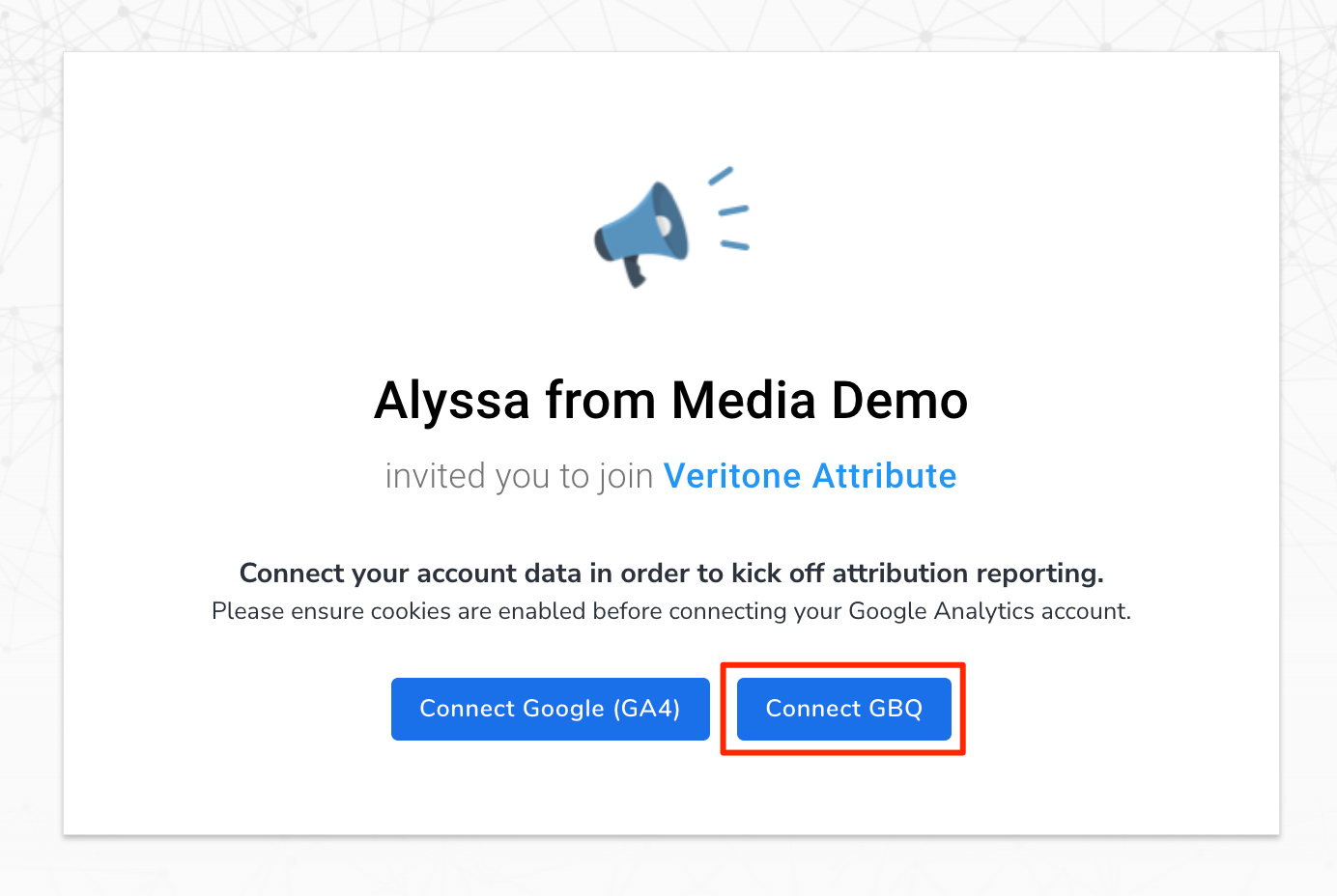
- If needed, sign in to the Google account holding Admin permissions to your Google Analytics profile.
- Click Continue to grant veritone.com read-only access to your Google Account.

- The original site opened to begin your connection process will now refresh with the Connect an Advertiser options. Select the Google Analytics Account and Property currently deployed and actively tracking web data on your site.
- Click Next.

- Select the GBQ project to be linked to the Google Analytics Property selected.
-
- If you need to create a GBQ project to be linked to your GA4 Property, you can do it here during this step. To do this, name your project and click Create.

-
- If you have an existing GBQ project, you can instead select from existing projects by clicking Select an existing project and opening the drop-down menu.
Link the GBQ project
This steps links the GBQ project to your existing and active GA4 property.
- Log in to your Google Analytic's account with Admin credentials.
- Identify the GA4 property to be linked to GBQ in the Account and Property options at the top-left of your screen, between the Analytics icon and the search bar:
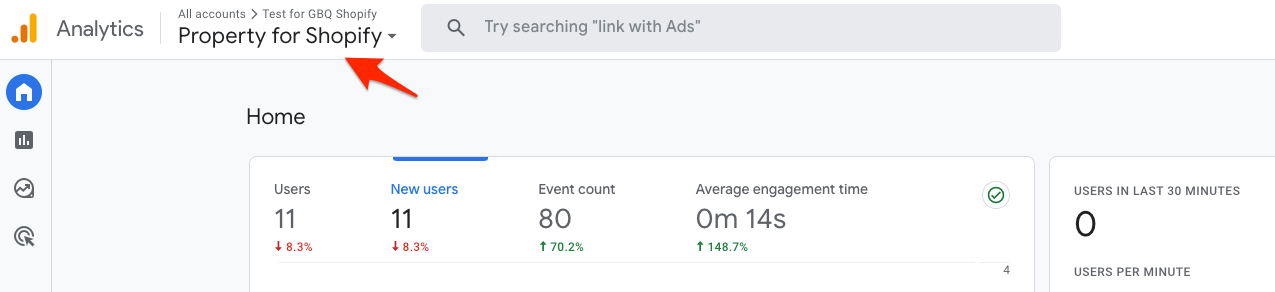
- Once you've verified the correct GA4 Account and Property are selected, navigate to the Admin panel by clicking the cog icon in the bottom-left:
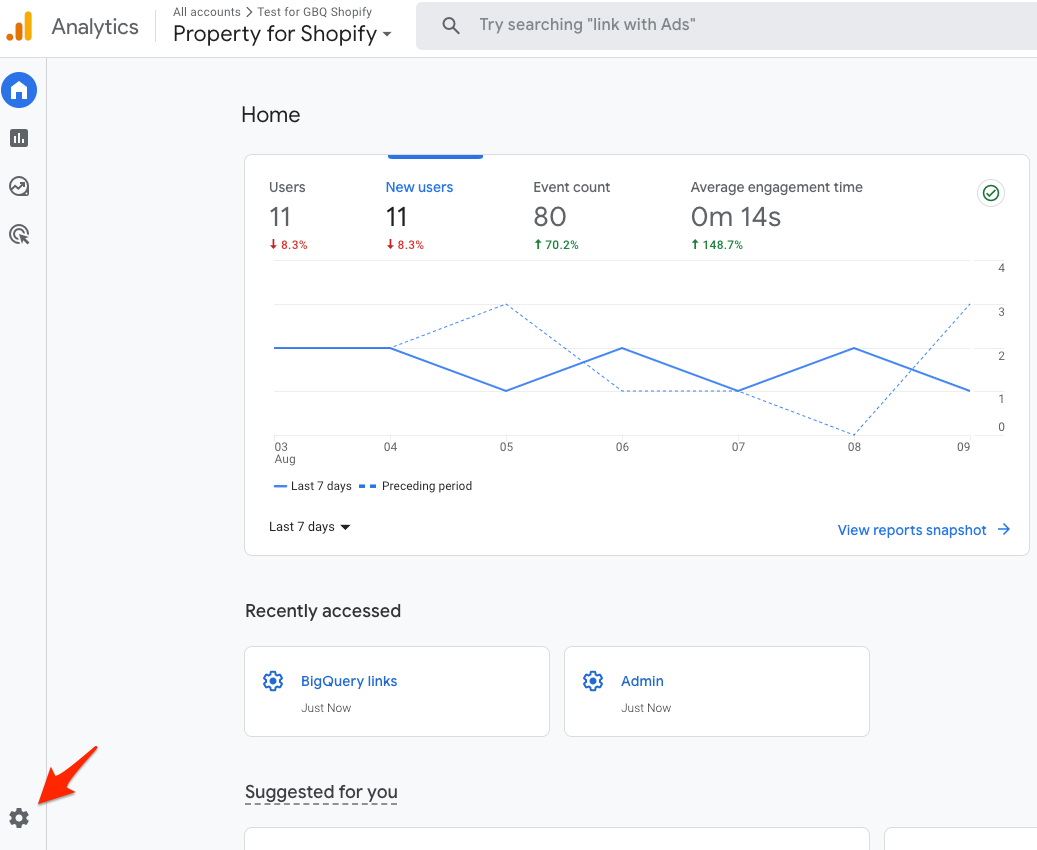
- In the Admin section, scroll to the Product links section and select BigQuery Links.
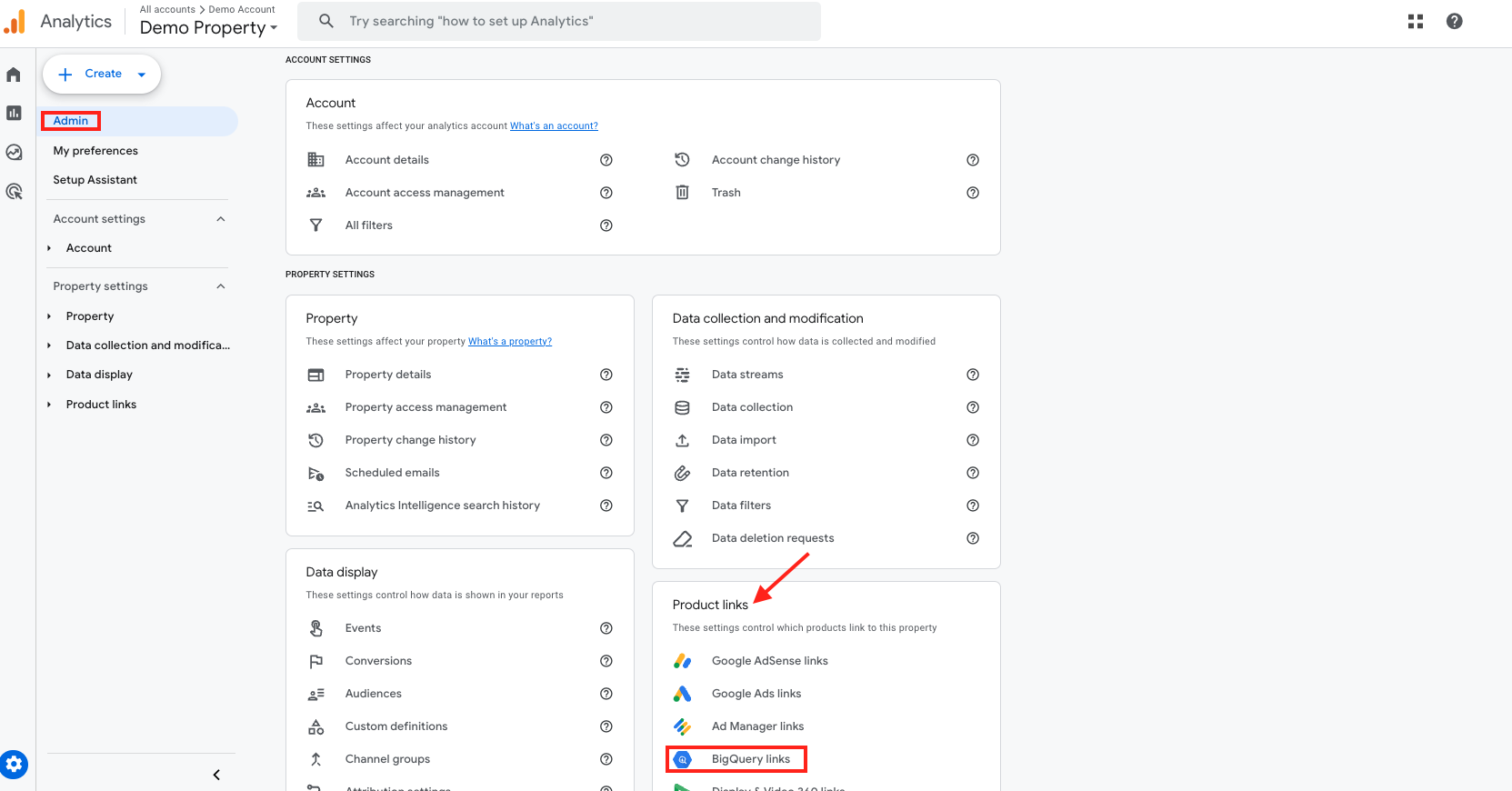
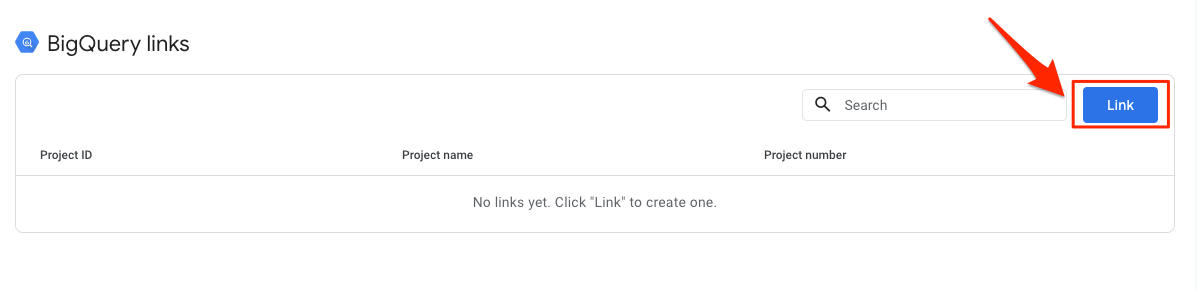
- Click the blue Link button to add a connection.
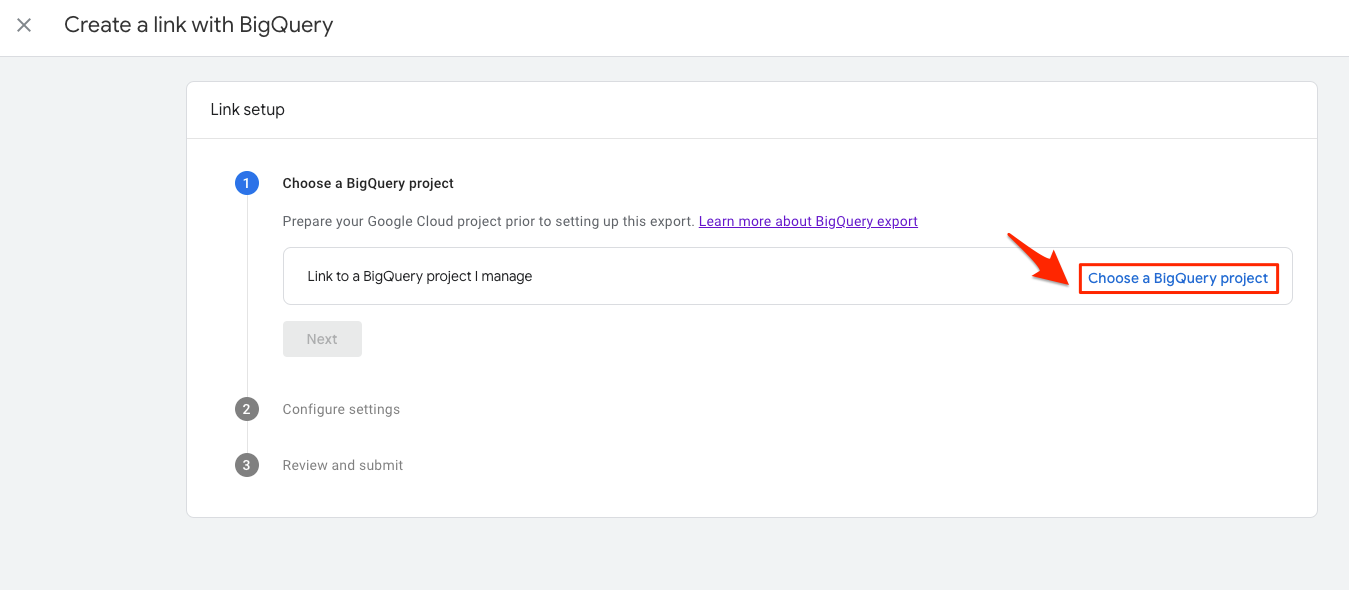
- Click Choose a BigQuery project.
- Select your existing BigQuery project created during the connection process using the checkbox and click Confirm.
- Click Next.
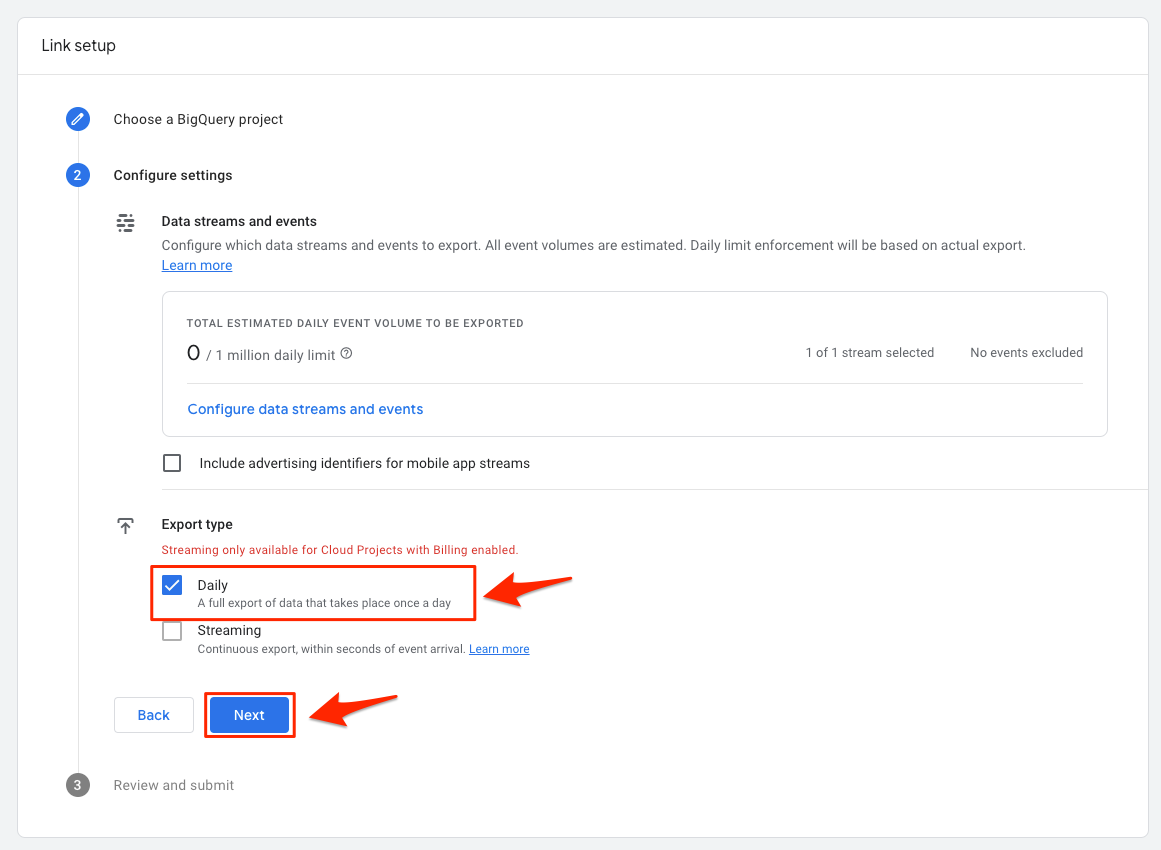
- Under Export type, ensure the Daily checkbox is enabled. If your account has billing enabled, you can also select Streaming. Click Next.
- Review your selections, then click Submit.
- When you see the LINK CREATED notification, you can return to the connection process:

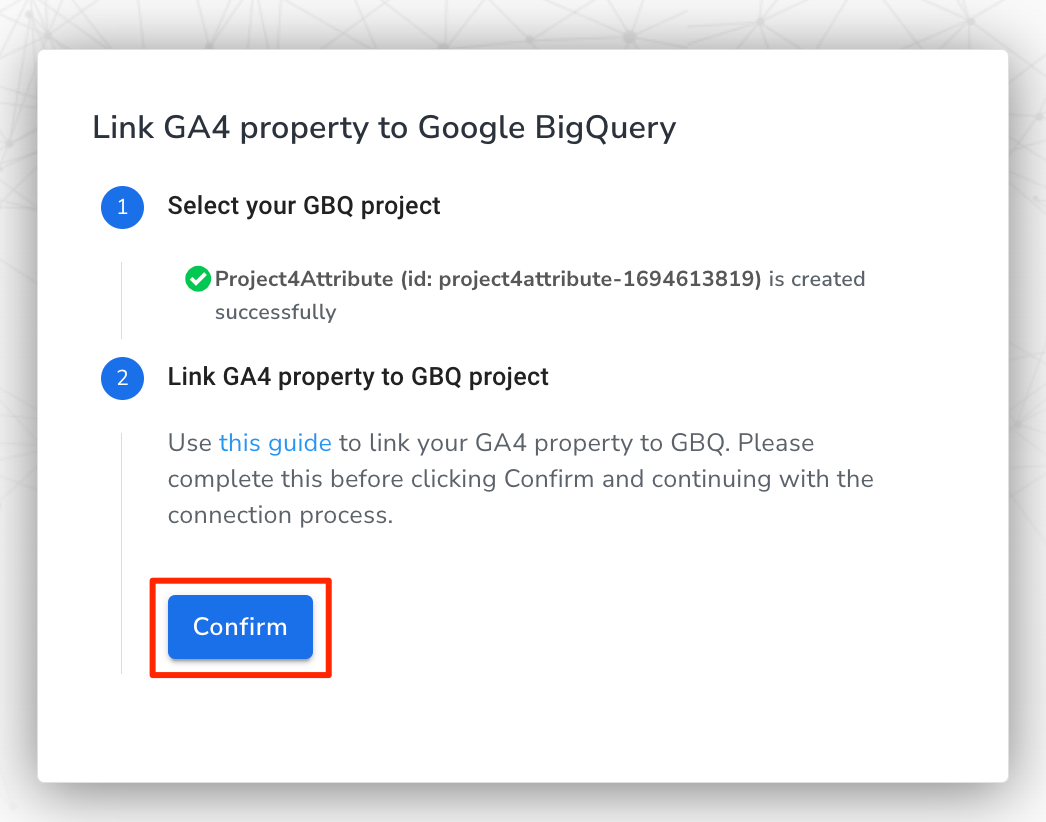
- Once complete, click Confirm.
When your connection is complete, you'll see the Connection Successful page confirming all steps have been completed. You can also view the items you've connected. Your broadcast partner will receive an email notification once your data is connected and no further steps are needed on your end.


