aiWARE packages provide a way to bundle one or more aiWARE resources together for distribution to other instances and organizations. For example, a resource developer using the Veritone Developer application can bundle together one or more engines and any associated schemas that are required for a particular processing task. Using aiWARE Hub, the single package object can then be added to other aiWARE instances or organizations, rather than having to select multiple engines and schemas.
View packages and their details
View packages and their details on the Packages tab of the Instance Details panel. You can view and sort the list of all the packages currently provisioned on the instance, monitor their status, and update to newer versions when they are available.
- Select an instance in the aiWARE Instances table. The Instance Detail panel opens. Click the Packages tab.
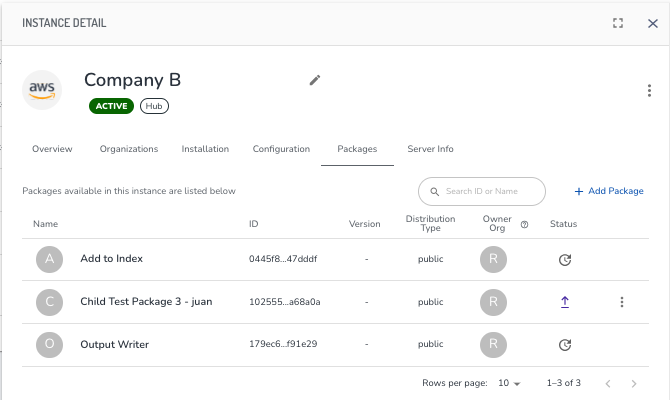
Here you can view the following information for the package:
- The name of the package.
- The unique ID of the package. Hover over the partial ID to see the complete ID (quickly copy it using the
 icon).
 - The version of the package currently on the instance.
- The distribution type designated by the resource developer. See Distribution types for packages for a list of the available types.
- The name of the organization that owns the package.
- The package's current status, as an icon:
 The package is up-to-date.
 The package was promoted by this instance, so it is always the latest version.
 There is an update available for the package. See Update a package on an instance for more information.
 There was insufficient information available about the package. This can occur when the Hub Agent Setting for reporting on the Configuration tab is turned off.
 Something went wrong during the provisioning or updating of the package. An error message will display, if available.
View package details
You can view pertinent details for a package, including when it was added to the instance, when it was last updated, and all the aiWARE resources that are in it.
Steps
- Select an instance in the aiWARE Instances table. The Instance Detail panel opens.
- Click the Packages tab.
- Select a package in the list. The Package Details panel opens.
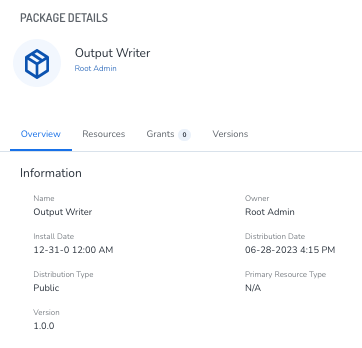
On the Overview tab you can view the following information for the package:
- Name - the name of the package.
- Owner - name of the organization that owns the package.
- Install date - the date and time the package was installed on this instance.
- Distribution date - the date this package was promoted to Hub.
- Distribution type - the distribution type designated by the resource developer. See Distribution types for packages for a list of the available types.
- Primary resource type - the main aiWARE resource type. For example, if the package included several engines and supporting schemas, the primary resource would be engine.
- Version - the version of the package currently on the instance.
The Resources tab lists all of the resources that are contained in the package. You can click on each resource type to display the unique ID of the resource.
Add a package to an instance
aiWARE packages are owned by the aiWARE instance they are created in. By default they are only available within that instance to that organization. However, a resource developer using an aiWARE application such as Veritone Developer or Automate Studio can choose to expand a package's distribution. A Hub organization owner can then provision the package to another instance or an additional organization based on the package's distribution type. For a list of the distribution options for a package, see Distribution types for packages.
[Note] aiWARE packages can only be added to instances by Hub users who are owners of the organization or members that have package management permission for the instance. Hub users who are members of an organization – without package management permission – have view access only.
Before you begin
- If it's not already turned on, the Hub instance setting for provisioning packages must be enabled on the instance. See Edit Hub instance settings.
Steps
- Select the instance to be edited in the aiWARE Instances table. The Instance Detail panel opens.
- On the Packages tab, click Add Package, choose the packages to be added and click Add Selected.
[Tip] The list of packages can be long. Use the filter options to sort based on package name, ID, and/or category.
Results
After aiWARE receives all the package's associated resources, the newly added package will be available in Resource Center for the root organization on the instance. The root organization now owns the package on the instance, and has the ability to grant packages to other organizations on the same instance. The administrator of the root organization will be notified that new packages are available, and can then choose to grant packages that are shareable to other organizations. See Manage package grants for more information.
Update a package on an instance
When a resource developer promotes a new build of an aiWARE package, instances that have an older version of the package have an update available icon . Those instances can be updated to the new version via Hub by users who have package management permission for the instance. Any jobs currently using the older version of the package will run to completion. All new jobs that are launched after the update is complete will use the updated version.
[Note] Updated packages cannot be reverted to the previous version.
aiWARE packages can only be updated by users who are owners of the Hub organization or the members that have package management permission for the instance. Hub users who are members of an organization have view access only.
Steps
- Select the instance to be edited in the aiWARE Instances table. The Instance Detail panel opens.
- Click the Packages tab. The packages that have updates available will have the update available icon in the Status column. On the package you want to update, click More Actions > Update Package. The Version Status icon changes to the updating icon
 until the update is complete.



