
Salesforce

Edit a flow or a flow revision

« Go Back
Information
Edit a flow or a flow revision
000004379
Public
Product Selection
aiWare - aiWare
Article Details

In Automate Studio, edit a flow any time by modifying it on the canvas. Automate Studio automatically saves that set of flow changes as a Flow Revision, which represents the flow at that point in time.

Steps

  1. To access Automate Studio, log in to your aiWARE account, and from the header bar, select the application switcher AppSwitcher.png   and then Automate Studio automate-studio-app-icon.png  .
  2. In the Org Flows list, click the three dots three dots icon to the right of the flow you want to edit and select View details from the list of actions. The flow details appear.
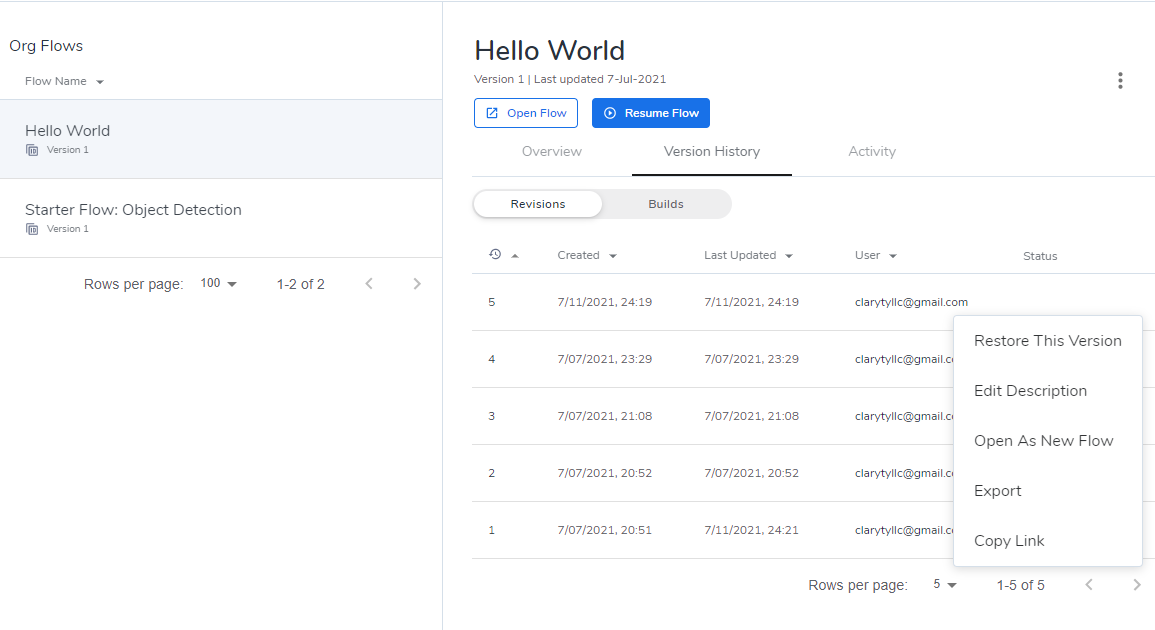
  3. Select the Version History tab. The flow's version history appears.
  4. Hover over the version, then select the three dots three dots icon on the right. Choose from the following list of actions:
    • Restore this Version - Restore the current flow to the selected version.
    • Edit Description - Edit the basic revision info.
    • Open as New Flow - Open the selected flow revision in a new flow.
    • Export - Copy the selected flow revision JSON to the system clipboard.
    • Copy Link - Copy the selected flow revision link and paste the link in your browser to open the flow revision in the Flow Editor.


flow revisions

Additional Technical Documentation Information
Properties
12/21/2023 8:04 PM
1/3/2024 11:33 PM
1/3/2024 11:33 PM
Documentation
Documentation
000004379
Translation Information
English

Powered by
