You can check a single advertiser's web data connection to Veritone Attribute. Seeing these details is helpful in verifying the connection status and other information.
You can also search and sort the full list of advertisers on your team.
View advertiser connection details
- Log in to the Veritone aiWARE platform at https://desktop.us-1.veritone.com/ui/auth/login, then select the Attribute app from the list of applications in the app switcher (square grid icon at the top right of the page).
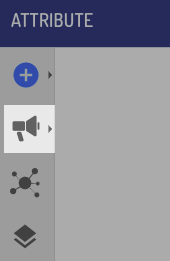
- From the Attribute app, click the megaphone icon. This will display a list of your user's connected advertisers under the heading "My Advertisers."
- Click the name of the desired advertiser to load the advertiser dashboard. The advertiser name is displayed in the upper left hand corner alongside a megaphone icon. The megaphone color represents the advertiser's Google Analytics connection status at a glance.
| Color | Indication | What it means | Action to take |
 | Invited advertiser | An advertiser that has been created in the Attribute application and an email invite to connect (or install a pixel) has been sent. No successful connection flow has been executed and/or no active web data has been identified. | This status remains grey until the advertiser completes a successful connection or installation, so invite your advertiser and support them through setup. |
 | Active advertiser | An advertiser that has active web data flowing from its web connection source such as GA4, Pixel, or GBQ, caused by active campaigns querying for ongoing/new web data. | The advertiser connection is in good health and no further action is required. |
 | Warning | An advertiser with an active campaign that has not received any new web data from its web connection source within 4 hours. | Your advertiser’s web connection is at risk and web data appears to have recently stopped flowing to Attribute.
Inform your advertiser of this change and verify no web connection changes have been made. |
 | Error | An advertiser with an active campaign(s) has not received any new web data from its web connection source in 48+ hours. | Your advertiser’s web connection is not in good health, which may impact successfully reporting using Attribute.
Inform your advertiser of this change and verify no web connection changes have been made. |
 | Dormant advertiser | An advertiser no longer has any active campaign(s) in 14 days, so the web connection is no longer querying its source for new data. This status will also appear when using the uploader to create an advertiser profile and share web data. | Your advertiser’s web connection is not currently active due to no recent campaigns. |
You can:
- Hover your mouse over the megaphone to receive "at a glance" information such as the connection type, date, and status.
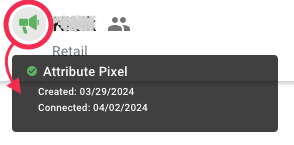
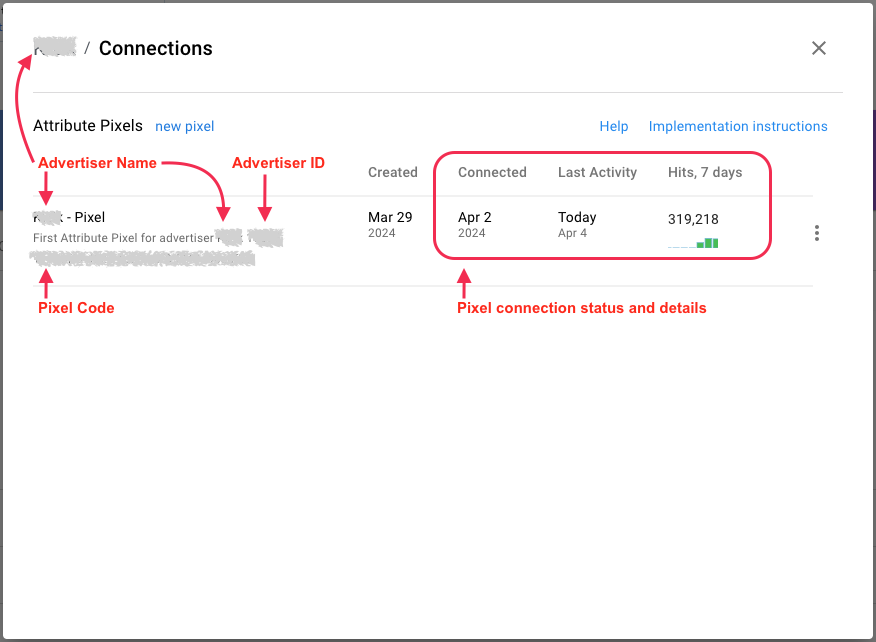
- Click the megaphone to open the Connection Details screen containing helpful information such as date of invitation, date of connection, website activity, etc. You can also find this information from the Connections page.
Below shows details for the Attribute Pixel connection type. Other connection types may appear differently.
Search and sort advertiser connections
Use the Attribute connections page to view searchable lists of advertisers in your organization by connection status. The connections page gives a quick view of all advertiser connections (and their status) available to your team.
Example: search for connected advertisers using an Attribute Pixel connection.
- Log in to Attribute.
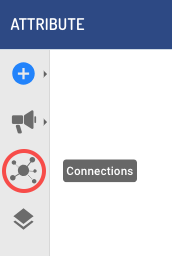
- Click Connections
 on the left panel.
- In the Connected Advertisers section, search for "Attribute pixel."
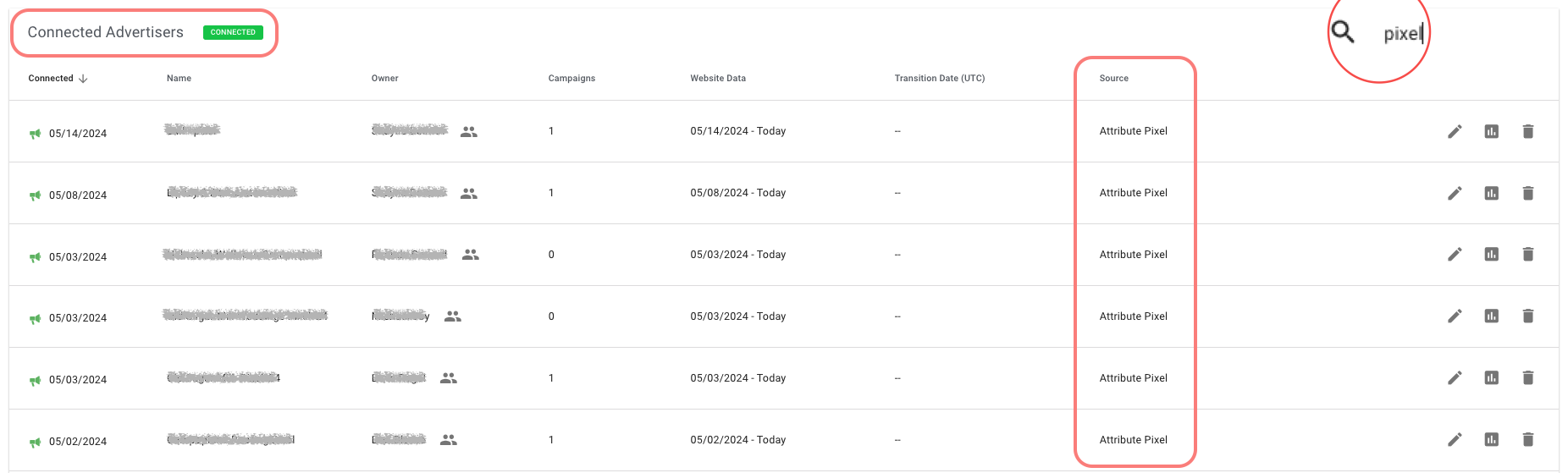
- Review the filtered list of search results and details to take action as needed.
Note that:
- Each table can be sorted alphabetically ascending or descending by column.
- Table cell values are searchable using the table's search bar on the top right.
- Each row represents one advertiser profile and advertiser connection.
- Columns represent various details about the connection (connected date, advertiser name, campaign count, source connection type, etc.).
- Action buttons are included for each table according to their connection status.


