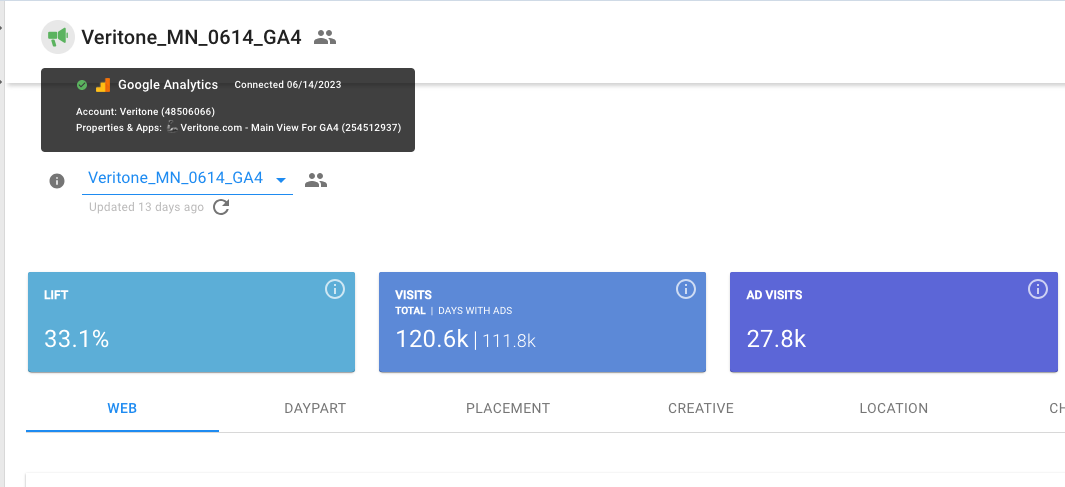
Getting your advertiser’s Google Analytics account connected to Veritone Attribute is a two-step process. If they connect and you notice no traffic generating in the Visits tab at the top of your dashboard, it could mean a few things:
-
The advertiser hasn’t tagged their website with the G4 tag from their Google Analytics account.
-
The account/property that is connected is not the same as what is on the website. This typically happens when they’ve made changes to their website.
-
The advertiser connected a Google Tag Manager or Ad Words account rather than the Google Analytics account.
To rule out if they haven’t forgotten to tag their website with the correct G4 tag, follow the steps below:
-
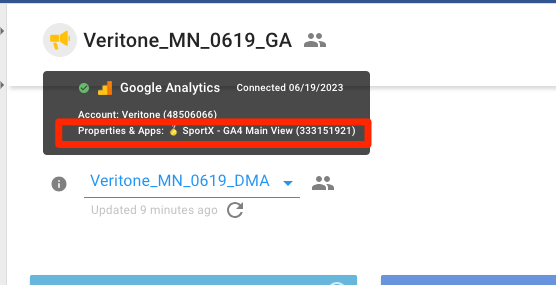
In Veritone Attribute, confirm the G4 tag for the GA account that is connected by selecting the advertiser and hovering your mouse over the green megaphone icon. The G4 tag will appear next to Properties & Apps in the format G-12345.
-
Next, navigate to the advertiser website
-
Right click on the website homepage and select the Inspect option
-
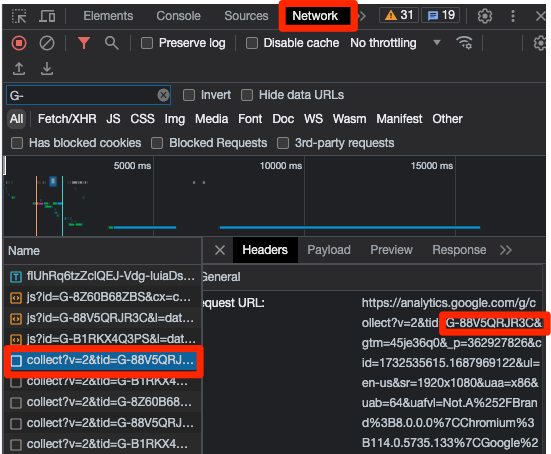
Click on the Network tab in the Inspect panel
-
Refresh the web browser
-
Look for a request in the Initiator column including the word “analytics” and in the Name column starting with “collect”
-
Hover your mouse over the word “collect”in the Name column to preview the GA4 Tag that is connected to the website.
-
Click collect in the Name column
-
Scroll to the bottom of the Headers section
-
Look for the tid which references the GA4 Tag connected to the website (G-12345)
-
The UA code on the site should match the one paired with Attribute
-
Again, hover your mouse over the green megaphone icon to expose the GA4 Tag
-
If the numbers don’t match or you don’t see “collect”, “analytics”, or the GA4 Tag at all, reach out to your Advertiser to let them know they haven’t tagged their website. Once they do that you will be able to see traffic data in Veritone.