The Playout Uploader is a manual resource that will require you to independently source and upload your logs directly into the platform. The Playout Uploader is used for cases where spot logs might not be available automatically or easily accessible in Veritone Attribute. This might include forms of sports play x play coverage, regional custom networks, or promotional inventory that cannot be picked up through keyword search in the platform.
It is also a good tool if you need to upload specific campaign data directly, including any promotional campaigns where your spots may not be logged in your traffic system under the Advertiser name or Station name as usual.
[Note]Use of the Playout Uploader is intended for use of your broadcaster group/network's spots only. Per our license agreements with your organization, we can not include competitive broadcasters’ data.
Enable the uploader
This tool will only be visible to you in the platform once it is configured for your org. Pending any necessary sales leadership and research group approvals, your Customer Success Manager will activate this feature.
Upload logs
- In Attribute, click the
 icon in the left menu and then the Upload button in the upper right corner. The Upload Type screen opens.
- Under Playout Data, click Select File. CSV UTF-8 format is required.
By nature, all rows in a CSV file will be processed. If you are attempting to filter a CSV using Excel or another spreadsheet program, you'll need to export the rows you want to process into a new, clean CSV file and upload that file.
- Once the file is uploaded, you will now map the data columns in the uploaded file to Veritone's required fields. To do this, simply select the desired value from the dropdown for each column in your file.
[Note]Be sure to double-check the time zone selected in this step matches the time zone in your logs. This is a requirement for correct log mapping and to ensure there are no duplicate entries.
Data schema requirements
Once the file is uploaded and you have finished mapping your data fields, you will be redirected to the page shown below, which details the files you’ve added to the platform. Within this list of files, you will see key metrics such as record count and date ranges for the available data. New files will take 5-10 minutes to complete processing.
File statuses and icon descriptions
Each file on this page shows an icon next to it. The definition of the icons are below.
View upload errors
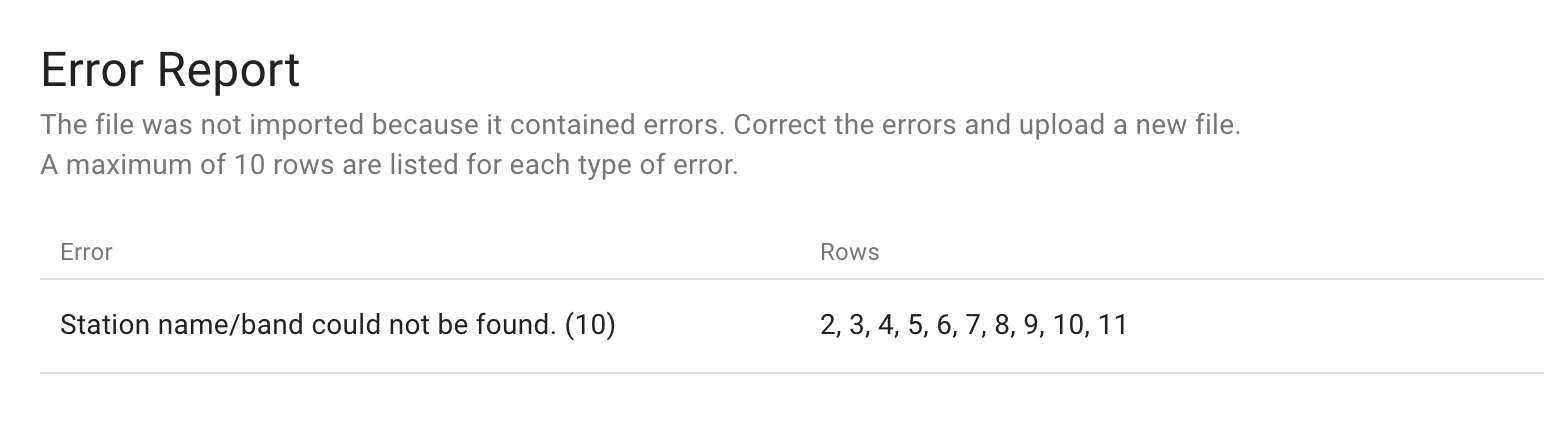
For files that don't match the Veritone required inputs, an error report will be provided. This will detail the type of errors present in the file and display the first 10 examples of that error in the file for reference. An example is shown below.
Optional fields
The following optional fields are supported if you wish to track this additional data or if your post log CSV is better aligned with the below field names.
-
Ad ID
-
Advertiser ID
-
Artist name
-
Artist name (This might be populated by such values as the singer, voiceover artist, or advertiser, etc.)
-
Bonus
-
Event ID
-
Status
-
Type
-
Gross rate
-
Market
-
Station city
-
Category


