When you create a new advertiser, you'll send an email to your advertiser to connect. Invites expire after 5 days, so this topic covers resending that email.
From the Manage Connections page
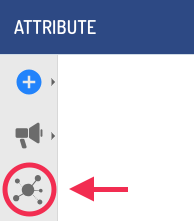
- In Attribute, click Connections from the left panel.
- Locate the advertiser on the list of Invited advertisers, then click the paper plane
 to open the Connect Advertiser screen.

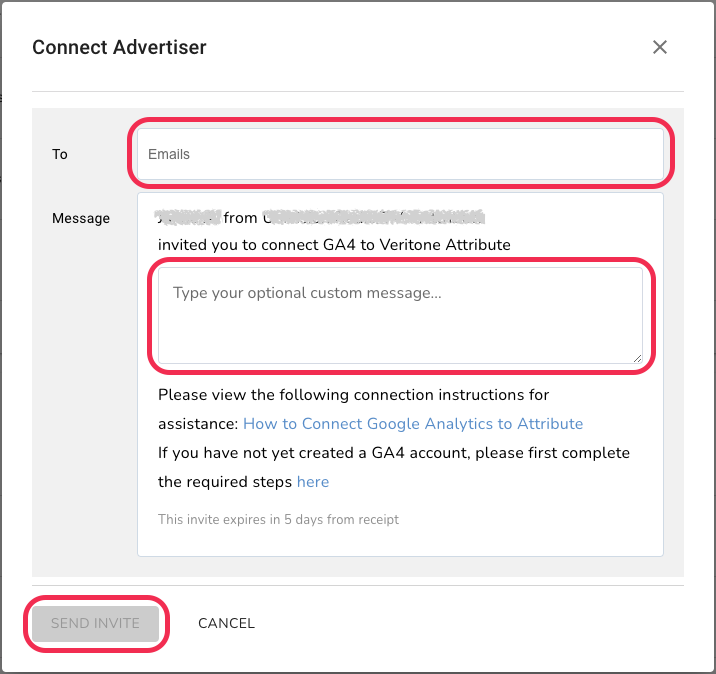
- In the Connect Advertiser form, add the recipient email addresses and an optional custom message, then click SEND INVITE.
The Connections page shows the current status of all advertiser connections, so you can always verify the last sent date and status.
From the Advertiser Dashboard
- From Attribute, open the Advertiser Dashboard.
- Search and select the Advertiser using the search bar at the top of the page.

- OR, from the left panel, click Advertisers (megaphone icon)
 to filter and select the Advertiser.
- On the Advertiser Dashboard, click the Resend Invite button on Step 1: Invite Advertiser

Connect a Google Analytics - UA Advertiser to GA4
Google has deprecated an old version of their web tracking technology known as Universal Analytics (UA). For Advertisers using this connection type, it is possible to add a GA4 connection while retaining the old UA web data.
For instructions, see Add a GA4 Connection to an Attribute Advertiser


