The Processing Center utility in aiWARE provides the ability to track, monitor, and get alerts for complex and interconnected jobs. Users can get job details and status at a single glance for their organization's jobs to better detect and remediate any errors, improving overall job performance.
This documentation provides an overview of Processing Center and what you can do in it.
Common use cases
| Use case | Description |
|---|
| Understand job performance | A customer service representative might be tasked with understanding why a customer's job has failed or is behaving in a certain way. Viewing task errors and output can help advice on what action to take. |
| Track the processing status of files | A sales engineer might want to understand (and report on) engine processing time over the history of the engine being used. Viewing job details and canceling pending jobs may be actions to take. |
| Holistically monitor jobs | An enterprise organization may want to monitor jobs and inform appropriate parties on processing status, billing level information, and performance monitoring. |
Terminology
This documentation uses the following terminology:
| Term | Definition |
|---|
| Batch | A collection of jobs submitted together. |
| Batch jobs | A set of jobs that are submitted together in a single call. |
| DAG | Directed Acyclic Graph. A conceptual display of a series of activities, in this case tasks, in a job. |
| Job | A single end-to-end processing of a workflow, as defined by a user. Jobs include tasks. |
| Panel | A UI interface available inside Processing Center where actions can be performed. Each panel slides out from the right side of the UI. |
| Task | A collection of actions that can be taken in aiWARE that roll up to a job. |
Access Processing Center
To access the Processing Center utility, log in to your aiWARE administrative account, and from the header bar, select the utility icon  and then the Processing Center icon
  .
.
Processing Center slides out as a panel from the right.
Interface overview
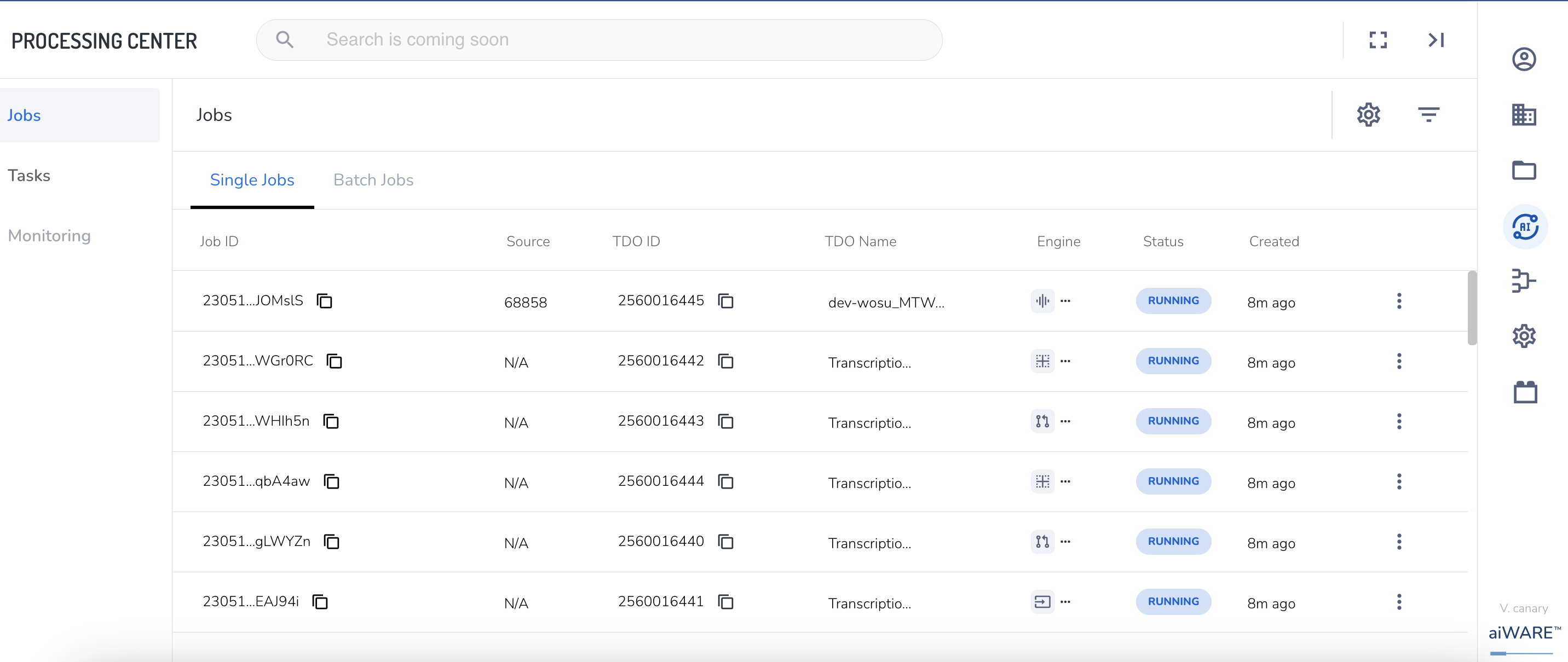
Left sidebar
The following options are available in the left sidebar:
- Jobs: Displays single jobs and batch jobs that have been run for the organization, their statuses, and associated details.
- Tasks: A browsable and filterable table that displays all tasks that have been run in the organization.
Jobs table
The jobs table is the main area of the panel and shows all single/scheduled/batch jobs that have been run for an organization. The newest jobs are displayed at the top of the table, but all jobs that have been run for the organization are listed.
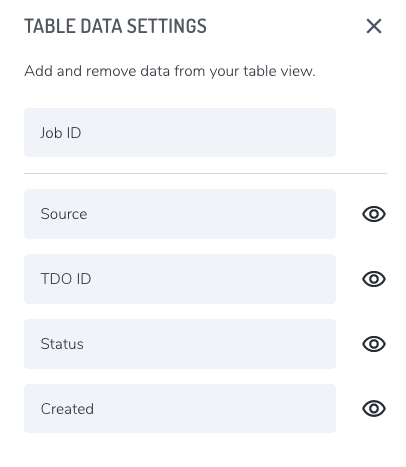
Set the table data detail
Filter the views in the job list by clicking the settings icon  in the upper right. Toggle on and off details.
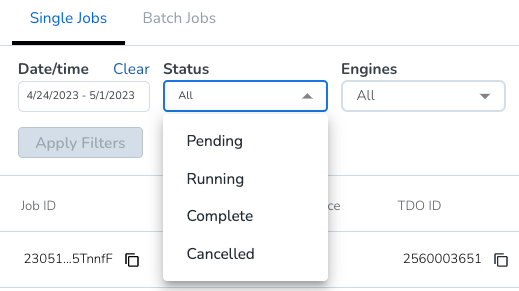
Filter jobs
Filter jobs by clicking the filter icon  in the upper right.
- Click the data to choose a range
- Choose a job status or leave on all
- Choose a specific engine in your organization or leave on all