Easily view the output of a task for transcription or translation engines that have completed as part of a job in Processing Center. See the transcription and download the output into your file format of choice. View detailed task information to show nuances and insights from jobs.
Access the Processing Center
To access the Processing Center utility, log in to your aiWARE administrative account, and from the header bar, select the utility icon  and then the Processing Center icon
  .
.
The Processing Center slides out as a panel.
View task output
To view output for a completed task, from the job table, click the three dots to the right of a job and select View File.
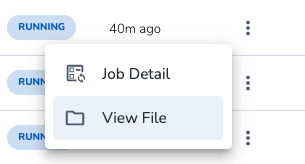
The Data Detail panel opens. The media is shown along with the transcription or translation output.
Edit the output
For transcription or translation engine tasks, in the Data Details panel, click  to edit the text output. For example, song lyrics can be difficult to interpret as a song plays and some words could be incorrectly transcribed.
Click the play button to watch the transcribed word match with the audio.
See file info for an output
View details for a task output by clicking the info icon in the top left toolbar. The File Info panel slides out.

View:
- The file name
- File location
- TDO ID
- File type
- Duration of the file sample
- Date uploaded into aiWARE
- Processing status
- The engines used to process it
- Any other applicable engines
- Tags (editable)
See structured data for a task
You can set the type of structured data you want to see in a file, and then view it with the output. For example, you may want demographic information along with the transcribed audio file from a radio station.
- In the Data Detail panel, under the More details tab, click
 .
. - Click
 on the right to make the table full screen.
 - Close the wide screen view by clicking
 under Data Detail.
Download the output file
For transcription and translation tasks, you can download the transcribed output.
- In the Data Detail panel, click the three dots on the left and choose Quick Export to quickly download a file in your choice of format.
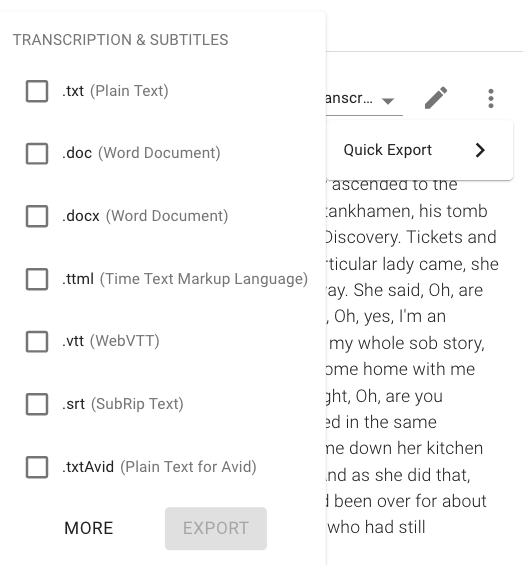
Quickly download the media file that was transcribed or translated by clicking the download icon in the top left toolbar.

The file is automatically downloaded to your device.
In the Data Detail panel, click the tag icon  . The tags area opens where you can see a list of the tags associated with the task. Click the pencil icon to add more tags.
Use content templates
In the Data Detail panel, click the Content Template tab to add information to ingestion engines used in the task.



