View jobs and their details for an organization in aiWARE's Processing Center. Using Processing Center to view job status enables you to track, monitor, and get alerts for complex and interconnected jobs, and take action.
Viewing jobs is especially useful for application developers who want to show users details about a specific task or job, or error details on a specific task. It is also useful when a holistic view of all sources and ingestion jobs for an organization is desired, with details about processing information.
Access the Processing Center
To access the Processing Center utility, log in to your aiWARE administrative account, and from the header bar, select the utility icon  and then the Processing Center icon
  .
.
The Processing Center slides out as a drawer.
See job details
There are two ways to view job and task details:
- Double-click a job's row
- Click the three dots to the right of a job and select Job Detail.
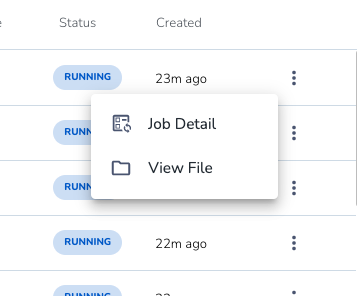
View tasks in a job
See all the tasks in a job and their statuses visually in the Overview tab (default view). The interface shows the DAG (directed acyclic graph) that was used on the job itself.
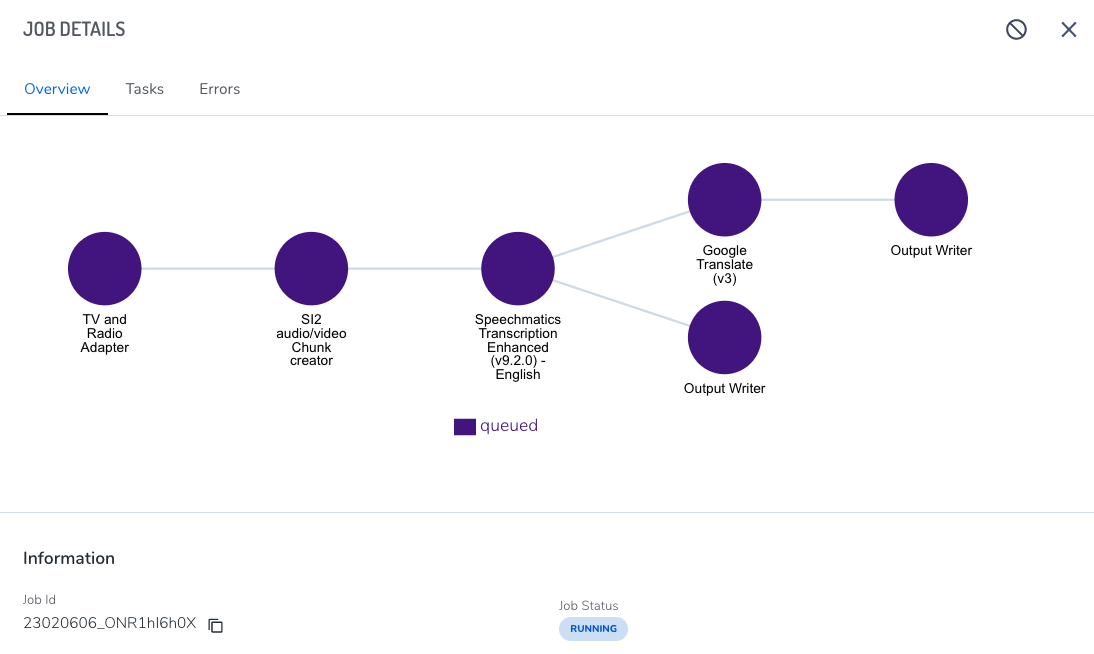
For larger task maps, you can zoom in and out with your mouse.
View tasks as a list

A list of the tasks in order of processing appears.
In the Overview tab, you can see overall job information at a glance:
- Job ID number (quickly copy it using the copy icon
 )
) - Organization
- TDO ID (quickly copy it using the copy icon )
- When the job was scheduled
- When the job was modified in status
- The job's current status
- The TDO name
- Who created the job, if applicable
- When the job started
View task errors
Quickly see task errors for a failed job by clicking the Errors tab.

Errors are shown in a list view, with:
- Task ID
- Its engine
- The engine's capability (this is useful if you want to replace it with a different engine)
- Scheduled time of the error in the task, if applicable



