This documentation provides best practices and strategy for creating flows in Automate Studio.
Before you begin
- Understand basic terminology around flows, such as nodes, wires, and sidebar.
- You should have an Automate Studio account.
Flow creation strategy
The flows created in Automate Studio are essentially custom applications that can take in data, modify it in some way, and then send the modified data out.
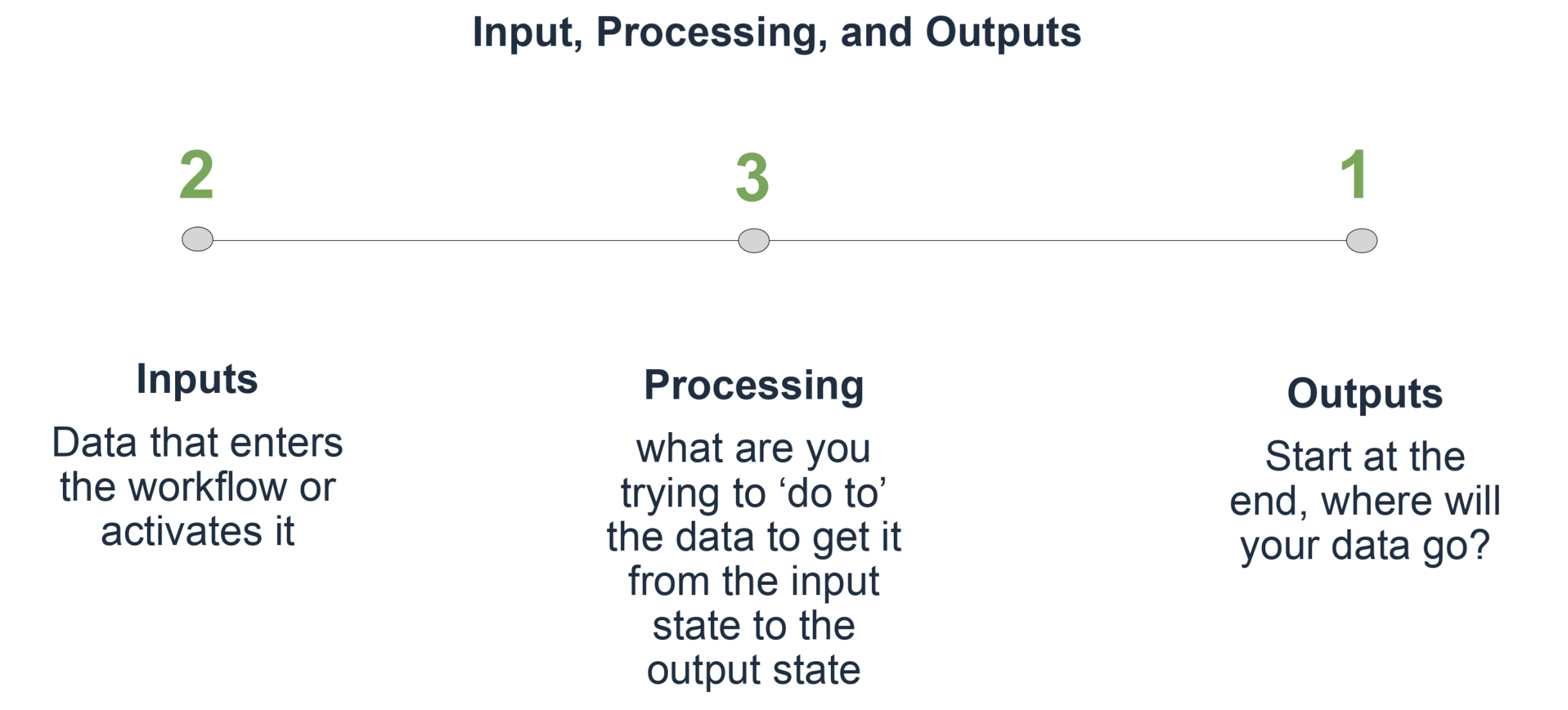
While there are many ways to design a flow, it's recommended to start with the idea of the development process as tail-end-first:
- Consider the desired outcome of the flow, compared to how the data looks at the start of the flow.
- Consider where the input data will come from. What is the data's mimetype? Where does it live?
- Consider what needs to happen to the data in order to produce the desired output. What kind(s) of cognitive processing need to be done? Does the data need to be normalized first, or can it be processed as-is?
- Consider whether the process might need to be broken down into sub-flows (performed using the Create subflow command in the main menu).
- Consider whether the flow will run on a scheduled basis, or on-demand.
Understanding the 'msg' object
Every flow in Automate Studio relies on a msg object to pass information from node to node. The msg object is automatically created by Automate Studio and is an all-purpose object that can be modified (or not) as needed. It has global scope and visibility, meaning that it is visible (i.e., accessible and usable) to all nodes and all sub-flows of a given flow.
The msg object is a JSON object and contains a payload property (or "field") by default. The value of that field may change as various nodes process data. Inspect the payload field's value at design time by wiring a Debug node to any node in the flow, and checking the Debug panel after running the flow.
[Tip] If separate Debug nodes are wired to some or all of the flow's existing nodes, and each Debug node is set to output "complete msg object," when the flow is run messages from all Debug nodes will appear in the debug panel in the sidebar. This is a good way to see how the msg object changes from node to node.
New properties can be created on the msg object. For example, if a running total of something was kept during a flow, you could create the total field in a Change node, by editing the node's properties so that it Sets the msg.total field to some initial value. (This would create the total property, and initialize it, all in one go.) You could then update msg.total in subsequent Function nodes.
In general, data is retrieved at the end of a flow from the msg.payload field. This is not required. Additional custom fields on the msg object can be created and used as needed.
Working with the Change node 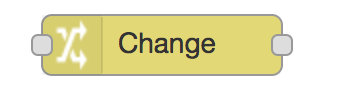
The Change node can be used to create a new property on msg and/or to set the value of a property, without having to use a Function node. When all that's needed is to adjust a property, the Change node is slightly more convenient than a Function node.
In the Properties dialog for a Change node, use a dropdown to select from several available operations:
- Set - Sets a property. The value can be a variety of different types, or can be taken from an existing message or context property.
- Change - Use this to search and replace parts of a message property.
- Move - Move or rename a property.
- Delete - Delete a property.
[Note] The + add button (in the Properties pane) allows as many sequential operations as needed to be chained together.
Working with the Function node 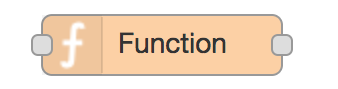
The Function node allows custom logic (in the form of JavaScript) to be specified that will execute at runtime.
Note that the code entered into the Function node represents the body of a function. The most simple function simply returns the message exactly as-is:
return msg;
[Note] Be sure to include this line at the end of the code. If the function returns null, then no message is passed on and the flow ends. Likewise, returning a number or string will result in an error.
The JavaScript code will execute in the context of the Node.js app that runs Automate on the Automate Studio server, not in the context of a web browser. That means the code does not have access to a window object, nor to console.log(), etc. That limitation aside, all of JavaScript's own native objects (and the standard Node.js packages) can be used to do any type of computation needed.
Multiple outputs
The function node's edit dialog allows the number of outputs to be changed. If the node is wired to more than one output, an array of messages can be returned by the function to send to the various connected outputs.
This makes it easy to write a function that sends the message to different outputs depending on some condition. For example, the following function would send anything on topic translation to the second output rather than the first:
if (msg.topic === "translation") {
   return [ null, msg ];
} else {
   return [ msg, null ];
}
Working with the aiWARE API node 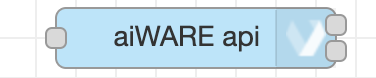
Unlike the Change and Function nodes, which are core Node-RED nodes, the aiWARE api node is a custom Automate Studio node. It allows you to provide a GraphQL query or mutation that will be submitted to the aiWARE server at runtime.
Here is an example of the kind of query (or mutation) that can be submitted:
mutation createTDO {
  createTDO(input: { startDateTime: 1548432520, stopDateTime: 1548436341 }) {
    id
    status
  }
}
This mutation asks the server to create an empty Temporal Data Object (TDO) and return its id and status.
Use the aiWARE API node to execute any of the more than 200 API calls available in aiWARE's GraphQL API. The return value will be a JSON object, which can be accessed as the value of msg.payload.
The aiWARE API node has one input port and two output ports. The top (or first) output port will contain the msg if the query executed without error. If the query was malformed or produced an error, the bottom (or second) output port will contain the error message (again as a JSON object on msg.payload).
[Note] It is recommended to develop, test, and debug GraphQL queries in the GraphQL Playground app before copying queries/mutations into aiWARE API nodes.
Other custom aiWARE nodes exist for convenience purposes, but the aiWARE API node is special in that it unlocks the full power of aiWARE by making more than 200 queries and mutations available for use anytime. Anything performed with aiWARE's APIs can be done from within an aiWARE API node.
Save and autosave
When a flow is created in Automate Studio, edits are auto-saved into the current build of the flow. Saves can also be initiated with the Build button at the top of the canvas UI. Clicking Build tells Automate Studio to save the work as a distinct, versioned Build.
Any Build can be selected for deployment into aiWARE. Initiate deployment by clicking the Deploy button at the top of the canvas UI. Only one Build of a flow (or any other kind of engine) can have a status of Deployed at a given time.
The possible statuses of an engine (or flow) build are:
approved
available
deleted
deploying
deployed
deployFailed
disapproved
fetching
invalid
paused
pending
uploaded
View the status of Build(s) in youther Flow Details page. Click the Flow Details button at the top of the canvas. The three-dots menu on the right of each row will contain context-appropriate commands that allow a build's status to be changed.



