The Data Center utility in the aiWARE OS is the file repository for your aiWARE account. It contains all the data that is imported into your organization through local imports, external data sources, and native applications in your aiWARE account. Data Center allows you to then process that data using AI. It includes tools to organize and search for your content, and to view the imported data and processed results. It offers fine-grained data access controls to share your data with individuals or groups, and to limit access and secure your content.
Common use cases
| Use case | Description |
|---|
| Import and organize files | Quickly add your existing media assets to aiWARE using Data Center's import tools that support a wide variety of file formats, and use folders to organize the content. |
| Ingest content from external sources on a set schedule | Connect to external sources of digital content to ingest and process content on a schedule that matches your business workflows. |
| Process data with AI | Use over 400 different AI models to process content in the aiWARE OS. Quickly run an engine on a single file, or create more complex DAGs (directed acyclic graphs) to run multiple engines and produce a variety of outputs. |
| Search cognitive output | Search all of your data with aiWARE's proprietary search interface that lets you locate time-correlated AI output data directly inside your files. |
| Control data access | Using object level permissions, grant access to files within your Data Center, and specify the types of actions each group or individual user can do. |
Terminology
| Term | Definition |
|---|
| Data registry | A container object for schemas and the structured data objects that they define. A data registry holds one or more versions of a schema. A data registry is created when a new schema is created. |
| Directed acyclic graph (DAG) | The part of a job that defines the path along which data will flow. Each node on the graph is a task and represents an engine (or adapter) to be run in the specified order. Each output of one engine can become the input of the next engine in the job. |
| Job | The process of running one or more ingestion, cognition, or correlation engines on a file. |
| Scheduled job | A job that runs on a schedule and uses a template that includes a DAG. To learn more about scheduled jobs and building DAGs see Create a scheduled job. |
| Source | Data sources such as TV, radio, YouTube, podcasts, file repositories like DropBox, etc. |
Access Data Center
To open Data Center, click the utility icon  . Select the Data Center folder icon
  . The Data Center panel slides out.
Interface overview
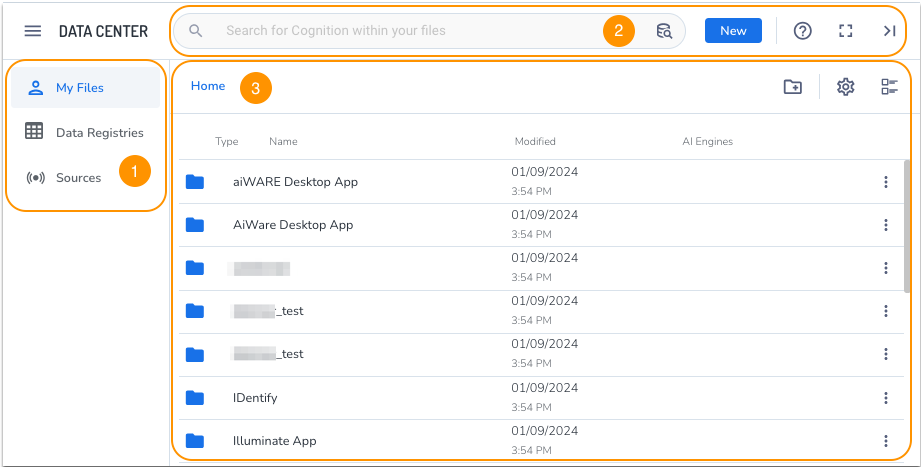
Data Center has three primary areas: the navigation panel (1), the search bar (2), and the main view area (3).
(1) Navigation panel
Use the navigation panel to explore all the files, sources, and jobs stored in your organization's account. The sections include:
- My files - View all of your available folders and media files. After media is imported from the supported file types, you can organize them into folders.
- Data Registries - View all of your organization’s structured data.
- Sources - View a list of all sources that have been set up for your account, and the jobs that have been set up for them.
(2) Search bar and New button
The search bar exposes all available types of data in your account, including filenames, tags, and file contents.
Use the New button to import files, create sources, and schedule jobs.
There are two view icons for the Data Center utility:
(3) Main panel
View and access your navigation panel selections here. Add folders, adjust the view, and access your files to initiate AI processing, download, delete, or move them.
There are two view icons for the main panel:
-
 Table Data Settings - Controls the fields that display in the main panel. The available options depend on the Navigation panel section you are in.
-
 Toggle View - Toggles between a list view and a thumbnail view of your files.




 Full screen - Switches Data Center to full screen mode instead of viewing in panel. Click the Exit full screen icon
  to return to the panel view.
 Close - Closes the Data Center utility.