As an instance admin, you have the authority to view and manage all users within your instance and take various actions on these users, such as:
-
Controlling organizational access and roles: Define and modify which applications and roles the user has access to.
-
Performing additional actions: Other actions like deactivating accounts or removing the user from the organization completely.
View user details
To access the Instance Admin Center utility, log in to your aiWARE administrative account. You will require a superuser account. From the header bar, select  and then Instance Admin Center
  . In the left side, click Users and then a user.
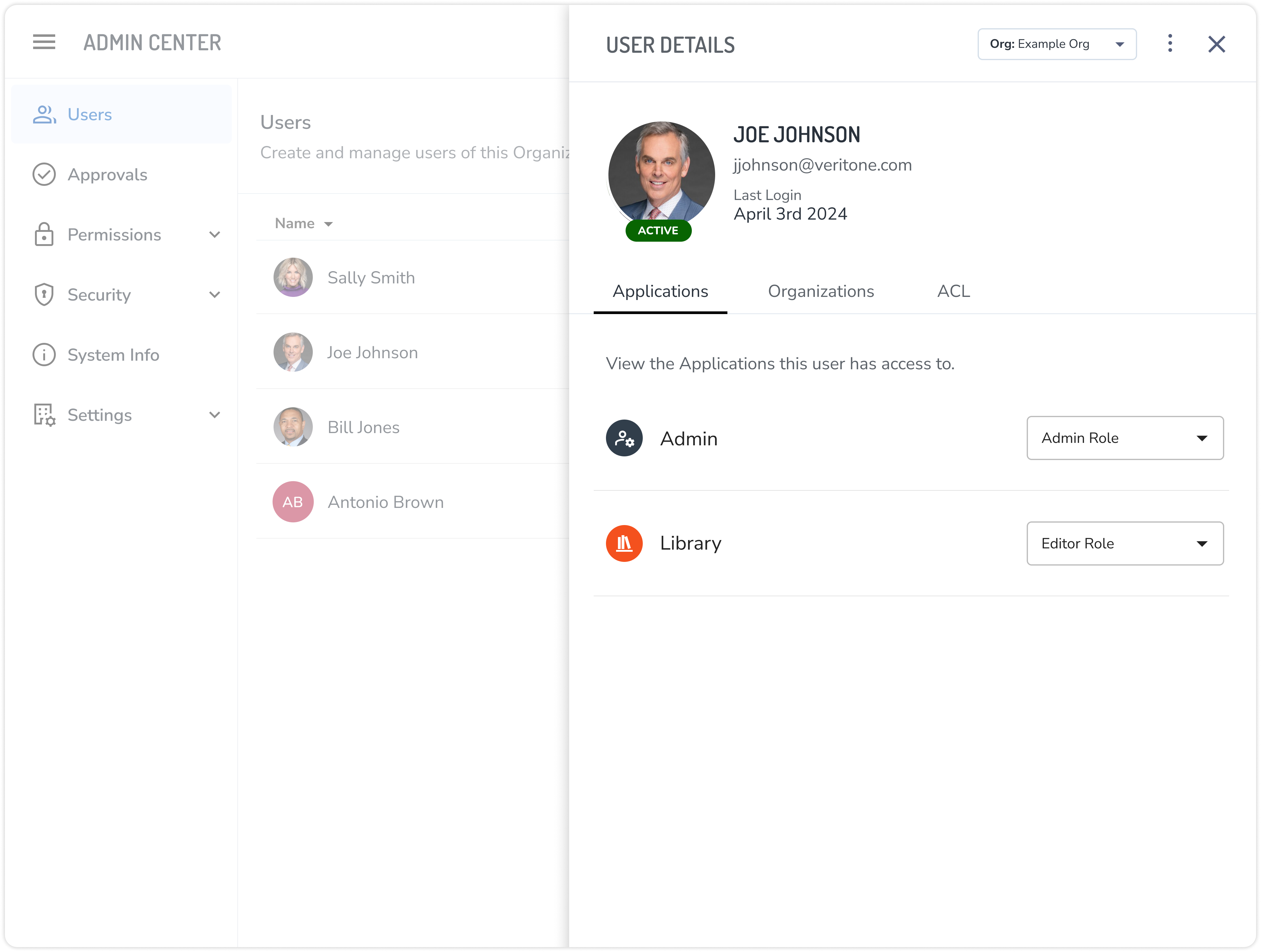
The user details contains all the relevant information on the user and can be accessed by selecting the desired user from the Users section list view.
The tabs available are:
-
Applications: Contains a list of all available applications in the organization and allows you to define the role the user has to a given application.
-
Organizations: Displays a list of all organizations the user is a part of for this environment.
-
ACL (Access Control List): Allows you to grant access to other organizations' data, by selecting the organization name.
Actions for users
Use the drop-down menu on the top of the user detail panel to select an action for this user.
-
Remove from Org: If the user is a part of multiple organizations, you can remove them from your organization. This will remove their access to any products or data inside this org, until they are invited again.
-
Deactivate: If the user is only a part of your organization, you will have the ability to deactivate their aiWARE account completely. Once deactivated, the user is no longer able to log into their account until it is reactivated.
-
Organization Selector: If the user is a part of multiple organizations, the organization selector dropdown can be used to change the user detail view and manage access to that specific organization's application.
- Impersonation: As an instance admin, you can impersonate any user in the environment. While impersonating a user, each action you take will be tracked under a unique event that states the impersonation is taking place.



