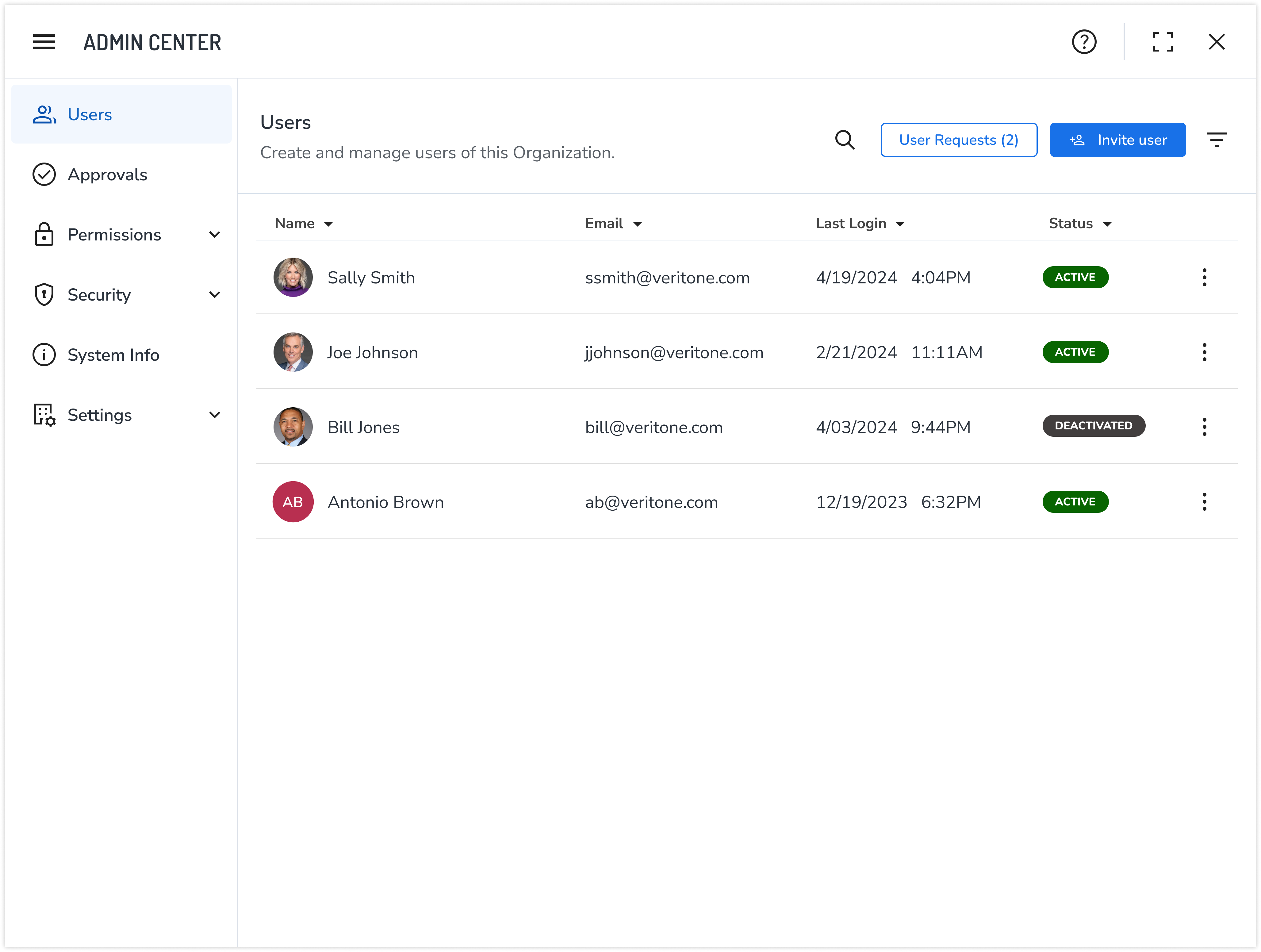
As an organization admin, you can view and manage all users within your organization through Admin Center. You can:
-
Manage user requests: Review and approve user requests into the organization. See Users and organizations.
-
Control organizational access and roles: Define and modify which applications and roles the user has access to.
-
Perform additional actions: Deactivate accounts or remove the user from the organization completely.
[Note]To manage all users with a superadmin account through Instance Admin Center, see
Manage All Users.
Access Admin Center
To access the Admin Center utility, log in to your aiWARE administrative account, and from the header bar, select  and then Admin Center
  .
.
Admin Center slides out as a panel.
Add application access to users
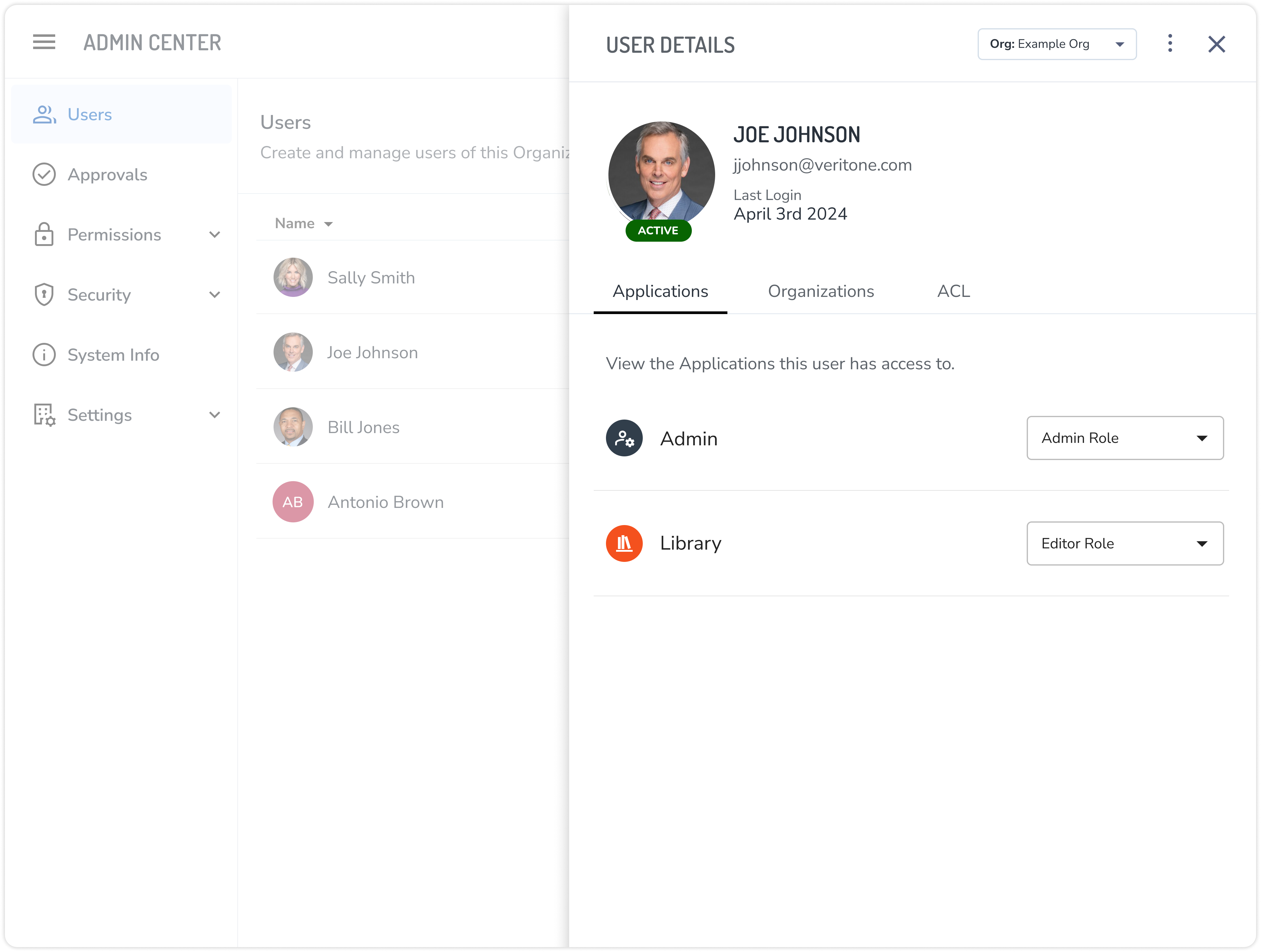
Click a user to see user details in three tabs: Applications, Organizations, and ACL.
-
Applications: a list of the applications this user has access to. Use the dropdown menu to define the role the user has to a given application.
-
Organizations - Instance Admin only: Displays a list of all organizations the user is a part of for this environment. See Manage All Users.
-
ACLs (Access Control List) - Instance Admin only: Allows you to grant access to other organizations' data, by selecting the organization name. See Manage All Orgs.
Other actions
At the top of the user detail panel you will see various actions that you can perform on this user.
-
Remove from Org: If the user is a part of multiple Organization, you can remove them from your Organization. This will remove their access to any products or data inside this org, until they are invited again.
-
Deactivate: If the user is only a part of your Organization, you will have the ability to deactivate their aiWARE account completely. Once doing so, the user will no longer be able to log into their account, until it is reactivated again.
-
Organization Selector (Instance Admin only): If the user is a part of multiple Organizations, the Organization selector dropdown can be used to change the User Detail view and manage access to that specific Organizations application.
Invite users to the organization
An aiWARE administrator can invite one or more existing aiWARE users to join an existing organization. Administrators must approve or deny the requests, and then the user must accept the invitation to join before being granted access to the organization's applications and data. The following applies:
- While most aiWARE users can request that another user be added to an organization they are part of, only an aiWARE administrator can approve or deny such requests.
- Users can be invited to many organizations at once. However, they can not be invited to the same organization multiple times.
- Invitations expire after 7 days, after which a user must ask an administrator to approve the request again.
To invite users:
- On the Admin Center's navigation, select Users. The list of users that belong to the organization appears.
- Click the Invite User button at the top of the Organizations panel to open the Invite User panel.
- Enter the email of the existing aiWARE user you would like to add to this organization and click Add. The user card is displayed on the panel.
- Click +Add Application on the user card to open the Add Application panel.
- Toggle on each application you would like to request for this user, and select a Role for the user for each application.
- Click Save. The Add Application Panel closes and the user card displays Access to # Applications.
- Optional: At the bottom of the Invite User Request panel add a message for this user.
- Click the Send Invitation button.
Manage user add requests
Only aiWARE administrators can approve or deny requests to add users to an organization.
- On the Admin Center's navigation, select Users. The list of users that belong to the organization appears.
- If there are pending requests that need managing, the User Requests button will display the number of requests that are in the Admin queue.
- Click the User Requests button to open the Invite Request panel.
- To approve or reject users, do one of the following:
- Approve or Reject each request by selecting the button on each individual card.
- Select the Approve All or Reject All button on the page.
- Click Confirm at the bottom of the panel. The panel closes, and your selections are saved.
View deleted users in an org
Deleted users are not shown by default in the user list. To see deleted users, in the user list click the  icon and click Show Deleted Users.



