View a list of all the resources available to your organization in Resource Center. See high-level data for each resource by type, then drill down into the details for individual resources to learn more about them, such as their features and versions, and where they've been granted. Each resource type presents a different set of details.
Access Resource Center
To access the Resource Center utility, log in to your aiWARE administrative account, and from the header bar, select  and then Resource Center
  .
.
Resource Center slides out as a panel.
Work with engines
You can view general information for any engine. If you are in the owning organization for the engine, you will also be able to see build and task status.
- To inspect an engine click on Resources in the left sidebar, then click on the detail card for the engine to open the Engine Details.
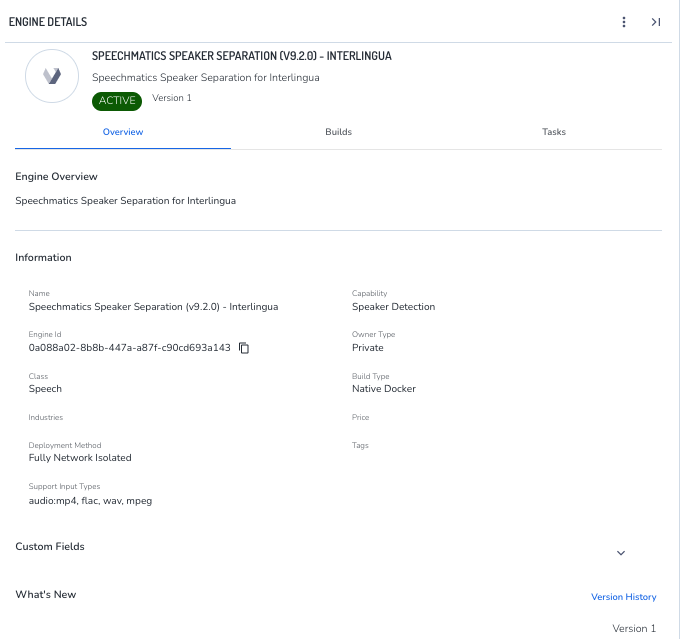
The Basic Info panel displays high-level information for the engine.
- The engine's capability is set by the engine's developer. For a description of each capability, see Cognitive engine capabilities.
- The engine's ID can be quickly copied using the
 icon.
icon. - The engine's class is set by the engine's developer. For a description of each engine class, see Classes of cognitive engines.
View engine build information
Users in the organization that owns the resource can click on the Builds tab to view additional details, pause or unpause the engine, or download a build report.
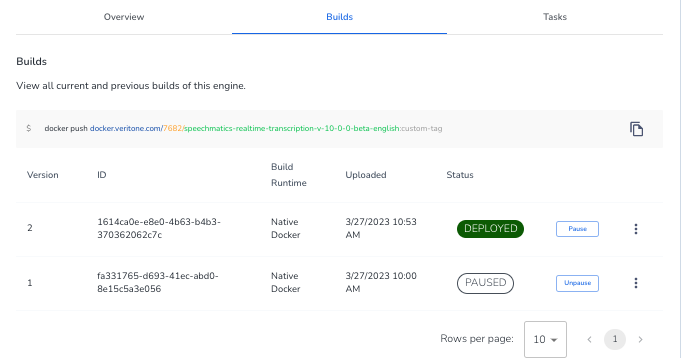
The Builds panel displays the following information:
- The Docker push command that will push a new build to Veritone's engines repository as part of the engine onboarding process. (quickly copy it using the icon).
- Version
- ID
- Build runtime
- Date and time the engine was uploaded
- Deployment status
The engine can be paused or unpaused. For more information about pausing or unpausing engines, see Pause an engine.
Download a build report
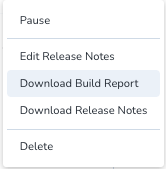
To see a build report for the engine, click the three dots to the right and select Download Build Report.
View current engine tasks
If the engine is currently running as part of a job, view a report on the job tasks by clicking on the Tasks tab.
Work with applications
You can view general information for an application.
- Click Resources > Applications. Then click on the detail card for the application to open the Application Details.
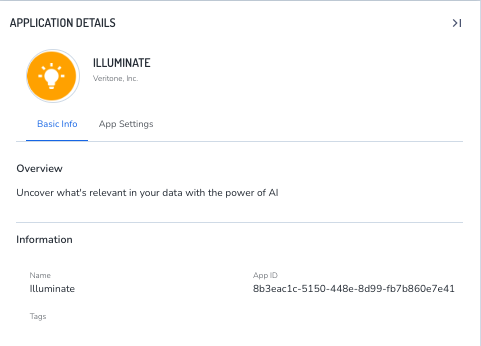
The Basic Info panel displays high-level information for the application.
View application settings
Displays custom application settings, if any were configured by the developer.
Work with schemas
You can view general information for any schema.
- Click Resources > Schemas. Then click on the detail card for the schema to open the Schema Details.
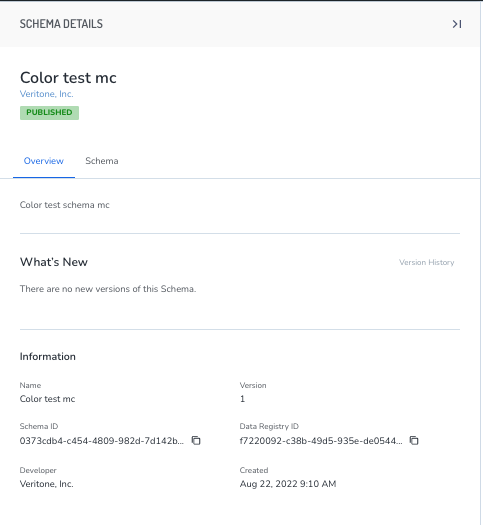
The Overview tab shows high-level information about the Schema.
- Quickly copy the schema ID or the data registry ID using the icon.
View a schema's JSON
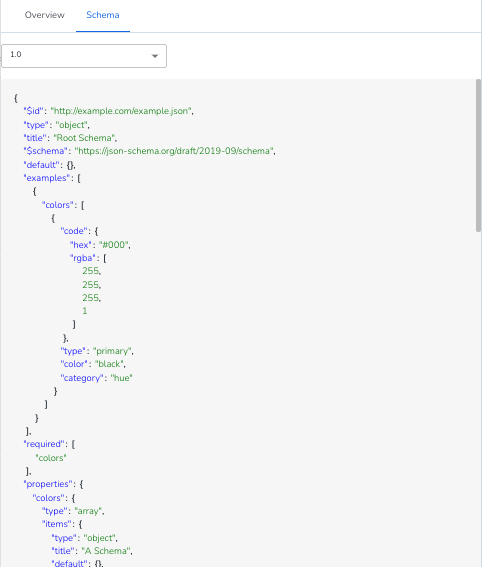
The Schema tab provides a view-only JSON schema viewer. If different versions are available, use the dropdown to view them.
Work with flows
A flow is a series of connected actions that work together to perform one or more tasks or processes in aiWARE. Flows are created in Automate Studio, aiWARE's low-code workflow designer that lets you develop and deploy flows that function as AI engines. Automate Studio is based on Node-RED, so it uses a similar drag-and-drop UI and shares many of the same features.
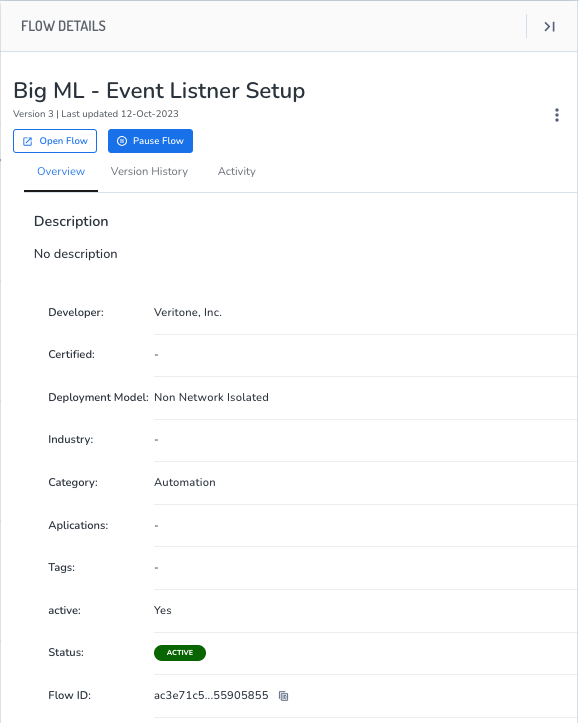
You can view general information for any flow. If you are in the owning organization for the flow, you will also be able to see version and execution status.
You can interact with flows in Resource Center in the following ways:
View flow details
- To inspect a flow, click on Resources in the left sidebar, then click on the detail card for the flow to open the Flow Details.
Open a flow in Automate Studio
Users in the organization that owns the resource can open a flow in Automate Studio:
Tip: Opening a flow in Automate Studio creates a new version of the flow each time, so for version management, this should be done sparingly.
- Click on the Open Flow button to launch the Automate Studio application and open the flow there.
Pause or resume a flow
Pausing a flow is useful if you want to edit or delete it without disrupting others by making the flow unavailable for use until it has been resumed. If the flow is actively running as part of a job, it can't be paused until the job is complete.
- In the Flow Details panel, select the Version History tab, then click Pause Flow (or Resume Flow if it was paused).
Work with a flow's version history
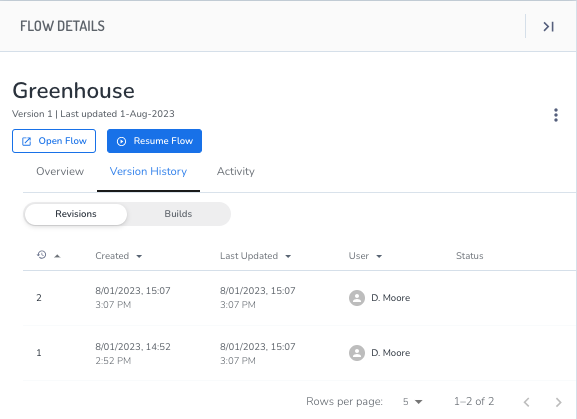
The Version History tab displays information on two types of flow entities:
-
Revisions - Each time a flow is opened in Automate Studio, it creates a flow revision. When distributed as part of a package, a flow revision is not editable by the users or organizations that are granted access to them, but each organization can enter their specific values for any field data in order to run the flow for their organization.
-
Builds - When a flow developer deploys a flow, it creates a build, which is essentially an AI engine.
You can interact with a flow's revision history in the following ways:
Restore a flow version
If the latest version of a flow is not working as intended, a previous flow revision can be restored as the latest version.
Steps
- In the Flow Details panel, select the Version History tab, then click Flow Revisions.
- Click the three dots to the right of a flow and select Restore this version.
The restored flow becomes the latest version, which means it will be used to run any new jobs.
Edit the description of a flow revision
Because a new flow revision is created every time a flow is opened in Automate Studio or restored, the number of flow revisions can grow long. You can edit the description of a particular flow revision to make it easier to identify each version's features.
Steps
- In the Flow Details panel, select the Version History tab, then click Flow Revisions.
- Click the three dots to the right of a flow and select Edit Description.
Open a flow as a new flow
You can create a new flow from an existing flow revision. This can be useful in cases where you don't want to create more revisions of a flow that already has many revisions, or if you want to ensure that any further work on a flow doesn't overwrite a working flow.
Steps
- In the Flow Details panel, select the Version History tab, then click Flow Revisions.
- Click the three dots to the right of a flow and select Open As New Flow.
Export a flow's JSON
You can export the flow as JSON, which is a common way of sharing flows. This allows you to:
- Add them to your local Node RED instance
- Copy or import to other flows
- Edit the JSON directly
Steps
- In the Flow Details panel, select the Version History tab, then click Flow Revisions.
- Click the three dots to the right of a flow and select Export.
The JSON is copied to your clipboard, and you can paste the content wherever you want.
Copy a flow's link
You can copy a flow's link, which can be used to load a flow in a container, or to recover a particular flow revision if you want to revert from the latest version. The link has two parts: the flow ID and the revision ID.

Steps
- In the Flow Details panel, select the Version History tab, then click Flow Revisions.
- Click the three dots to the right of a flow and select Copy Link.
The link is copied to your clipboard.
View a flow build in Veritone Developer
Advanced users and flow developers who have access to the Veritone Developer application can open the flow in Developer to further explore its setup as an engine.
Steps
- In the Flow Details panel, select the Version History tab, then click Builds.
- Click the three dots to the right of a build and select View in Developer App.
The build opens as an engine in the Veritone Developer application.
To learn more about working with Engines in Developer, see Edit an engine.
View current tasks
If the flow is currently running as part of a job, view a report on the job tasks by clicking on the Tasks tab.
Work with flow templates
Flow templates are solutions in the form of Automate Studio flows that have been designed with plug-and-play customization features that allow other organizations to take ownership of the resulting flow/engine.
You can interact with flow templates in the following ways:
View flow template details
- To inspect a flow template, click on Resources in the left sidebar, then click on the detail card for the flow to open the Template Details.
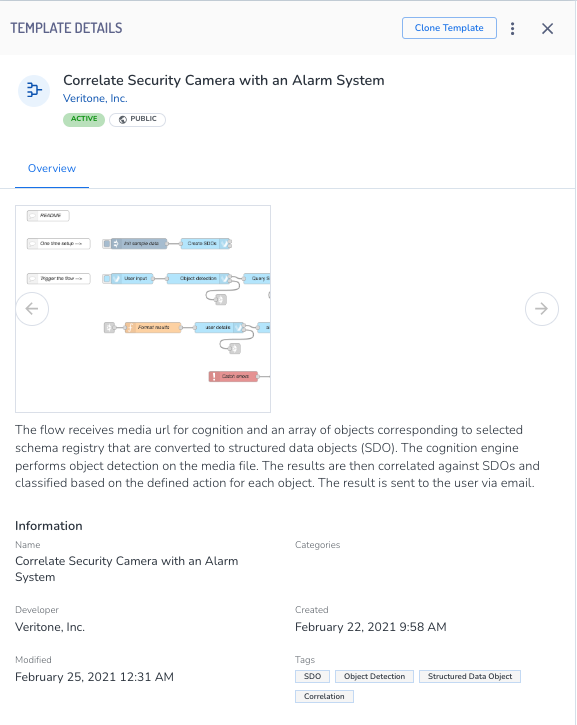
The Overview panel displays high-level information for the template.
Clone a flow template
When you clone a flow template, it opens as a new flow in Automate Studio. You can then edit and customize the flow to meet your organization's needs.
- In the Template Details panel, click Clone Template.
The Automate Studio application is opened in a new tab and the newly created flow opens for editing.
Delete a flow template
If you are in the owning organization for the flow template, you can delete the flow template.
- In the Template Details panel, select the three dot menu in the upper right, then click Delete Template, and click Delete again at the prompt.



