Use Data Center to process your imported data with the AI engines enabled in your account. These AI engines can extract valuable insights from your data based on their individual engine capabilities. When you process a file this way, it creates a single job on the selected file one time only. To learn how to create jobs that ingest and process data on a set schedule, see Create a scheduled job.
After processing, you can view the engine output through the Media Detail Player, a time-correlated visual interface that lets you follow along with the processed content as the media plays.
Before you begin
If you haven't already done so, you'll need to import one or more data files into your aiWARE account. See Import files for instructions.
Access Data Center
To open the Data Center utility, log in to your aiWARE account and click the utility logo  . Select the Data Center folder icon
  . The Data Center panel slides out.
Process a file
- Click My Files in the left navigation and find the file in the list of your organization’s files.
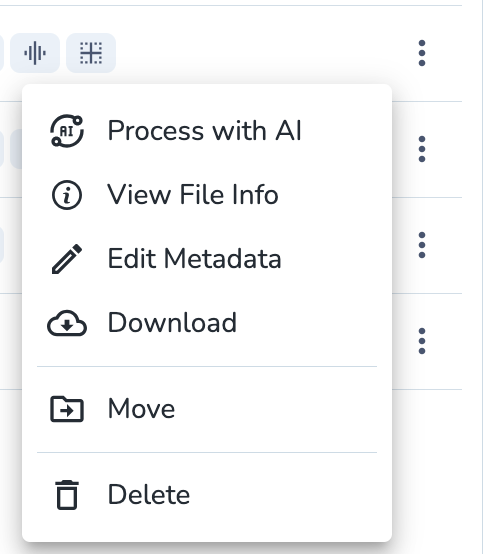
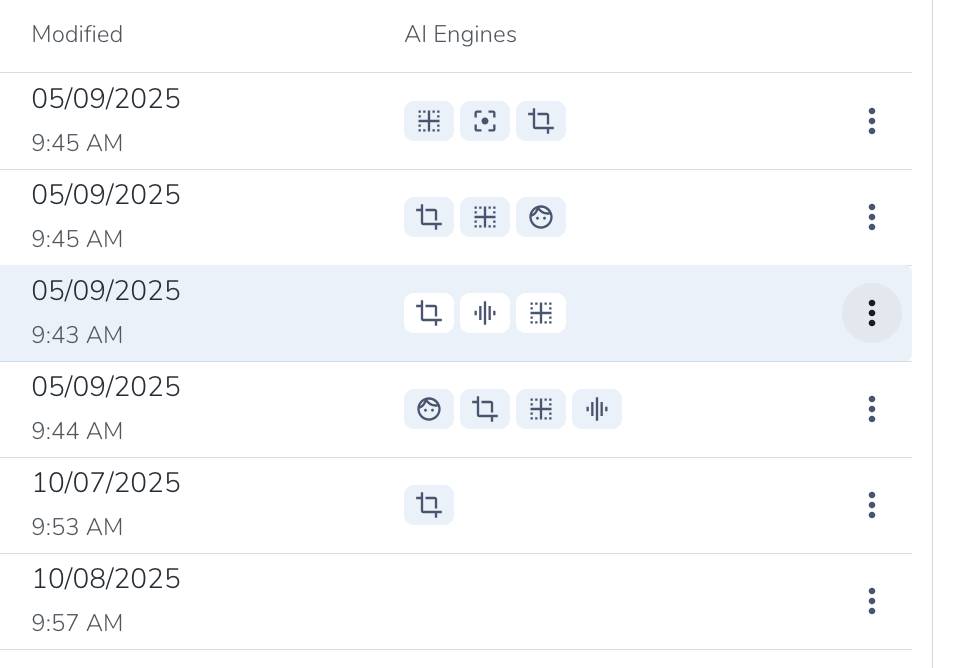
- Click on the three-dot more options menu to the right side of your file from the list of files
- Click the “Process with AI” menu item
- The AI Processing panel slides out
Choosing a Processing Engine
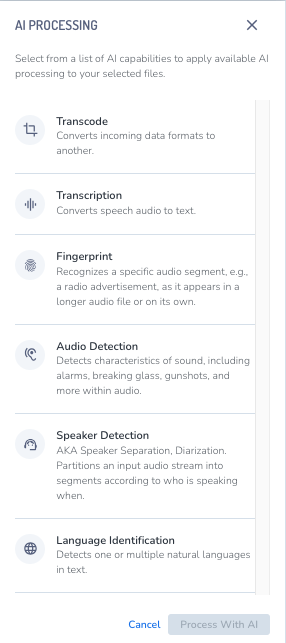
The AI Processing panel displays a list of AI capabilities that are relevant to your selected data. For example, some AI Engines can only process certain types of files, such as videos or images, so if you choose an audio file, you won't see capabilities that contain these types of engines. To view a full list of available capabilities, see Cognitive engine capabilities.
Steps
-
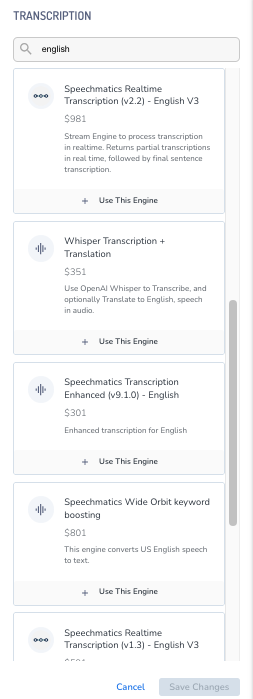
On the AI Processing panel, select an AI engine capability from the list. A new panel with available engines with that capability opens. The list of engines may be long for some capabilities like transcription, which may have numerous language engines. Use the search bar to narrow the list.
-
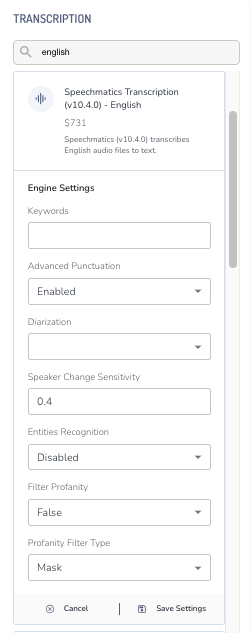
Click Use this engine on the engine of your choice. The Engine Settings open.
-
Enter the settings you want, and click Save Settings.
-
Click Save Changes at the bottom of the panel. The panel closes and a number indicator is displayed on the capability for the number of configured engines you have selected. You can select additional engines in other capabilities.
-
Click the Process with AI button at the bottom of the panel.
The processing job is put into the queue and the results will be ready within the Media Details section of the Data Detail panel when the job is complete.



