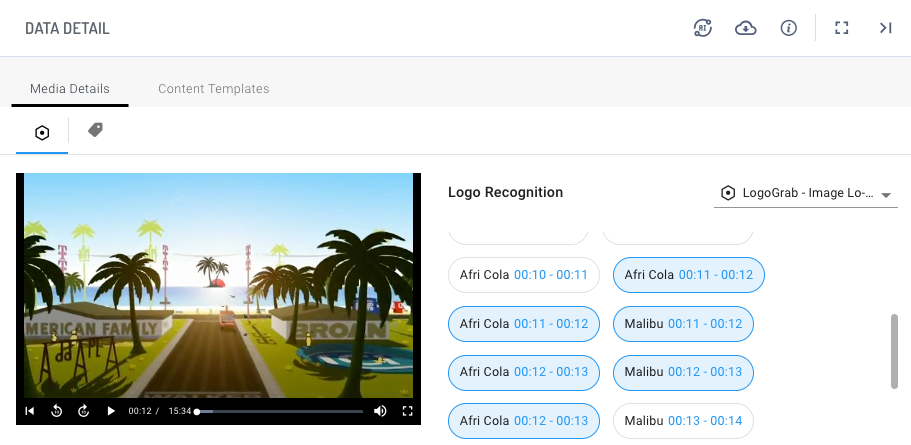
After you import data into your account by either importing files or creating a scheduled job, use Data Center's search functionality to quickly locate files and search for the data yielded by AI processing across these primary capabilities:
- Transcription
- OCR or Recognized Text
- Facial Recognition
- Logo Recognition
- Object Detection
- Tags
Search beyond filenames to find the AI-model-extracted insights in your data. Following are some use cases:
- Use a facial recognition engine to process a video or image, then search for people's names recognized within the files.
- Use a transcription engine to extract spoken words into transcripts, then search for any word that was spoken within an audio or video file.
- Use a logo recognition engine to process video files, then search on any brand name in the results.
Access Data Center
To open Data Center, click the utility icon  . Select the Data Center folder icon
  . The Data Center panel slides out.
Search for files and results
- Enter a search term in the search bar. The search bar will autocomplete suggestions based on the search query.
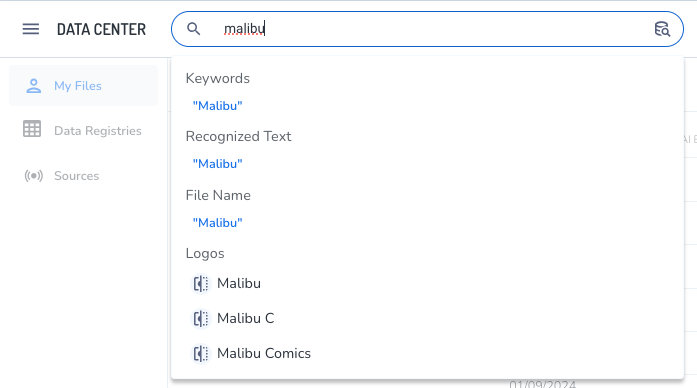
- Select an item in one of the resulting categories. The search results page opens with the list of matching results.
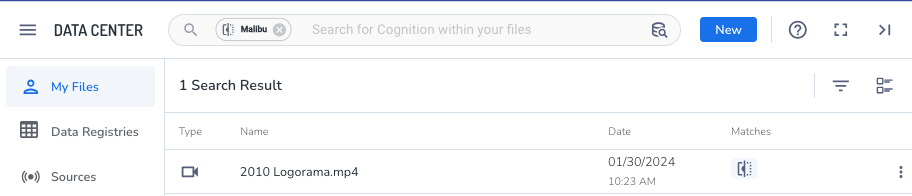
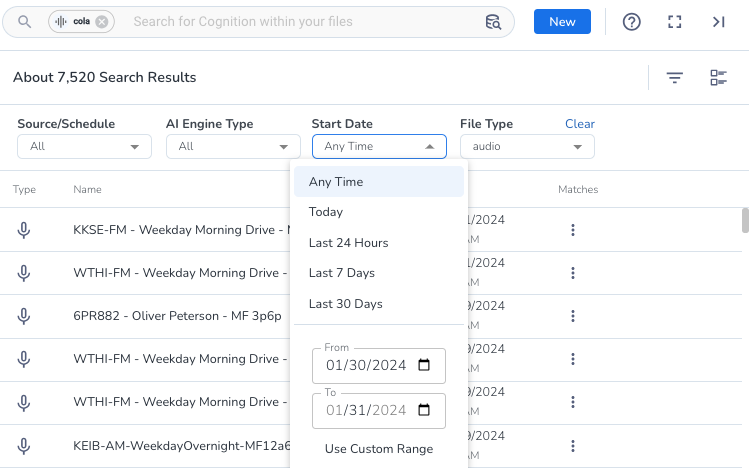
If the list of results is long, you can narrow the list by clicking the filter icon  and choosing to filter by one or more of the following:
-
- Source/Schedule - select a source and then choose a schedule for that source.
- AI Engine Type - select an engine (listed by capability).
- Start Date - select a start date or a date range.
- File Type - select from audio, video, image, text, or other.
- Double-click on a file name to open the Data Detail panel and inspect the results.