There are a number of steps to take to troubleshoot your GBQ connection.
1. Check the connection status.
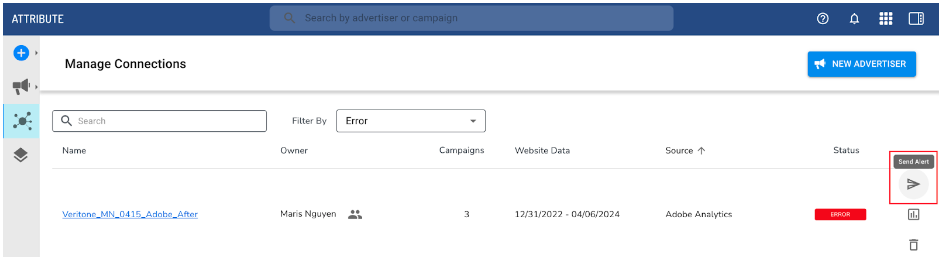
Your GBQ advertiser will have a connection status associated with its profile in Attribute, indicating its current state. A warning or error status will indicate there is an issue with the web connection, which may cause a disruption to attribution reporting.
-
Warning status: Advertiser has active campaign(s) in Attribute, but web data has stopped actively tracking within last 72 hours OR issues with project expiration/billing account within the last 72 hours
-
Error status: Advertiser has active campaign(s) in Attribute, but web data has stopped actively tracking in over 72 hours OR issues with project expiration/billing account for over 72 hours
You can also send an alert directly to your advertising partner from the Attribute application, notifying them of the issue and providing direct guidance.
2. Verify a GBQ billing account is enabled.
GBQ projects without an enabled billing account cannot set the project to have no expiration, which will cause it to expire after 60 days. This may also cause all historical data deletion within your GBQ environment. This means to maintain an active Attribute connection, as well as ensuring historical data is not deleted, the steps below must be taken.
Validate in the Advertiser Details of your GBQ advertiser the billing account is enabled. See Enable Billing Account for a walkthrough.
3. Set the GBQ project to "no expiration."
Once the steps have been completed to connect your GBQ project to Veritone Attribute, the project expiration status must be set to never.
By default, GBQ projects will expire after 60 days, causing all historical data deletion. This means to maintain an active Attribute connection, as well as ensuring historical data is not deleted, you must set the project expiration status to never. See Update project expiration to set this.
This can also be validated in the Advertiser Details view of your GBQ advertiser in the Attribute application.


