If you have an admin role, you can customize the Attribute experience for reports, advertiser experience, and more in the Settings area of Attribute. Non-admin roles do not have access to this area.
Admins are designated by the customer's main deal sponsor. If you have any questions about upgrading your role to receive Admin level permissions, contact your deal sponsor to facilitate.
To access, click the settings icon  on the lower left side of Attribute.
General tab
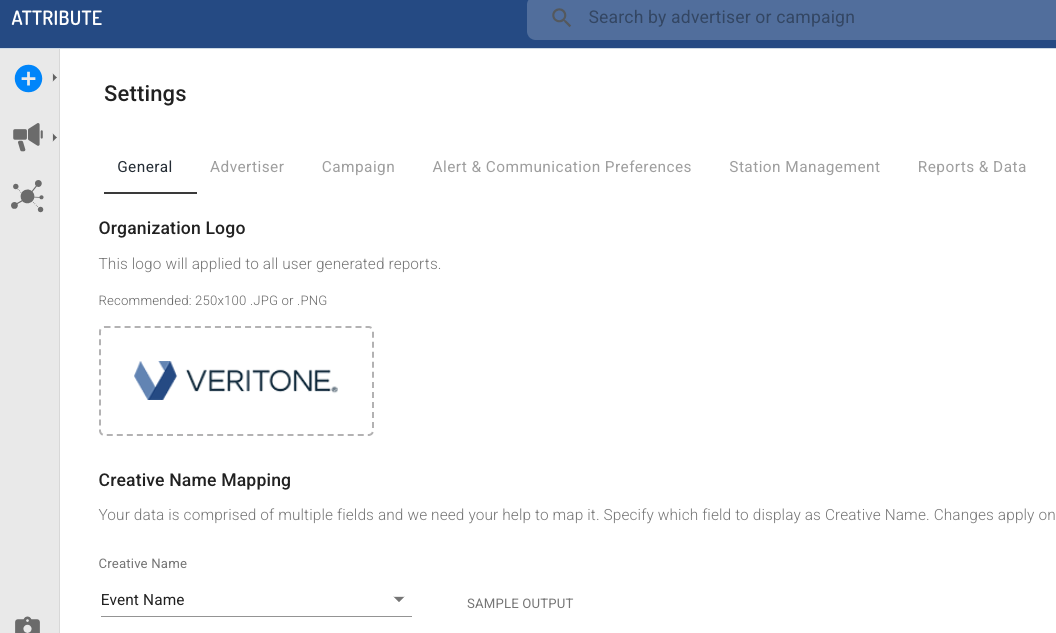
- Organizational logo: Set a custom logo for all user-generated reports (recommend dimensions 250 x 100 in .jpg or .png).
- Creative name mapping: Define data fields from your traffic logs (Advertiser Name, Event Name, Ad ID, etc., which are all options in the dropdown in the UI) that best align with what your organization relates to the spot "Creative," which typically refers to an "ISCI" or specific ad that is running on the broadcaster end. These data fields are used in the primary data view in the campaign dashboard that allows users to evaluate, compare, and optimize creative types to report back to their advertisers.
Advertiser tab
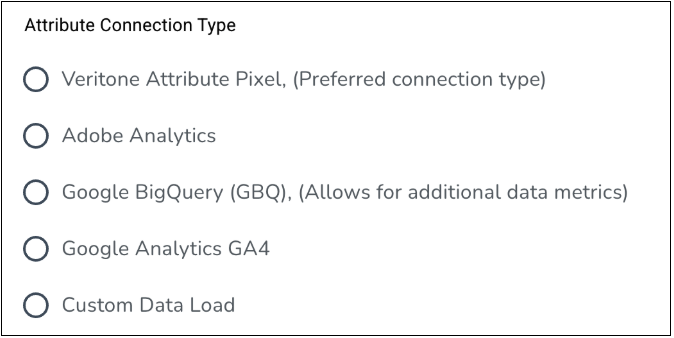
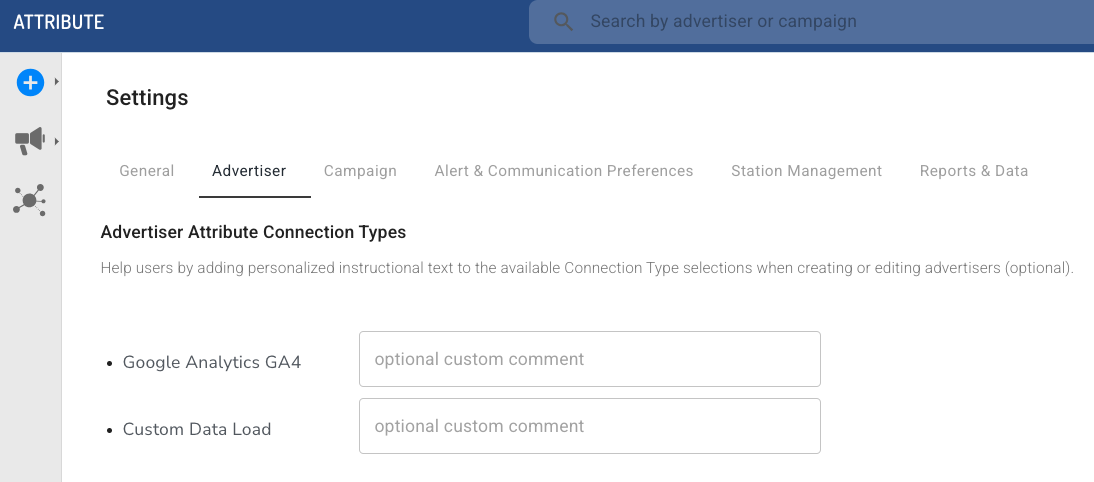
Create optional custom instructional text to display next to available Connection Type selections when creating or editing advertisers. Text appears next to the Connection Type selections after the name.
Campaign tab
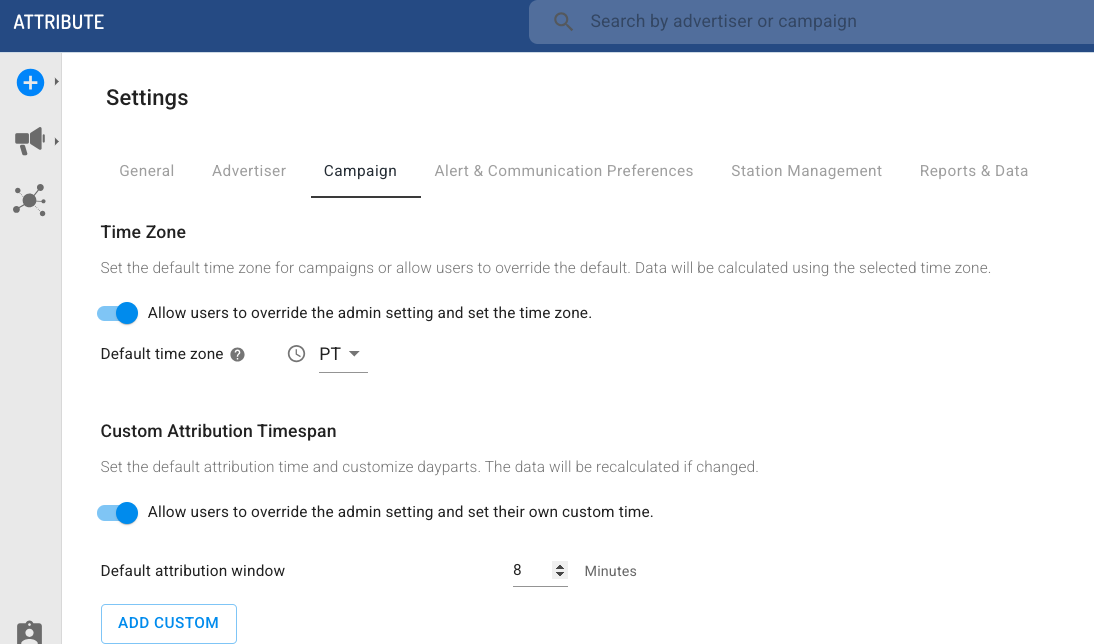
- Time Zone: Set a default timezone for campaigns, or allow users to override the default.
- Custom Attribution Timespan: Allow users to override the admin attribution timespan, and set a default attribution window. This is useful in instances where it may be valid to override the standard attribution window and allow for flexibility when the core media consumer base might not realistically take action within such a confined timeframe (e.g., morning drive times). This flexibility allows for broadcasters to better account for their audience nuances, but it's recommend to consult with your Customer Success Manager on best practices before applying timespans that deviate significantly from the industry standard (8-10 min).
- Traffic Channels: Select the category to make it available to the campaign. Traffic channels indicate how web traffic was classified. All categories are on by default; uncheck to take them off. Or toggle off to allow users to override these choices.
- Campaign Dashboard Data: Select from the below list of available analytics data which displays as tabs on your various advertiser campaign dashboards. Note that Location and Channels data availability is determined by web data source.
- Location Granularity: Set the maximum level of granularity for Campaign Location geo reports. Granularity is by city, country, or state/region.
- Campaign search instructions: Add optional text in addition to Attribute's standard search instructions to assist users with successful search inputs, such as organizational-specific examples or workflow elements.
Add to “locate pre recorded spots” or “track live mentions.”
Alert and communication preferences tab
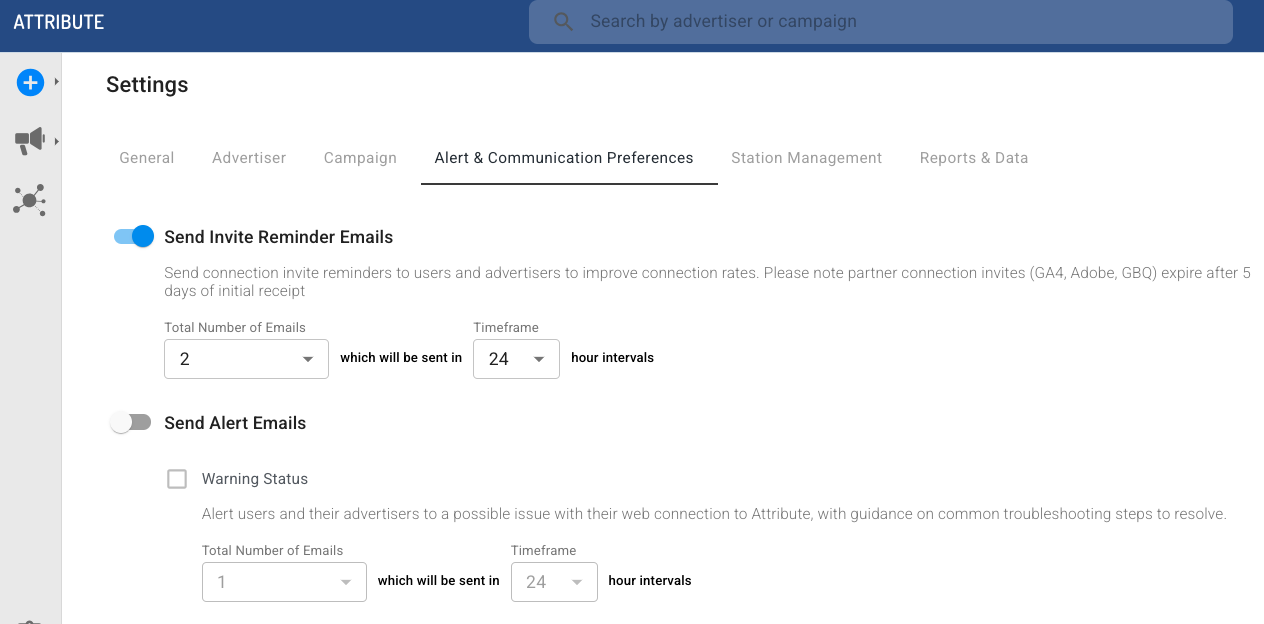
Toggle on or off different alert and email preferences for users.
- Send invite reminder emails: Set the email on or off that users and advertisers receive to remind them to connect. You can also set the number or emails and timeframe for how often they get those emails.
- Send alert emails: Customize which status alert emails should be sent to users and advertisers, and how often. The default is off for all.
- Send aggregated status update email: Set how often users receive advertiser reports.
- Advertiser Connection Invitation and Reminders: Add optional emails to cc when invitation and reminder emails are sent to the Advertiser and Advertiser Owner.
Station management tab
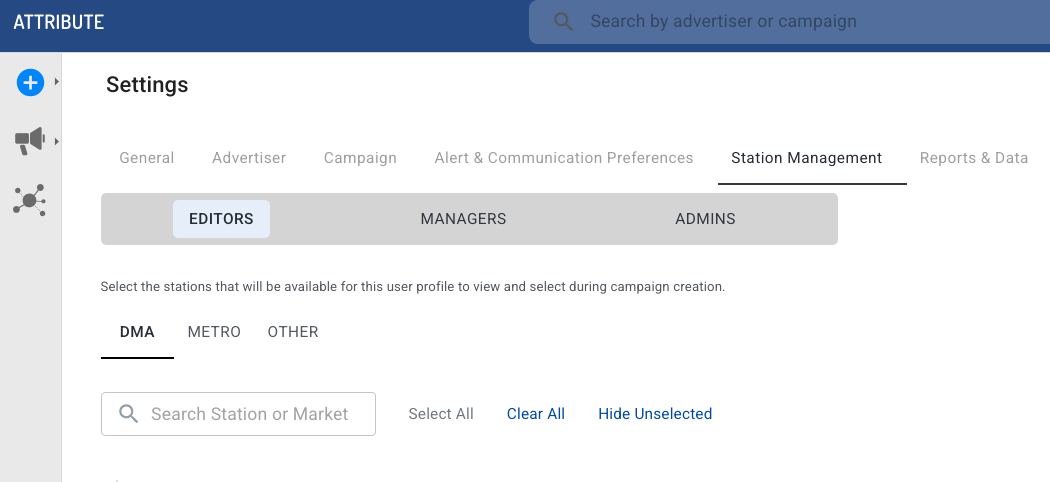
Select the stations that are available for this user profile to view and select during campaign creation. Set them for editors, managers, and admins using the different tabs. This allows you to define stations that have been provisioned for your organization to be available to various user types (Editors, Managers, or Admins) during campaign set up. This is valuable when the organization may have stations that only are valuable to a specific user type, or when a set of stations require a higher clearance level for accessibility.
Reports and data tab
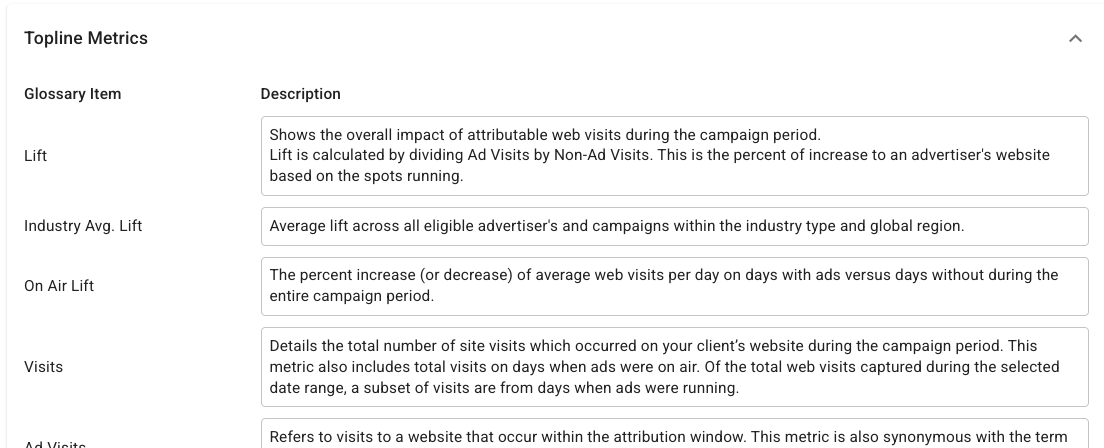
Your reports automatically include a glossary document. You can define specific terms as they pertain to your account, such as specific verbiage, unique examples, or preferred data definitions that helps your users (and advertisers) understand the data best. The settings here auto-generate a dynamic glossary that is available to include in your reports. Admins can adjust language here any time. Changes are effective immediately.
Access two drop down sections here: terms for topline metrics and terms for graphs and tables.